
1. Introduction
The LAUNCH Creader Elite 2.0 is a professional OBD2 diagnostic tool designed for BMW, Mercedes-Benz, and Audi group vehicles. It offers comprehensive system diagnostics, advanced reset services, bi-directional control (active tests), and ECU coding capabilities. This manual provides essential information for operating and maintaining your device.
2. Safety Information
- Always perform automotive testing in a well-ventilated area.
- Wear eye protection and safety gloves when working on vehicles.
- Keep the device dry and clean. Avoid exposure to extreme temperatures or humidity.
- Do not attempt to disassemble or modify the device. Refer to qualified personnel for repairs.
- Ensure the vehicle's ignition is off before connecting or disconnecting the diagnostic tool.
3. Device Overview
The LAUNCH Creader Elite 2.0 features a 4-inch Android 8.0 touchscreen display, providing an intuitive interface for diagnostics. It is equipped with a 3000 mAh battery and 2x16GB memory for efficient operation and data storage.

Image: Front view of the LAUNCH Creader Elite 2.0 diagnostic tool, showing its touchscreen interface and control buttons.
4. Setup and Initial Configuration
- Power On: Press and hold the power button to turn on the device.
- Language Selection: Follow the on-screen prompts to select your preferred language. The device supports 10 languages.
- Wi-Fi Connection: Navigate to 'Settings' and connect to a stable Wi-Fi network. This is crucial for software updates and online features.
- Software Update: After connecting to Wi-Fi, check for available updates in the 'Upgrade' section. Perform a one-click update to ensure you have the latest software and vehicle coverage.
5. Operating Instructions
5.1. Connecting to the Vehicle
- Locate the vehicle's OBD2 port (usually under the dashboard).
- Connect the diagnostic cable from the Creader Elite 2.0 to the vehicle's OBD2 port.
- Turn the vehicle's ignition to the 'ON' position (engine off).
- The device will automatically power on or prompt you to select 'Diagnose'.
5.2. Full System Diagnostics
This function allows you to scan all available electronic control systems in the vehicle, including Engine (ENG), Anti-lock Braking System (ABS), Supplemental Restraint System (SRS), Transmission, Tire Pressure Monitoring System (TPMS), Electronic Parking Brake (EPB), Battery Management System (BMS), and Fuel systems. The device supports Auto VIN for quick vehicle identification.

Image: Diagram illustrating the comprehensive system diagnostic capabilities, showing various vehicle systems like engine, ABS, SRS, and TPMS, and the device performing a scan.
5.3. OBDII Functions
The device provides standard OBDII functions for all OBDII/EOBD compliant vehicles (1994-2000 for EOBD/OBDII global vehicles, 1996-2025 for BBA group vehicles). These include:
- Read/Clear Diagnostic Trouble Codes (DTCs)
- View Live Data Stream (text and graph format)
- Retrieve Freeze Frame Data
- I/M Readiness Status
- O2 Sensor Test
- On-Board Monitor Test
- Component Test
- Vehicle Information Retrieval (VIN, CIN, CVN)
5.4. Special Functions (Reset Services)
The Creader Elite 2.0 offers over 100 reset functions specifically for Benz, BMW, and Audi group vehicles. These services assist in maintenance and repair tasks.

Image: A collage of icons representing various reset functions such as Oil Reset, ABS Bleeding, DPF Regeneration, Injector Coding, and TPMS Reset, available on the diagnostic tool.
Examples of supported reset functions include:
- Oil Reset
- ABS Bleeding
- Throttle Calibration
- EPB Reset
- DPF Regeneration
- Injector Coding
- SAS Calibration
- BMS Reset
- TPMS Reset
- AdBlue Reset
- Gearbox Reset
- Sunroof Reset
- Seat Calibration
Note: Specific reset functions may vary by vehicle model and year.
5.5. Bi-directional Control (Active Test)
This feature allows the diagnostic tool to send commands to vehicle components and modules to test their functionality directly, without using the vehicle's controls. This helps in quickly pinpointing faulty parts.
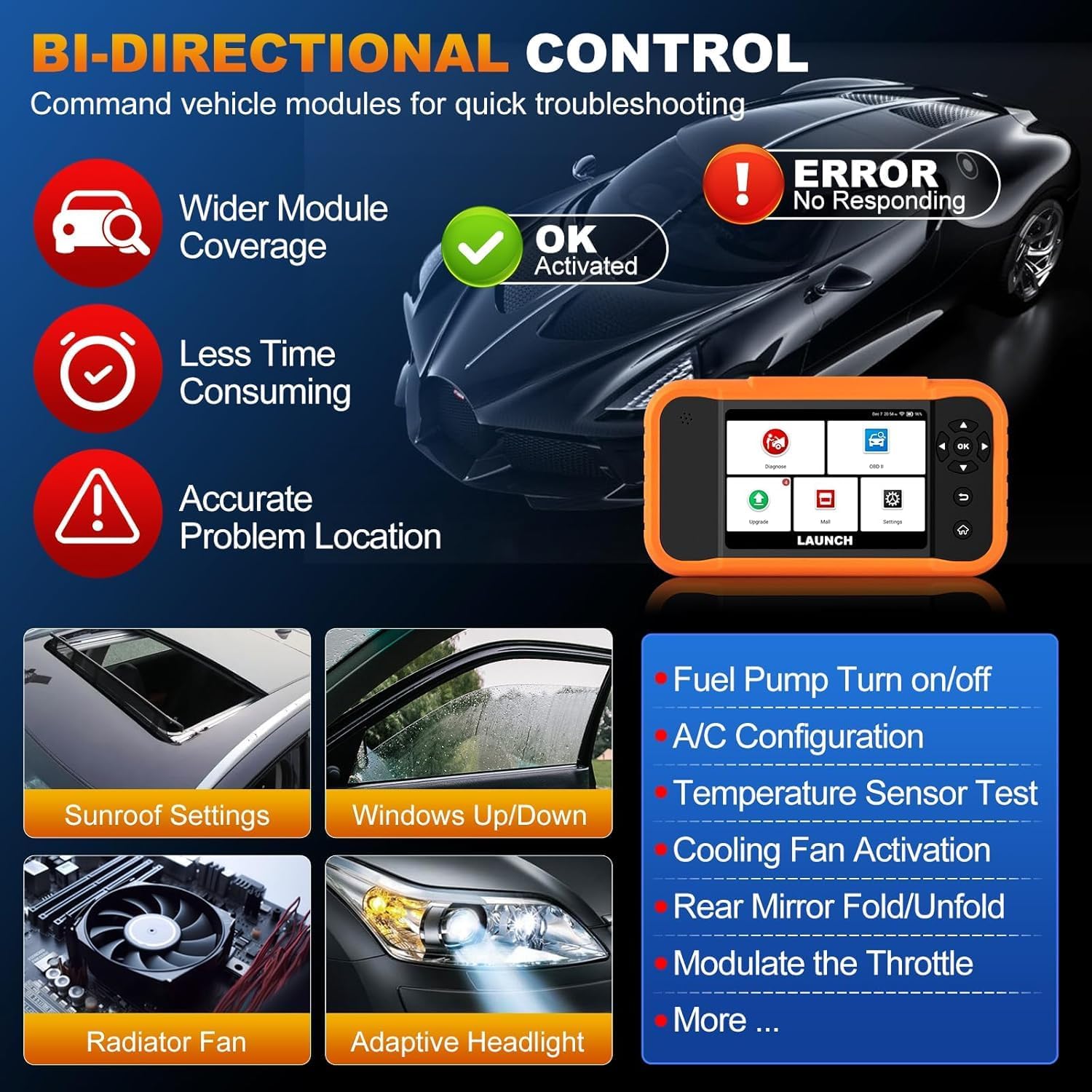
Image: Illustration of bi-directional control, showing the diagnostic tool sending commands to a car to test components like fuel pump, A/C, windows, and radiator fan, indicating successful activation or errors.
Examples of active tests include:
- Fuel Pump Turn on/off
- A/C Configuration
- Temperature Sensor Test
- Cooling Fan Activation
- Windows Up/Down
- Sunroof Settings
5.6. ECU Coding
ECU Coding allows for customization of vehicle settings, re-flashing hidden functions, restoring data, and opening/closing comfort functions. It also supports adaptive data for replacement and complex ECU issue repair.
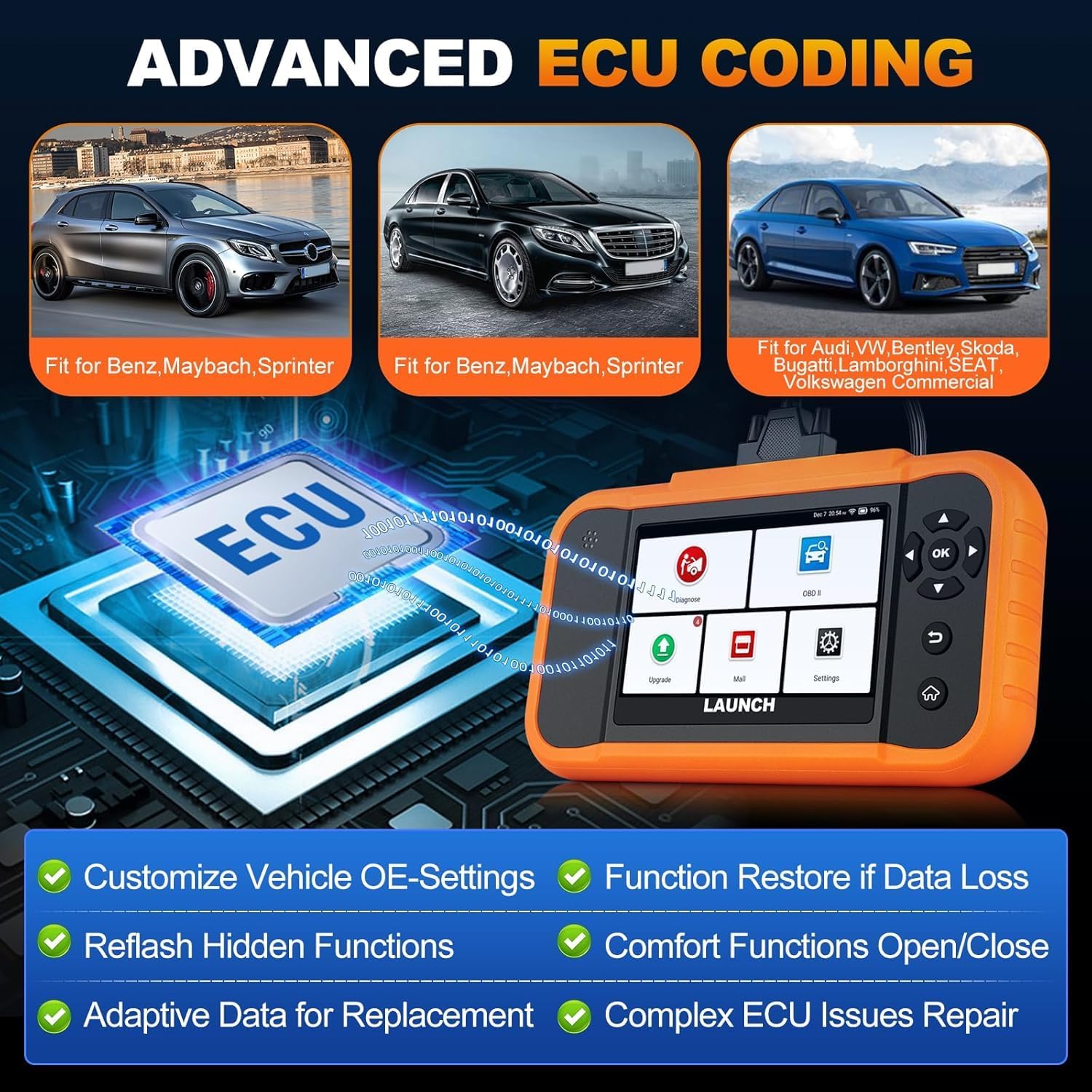
Image: A visual representation of ECU coding, showing a circuit board with 'ECU' text and the diagnostic tool, highlighting features like customizing OE-settings, re-flashing hidden functions, and restoring data.
5.7. Data Management and Reporting
The device facilitates efficient data handling:
- Auto VIN Scan: Automatically identifies vehicle information for quick diagnostics.
- DTC Lookup: Provides definitions for diagnostic trouble codes.
- 4-in-1 Live Data Stream: Displays multiple data parameters simultaneously for detailed analysis.
- Battery Registration: Supports battery registration functions.
- Diagnostic Report: Generates comprehensive health reports that can be shared or printed.
- Diagnostic History/Feedback: Stores diagnostic records and allows users to submit feedback to LAUNCH.

Image: A grid displaying various features of the diagnostic tool, including Auto VIN Scan, DTC Lookup, 4-in-1 Live Data Stream, Battery Registration, Online Diagnostic Feedback, and Diagnostic Report sharing.
6. Maintenance
- Cleaning: Use a soft, damp cloth to clean the device. Avoid abrasive cleaners or solvents.
- Storage: Store the device in a dry, cool place, away from direct sunlight and extreme temperatures.
- Battery Care: For optimal battery life, avoid fully discharging the battery frequently. Charge the device regularly.
7. Troubleshooting
- Device not powering on: Ensure the battery is charged or connect the device to the vehicle's OBD2 port for power.
- Connection issues with vehicle: Verify the OBD2 cable is securely connected to both the device and the vehicle. Ensure the vehicle's ignition is on.
- Software update problems: Check your Wi-Fi connection. If issues persist, try restarting the device and attempting the update again.
- Inaccurate readings or functions not working: Ensure the software is up to date. Verify the vehicle model and year are correctly selected.
8. Specifications
| Feature | Specification |
|---|---|
| Model | YZB23-1 |
| Item Weight | 900 g |
| Package Dimensions | 25 x 18 x 8 cm |
| Battery | 1 AAA (included), 3000 mAh capacity |
| Memory | 2 x 16 GB |
| Operating System | Android 8.0 |
| Screen | 4-inch Touchscreen |
| Languages | 10 languages supported |
| Connectivity | Wi-Fi |
9. Warranty and Support
This product comes with a manufacturer's warranty. For warranty details, technical support, or any operational questions, please refer to the official LAUNCH website or contact your authorized dealer. Ensure you have your product model number (YZB23-1) and purchase information ready when seeking support.