
1. Introduction
Welcome to the user manual for your new AcclaFit Smart Watch D2. This guide provides essential information on how to set up, operate, maintain, and troubleshoot your device. Please read this manual thoroughly to ensure optimal performance and longevity of your smart watch.
2. Product Overview
The AcclaFit Smart Watch D2 is designed to be a comprehensive health and fitness companion, offering advanced monitoring capabilities and smart connectivity. Familiarize yourself with the watch components:

Image: Front view of the AcclaFit Smart Watch D2, showcasing its round gold-colored casing, black silicone strap, and a vibrant display with a floral watch face.
- Display: 1.38-inch full-touch color screen.
- Buttons: Side button for power and navigation.
- Sensors: Heart rate, blood oxygen, blood pressure sensors on the back.
- Strap: Flexible and comfortable silicone strap.
- Charging Port: Magnetic charging pins on the back.
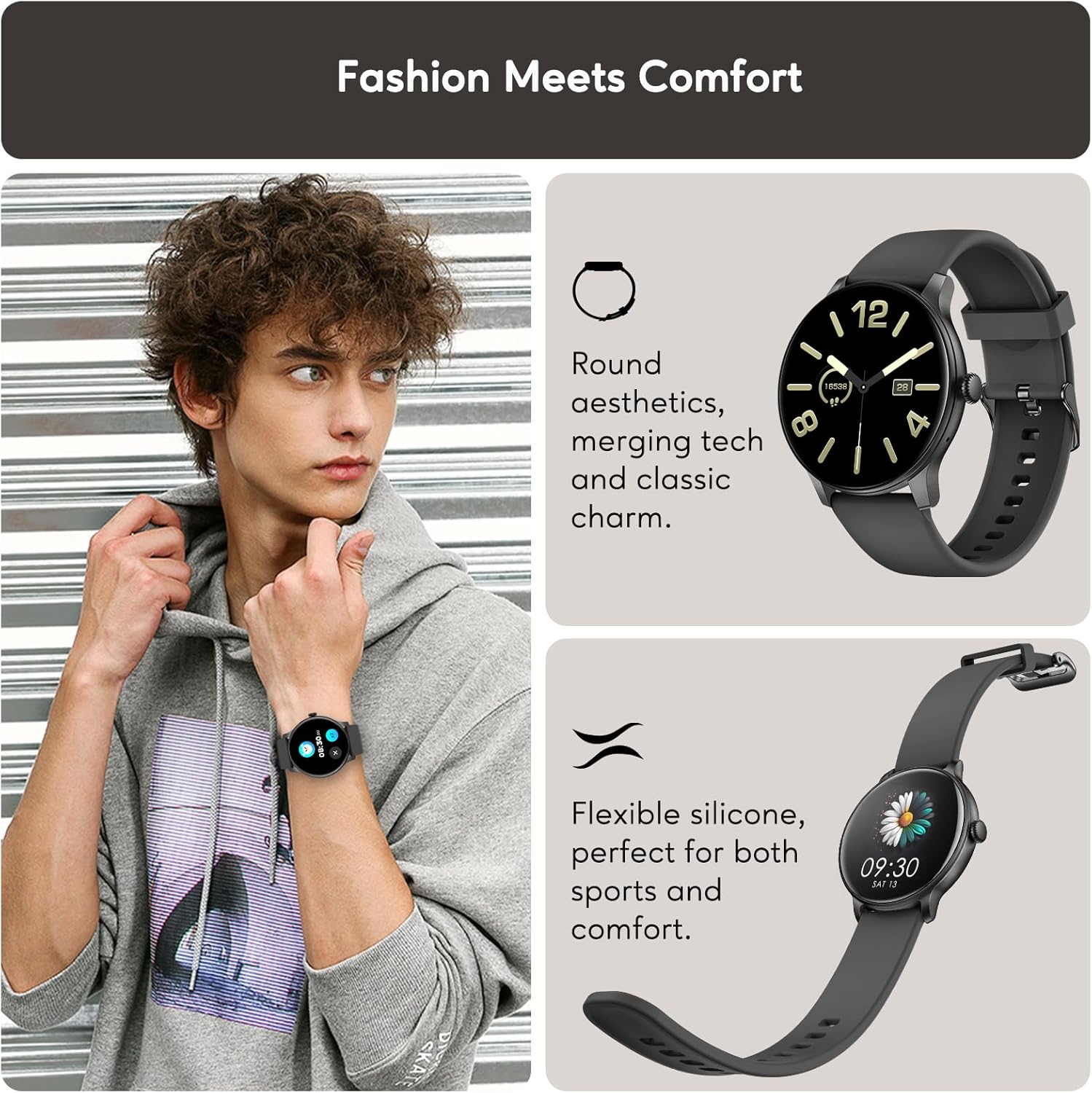
Image: A collage showing the AcclaFit Smart Watch D2 on a person's wrist and close-ups of its round aesthetic and flexible silicone strap, highlighting its blend of technology and classic design for comfort and sports.
3. Setup
3.1 Charging the Watch
Before first use, fully charge your AcclaFit Smart Watch D2. A charging cable is included in the box.
- Connect the magnetic end of the charging cable to the charging pins on the back of the watch.
- Connect the USB end of the cable to a standard USB power adapter (5V/1A recommended) or a computer USB port.
- The watch display will show a charging indicator. A full charge typically takes approximately 2 hours.
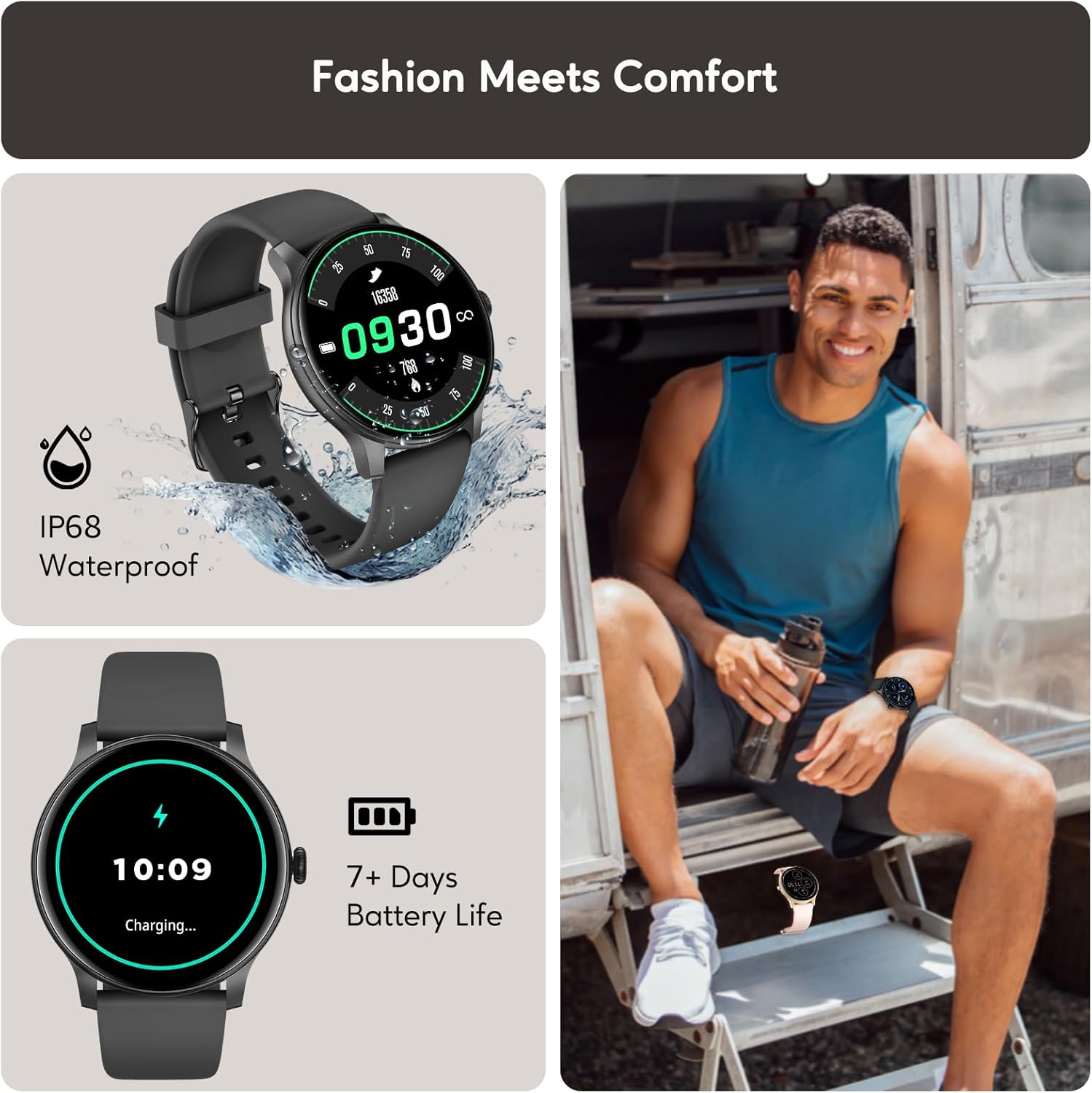
Image: A collage illustrating the AcclaFit Smart Watch D2's IP68 waterproof rating and its charging process, indicating a battery life of 7+ days.
3.2 Pairing with the Da Fit App
The AcclaFit Smart Watch D2 integrates with the Da Fit app for full functionality and data tracking. The watch is compatible with both Android and iOS devices.
- Download the Da Fit app from the Google Play Store (for Android) or the Apple App Store (for iOS).
- Ensure Bluetooth is enabled on your smartphone.
- Open the Da Fit app and follow the on-screen instructions to create an account or log in.
- In the app, navigate to the 'Device' section and tap 'Add Device'.
- Select 'D2' from the list of available devices.
- Confirm the pairing request on both your smartphone and the watch.

Image: A collage highlighting additional features of the AcclaFit Smart Watch D2, including music playback and weather forecast, and confirming its compatibility with both iOS and Android operating systems.
4. Operating the Watch
4.1 Basic Navigation
- Touchscreen: Swipe left/right to navigate through main functions (e.g., activity, heart rate, weather). Swipe up to view notifications. Swipe down to access quick settings.
- Side Button: Press to wake the screen, return to the home screen, or access the app menu.
4.2 Call and Message Notifications
Once paired with your smartphone, the D2 Smart Watch allows you to make and receive calls directly from your wrist and receive instant notifications for messages.

Image: A person wearing the AcclaFit Smart Watch D2, demonstrating its Bluetooth dial and answer call capabilities with text bubbles showing a conversation.
4.3 Additional Features
- Music Playback: Control music playing on your smartphone directly from the watch.
- Weather Forecast: View real-time weather updates for your location.
- Alarm Clock: Set alarms directly on the watch or through the app.
5. Health Monitoring
The AcclaFit Smart Watch D2 provides comprehensive health monitoring features to help you stay informed about your well-being.
5.1 Heart Rate, Blood Oxygen, and Blood Pressure
The watch offers 24/7 real-time monitoring of your heart rate, blood oxygen (SpO2), and blood pressure. Data can be viewed on the watch and in detail within the Da Fit app.

Image: A collage illustrating the AcclaFit Smart Watch D2's fitness and health monitoring capabilities, including heart rate, blood oxygen, and blood pressure tracking, alongside calorie, step, and distance tracking.
5.2 Sleep Monitoring
Track your sleep patterns, including light sleep, deep sleep, and REM sleep. The watch provides insights to help improve your sleep quality.

Image: A collage demonstrating the AcclaFit Smart Watch D2's sleep tracking features, including sleep duration, sleep score, smart wake alarms, and a detailed sleep profile viewable in the app.
5.3 Stress Monitoring
The watch helps you manage stress levels by providing insights and tools for stress management. View your stress score and trends in the Da Fit app.
5.4 Women's Health Tracking
Utilize the female menstrual cycle tracking feature to monitor estimated periods, ovulation, and fertile times.
6. Fitness Tracking
The AcclaFit Smart Watch D2 supports over 120 sports modes, providing detailed data to help you optimize your workouts.
6.1 Sports Modes
Each sport mode tracks key data points relevant to the activity, such as:
- Running: Distance, pace, calories, heart rate.
- Cycling: Speed, distance, duration, heart rate.
- Walking: Step count, distance, calories, heart rate.
- Yoga: Exercise duration, calories, heart rate.
Access and select your desired sport mode directly from the watch's menu.
7. Maintenance
Proper maintenance ensures the longevity and optimal performance of your AcclaFit Smart Watch D2.
7.1 Cleaning the Watch
- Regularly clean the watch screen and strap with a soft, damp cloth.
- Avoid using harsh chemicals or abrasive materials, as they may damage the watch.
- Ensure the charging pins are clean and dry before charging.
7.2 Water Resistance (IP68)
The AcclaFit Smart Watch D2 is IP68 waterproof, meaning it is resistant to dust and can withstand immersion in water up to 1.5 meters for 30 minutes. It is suitable for daily use, hand washing, and light rain. It is not recommended for swimming, diving, or hot showers/saunas, as steam and hot water can damage the seals.
7.3 Battery Care
- Charge the watch regularly to maintain battery health.
- Avoid completely draining the battery frequently.
- Store the watch in a cool, dry place when not in use for extended periods.
8. Troubleshooting
If you encounter issues with your AcclaFit Smart Watch D2, refer to the following common solutions:
| Problem | Possible Solution |
|---|---|
| Watch does not turn on | Ensure the watch is fully charged. Press and hold the side button for 5-10 seconds. |
| Cannot pair with smartphone | Ensure Bluetooth is on. Restart both the watch and smartphone. Clear Bluetooth cache on phone. Try pairing again through the Da Fit app. |
| Inaccurate health data | Ensure the watch is worn snugly on the wrist, not too tight or too loose. Clean the sensors on the back of the watch. |
| Notifications not received | Check app permissions for Da Fit on your smartphone. Ensure notifications are enabled in the Da Fit app settings. Keep the watch within Bluetooth range of your phone. |
| Short battery life | Reduce screen brightness. Turn off unnecessary features like continuous heart rate monitoring if not needed. Ensure proper charging. |
8.1 Factory Reset
If issues persist, a factory reset may resolve them. This will erase all data on the watch and restore it to its original settings. Navigate to 'Settings' on the watch, then 'System' or 'Reset', and select 'Factory Reset'.
9. Specifications
| Feature | Detail |
|---|---|
| Model Number | D2 |
| Screen Size | 1.38 Inches |
| Operating System | Wear OS 3.0 |
| Connectivity Technology | Bluetooth |
| Memory Storage Capacity | 128 MB |
| Special Features | Multisport Tracker, Alarm Clock, Phone Call, Notifications, Music Player |
| Water Resistance | IP68 |
| Battery Life | Up to 15 days (typical usage) |
| Compatible Devices | Android, iOS |
| Package Dimensions | 28.7 x 7.3 x 1.6 cm; 100 g |
| Languages Supported | English, German, Italian, Spanish, French |
10. Warranty and Support
10.1 Warranty Information
Your AcclaFit Smart Watch D2 comes with a standard manufacturer's warranty. Please refer to the warranty card included in your product packaging for specific terms and conditions, including warranty period and coverage details.
10.2 Customer Support
For technical assistance, troubleshooting beyond this manual, or warranty claims, please contact AcclaFit customer support. Contact information can typically be found on the official AcclaFit website or on the product packaging.


