
Rii Bluetooth-X9
Rii Bluetooth Keyboard Bluetooth-X9 User Manual
Model: Bluetooth-X9 | Brand: Rii
1. Introduction
Thank you for choosing the Rii Bluetooth-X9 Wireless Keyboard. This portable mini keyboard features Bluetooth 5.0 connectivity, an aluminum alloy case, and RGB backlighting, making it ideal for various devices and environments. Its slim and lightweight design ensures portability, while silent keys provide a comfortable typing experience without disturbing others.
This manual provides detailed instructions on setting up, operating, maintaining, and troubleshooting your Rii Bluetooth-X9 keyboard to ensure optimal performance and longevity.

Image 1.1: Top-down view of the Rii Bluetooth-X9 keyboard, showcasing its compact layout and dark grey keys.
2. Setup and Connection
2.1 Charging the Keyboard
Before first use, ensure the keyboard is fully charged. The Rii Bluetooth-X9 features a built-in 450mAh rechargeable battery.
- Locate the USB-C charging port on the keyboard.
- Connect the provided USB cable to the keyboard and a power source (e.g., computer USB port, USB wall adapter).
- The charging indicator light will illuminate. Once fully charged, the light may change color or turn off, depending on the model.
A full charge can last approximately 22 days with 8 hours of daily use, and standby time can extend up to 2 years.

Image 2.1: The Rii Bluetooth-X9 keyboard connected to a power source via its USB-C port for charging.
2.2 Bluetooth Pairing
The keyboard supports Bluetooth 5.0 and is compatible with iOS, Android, Mac, and Windows operating systems.
- Turn on the keyboard using the power switch, usually located on the side or back.
- Press and hold the Fn + C keys simultaneously for a few seconds until the Bluetooth indicator light starts blinking. This puts the keyboard into pairing mode.
- On your device (iPad, iPhone, Tablet, PC, Laptop, etc.), go to Bluetooth settings.
- Search for available devices. You should see "Rii Bluetooth-X9" or a similar name appear in the list.
- Select the keyboard from the list to connect. Your device may prompt you to enter a code displayed on the screen using the Rii keyboard, then press Enter.
- Once connected, the Bluetooth indicator light on the keyboard will stop blinking and remain solid or turn off.

Image 2.2: The Rii Bluetooth-X9 keyboard highlighting its wireless Bluetooth connectivity feature.
3. Operating the Keyboard
3.1 Backlight Control
The Rii Bluetooth-X9 keyboard features RGB backlighting with three colors: Red, Blue, and Green.
- To turn the backlight ON/OFF or cycle through colors (Red, Blue, Green), press the Fn + F3 keys.
- The backlight will automatically turn off after 30 seconds of inactivity to conserve power. Press any key to reactivate it.

Image 3.1: Close-up views of the Rii Bluetooth-X9 keyboard demonstrating its blue, green, and red backlight options.
3.2 Multimedia and Function Keys
The keyboard includes dedicated function keys (F1-F12) that perform multimedia and system control actions when pressed in combination with the Fn key.
| Key Combination | Function |
|---|---|
| Fn + Esc | Lock screen |
| Fn + F1 | Reduced device backlight |
| Fn + F2 | Increased device backlight |
| Fn + F3 | Backlight ON/OFF or RGB color cycle |
| Fn + F4 | Search |
| Fn + F5 | Input method switching (iOS system) |
| Fn + F6 | Soft keyboard (iOS system) |
| Fn + F7 | Previous track |
| Fn + F8 | Play/Pause |
| Fn + F9 | Next track |
| Fn + F10 | Mute |
| Fn + F11 | Volume- |
| Fn + F12 | Volume+ |
| Del | Delete |
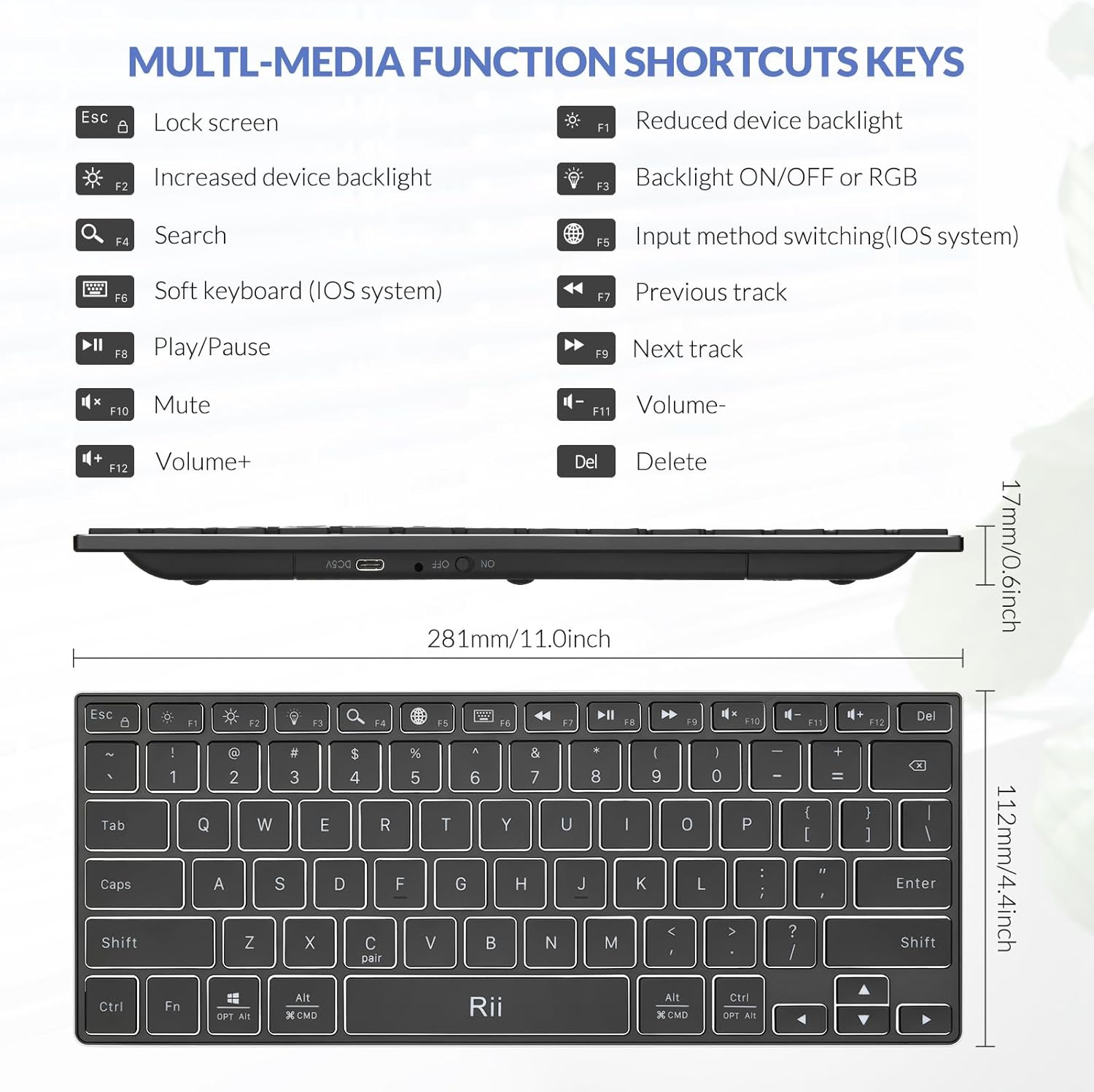
Image 3.2: Diagram illustrating the multimedia and function key shortcuts on the Rii Bluetooth-X9 keyboard.
3.3 Power Saving Mode
The keyboard automatically enters sleep mode after 30 minutes of inactivity to conserve battery life. To wake it up, simply press any key.
4. Maintenance
4.1 Cleaning
- Use a soft, lint-free cloth slightly dampened with water or a mild cleaning solution to wipe the surface of the keyboard.
- Avoid using harsh chemicals, abrasive cleaners, or excessive moisture, as these can damage the keyboard.
- For cleaning between keys, use compressed air to remove dust and debris.
4.2 Battery Care
- To maximize battery lifespan, avoid fully discharging the keyboard frequently.
- Store the keyboard in a cool, dry place when not in use for extended periods.
- Recharge the battery when the low battery indicator (if present) illuminates or when performance degrades.
5. Troubleshooting
5.1 Keyboard Not Connecting via Bluetooth
- Ensure the keyboard is turned ON and fully charged.
- Make sure Bluetooth is enabled on your device.
- Put the keyboard into pairing mode by pressing Fn + C until the indicator blinks.
- Forget or remove the keyboard from your device's Bluetooth list and attempt to re-pair.
- Try connecting to a different device to rule out an issue with your primary device's Bluetooth.
- Ensure the keyboard is within the effective Bluetooth range (typically up to 10 meters or 33 feet).
5.2 Backlight Not Working or Dim
- Ensure the keyboard has sufficient battery charge. Low battery can affect backlight performance.
- Press Fn + F3 to cycle through backlight modes and ensure it's not turned off.
- The backlight automatically turns off after 30 seconds of inactivity. Press any key to reactivate.
5.3 Keys Not Responding
- Check if the keyboard is properly connected via Bluetooth.
- Ensure the keyboard battery is not depleted.
- Restart the keyboard and your connected device.
6. Specifications
| Feature | Detail |
|---|---|
| Model | Bluetooth-X9 (RT023 Bluetooth Keyboard) |
| Connectivity | Bluetooth 5.0 |
| Compatible Devices | iOS (iPhone, iPad), Android (Tablets, Smartphones), Mac, Windows (PC, Laptops), Smart TV, Android TV Box, Raspberry Pi |
| Special Features | Rechargeable, Portable Mini, RGB Backlit, Aluminium Alloy Case |
| Battery Type | Lithium Ion (450mAh) |
| Battery Life | Approx. 22 days (8 hours/day use), 2 years standby |
| Keyboard Description | Slim Bluetooth keyboard with RGB Backlit |
| Material | Aluminum, Plastic |
| Product Dimensions | 26 x 10 x 1.5 cm (10.2 x 3.9 x 0.6 inches) |
| Item Weight | 260 g (0.57 lbs) |
| Number of Keys | 78 |
| Keyboard Backlighting | RGB (Red, Green, Blue) |
| Key Mechanism | Low Profile Scissor Key |

Image 6.1: Detailed dimensions and anti-slip pad placement on the underside of the Rii Bluetooth-X9 keyboard.

Image 6.2: Close-up view of the Rii Bluetooth-X9 keyboard's low profile scissor keys, illustrating the key mechanism.
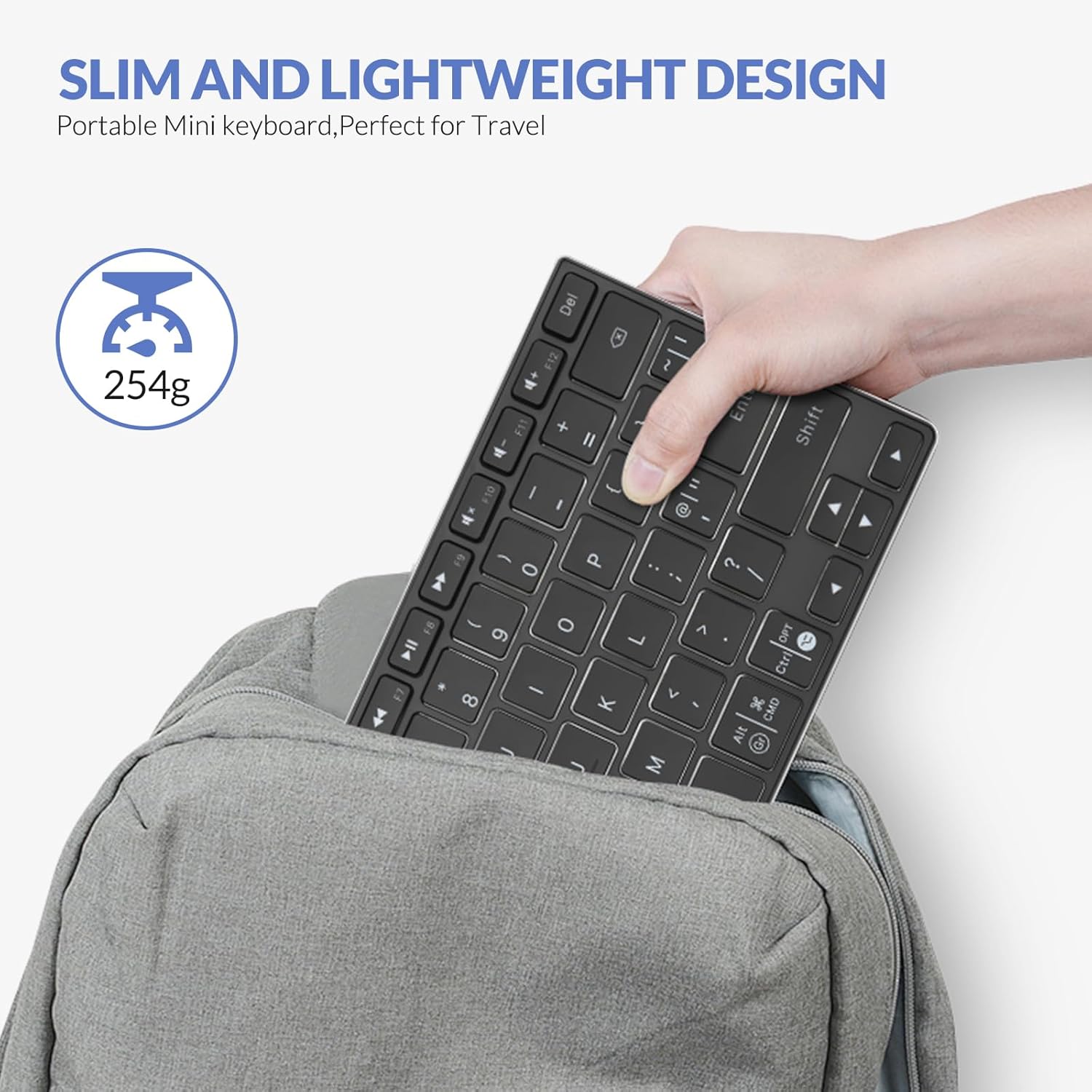
Image 6.3: The Rii Bluetooth-X9 keyboard being easily stored in a bag, demonstrating its slim and lightweight design for portability.
7. Warranty and Support
All Rii products, including the Bluetooth-X9 keyboard, come with a 12-month warranty from the date of purchase.
For any issues, questions, or support needs, please contact Rii customer service. They offer 7*24 customer service to assist you promptly.
Please refer to the official Rii website or your purchase documentation for the most up-to-date contact information and warranty details.
Ask a question about this manual
Ask about setup, troubleshooting, compatibility, parts, safety, or missing instructions. Manuals+ will review the question and use this page’s manual context to help answer it.