1. Product Overview
The YOCOWOCO Bluetooth 5.2 Wireless Audio Adapter is designed to enhance your gaming experience by allowing you to connect Bluetooth headphones to your Xbox controller. It features an OLED display for intuitive information, supports low-latency audio, and includes a built-in microphone.

The adapter features an OLED display and control buttons for power, volume, and microphone mute.
Key Features:
- OLED Display: Provides real-time information on volume, codec format, mic status, and paired Bluetooth devices.
- aptX Low Latency: Ensures synchronized audio for an immersive gaming experience. (Requires compatible headphones).
- Wide Compatibility: Designed for Xbox One, Series X, Series S, and Elite Series 2 Wireless Controllers with a 3.5mm audio jack.
- Energy Efficient: Powered directly by the controller, with an auto-dimming screen after 10 seconds of inactivity.
- Built-in Microphone: For voice chat during gameplay.
2. Compatibility
This adapter is compatible with a range of Xbox controllers and Bluetooth audio devices.

The adapter works with Xbox One, Xbox Series X|S, and Elite Series 2 Wireless Controllers.
Compatible Controllers:
- Xbox One Wireless Controller (with 3.5mm audio jack)
- Xbox Series X|S Wireless Controller
- Xbox Elite Series 2 Wireless Controller
Compatible Audio Devices:
- All Bluetooth headphones, including AirPods and AirPods Pro.
Note: This adapter does NOT support the first-generation Xbox controller or the Elite 1 controller. It also does not support the microphone of Bluetooth headphones; it uses its own built-in microphone.
3. Setup and Installation
- Attach the Adapter: Align the adapter with the 3.5mm audio jack and the 12-pin interface on the bottom of your compatible Xbox controller. Gently push the adapter into place until it is securely connected.
- Power On: Press and hold the Xbox button on your controller to power it on. The adapter will power on automatically along with the controller, displaying a welcome message on its OLED screen.

The adapter seamlessly integrates with your Xbox controller.
4. Operating Instructions
4.1. Pairing Bluetooth Headphones
Follow these steps to pair your Bluetooth headphones with the adapter:
- Ensure your Bluetooth headphones are in pairing mode. Refer to your headphone's manual for specific instructions.
- On the YOCOWOCO adapter, long press the "+" and "-" buttons simultaneously to enter pairing mode. The adapter's screen will indicate it is searching for devices.
- Once your headphones appear on the adapter's OLED display, use the navigation buttons to select them.
- Press the menu down button (often the power button or a dedicated menu button) to confirm the pairing. The adapter will show a "Connecting" message and then confirm successful pairing.
Watch this video for a visual guide on how to pair Bluetooth headphones with your Xbox adapter.
4.2. OLED Display Information
The OLED display provides real-time status updates:
- TX: Indicates transmission mode.
- Volume Level: Displays the current audio output volume.
- Codec Format: Shows the active audio codec (e.g., SBC, aptX).
- Mic Status: An icon indicates if the microphone is active or muted.
- Paired Device Name: Shows the name of the currently connected Bluetooth device.
4.3. Volume Adjustment
For optimal audio levels, it is recommended to adjust the volume primarily through your Xbox console. The adapter's volume buttons serve as a secondary adjustment option.

Adjusting headphone volume through the Xbox console settings.
4.4. Microphone Functionality
The adapter features a built-in microphone for voice communication. It does not support the microphone of your Bluetooth headphones.
- Mute Switch: Slide the mute switch on the adapter to the right to mute the microphone. An indicator light will illuminate when muted.
- Mic Active: Even if the adapter is powered off, the mic remains active when the mute switch is in the left (unmuted) position.
- The built-in mic can function independently, even without paired headphones.
4.5. Auto-Dimming Feature
To conserve power, the adapter's screen will automatically dim after 10 seconds of inactivity. This transitions the device into an energy-saving mode.
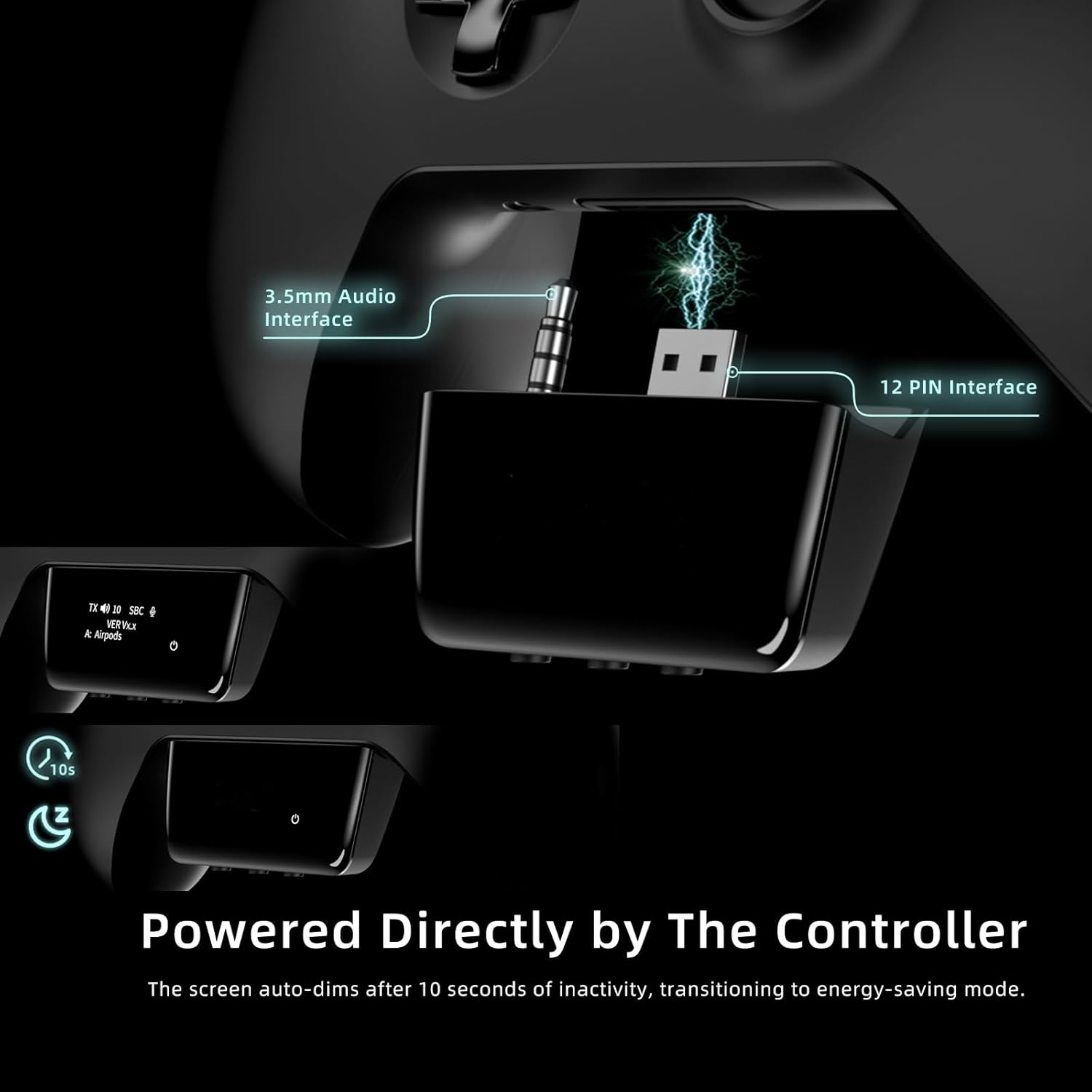
The adapter is powered by the controller and features an auto-dimming screen for power efficiency.
5. Low Latency Audio (aptX)
The adapter supports aptX Low Latency technology, which minimizes audio delay for a more synchronized gaming experience. For this feature to work, your Bluetooth headphones must also support aptX Low Latency.
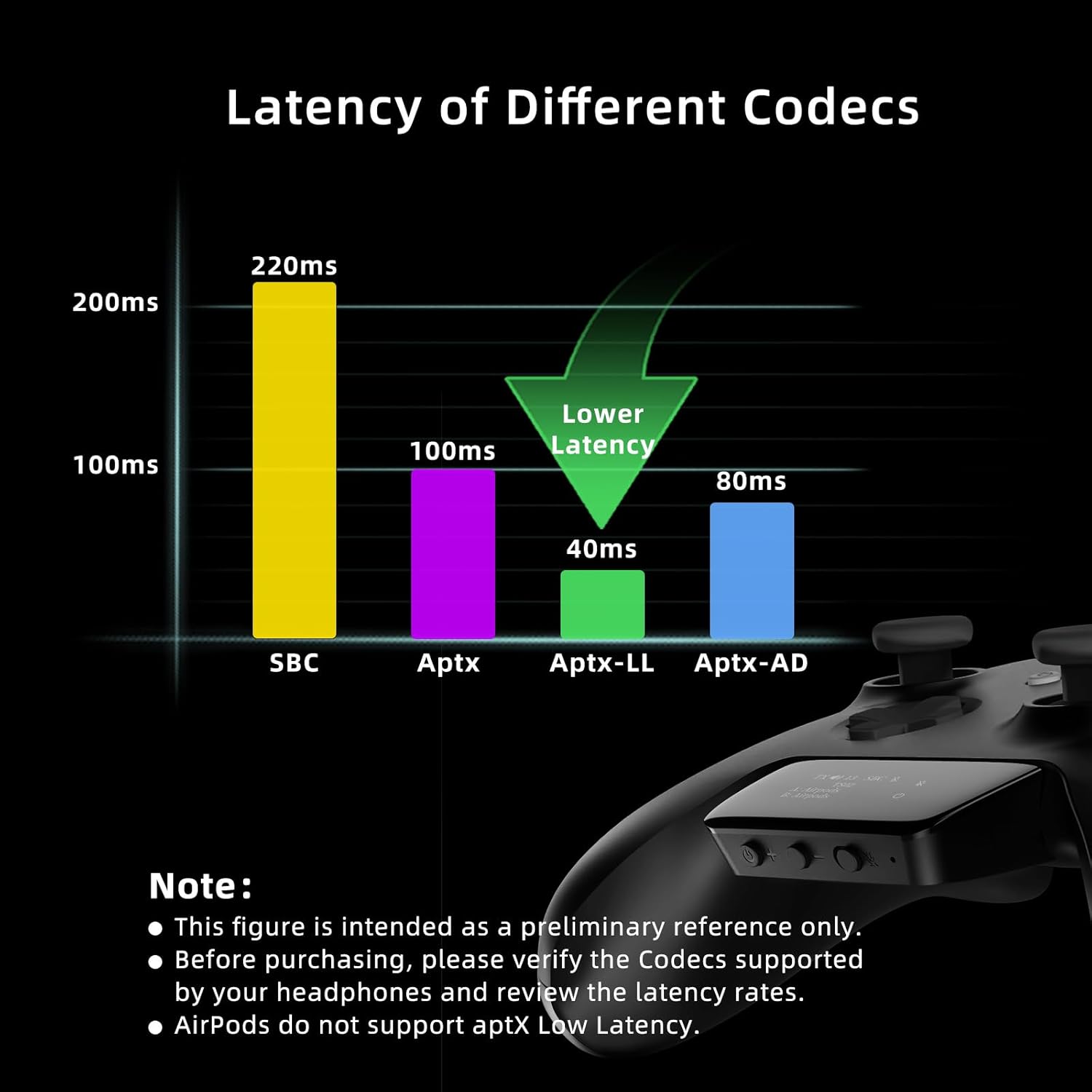
Comparison of latency across different audio codecs.
If your headphones do not support aptX Low Latency, the adapter will use a different compatible codec (e.g., SBC), which may result in a slightly higher audio delay.

Experience synchronized audio with aptX Low Latency.
6. Troubleshooting
6.1. Low Volume Output
- Check Xbox Settings: The primary volume control is on your Xbox console. Navigate to the audio settings within the Xbox menu and ensure the headphone volume is set to an appropriate level.
- Adjust Adapter Volume: Use the volume buttons on the adapter for fine-tuning after adjusting the Xbox volume.
- Headphone Volume: Ensure your Bluetooth headphones' internal volume is also set to a suitable level.
6.2. Pairing Issues
- Ensure Pairing Mode: Verify that both the adapter and your Bluetooth headphones are actively in pairing mode.
- Proximity: Keep the headphones close to the adapter during the pairing process.
- Interference: Move away from other strong wireless signals (e.g., Wi-Fi routers, other Bluetooth devices) that might cause interference.
- Restart Devices: Try restarting your Xbox controller, the adapter, and your headphones, then attempt pairing again.
6.3. Microphone Not Working
- Check Mute Switch: Ensure the mute switch on the adapter is in the unmuted position (left side). The mute indicator light should be off.
- Built-in Mic Only: Remember that the adapter uses its own built-in microphone and does not support the microphone of your Bluetooth headphones.
7. Specifications
| Attribute | Detail |
|---|---|
| Model Number | YO-BOX02-BK |
| Product Dimensions | 2.18 x 0.67 x 0.67 inches |
| Item Weight | 0.57 ounces |
| Color | Black |
| Connector Type | 12 pin Interface, Auxiliary (3.5mm) |
| Compatible Devices | Xbox Controller with 3.5mm Audio Jack, Bluetooth Headphones |
| Manufacturer | YOCOWOCO |
8. Warranty and Support
For any inquiries or post-purchase support regarding your YOCOWOCO Bluetooth Audio Adapter, please utilize the following methods:
- Contact Seller: On the product page, locate the seller's name (Mi& he) and click on it. Then, select the 'Ask a question' option to directly contact support.
- Order Page Support: For post-purchase assistance, you can also reach out to us through your order page on Amazon.
We are committed to ensuring you receive a satisfactory resolution for any issues you may encounter.


