
1. Product Overview
The VILCORN Wireless Mobile Phone Controller is a versatile gamepad designed for an enhanced gaming experience across multiple platforms. It supports wireless connectivity with iOS, Android, PC, Nintendo Switch, PlayStation 3, and PlayStation 4 devices. This controller features a retractable design to accommodate various phone sizes, Hall effect joysticks for precision, six-axis somatosensory functionality, and adjustable vibration feedback.
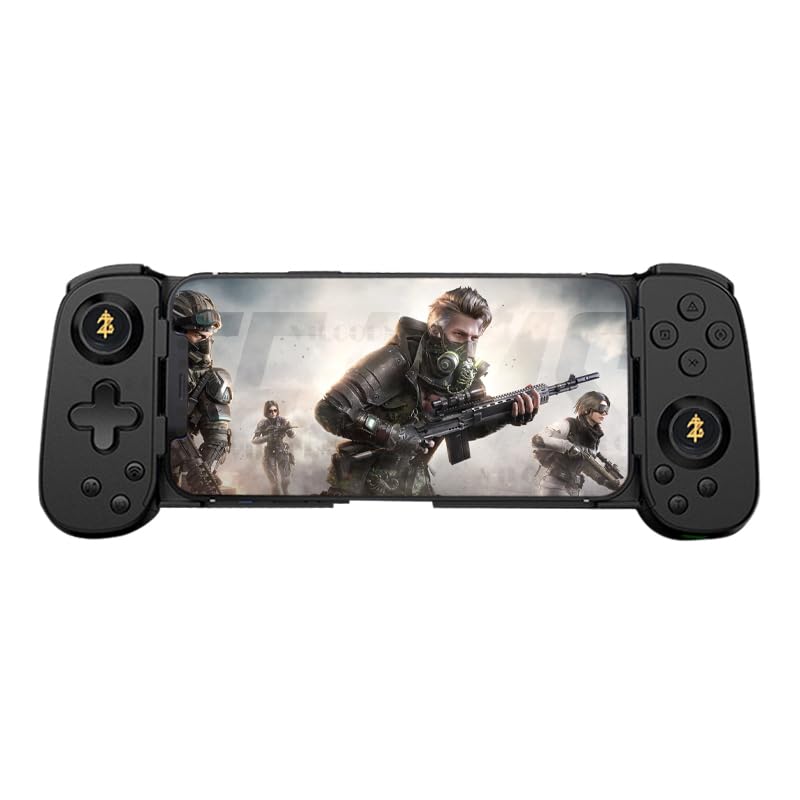
Image 1.1: The VILCORN Wireless Mobile Phone Controller in black, shown with a smartphone securely mounted, ready for gameplay.
2. Package Contents
Please verify that all items are present in the package:
- 1 x VILCORN Wireless Mobile Phone Controller
- 1 x User Manual
- 1 x Type-C Charging Cable
3. Specifications
| Feature | Description |
|---|---|
| Compatibility | iOS 13.0+, Android 6.0+, Windows 7.0+, Nintendo Switch, PlayStation 3, PlayStation 4, PlayStation 5 (via PS Remote Play), Xbox (via Xbox mobile app) |
| Connectivity | Wireless Bluetooth (BT) |
| Battery Capacity | 500mAh rechargeable Lithium Ion battery |
| Charging Port | Type-C |
| Special Features | Hall Effect Joysticks (No Drift), Six-axis Somatosensory, Adjustable Vibration (3 levels), Turbo Function, Macro Programming, Retractable Design |
| Dimensions | Approx. 7.87 x 3.94 x 1.97 inches (20 x 10 x 5 cm) |
| Weight | Approx. 9.9 ounces (280 grams) |
4. Setup and Connection
4.1 Charging the Controller
Before first use, fully charge the controller. Connect the provided Type-C charging cable to the controller's charging port and the other end to a USB power source (e.g., computer USB port, USB wall adapter). The charging indicator light will show the charging status and turn off when fully charged.
4.2 Connecting to Devices
The VILCORN controller supports wireless Bluetooth connection for various devices.
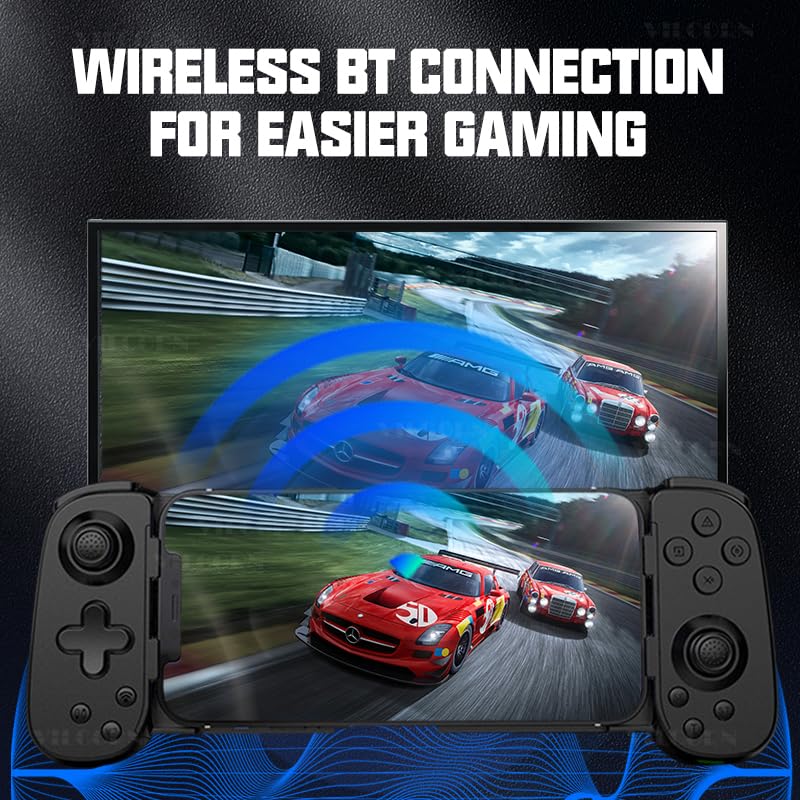
Image 4.2.1: Illustration of the controller's wireless Bluetooth connection capability, showing it connected to a larger display for gaming.
4.2.1 Android/iOS Mobile Devices
- Ensure the controller is powered off.
- Press and hold the HOME button (or specific pairing button as per manual) until the indicator light flashes rapidly, indicating pairing mode.
- On your mobile device, go to Bluetooth settings and search for available devices.
- Select "VILCORN Gamepad" (or similar name) from the list to connect.
- Once connected, the indicator light on the controller will become solid.
4.2.2 Nintendo Switch
- On your Nintendo Switch, go to System Settings > Controllers and Sensors > Change Grip/Order.
- While on this screen, press and hold the HOME button (or specific pairing button) on the VILCORN controller until the indicator lights flash.
- The Switch will detect and pair with the controller.
4.2.3 PC (Windows)
- Ensure your PC has Bluetooth enabled.
- Go to Settings > Devices > Bluetooth & other devices.
- Click Add Bluetooth or other device > Bluetooth.
- Press and hold the HOME button (or specific pairing button) on the VILCORN controller until the indicator light flashes rapidly.
- Select "VILCORN Gamepad" from the list of found devices.
4.2.4 PlayStation 3/4 (PS3/PS4)
For PS3/PS4, connect the controller using the Type-C cable first to register it. After initial wired connection, it may be used wirelessly. Refer to your console's manual for specific controller pairing instructions.
4.2.5 Cloud Gaming & Remote Play
The controller supports cloud gaming services like Xbox Cloud Gaming (Game Pass) and remote play applications such as PS Remote Play (for PS4/PS5) and Xbox mobile app (for Xbox consoles). Ensure your mobile device is connected to the controller via Bluetooth, then launch the respective cloud gaming or remote play application.
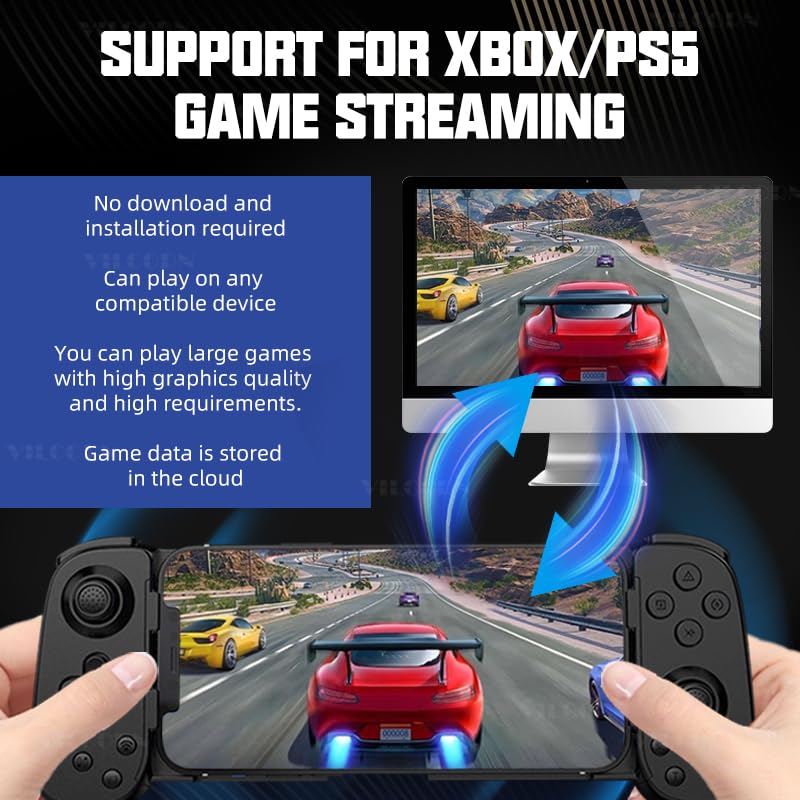
Image 4.2.5.1: Visual representation of the controller's compatibility with Xbox and PS5 game streaming, illustrating a mobile device connected to a larger screen for an immersive experience.
5. Operating Instructions and Features
5.1 Retractable Design
The controller features a retractable design to securely hold various smartphone sizes. Gently pull the sides of the controller outwards to extend the phone holder, then place your smartphone in the center. Release the sides to allow them to retract and grip the phone firmly.
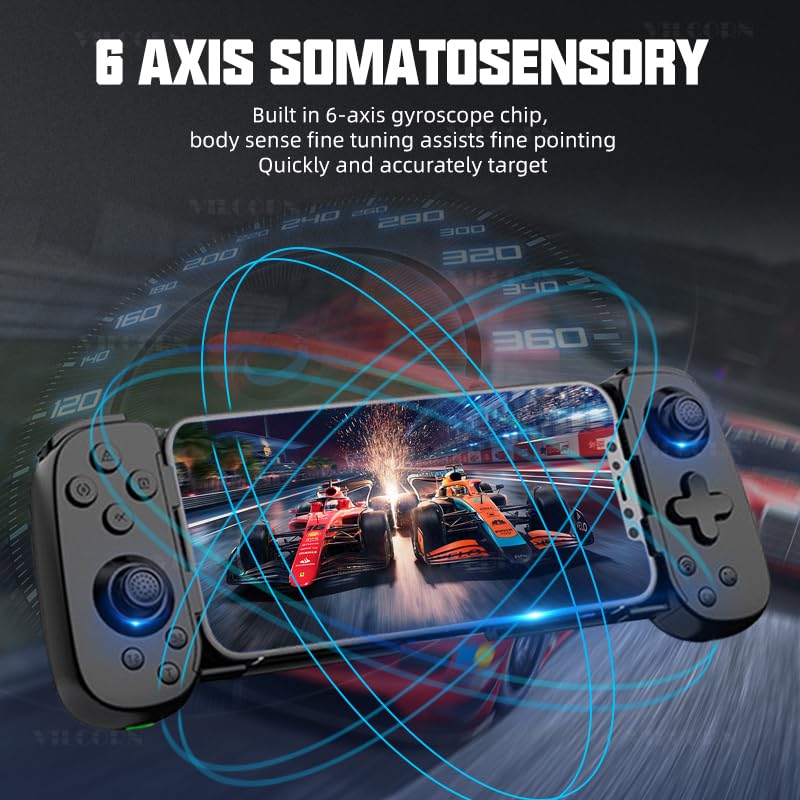
Image 5.1.1: Demonstration of the controller's retractable design, illustrating how it expands and contracts to fit different smartphone dimensions.
5.2 Hall Effect Joysticks (No Drift)
Equipped with Hall effect joysticks, the controller provides precise and drift-free control, ensuring stable and accurate in-game movements over time.
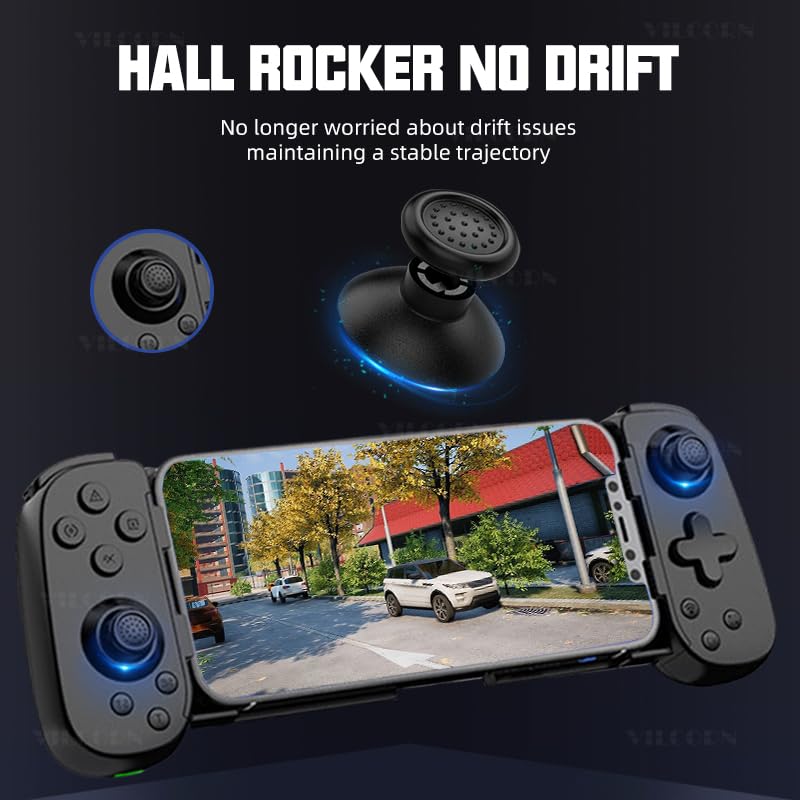
Image 5.2.1: Detailed view of the Hall effect joystick, highlighting its "no drift" technology for consistent performance.
5.3 Six-Axis Somatosensory Function
The built-in six-axis gyroscope chip allows for somatosensory control, providing fine-tuned body sense aiming and quick, accurate targeting in compatible games.
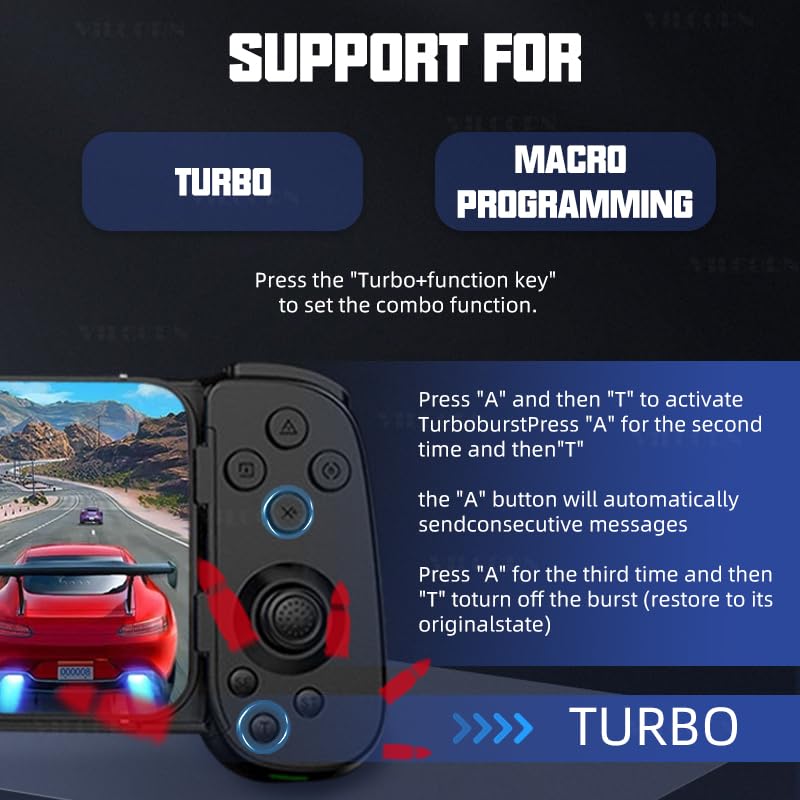
Image 5.3.1: Illustration of the six-axis somatosensory feature, depicting how motion input enhances gameplay, particularly in racing scenarios.
5.4 Adjustable Vibration Feedback
The controller features dual vibration motors in the left and right grips, offering three adjustable levels of vibration intensity. This provides realistic tactile feedback for an immersive gaming experience.
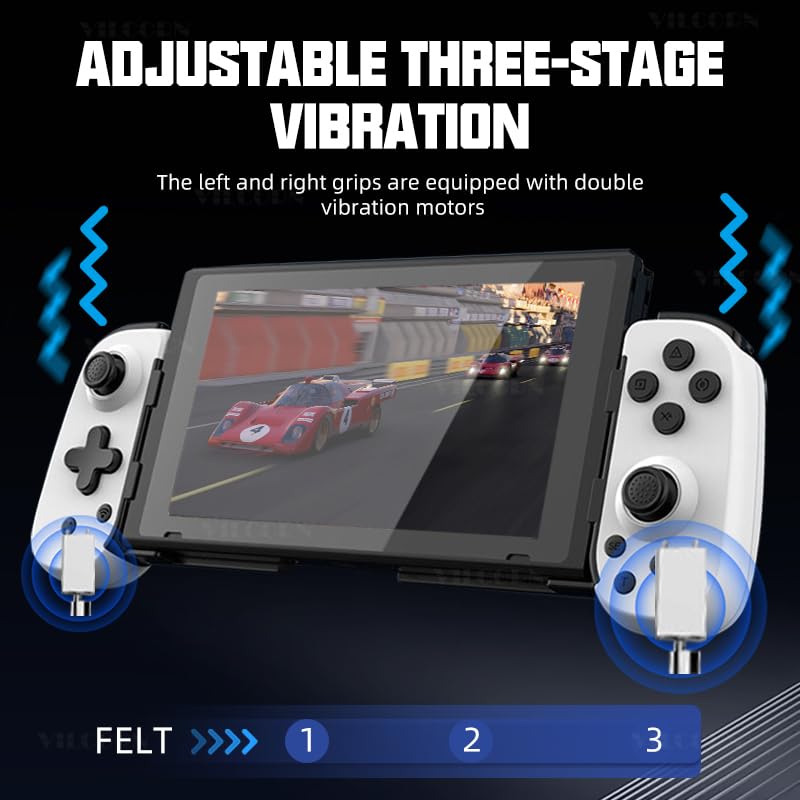
Image 5.4.1: Diagram illustrating the adjustable three-stage vibration feature, showing the location of the vibration motors in the controller grips.
5.5 Turbo Function and Macro Programming
The controller supports Turbo functionality for rapid button presses and macro programming for executing complex command sequences with a single button press.
5.5.1 Turbo Function Setup
- Press the Turbo button simultaneously with the desired function key (e.g., A, B, X, Y) to activate the combo function.
- To activate Turbo burst: Press the function key (e.g., "A") and then "T". Press "A" again and then "T" for the second time to enable continuous burst. The "A" button will automatically send consecutive messages.
- To turn off Turbo burst: Press "A" for the third time and then "T" to restore the button to its original state.
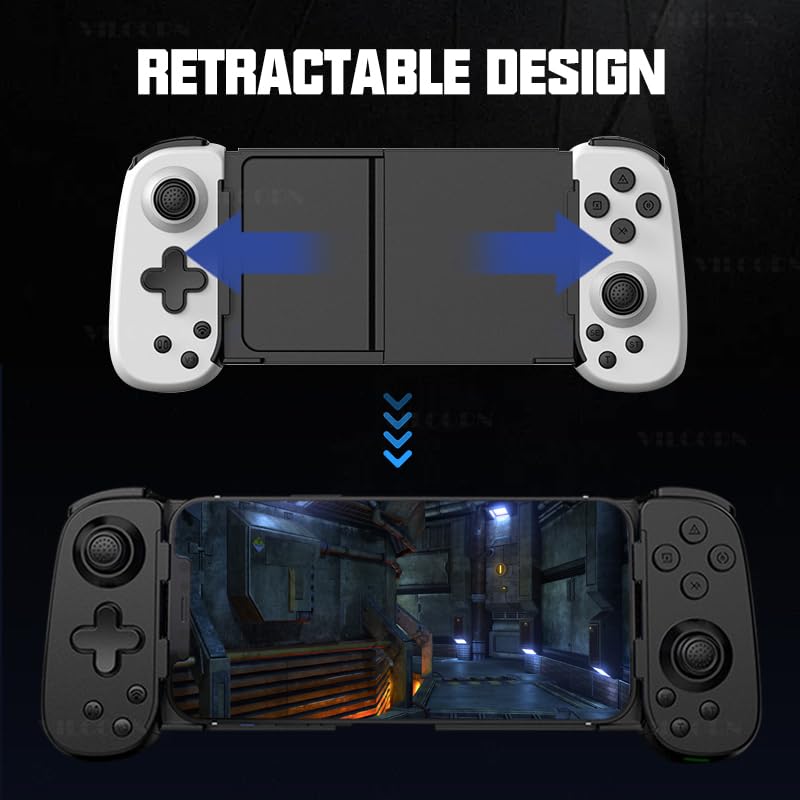
Image 5.5.1: Visual guide to setting up Turbo and Macro Programming functions on the controller, detailing button combinations.
5.5.2 Macro Programming Setup
Refer to the detailed instructions in the included physical manual for specific macro programming steps, as this feature often involves a sequence of button presses to record and assign macros.
6. Maintenance and Care
- Keep the controller dry and away from moisture.
- Avoid exposing the controller to extreme temperatures.
- Clean the controller with a soft, dry cloth. Do not use harsh chemicals or abrasive cleaners.
- Store the controller in a safe place when not in use to prevent damage.
- Do not attempt to disassemble or repair the controller yourself, as this will void the warranty.
7. Troubleshooting
| Problem | Possible Solution |
|---|---|
| Controller does not power on. | Ensure the controller is fully charged. Connect it to a power source using the Type-C cable. |
| Controller does not connect via Bluetooth. |
|
| Input lag or unresponsive controls. |
|
| Vibration function not working. |
|
| Controller drifts or has inaccurate joystick input. | The VILCORN controller uses Hall effect joysticks designed to prevent drift. If experiencing issues, try recalibrating the controller (refer to the physical manual for specific steps) or contact customer support. |
8. Warranty and Support
The VILCORN Wireless Mobile Phone Controller comes with a standard manufacturer's warranty. Please refer to the warranty card included in your package for specific terms and conditions, including warranty duration and coverage details.
For technical support, troubleshooting assistance, or warranty claims, please contact VILCORN customer service through the contact information provided in your product packaging or on the official VILCORN website. When contacting support, please have your product model (B0DHCZKQ1D) and purchase date ready.
Manufacturer: Shenzhen Jiajue Technology Co.
