GOWENIC 5G Wi Fi 6 Mobile Hotspot User Manual
Model: GOWENICqe42vach5g
1. Introduction
Thank you for choosing the GOWENIC 5G Wi Fi 6 Mobile Hotspot. This device provides high-speed wireless internet connectivity on the go, supporting multiple devices simultaneously. Please read this manual carefully to ensure proper use and optimal performance of your device.
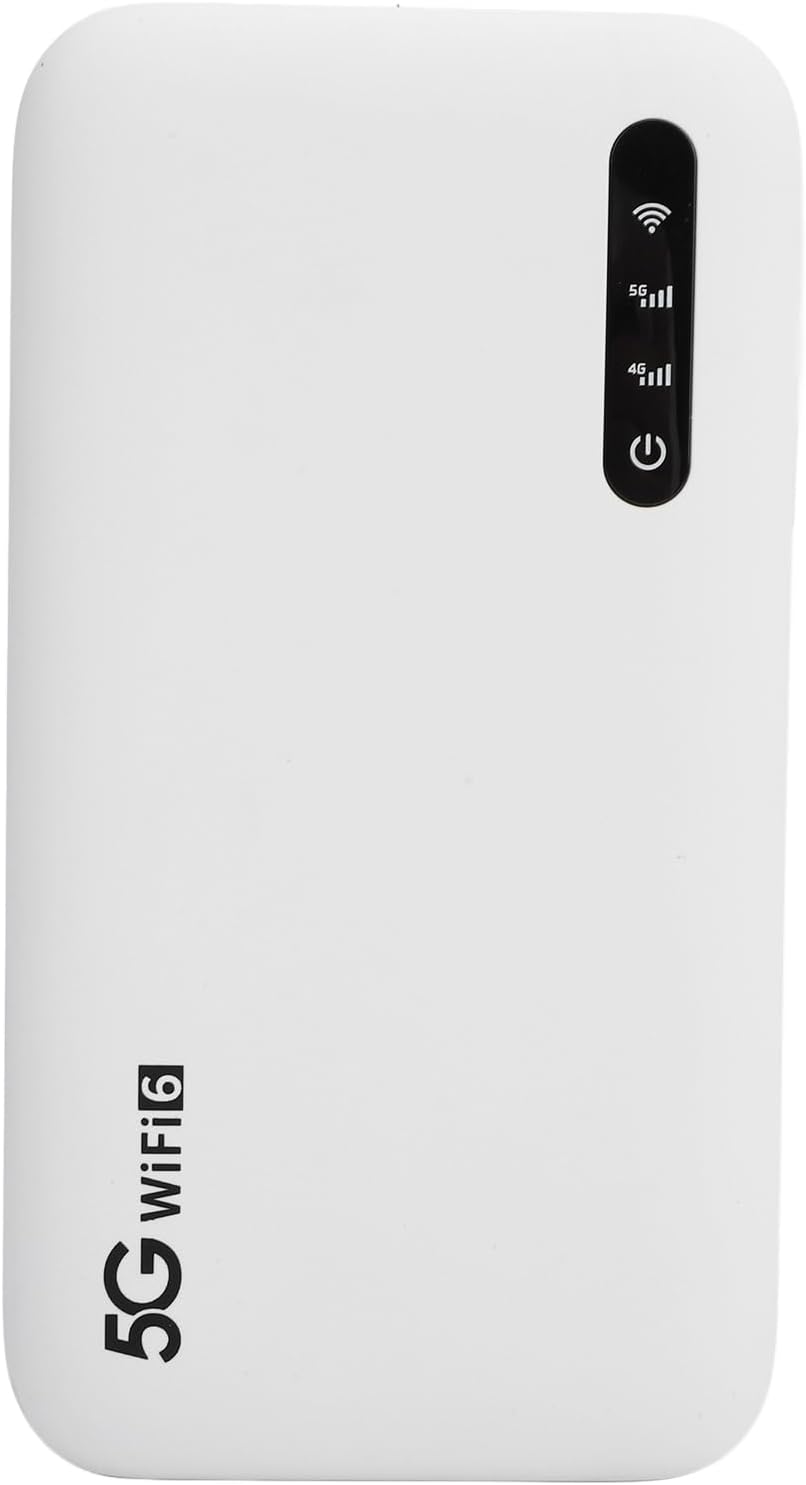
Image: Front view of the GOWENIC 5G Wi Fi 6 Mobile Hotspot, showing the power button and signal indicators.
2. Package Contents
- GOWENIC 5G Wi Fi 6 Mobile Hotspot
- USB Charging Cable
- User Manual (this document)

Image: The GOWENIC 5G Wi Fi 6 Mobile Hotspot shown alongside its included USB charging cable.
3. Device Layout
- Power Button: Used to turn the device on/off.
- LED Indicators: Display signal strength, battery status, and network type (5G/4G).
- SIM Card Slot: For inserting your Nano-SIM card.
- USB-C Charging Port: For charging the device.

Image: Angled view of the GOWENIC 5G Wi Fi 6 Mobile Hotspot, highlighting the LED indicators for signal strength and network status.
4. Setup Guide
4.1. Inserting the SIM Card
- Ensure the device is powered off.
- Locate the SIM card slot on the side of the device.
- Carefully insert a Nano-SIM card into the slot with the gold contacts facing down, until it clicks into place.
4.2. Charging the Device
- Connect the provided USB charging cable to the USB-C port on the device.
- Connect the other end of the USB cable to a compatible USB power adapter (not included) or a computer's USB port.
- The battery indicator LED will show charging status. A full charge is recommended before first use.

Image: A close-up view of the GOWENIC 5G Wi Fi 6 Mobile Hotspot, showing the USB-C charging port.
4.3. Powering On/Off
- To power on: Press and hold the Power button until the LED indicators light up.
- To power off: Press and hold the Power button until the LED indicators turn off.
5. Operating Instructions
5.1. Connecting to the Wi-Fi Hotspot
- Power on the GOWENIC Mobile Hotspot.
- On your device (phone, tablet, laptop), open the Wi-Fi settings.
- Search for available Wi-Fi networks. You will find two network names (SSIDs): one for 2.4GHz and one for 5.8GHz.
- Select the desired network (e.g., "MIFI-780194-5G" or "MIFI-780194-2.4G").
- Enter the Wi-Fi Key (password) provided on the back label of the hotspot.
- Once connected, you can access the internet.

Image: Back view of the GOWENIC 5G Wi Fi 6 Mobile Hotspot, displaying the default SSID and Wi-Fi Key for both 2.4GHz and 5.8GHz bands.
5.2. Understanding LED Indicators
- Signal Strength Indicators: Multiple bars indicate stronger cellular signal.
- Network Type Indicator (5G/4G): Lights up to show the current cellular network type.
- Wi-Fi Indicator: Shows Wi-Fi activity.
- Battery Indicator: Displays remaining battery life or charging status.
6. Maintenance and Care
- Cleaning: Use a soft, dry cloth to clean the device. Do not use liquid cleaners or aerosols.
- Water Resistance: The device is IP67 water resistant. While it can withstand splashes and brief immersion, avoid prolonged submersion or exposure to high-pressure water. Ensure all ports are dry before charging.
- Temperature: Operate the device within recommended temperature ranges. Avoid extreme heat or cold.
- Storage: Store the device in a cool, dry place when not in use.
- Battery Care: To prolong battery life, avoid fully discharging the battery frequently. Charge the device regularly.
7. Troubleshooting
| Problem | Possible Solution |
|---|---|
| Device does not power on. | Ensure the battery is charged. Connect the device to a power source and try again. |
| No internet connection. |
|
| Slow internet speed. |
|
| Device frequently disconnects or reboots. |
|
| Battery drains quickly. |
|
8. Specifications
| Feature | Detail |
|---|---|
| Model Name | GOWENICqe42vach5g |
| Connectivity Technology | 5G |
| Wireless Communication Standard | 802.11ax (Wi-Fi 6) |
| Frequency Band Class | Dual-Band (2.4 GHz, 5.8 GHz) |
| Max Download Speed | Up to 2.77Gbps |
| Max Upload Speed | Up to 1.25Gbps |
| Battery Capacity | 6100mAh Polymer Battery |
| Water Resistance | IP67 |
| Supported Devices | Up to 16 connected devices |
| Dimensions | 17 x 10 x 4 cm |
| Weight | 280 g |
9. Warranty and Support
GOWENIC products are designed for reliability and performance. For warranty information and technical support, please refer to the warranty card included with your product or visit the official GOWENIC website. Keep your purchase receipt as proof of purchase for warranty claims.
For further assistance, you may contact GOWENIC customer service through the contact information provided on their official support channels.