
EUQQ 520-1-B
EUQQ Bluetooth Headset Model 520-1-B User Manual
Comprehensive instructions for your EUQQ Bluetooth Headset.
Introduction
Thank you for choosing the EUQQ Bluetooth Headset Model 520-1-B. This manual provides detailed instructions on how to set up, operate, and maintain your headset to ensure optimal performance and a clear communication experience. Please read this manual thoroughly before using the device.

Image: The EUQQ Bluetooth Headset Model 520-1-B, a sleek black wireless earpiece with an ear hook design.
Package Contents
Ensure all items are present in the package:
- 1 x EUQQ Headset
- 1 x Charging Case
- 1 x USB-C Charging Cable
- 3 x Different Size Eartips (S/M/L)
- 1 x User Manual (this document)
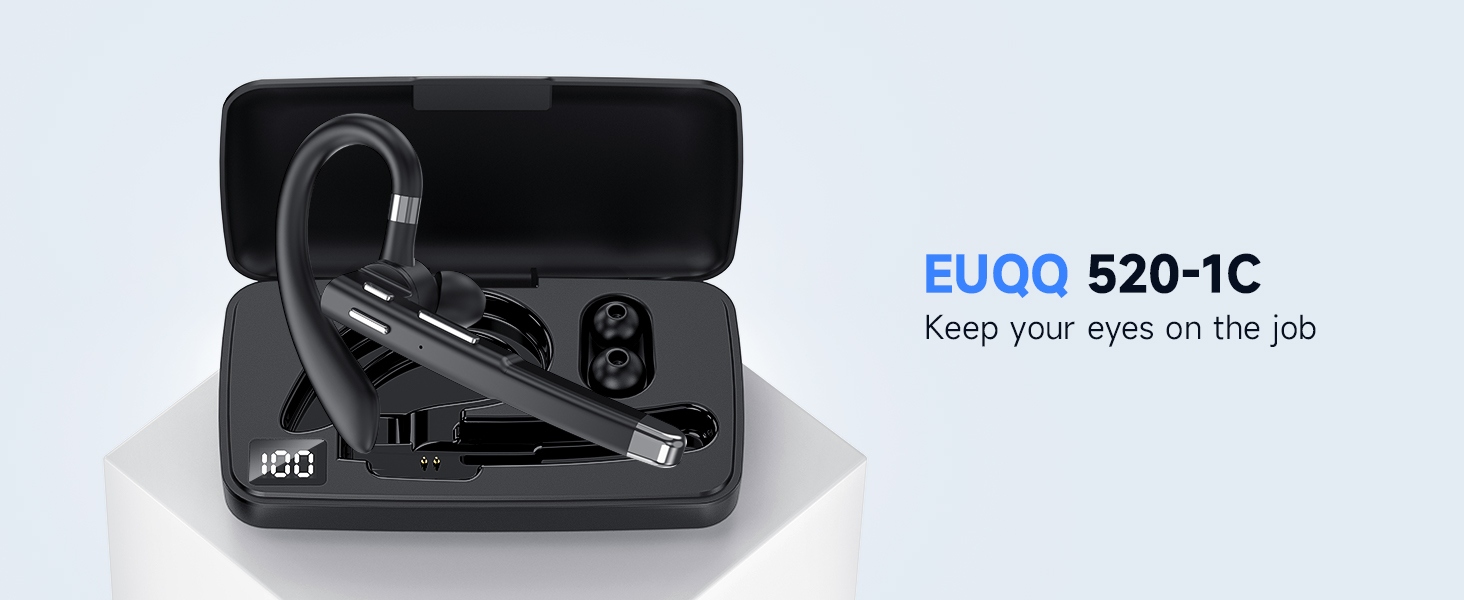
Image: An overview of the EUQQ Bluetooth Headset package contents, including the headset, charging case, USB-C cable, eartips, and user manual.
Setup
1. Charging the Headset
Before first use, fully charge the headset. Connect the provided USB-C charging cable to the headset's charging port and a compatible USB power source. The charging indicator will show the charging status.
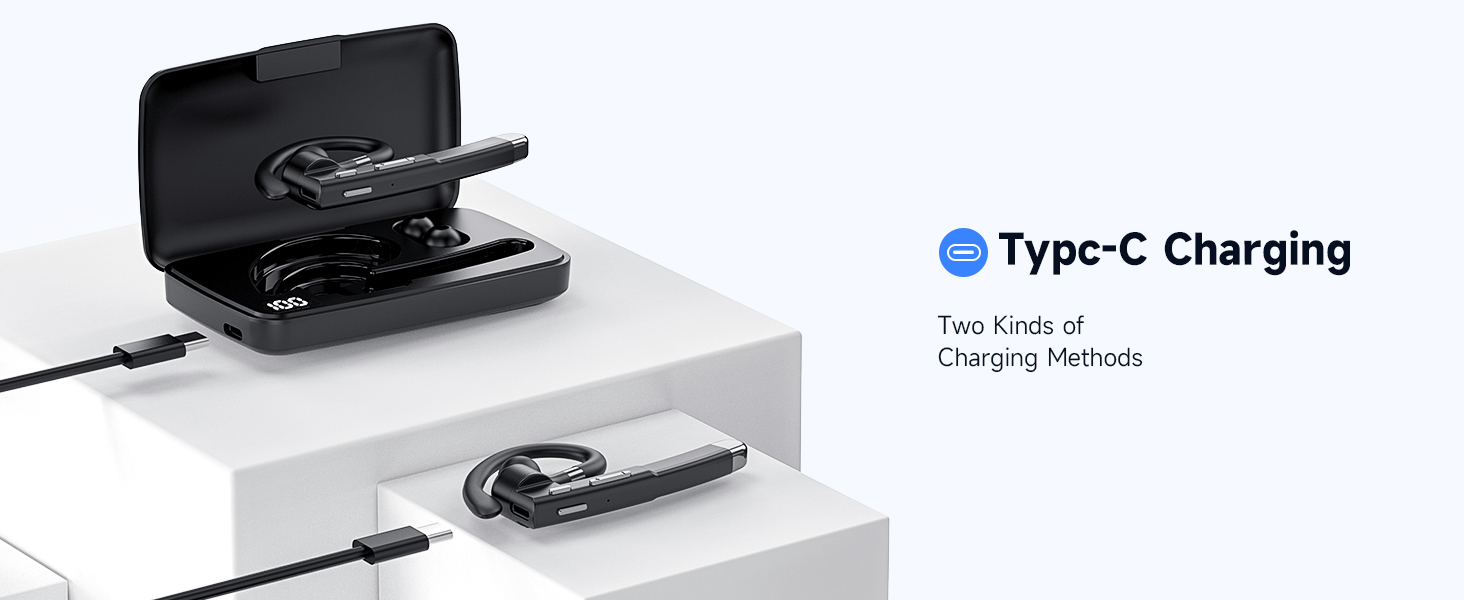
Image: Illustration of the Type-C charging port on the headset and the charging case, demonstrating two methods of charging.
2. Powering On/Off
- Power On: Press and hold the Multi-function Button for approximately 3 seconds until the indicator light flashes.
- Power Off: Press and hold the Multi-function Button for approximately 5 seconds until the indicator light turns off.
3. Bluetooth Pairing
- Ensure the headset is powered off.
- Press and hold the Multi-function Button for about 5-7 seconds until the indicator light flashes red and blue alternately, indicating pairing mode.
- On your device (smartphone, tablet, computer), enable Bluetooth and search for available devices.
- Select "EUQQ 520-1B" from the list of found devices.
- Once connected, the indicator light will flash blue slowly.
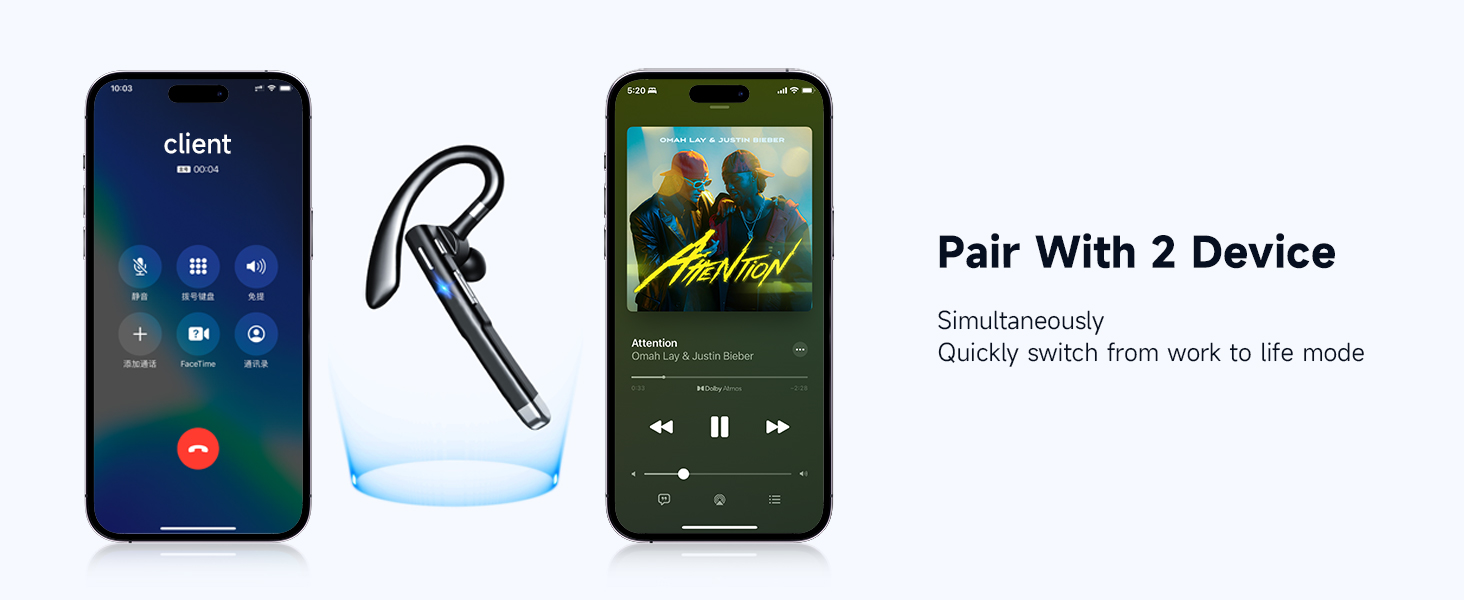
Image: A smartphone screen showing Bluetooth settings with the EUQQ headset listed as connected, demonstrating the one-step pairing process.
The headset supports simultaneous connection to two devices. After connecting to the first device, disable Bluetooth on the first device, pair with the second device, then re-enable Bluetooth on the first device. The headset should connect to both.

Image: The EUQQ Bluetooth Headset positioned between two smartphones, illustrating its ability to connect to two devices concurrently for seamless switching.
4. Wearing the Headset
The headset is designed for comfort and can be worn on either the left or right ear. Adjust the ear hook for a secure and comfortable fit. Choose the appropriate ear tip size (S/M/L) for optimal sound and comfort.

Image: Diagrams showing the headset's ear hook rotating 270 degrees and the microphone arm rotating 360 degrees, allowing it to be worn on either the right or left ear. Different ear tip sizes (S, M, L) are also shown.
Operating Instructions
Headset Controls
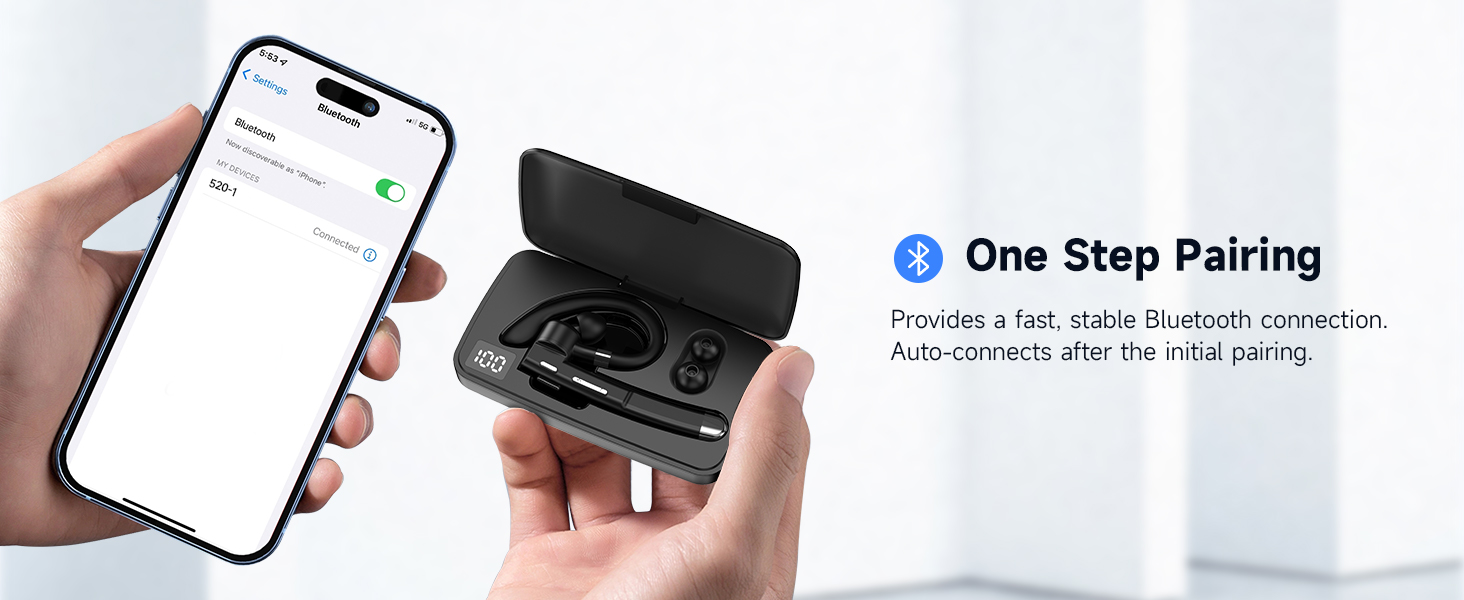
Image: A detailed diagram of the EUQQ Bluetooth Headset highlighting its buttons and their corresponding functions for music playback, call management, volume, and voice assistant activation.
- Play/Pause: Tap the Multi-function Button once.
- Answer/End Call: Tap the Multi-function Button once during an incoming call or active call.
- Reject Call: Tap the Multi-function Button twice during an incoming call.
- Volume Up: Tap the Volume + button once.
- Volume Down: Tap the Volume - button once.
- Next Song: Long press the Volume + button.
- Previous Song: Long press the Volume - button.
- Activate Voice Assistant (Siri): Press the Multi-function Button for 1 second.
- Mute/Unmute Microphone: Press and hold the Mute button (often integrated with volume or a dedicated button) during a call.

Image: A person using the EUQQ Bluetooth Headset while on a video call at a desk, demonstrating the one-button mute function for privacy.
Call Management and Noise Reduction
The headset features advanced ENC (Environmental Noise Cancellation) technology and multiple built-in microphones to ensure clear conversations by reducing background noise. This is particularly useful in noisy environments like offices or while driving.

Image: A man wearing the EUQQ Bluetooth Headset while driving a truck, with a phone screen showing an active call, illustrating the effectiveness of the 4 built-in microphones and noise cancellation in noisy environments.
Maintenance
- Cleaning: Use a soft, dry cloth to clean the headset. Avoid using harsh chemicals or abrasive materials.
- Storage: Store the headset in a cool, dry place away from direct sunlight and extreme temperatures. When not in use for extended periods, store it in its charging case.
- Battery Care: To prolong battery life, avoid fully discharging the headset frequently. Charge it regularly, even if not in constant use.
Troubleshooting
| Problem | Solution |
|---|---|
| Headset does not power on. | Ensure the headset is charged. Connect it to a power source using the USB-C cable. |
| Cannot pair with a device. |
|
| No sound or low volume. |
|
| Poor call quality or static. |
|
| Short battery life. |
|
Specifications
| Feature | Detail |
|---|---|
| Model Name | YYK-520 |
| Item Model Number | 520-1-B |
| Connectivity Technology | Wireless (Bluetooth) |
| Bluetooth Version | 5.3 |
| Bluetooth Range | 15 Meters (49 feet) |
| Battery Life | Up to 24 Hours (Talk Time) |
| Charging Port | USB-C |
| Noise Control | Active Noise Cancellation (ENC) |
| Microphones | Built-in (4 microphones for ENC) |
| Earpiece Shape | Hook |
| Weight | 0.4 ounces (approx. 11.3 grams) |
| Compatible Devices | Cellphones, Desktops, Tablets, Television |
| Water Resistance Level | Waterproof |
| Frequency Range | 20 Hz - 20,000 Hz |
| Audio Driver Size | 16.3 Millimeters |
| UPC | 762304992602 |
Warranty and Support
For warranty information and customer support, please refer to the documentation included with your purchase or contact the seller directly. Keep your purchase receipt as proof of purchase for any warranty claims.
Related documents520-1-B


Ask a question about this manual
Ask about setup, troubleshooting, compatibility, parts, safety, or missing instructions. Manuals+ will review the question and use this page’s manual context to help answer it.