
Introduction
Thank you for choosing the EUQQ YYK-520 Wireless Bluetooth Headset. This manual provides detailed instructions for setting up, operating, and maintaining your headset to ensure optimal performance and a clear communication experience. Please read this manual thoroughly before use.
Package Contents
Verify that all items listed below are included in your package:
- 1 x EUQQ Headset
- 1 x Charging Case
- 1 x USB-C Charging Cable
- 3 x Different Size Eartips (S/M/L)
- 1 x User Manual (this document)
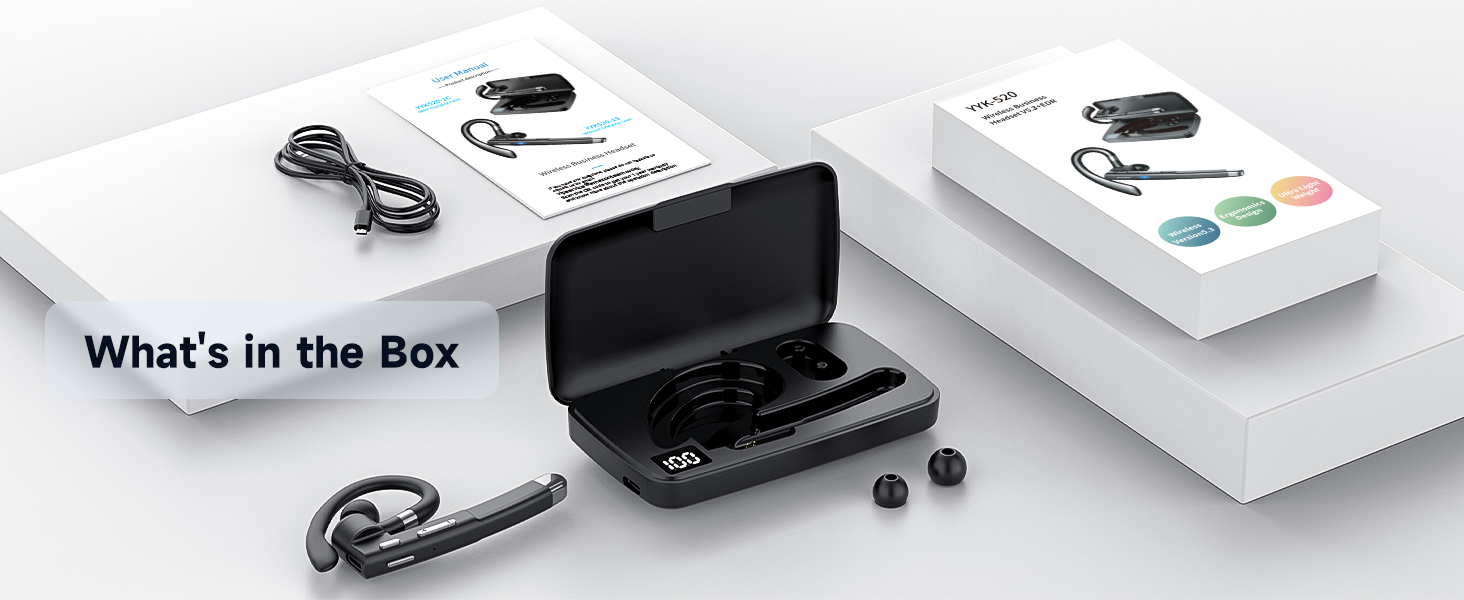
Image: The EUQQ YYK-520 headset, charging case, USB-C charging cable, and three sizes of ear tips are displayed, representing the complete package contents.
Product Overview
The EUQQ YYK-520 headset is designed for comfort and clear communication. It features an ergonomic ear hook, intuitive controls, and a portable charging case.
Headset Components

Image: A detailed view of the EUQQ YYK-520 headset, showcasing its design, ear hook, and the accompanying charging case with extra ear tips.
- Ear Hook: Adjustable for secure and comfortable fit.
- Earpiece: Delivers audio directly into the ear.
- Microphone Boom: Houses multiple microphones for clear voice pickup.
- Control Buttons: For power, volume, call management, and music playback.
- Charging Port (Type-C): For direct charging of the headset.
- Charging Case: Provides additional battery life and protection for the headset.
Control Functions
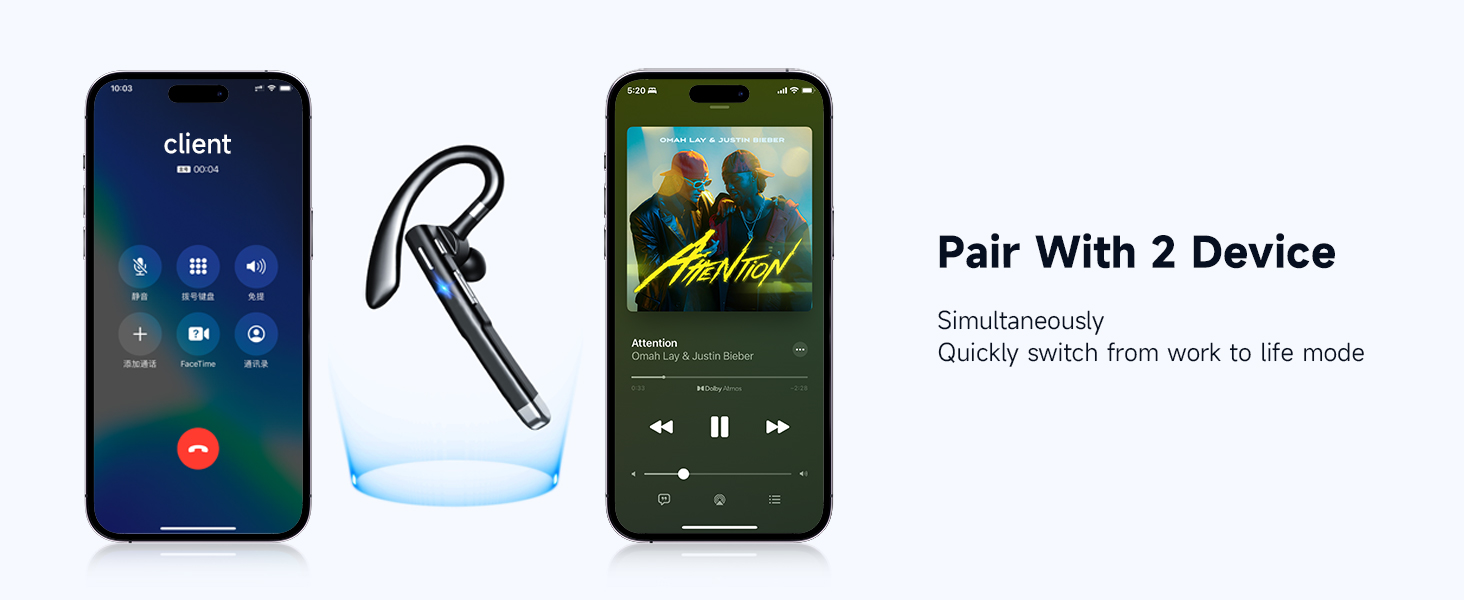
Image: An illustration detailing the various button controls on the headset, including functions for calls, music, and voice assistant activation.
- Tap x1 (Multi-function Button): Play/Pause music, Answer/Hang up calls.
- Tap x2 (Multi-function Button): Refuse incoming calls.
- Press for 1s (Multi-function Button): Activate Voice Assistant (Siri).
- Tap x1 (+ button): Increase Volume.
- Tap x1 (- button): Decrease Volume.
- Long Press (+ button): Next Song.
- Long Press (- button): Last Song.
- Press and hold (Mute button): Mute/Unmute microphone during a call.
Setup
1. Charging the Headset and Charging Case
Before first use, fully charge both the headset and the charging case.
- Charging the Headset: Place the headset into the charging case. Ensure the charging contacts align. The LED indicator on the headset will show charging status.
- Charging the Case: Connect the provided USB-C charging cable to the charging port on the case and to a USB power source (e.g., wall adapter, computer USB port). The digital display on the case will indicate the battery level.
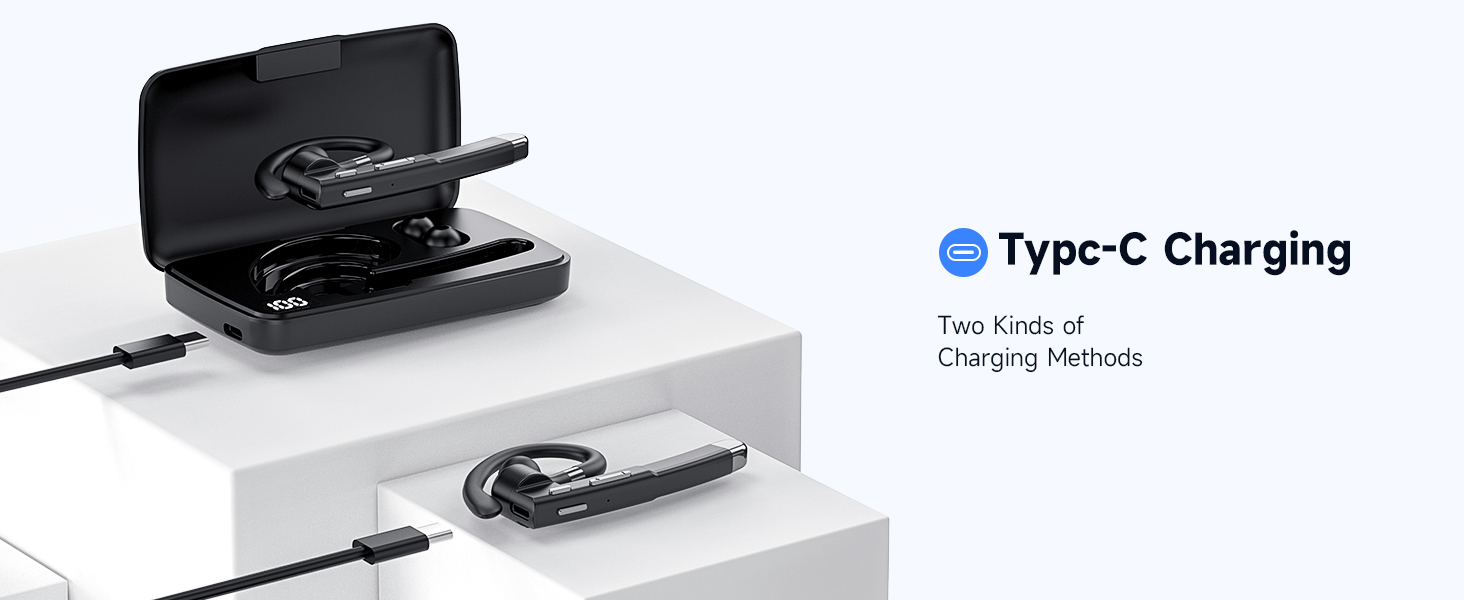
Image: The headset is shown inside its charging case, which is connected to a power source via a USB-C cable, illustrating the charging process.
A full charge provides up to 120 hours of playback with the charging case. Fast charging allows for 1 hour of call time after just 8 minutes of charging.
2. Power On/Off
- Power On: Take the headset out of the charging case, or press and hold the multi-function button for approximately 3 seconds until you hear a power-on prompt.
- Power Off: Place the headset back into the charging case, or press and hold the multi-function button for approximately 5 seconds until you hear a power-off prompt.
3. Bluetooth Pairing
The headset supports one-step quick pairing for a fast and stable connection.
- Ensure the headset is powered on and in pairing mode (indicated by a flashing LED light).
- On your device (smartphone, tablet, computer), go to Bluetooth settings.
- Search for available devices and select "YYK-520" from the list.
- Once connected, the headset LED will stop flashing, and you will hear a connection confirmation.
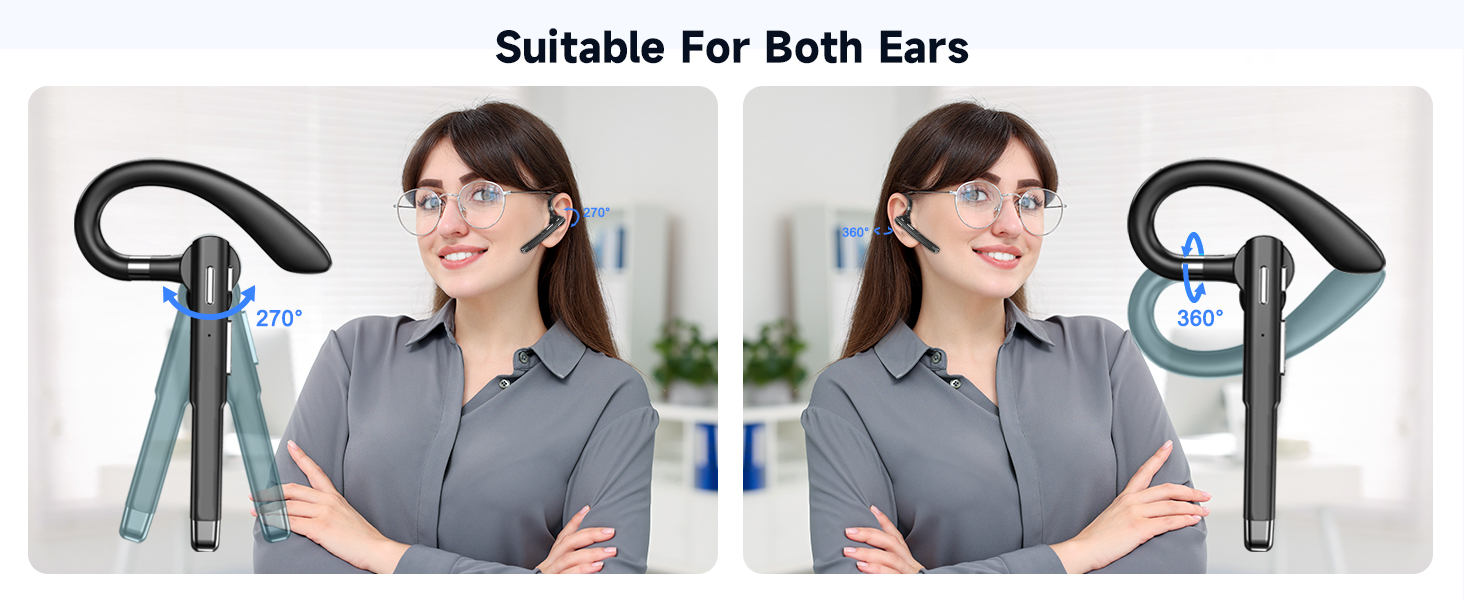
Image: A visual guide demonstrating the one-step pairing process, showing the headset and a smartphone displaying the Bluetooth connection menu.
Operating Instructions
Call Management
- Answer Call: Tap the multi-function button once.
- End Call: Tap the multi-function button once during a call.
- Refuse Call: Tap the multi-function button twice when an incoming call rings.
- Mute/Unmute: Press and hold the dedicated mute button during a call.
Music Playback
- Play/Pause: Tap the multi-function button once.
- Next Song: Long press the '+' volume button.
- Previous Song: Long press the '-' volume button.
Volume Control
- Increase Volume: Tap the '+' volume button.
- Decrease Volume: Tap the '-' volume button.
Voice Assistant Activation
Press and hold the multi-function button for 1 second to activate your device's voice assistant (e.g., Siri, Google Assistant).
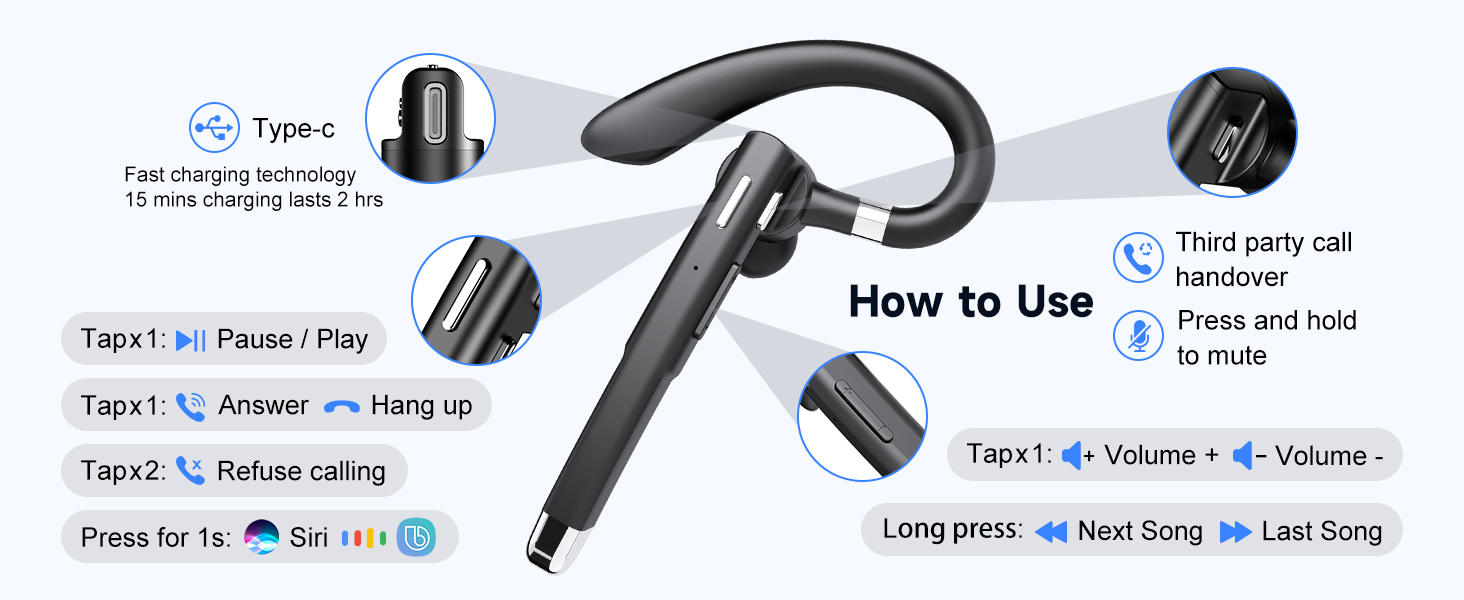
Image: A user demonstrating the voice assistant feature while driving, showing the headset in use and a phone displaying the Siri interface.
Dual Device Connection
The headset supports simultaneous connection to two different Bluetooth devices, allowing seamless switching between them.
- Connect the headset to the first device as described in the "Bluetooth Pairing" section.
- Disable Bluetooth on the first device. The headset will re-enter pairing mode.
- Connect the headset to the second device.
- Re-enable Bluetooth on the first device. The headset should automatically connect to both devices.
- To switch between devices, pause audio/end call on one device, then initiate audio/call on the other.

Image: The headset is depicted wirelessly connected to two separate smartphones, illustrating its ability to manage both a phone call and music playback from different devices.
Comfort and Fit
The EUQQ YYK-520 headset is designed for all-day comfort with its ergonomic and lightweight structure (approximately 0.4 ounces).
- Adjustable Ear Hook: The ear hook can be rotated 270° and the earpiece 360° to fit comfortably on either your left or right ear.
- Interchangeable Eartips: Three sizes of silicone eartips (S/M/L) are included to ensure a secure and personalized fit, optimizing sound quality and comfort.
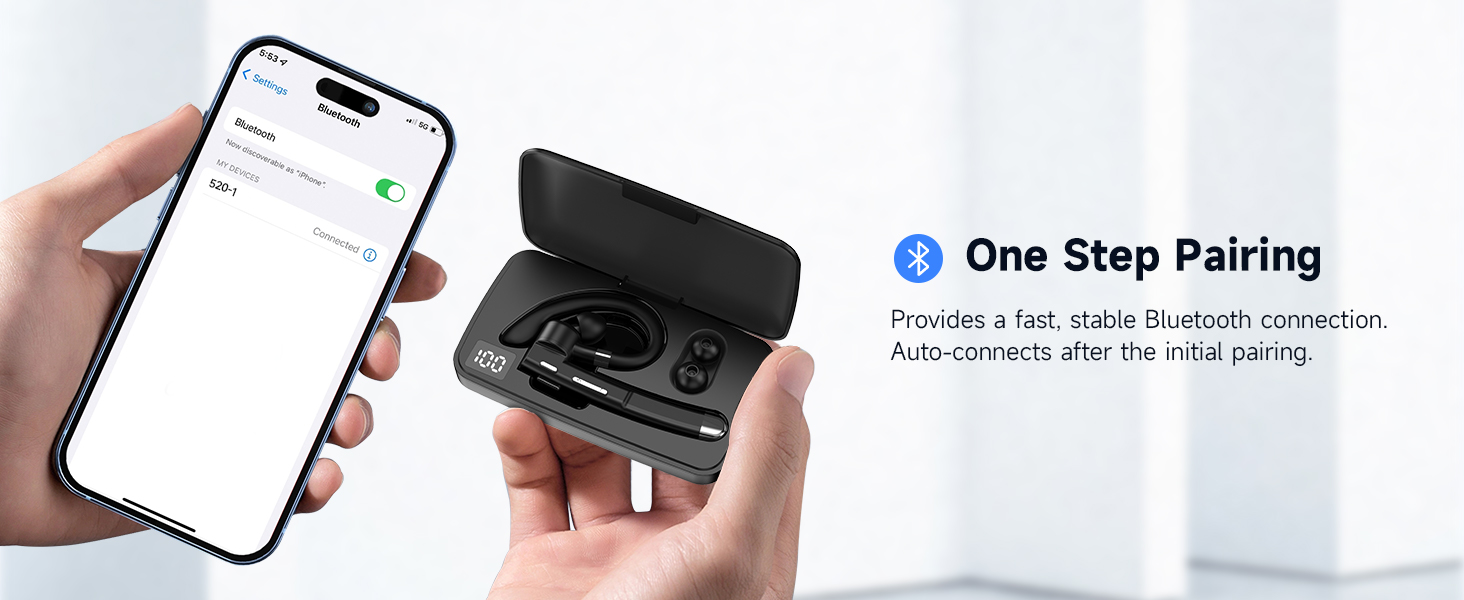
Image: An illustration demonstrating the headset's flexibility, showing how it can be adjusted for both left and right ear wear, along with the three sizes of ear tips.
Maintenance
Proper maintenance ensures the longevity and performance of your headset.
- Cleaning: Regularly wipe the headset and charging case with a soft, dry, lint-free cloth. Avoid using harsh chemicals or abrasive materials.
- Eartips: Remove and clean the silicone eartips with mild soap and water, then dry thoroughly before reattaching.
- Storage: When not in use, store the headset in its charging case to protect it from dust and damage.
- Avoid Moisture: While the headset is water-resistant, avoid prolonged exposure to water or extreme humidity. Do not submerge it.
- Charging: Use only the provided USB-C cable and a certified power adapter for charging.
Troubleshooting
| Problem | Possible Solution |
|---|---|
| Headset does not power on. | Ensure the headset is charged. Place it in the charging case or connect directly via USB-C. |
| Cannot pair with device. |
|
| No sound or low volume. |
|
| Call quality is poor / Noise during calls. |
|
| Headset disconnects frequently. |
|
Specifications
| Feature | Detail |
|---|---|
| Model Name | YYK-520 |
| Connectivity Technology | Wireless (Bluetooth) |
| Bluetooth Version | 5.3 |
| Bluetooth Range | 15 Meters |
| Noise Control | Active Noise Cancellation (ENC) |
| Battery Life (Headset) | Up to 24 Hours (with charging case, up to 120 hours total playback) |
| Charging Port | USB-C |
| Control Type | Button Control |
| Item Weight | 0.4 ounces (approx. 11.3 grams) |
| Water Resistance Level | Water Resistant |
| Compatible Devices | Smartphones, Tablets, Desktop Computers, TVs |
| Special Features | 3D Surround Sound, Noise Isolation, Multi-Microphone, Fast Charging, One Button Mute, Dual Device Connection, Long Playback, Dual Charging Method |
Warranty and Support
For warranty information or technical support, please refer to the documentation included with your purchase or contact EUQQ customer service through the retailer where the product was purchased. Keep your proof of purchase for warranty claims.


