
1. Introduction
Thank you for purchasing the RUIZU X66 64GB MP3 Player. This portable digital audio player is designed for high-quality music playback, featuring Bluetooth 5.3 connectivity, a built-in voice recorder, FM radio, and a convenient clip design. This manual provides detailed instructions on how to set up, operate, and maintain your device.
Video: Overview of RUIZU X66 MP3 Player features.
2. Package Contents
Please check the box for the following items:
- RUIZU X66 MP3 Player
- Wired Headphones
- USB-C Adapter Cable
- Gift Box
- User Manual

Image: Contents of the RUIZU X66 MP3 Player package.
3. Device Layout
Familiarize yourself with the buttons and ports on your RUIZU X66 MP3 Player.

Image: Overview of the RUIZU X66 MP3 Player's multi-functional features and layout.
- Display Screen: Shows menus, track information, and settings.
- Control Buttons: Navigation, play/pause, volume up/down.
- USB Type-C Port: For charging and data transfer. Features a magnetic cap.
- 3.5mm Headphone Jack: For wired headphone connection.
- Recording Slide Button: Quick access to voice recording.
- Clip: For attaching the player to clothing or bags.
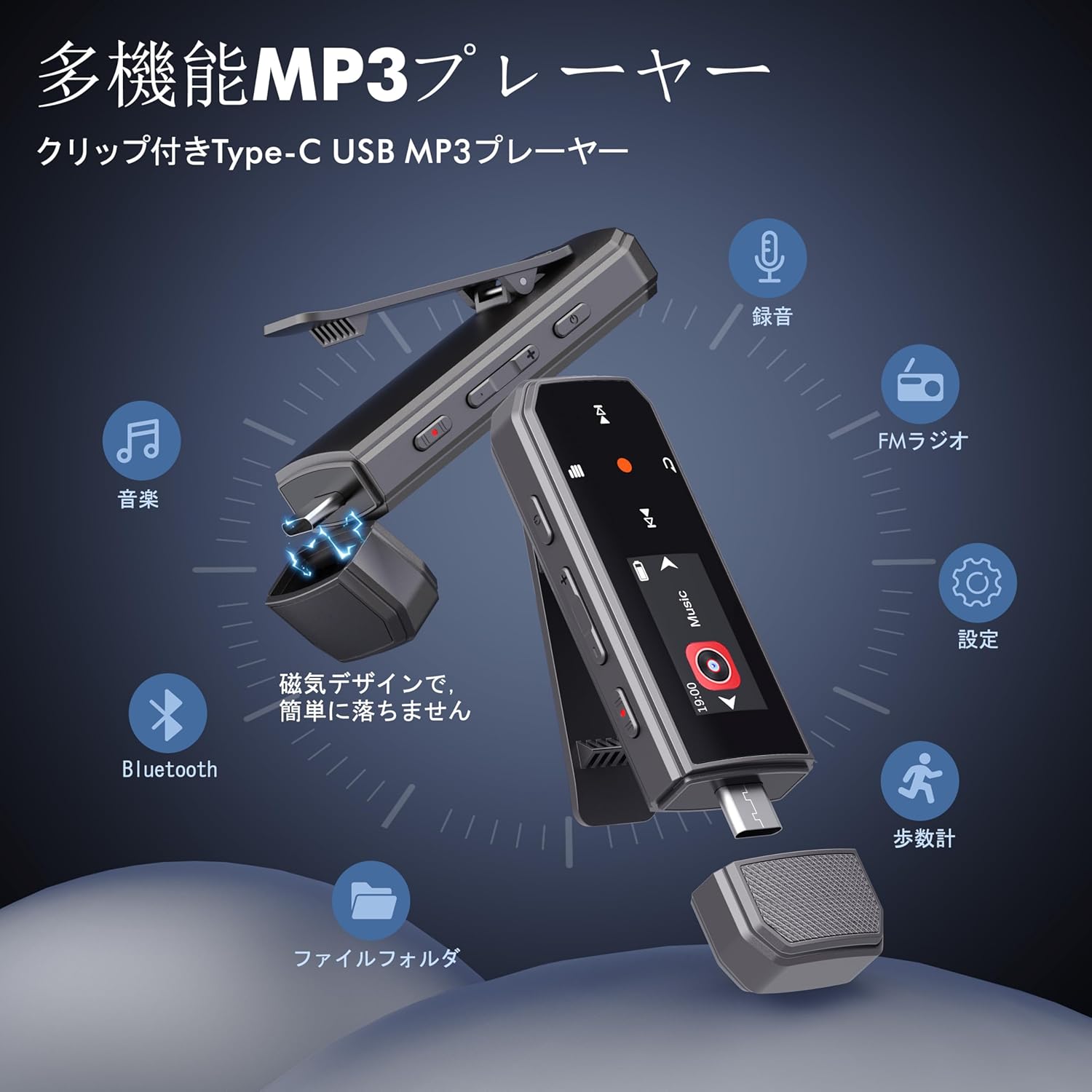
Image: RUIZU X66 MP3 Player highlighting its compact dimensions and clip.
4. Getting Started
4.1. Charging the Device
Before first use, fully charge your MP3 player. The device has a built-in rechargeable battery that provides up to 20 hours of playback time on a 2-hour charge.
- Remove the magnetic cap from the USB Type-C port.
- Connect the included USB-C adapter cable to the player.
- Plug the other end of the cable into a USB power source (e.g., computer, wall adapter).
- The battery icon on the screen will indicate charging status.

Image: Magnetic cap of the RUIZU X66 MP3 Player.
4.2. Transferring Music Files
The RUIZU X66 has 64GB of internal storage. You can transfer music files from your computer or compatible smartphone.
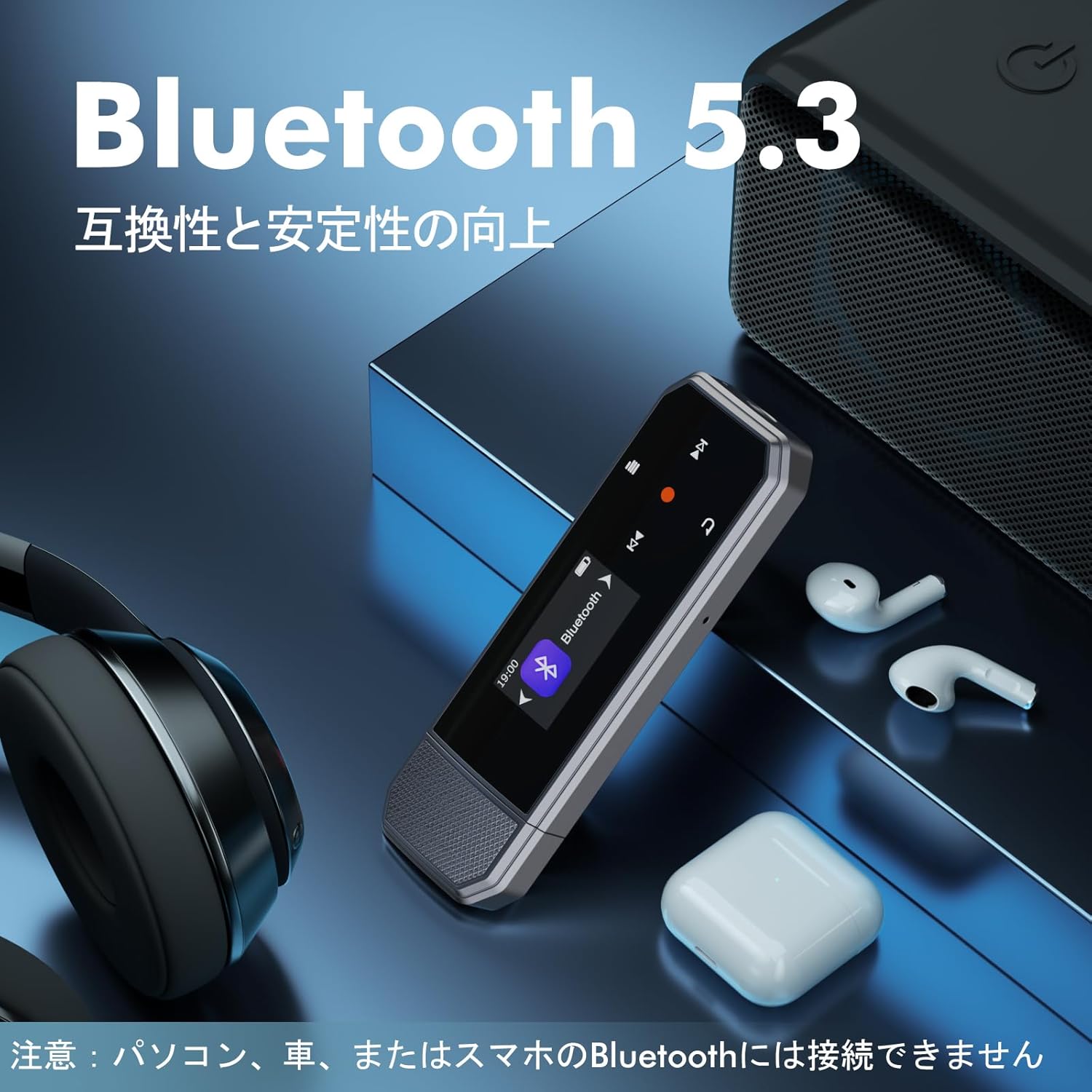
Image: Key specifications of the RUIZU X66 MP3 Player.
4.2.1. Via Computer (USB Connection)
- Connect the MP3 player to your computer using the USB-C adapter cable.
- The player will appear as a removable disk drive.
- Drag and drop your music files (MP3, WMA, APE, FLAC, WAV, M4A, OGG) into the player's storage.
- Safely eject the device from your computer before disconnecting.
4.2.2. Via Smartphone (OTG Function)
The player supports OTG (On-The-Go) for direct file transfer from compatible Android smartphones.
- Connect the MP3 player directly to your Android smartphone's Type-C port.
- Your phone will recognize the player as external storage.
- Use your phone's file manager to transfer music files.
Note: OTG file transfer is not supported on iOS devices. Batch transfer is limited to 1GB at a time.

Image: File transfer options for the RUIZU X66 MP3 Player.
5. Basic Operation
5.1. Power On/Off
- To power on: Press and hold the Power button until the screen lights up.
- To power off: Press and hold the Power button until the device shuts down.
5.2. Music Playback
- Navigate to the 'Music' menu using the control buttons.
- Select a song or folder to play.
- Use the Play/Pause button to start or pause playback.
- Use the Next/Previous buttons to skip tracks.
5.2.1. Playback Modes
The player supports various playback modes:
- Sequential Playback: Plays songs in order.
- Shuffle Playback: Plays songs in a random order.
- Repeat One: Repeats the current song.
- Repeat All: Repeats all songs in the current folder/playlist.
5.3. Volume Control
Use the dedicated Volume Up and Volume Down buttons on the side of the device to adjust the audio level.
5.4. Bluetooth Connection
Connect your RUIZU X66 to Bluetooth headphones or speakers for wireless audio.

Image: RUIZU X66 MP3 Player demonstrating Bluetooth 5.3 connectivity.
- Turn on your Bluetooth headphones or speaker and set them to pairing mode.
- On the MP3 player, navigate to the 'Bluetooth' menu.
- Select 'Search for devices' or 'Pair new device'.
- Choose your device from the list to connect.
Note: The RUIZU X66 cannot connect to car Bluetooth, computer Bluetooth, or smartphone Bluetooth for audio output.
6. Advanced Features
6.1. Voice Recording
The RUIZU X66 features a one-button recording function.

Image: Activating the voice recording function on the RUIZU X66 MP3 Player.
- To start recording: Slide the red recording button on the side of the device upwards.
- To save recording: Slide the red recording button downwards.
- Recorded files are saved in the 'Record' folder and can be played back from the device.
6.2. FM Radio
Listen to your favorite FM radio stations.

Image: Using the FM radio feature with wired headphones.
- Connect wired headphones to the 3.5mm jack (they act as the antenna).
- Navigate to the 'FM Radio' menu.
- Use the auto-tune function to scan for available stations or manually tune.
6.3. Pedometer
Track your steps during exercise.
- Navigate to the 'Pedometer' menu to start tracking.
- The device records step count, distance, and time.
- Review your activity history within the pedometer menu.
6.4. Other Functions
- Equalizer: Adjust sound profiles to your preference.
- Bookmarks: Mark specific points in audio files for quick return.
- Volume Limit: Set a maximum volume level to protect hearing.
- File Folders: Organize and browse your music by folders.
- USB Flash Drive: The device can also function as a portable USB storage drive.
7. Maintenance
- Cleaning: Use a soft, dry cloth to clean the device. Avoid liquid cleaners.
- Storage: Store the player in a cool, dry place away from direct sunlight and extreme temperatures.
- Battery Care: To prolong battery life, avoid fully discharging the battery frequently. Charge regularly.
- Screen Protection: The screen is susceptible to scratches. Handle with care.
8. Troubleshooting
| Problem | Possible Solution |
|---|---|
| Device does not power on. | Ensure the battery is charged. Connect to a power source and try again. |
| Cannot transfer files to the device. | Check USB cable connection. Ensure the device is properly recognized by your computer/phone. For OTG, confirm your phone is Android and supports OTG. |
| Bluetooth connection unstable or not pairing. | Ensure your Bluetooth accessory is in pairing mode and within range. Restart both devices. Remember, the player cannot connect to car, PC, or phone Bluetooth for audio output. |
| No sound from headphones. | Check headphone connection. Ensure volume is not muted or too low. Test with different headphones. |
| FM Radio not working. | Wired headphones must be connected as they act as the antenna. Ensure you are in an area with good signal reception. |
9. Specifications
- Brand: RUIZU
- Model: X66
- Memory Storage Capacity: 64 GB
- Connectivity Technology: Bluetooth 5.3, USB Type-C, 3.5mm AUX
- Supported Audio Formats: MP3, WMA, APE, FLAC, WAV, M4A, DRM, ACELP, OGG
- Battery Life: Up to 20 hours (playback)
- Charging Time: Approximately 2 hours
- Weight: 26g
- Dimensions: 8.1 x 2.5 x 1.3 cm
- Features: FM Radio, Voice Recorder, Pedometer, Equalizer, Clip Design
10. Warranty & Support
RUIZU offers a 1-year warranty for product defects or malfunctions from the date of purchase. For any product issues, please contact our customer support for free refunds or exchanges.
If you have any questions about the product, please feel free to contact us. Refer to the "Product Packaging" for detailed contact information.


