
1. Introduction
Welcome to the user manual for your Yale Assure Lock 2 Touch Deadbolt. This smart lock is designed to provide secure and convenient access to your property, featuring a touchscreen keypad, fingerprint scanner, and Wi-Fi connectivity for remote management. It is an ideal solution for homeowners and vacation rental hosts seeking enhanced security and ease of use.
The Yale Assure Lock 2 Touch Deadbolt allows for easy check-ins by sharing unique door codes through the Yale Access app or compatible partner applications. Its advanced Auto-Lock with DoorSense ensures the door is always locked when closed, providing peace of mind. The included Yale Connect Wi-Fi Bridge enables app access from anywhere and extends the smart lock's battery life. You can also monitor activity and manage access through the app's Activity Feed.

Image: The Yale Assure Lock 2 Touch Deadbolt system, including the exterior keypad, interior lock, smartphone app interface, and Yale Connect Wi-Fi Bridge.
2. Key Features
- Easy Check-ins: Share unique door codes via the Yale Access app or compatible partner apps for hands-free guest access.
- Full Control: Generate temporary and unique door codes for guests, active only for the duration of their stay, eliminating the need for physical key exchanges or changing lockbox codes.
- Auto-Lock with DoorSense: The lock automatically secures itself once DoorSense detects that the door is closed, ensuring your property is always protected.
- Fingerprint Unlock: Utilize your unique fingerprint for fast and secure entry with 99% accuracy and less than 0.5 seconds recognition time.
- Stay Connected: The included Yale Connect Wi-Fi Bridge provides remote app access and extends battery life.
- No More Lockouts: Battery-powered operation ensures access during power or Wi-Fi outages. A backup physical key is also included.
- Activity Monitoring: Track who comes and goes with the app's Activity Feed, allowing you to confirm guest check-ins.
- Ultimate Flexibility: Manage last-minute bookings or late arrivals by allowing guests to self-check-in with their unique codes.
- Trusted Security: Features like two-factor authentication and matte keypads for fingerprint resistance enhance security.
- Simple Installation: Replaces your existing deadbolt on most standard US entry doors using only a screwdriver, no professional locksmith required.

Image: Detail of the Yale Assure Lock 2's fingerprint scanner, emphasizing its high accuracy and rapid recognition.
3. Setup and Installation
The Yale Assure Lock 2 is designed for straightforward installation. For the most detailed and visual step-by-step guide, it is highly recommended to install the Yale Access app on your smartphone and follow its integrated installation instructions, which include helpful videos.
3.1. Door Compatibility
Before installation, ensure your door meets the compatibility requirements. The lock supports door thicknesses between 1-3/8 inches (35mm) and 2-1/4 inches (57mm). The boreholes should be 2-1/8 inches (54mm) or 1-1/2 inches (38mm), and the backset should be 2-3/8 inches (60mm) or 2-3/4 inches (70mm).

Image: A diagram showing the required door measurements and components for installing the Yale Assure Lock 2.
3.2. Initial Setup
During the initial setup process, you will be guided through configuring the lock for your specific door orientation (left-handed or right-handed). The Yale Access app will walk you through each step, including mounting the interior and exterior components, installing the batteries, and setting up the DoorSense magnet for accurate door status detection.
4. Operating Instructions
4.1. Unlocking Methods
- Fingerprint Unlock: Place your registered finger on the fingerprint scanner located on the touchscreen keypad. The lock will unlock rapidly upon successful recognition.
- Keypad Code Unlock: Enter your unique 4-8 digit access code on the touchscreen keypad, then press the checkmark button.
- Yale Access App Unlock: Open the Yale Access app on your smartphone. If within Bluetooth range, you can tap the lock icon to unlock. With the Yale Connect Wi-Fi Bridge, you can unlock the door remotely from anywhere.
- Physical Key Unlock: In case of battery depletion or other issues, use the provided physical key to manually unlock the deadbolt.
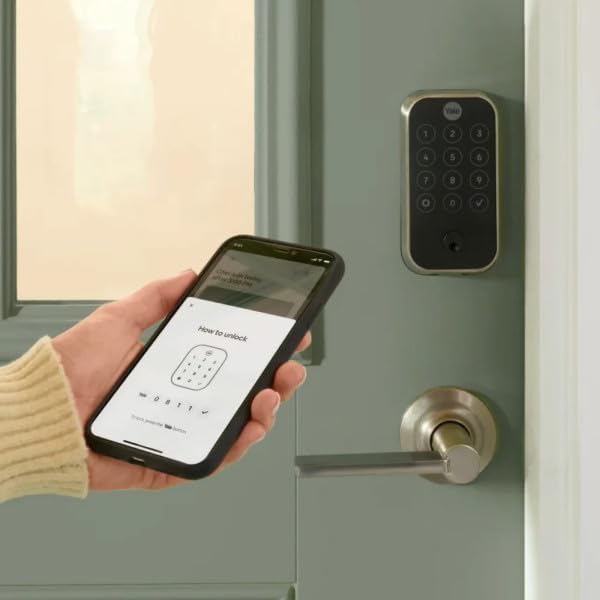
Image: A close-up view of the Yale Assure Lock 2's exterior touchscreen keypad.
4.2. Auto-Lock and DoorSense
The DoorSense feature detects the status of your door (open or closed). When DoorSense indicates the door is closed, the Auto-Lock feature will automatically engage the deadbolt after a preset time, ensuring the door is always secured without manual intervention.
4.3. User Management (for Rental Hosts)
For vacation rental hosts, the Yale Access app allows you to create and manage temporary access codes for guests. These codes can be set to be valid only for the duration of their stay. The app's Activity Feed provides a log of all lock and unlock events, allowing you to monitor guest arrivals and departures.

Image: A smartphone displaying an Airbnb check-in notification, demonstrating the lock's integration for rental properties.
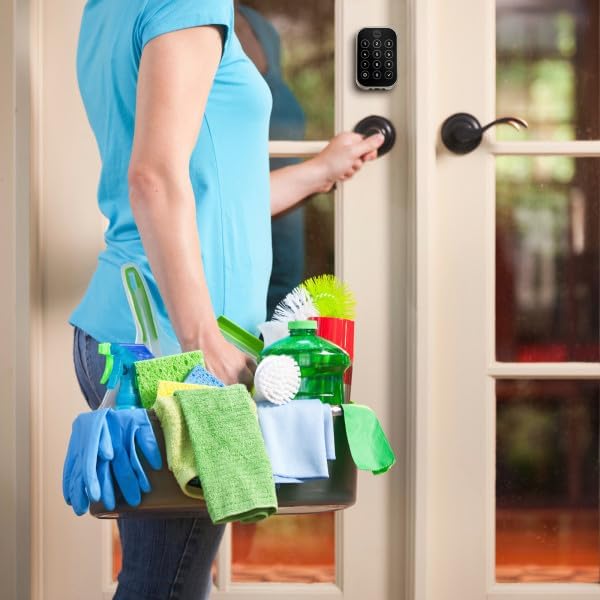
Image: A person with cleaning supplies easily accessing a property secured with the Yale Assure Lock 2.
5. Maintenance
5.1. Battery Replacement
The Yale Assure Lock 2 is powered by AA Alkaline batteries. The Yale Access app will notify you when the battery level is low. To replace the batteries, remove the interior cover of the lock and insert new batteries according to the polarity indicators. Even if batteries die, the physical key can be used for access.
5.2. Cleaning
To clean the lock's exterior, use a soft, damp cloth. Avoid abrasive cleaners or solvents, as these can damage the finish or electronic components. Ensure the touchscreen keypad and fingerprint scanner are kept clean for optimal performance.
6. Troubleshooting
If you encounter any issues with your Yale Assure Lock 2, consider the following basic troubleshooting steps:
- Lock Not Responding: Check the battery level in the Yale Access app or replace the batteries.
- Keypad Not Responding: Ensure the keypad is clean and free of debris. Try re-entering the code carefully.
- Fingerprint Scanner Issues: Ensure your finger is clean and dry. Try re-registering your fingerprint in the app if issues persist.
- App Connectivity Problems: Verify your Wi-Fi connection and ensure the Yale Connect Wi-Fi Bridge is properly plugged in and connected to your network. Restarting your router or the bridge may help.
- DoorSense Malfunction: Ensure the DoorSense magnet is correctly aligned and securely installed on the door frame.
For more advanced troubleshooting or persistent issues, refer to the Yale Access app's help section or visit the official Yale support website.
7. Technical Specifications
| Specification | Detail |
|---|---|
| Brand | Yale |
| Model Number | YRD420-F-CB1-BSP |
| Color | Black Suede |
| Power Source | Battery Powered (Alkaline) |
| Compatible Devices | Smartphone, Tablet, Airbnb, Smart Home Platforms |
| Item Dimensions (L x W x H) | 0.88 x 2.5 x 4.88 inches |
| Connectivity Technology | Wireless (Wi-Fi, Bluetooth) |
| Installation Type | Screw-In |
| Alert Type | Entry |
| Included Components | DoorSense®, Mounting Hardware, Required Batteries, Yale Assure Lock 2, Yale Touchscreen Keypad, Yale Connect Wi-Fi Bridge |
| Item Weight | 3.5 pounds |
| Special Features | Auto-Lock, Fingerprint, Passcode Unlock, Touchscreen |
8. Warranty and Support
For detailed warranty information regarding your Yale Assure Lock 2 Touch Deadbolt, please refer to the documentation included with your purchase or visit the official Yale website. Yale provides customer support for product inquiries, technical assistance, and warranty claims.
Always ensure you are using official Yale resources for support to guarantee accurate and reliable information.


