
1. Introduction
This manual provides essential information for the safe and efficient use of your Engel LE3286SM 32-inch HD Smart TV. Please read these instructions thoroughly before operating the device and retain them for future reference. This television integrates a VIDAA operating system, offering access to various streaming services and smart functionalities.

Image 1.1: Front view of the Engel LE3286SM Smart TV, highlighting its key features and branding.
2. Safety Information
Always observe the following safety precautions to prevent electric shock, fire, or damage to the television:
- Do not expose the TV to rain or moisture.
- Do not open the TV casing; refer all servicing to qualified personnel.
- Ensure proper ventilation around the TV.
- Unplug the TV during lightning storms or when unused for long periods.
- Keep the TV away from heat sources and direct sunlight.
3. Package Contents
Verify that all items are present in the box:
- Engel LE3286SM 32-inch HD Smart TV
- Remote Control
- Power Cable
- TV Stand (2 pieces)
- Screws for TV Stand
- User Manual
4. Product Overview
The Engel LE3286SM is a 32-inch HD Smart TV featuring the VIDAA operating system. It includes multiple connectivity options and supports Dolby Audio for an enhanced sound experience.
4.1. Dimensions
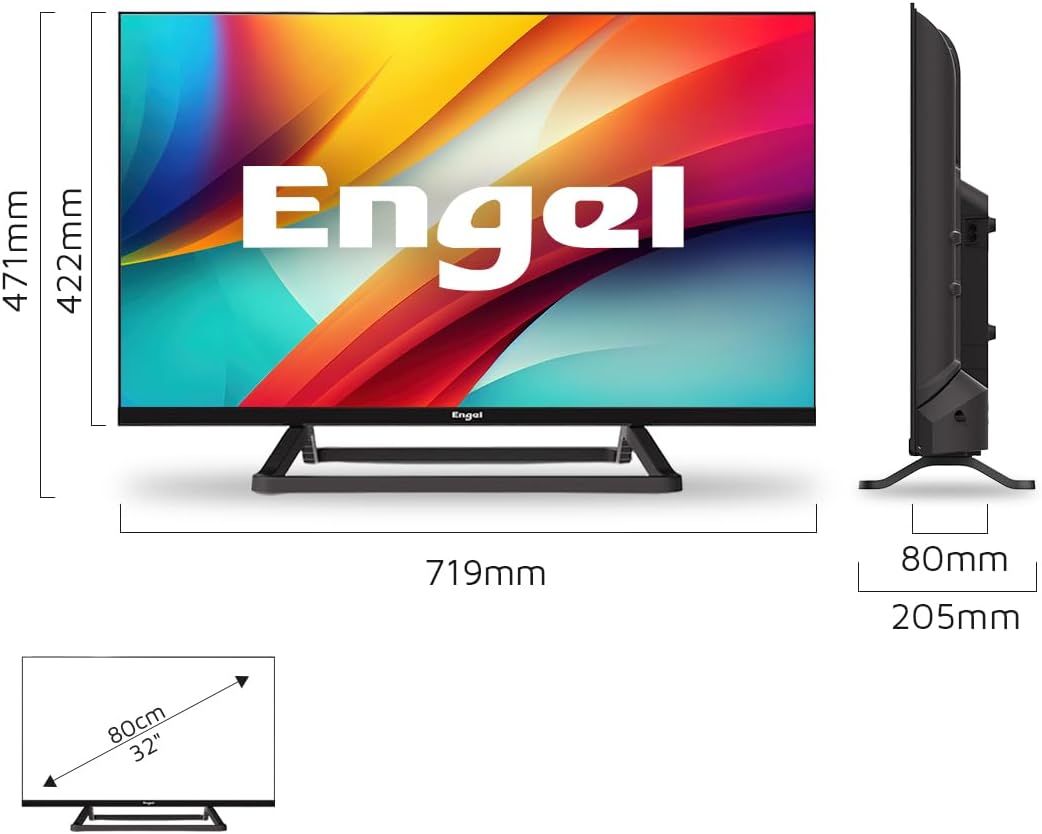
Image 4.1: Detailed dimensions of the Engel LE3286SM television, including measurements with and without the stand.
4.2. Connectivity Ports
The TV offers a range of ports for connecting external devices:

Image 4.2: Overview of the Engel LE3286SM TV's input and output ports, including HDMI, USB, and network connections.
- HDMI (x3): For connecting high-definition devices like Blu-ray players, game consoles, or set-top boxes.
- USB (x2): For connecting USB storage devices to play media or use PVR/Time-Shift functions.
- Ethernet (LAN): For a wired internet connection.
- Satellite Input (SAT): For connecting a satellite dish.
- Mini AV: For connecting older analog devices using an adapter (not included).
- Headphone Jack: For connecting headphones.
- SPDIF (Optical Digital Audio Out): For connecting to an external audio system.
- CI Slot: For inserting a Conditional Access Module (CAM) for encrypted digital TV services.
5. Setup
5.1. Physical Installation
You can install your TV using the included stand or mount it on a wall (wall mount kit sold separately).
5.1.1. Attaching the Stand
- Carefully place the TV face down on a soft, flat surface to prevent screen damage.
- Align the stand pieces with the corresponding slots on the bottom of the TV.
- Secure the stands using the provided screws. Ensure they are tightened firmly.
- Place the TV on a stable, level surface.
5.1.2. Wall Mounting
If wall mounting, remove the stand first. Refer to the wall mount kit's instructions for proper installation. Ensure the wall mount is compatible with the TV's VESA mounting pattern.
5.2. Connecting Peripherals
- Power: Connect the power cable to the TV's power input and then to a wall outlet.
- Antenna/Satellite: Connect your antenna or satellite cable to the respective input on the TV.
- HDMI Devices: Connect external devices (e.g., game console, Blu-ray player) to the HDMI ports.
- USB Devices: Insert USB storage devices into the USB ports for media playback or recording.
- Internet: For a wired connection, connect an Ethernet cable to the LAN port. For Wi-Fi, you will configure it during the initial setup.
5.3. Initial Power On and First-Time Setup
- Plug in the TV and press the power button on the remote control or TV.
- Follow the on-screen instructions to select your language, country, and time zone.
- Network Setup: Select your Wi-Fi network and enter the password, or confirm the wired connection.
- Channel Scan: The TV will automatically scan for available digital and analog channels. This may take several minutes.
- VIDAA Account: You may be prompted to create or log in to a VIDAA account to access all smart features.
6. Operating
6.1. Remote Control Functions
The remote control allows you to navigate the TV's features. Familiarize yourself with the buttons:

Image 6.1: The remote control for the Engel LE3286SM TV, used for navigating menus and controlling playback.
- Power: Turns the TV on/off.
- Source: Selects input sources (HDMI, AV, TV, SAT).
- Navigation Buttons (Up/Down/Left/Right/OK): For menu navigation and selection.
- Back/Exit: Returns to the previous menu or exits the current application.
- Volume +/-: Adjusts the volume.
- Channel +/-: Changes TV channels.
- Smart App Buttons: Dedicated buttons for Netflix, Prime Video, Disney+, etc.
- Menu: Accesses the main settings menu.
6.2. Navigating the VIDAA Smart TV Interface
The VIDAA operating system provides a user-friendly interface for accessing live TV, streaming apps, and settings. Use the navigation buttons on your remote to browse the home screen, app launcher, and various menus.
6.3. Using Smart Features
Your Engel Smart TV comes with pre-installed applications and supports casting:
- Streaming Services: Directly access Netflix, Amazon Prime Video, Disney+, and other services via their dedicated buttons or the app launcher. Ensure you have an active subscription for these services.
- Cast Function: Use the built-in cast feature to mirror content from your compatible smartphone or tablet to the TV screen.
6.4. PVR and Time-Shift Functions
To use PVR (Personal Video Recorder) and Time-Shift, connect a USB storage device (e.g., USB hard drive or flash drive) to one of the TV's USB ports. The TV will prompt you to format the device if it's not already compatible.
- PVR: Allows you to record live TV programs. Consult the on-screen guide for recording options.
- Time-Shift: Enables you to pause, rewind, and fast-forward live TV.
6.5. Hotel Mode
The Hotel Mode feature is designed for use in hospitality environments, allowing for restricted access to certain TV functions and automatic resetting of app data.

Image 6.2: Illustration of the Hotel Mode feature, which automatically resets app data upon TV shutdown.
In Hotel Mode, when the TV is powered off, data from installed applications is automatically reset. This ensures privacy and a consistent user experience for each new guest. Access to Hotel Mode settings is typically password-protected and intended for administrators.
6.6. Audio Settings (Dolby Audio)
Your TV supports Dolby Audio, providing enhanced sound quality. You can adjust audio settings in the TV's sound menu to optimize your listening experience.

Image 6.3: Visual representation of the Dolby Audio feature, indicating immersive sound experience.
Navigate to Settings > Sound to access options such as Sound Mode (Standard, Music, Movie, Sport, User), Equalizer, and Surround Sound settings.
7. Maintenance
7.1. Cleaning
- Always unplug the TV before cleaning.
- Use a soft, dry cloth to wipe the screen and casing.
- For stubborn marks, lightly dampen the cloth with water or a mild, non-abrasive screen cleaner.
- Never spray cleaner directly onto the screen.
7.2. Software Updates
Periodically check for software updates to ensure optimal performance and access to the latest features. Navigate to Settings > System > Software Update to check for and install updates via the internet or USB.
8. Troubleshooting
If you encounter issues, try the following solutions before contacting support:
| Problem | Possible Solution |
|---|---|
| No power | Check if the power cable is securely connected and the wall outlet is working. Try a different outlet. |
| No picture, but sound is present | Ensure the correct input source is selected. Check cable connections to external devices. |
| No sound, but picture is present | Check volume level and mute status. Verify audio output settings. |
| Remote control not working | Replace batteries. Ensure no obstructions between remote and TV. |
| Cannot connect to Wi-Fi | Check Wi-Fi password. Restart your router. Ensure TV is within range. |
| Smart apps not loading | Check internet connection. Restart the TV. Clear app cache if available in settings. |
9. Specifications
| Feature | Detail |
|---|---|
| Brand | Engel |
| Model | LE3286SM |
| Screen Size | 32 inches |
| Product Dimensions (TV only) | 71.9 x 8 x 42.2 cm (W x D x H) |
| Product Dimensions (with stand) | 71.9 x 20.5 x 47.1 cm (W x D x H) |
| Hardware Interface | Ethernet, HDMI (x3), USB (x2) |
| Viewing Angle | 178 Degrees |
| Contrast Ratio | 3000:1 |
| Aspect Ratio | 16:9 |
| Audio Input | HDMI |
| Speaker Surround Sound Configuration | 2.1 |
| Voltage | 230 Volts |
| Mounting Compatibility | Wall Mount |
| Compatible Internet Services | Netflix, Amazon Prime Video, Disney+ |
| Maximum Screen Brightness | 180 NIT |
10. Warranty and Support
Your Engel LE3286SM Smart TV comes with a 3-year warranty in Spain. This warranty covers manufacturing defects under normal use. Please retain your proof of purchase for warranty claims.

Image 10.1: Warranty information for Engel products, highlighting 3 years of warranty in Spain and specialized technical service.
For technical support or warranty service, please contact Engel's specialized technical service. Refer to the contact information provided in your product packaging or on the official Engel website.