
1. Introduction
Welcome to your new Mobility Lab ML314259 Wireless Ergonomic RGB Mouse. This manual will guide you through the setup, operation, and maintenance of your device, ensuring you get the most out of its features.
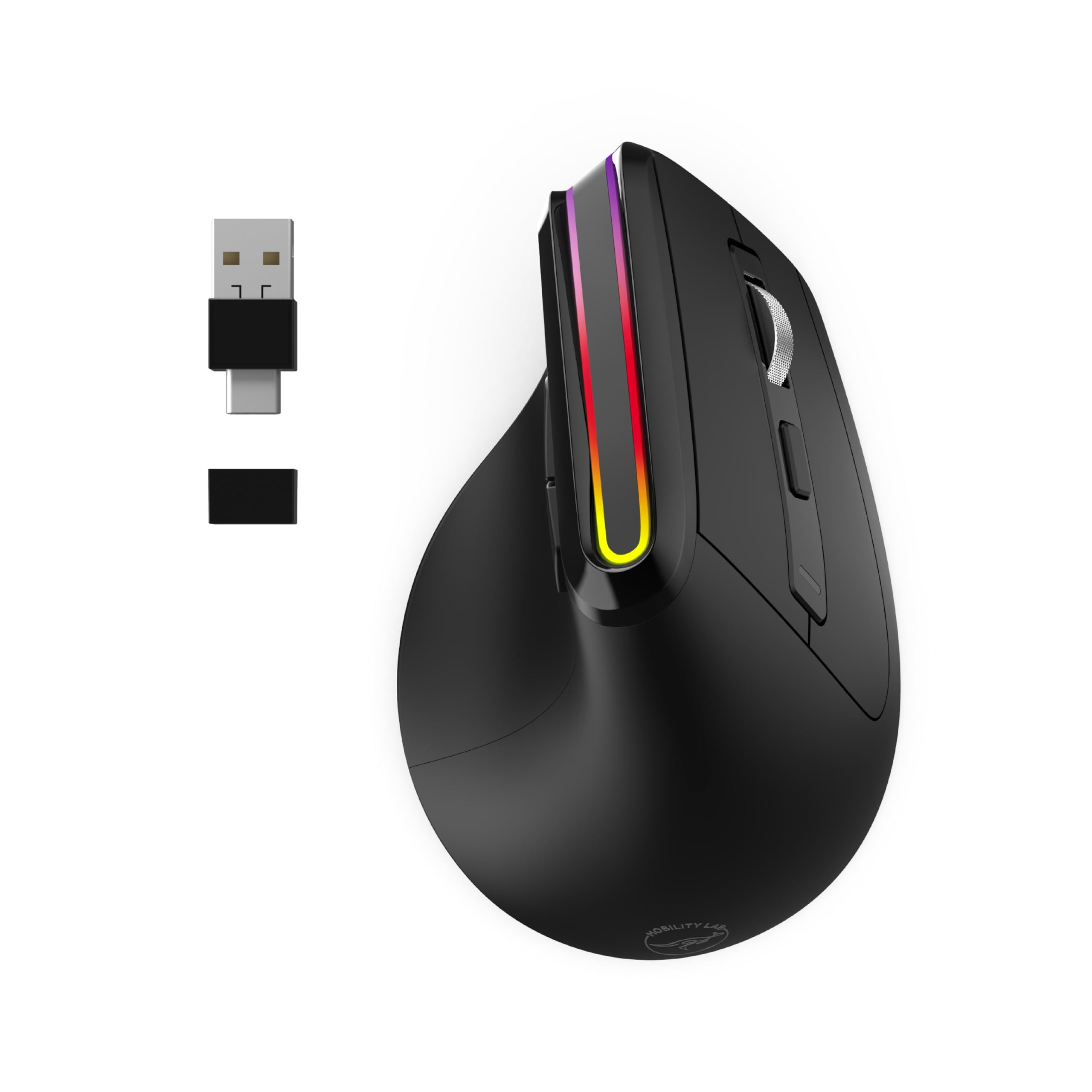
Image 1.1: The Mobility Lab ML314259 Wireless Ergonomic RGB Mouse, showcasing its ergonomic design and customizable RGB lighting.
2. Package Contents
Please check the package for the following items:
- Mobility Lab ML314259 Wireless Ergonomic RGB Mouse
- 2-in-1 USB/USB-C Wireless Receiver
- USB-C Charging Cable
- User Manual (this document)
3. Product Overview
The Mobility Lab ML314259 mouse is designed for comfort and versatility. Key features include:
- Ergonomic Vertical Design: Specifically shaped for right-handed users to promote a natural hand position and reduce wrist fatigue during extended use.
- Dual Wireless Connectivity: Connects via Bluetooth or a 2.4GHz wireless receiver for stable, lag-free performance.
- Adjustable DPI: Three sensitivity levels (800, 1200, 1600 DPI) for precise control.
- Customizable RGB LED Lighting: Features 4 animated RGB patterns to personalize your workspace.
- Silent Clicks: Reduces noise, ideal for quiet environments.
- Convenient Side Buttons: Dedicated 'Next' and 'Previous' buttons for easy navigation.
- USB-C Rechargeable: Built-in rechargeable battery with a USB-C charging port.
- Power Saving Mode: Automatically conserves battery life during inactivity.
- Universal Compatibility: Works with macOS and Windows operating systems.
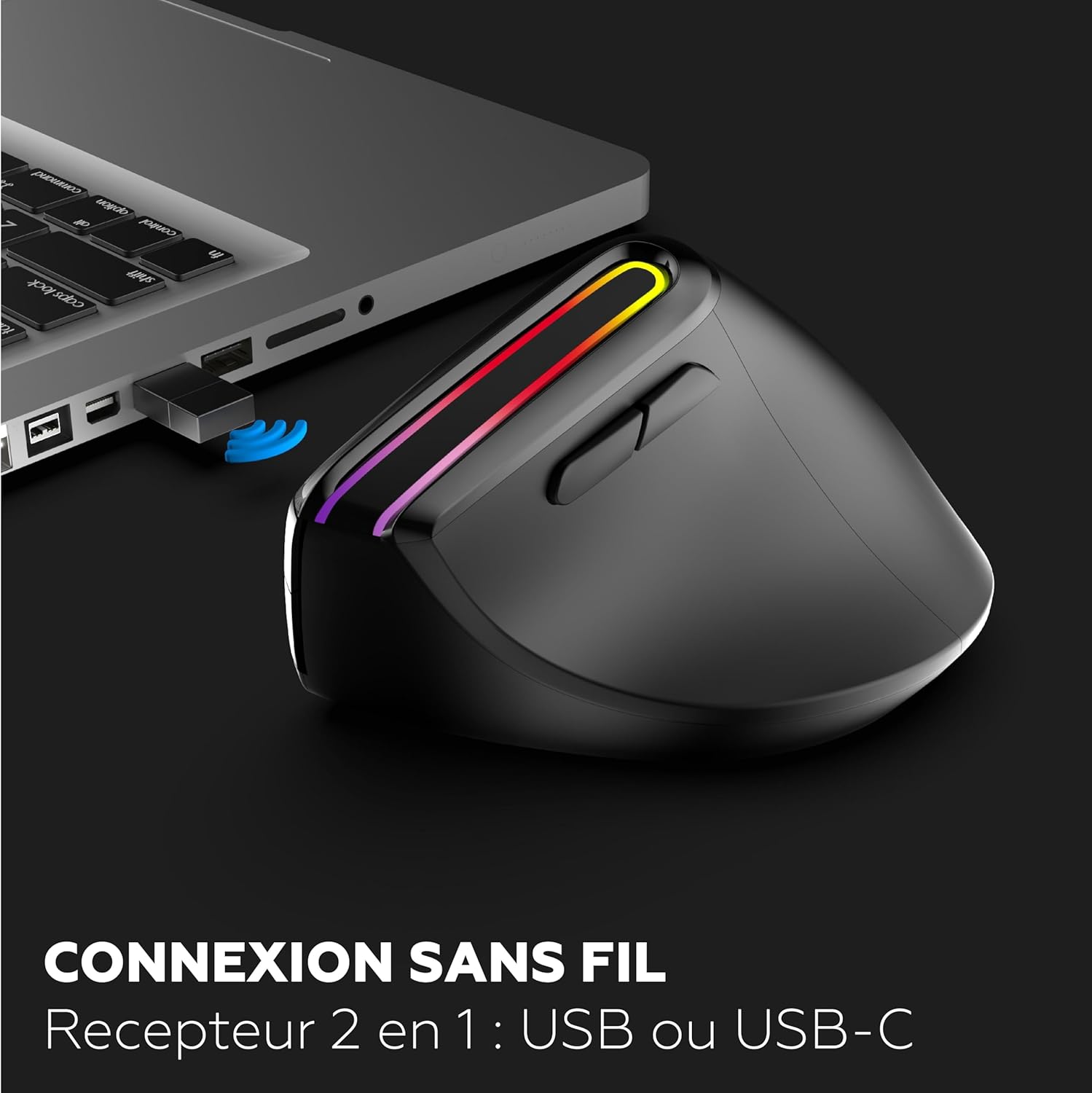
Image 3.1: The ergonomic vertical design promotes a natural hand position, reducing wrist strain.
4. Setup
4.1. Charging the Mouse
Before first use, it is recommended to fully charge the mouse. Connect the supplied USB-C charging cable to the mouse's charging port and the other end to a USB power source (e.g., computer USB port, USB wall adapter).

Image 4.1: Connect the USB-C cable to the mouse for charging.
4.2. Connecting via 2.4GHz Wireless Receiver
- Locate the 2-in-1 USB/USB-C receiver. It may be stored in a compartment on the underside of the mouse.
- Plug the receiver into an available USB-A or USB-C port on your computer.
- Turn on the mouse using the power switch located on the bottom.
- The mouse should automatically connect to your computer.

Image 4.2: The mouse connected wirelessly to a laptop using the 2-in-1 receiver.
4.3. Connecting via Bluetooth
- Turn on the mouse using the power switch.
- Press and hold the Bluetooth pairing button (usually on the underside or a dedicated button) until the indicator light flashes, indicating it's in pairing mode.
- On your computer, open Bluetooth settings.
- Search for new devices and select "Mobility Lab Mouse" (or similar name) from the list.
- Follow any on-screen prompts to complete the pairing process.
5. Operating Instructions
5.1. Adjusting DPI Sensitivity
The mouse features three adjustable DPI levels: 800, 1200, and 1600. To change the sensitivity, press the DPI button located on the top of the mouse, behind the scroll wheel. Each press cycles through the available DPI settings.
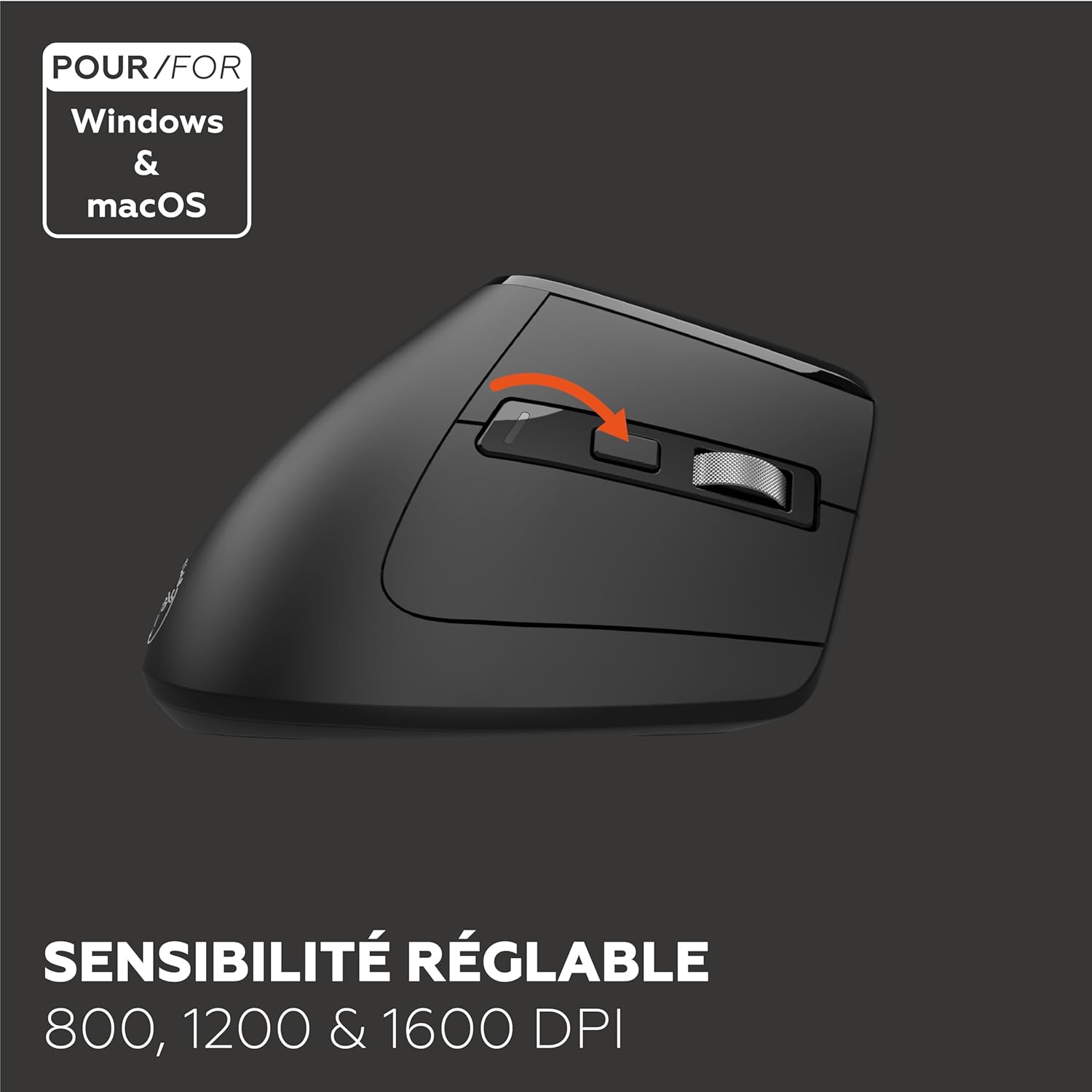
Image 5.1: The DPI button allows you to cycle through sensitivity settings.
5.2. RGB Lighting Modes
The mouse is equipped with customizable RGB LED lighting, offering 4 different animated patterns. Refer to the product's specific instructions or software (if applicable) for changing lighting modes. Typically, a dedicated button or a combination of buttons controls the RGB effects.
5.3. Using Side Buttons
The mouse includes two side buttons, typically located on the thumb side for right-handed users. These buttons are pre-programmed for 'Next' and 'Previous' functions, facilitating navigation in web browsers or file explorers.
Image 5.2: The side buttons provide quick access to 'Next' and 'Previous' functions.
5.4. Silent Click Feature
The main left and right click buttons are designed for silent operation, minimizing noise in quiet environments such as libraries, offices, or late-night use.

Image 5.3: The silent click design ensures a quiet user experience.
5.5. Power Saving Mode
The mouse features an integrated power-saving mode. If the mouse is inactive for a certain period, it will automatically enter a low-power state to conserve battery. To wake it up, simply move the mouse or click any button.
6. Maintenance
6.1. Cleaning
To maintain optimal performance and hygiene, clean your mouse regularly. Use a soft, lint-free cloth slightly dampened with water or a mild cleaning solution. Avoid harsh chemicals or abrasive materials. Ensure no liquid enters the mouse's openings.
6.2. Battery Care
The mouse uses a rechargeable battery. To prolong battery life:
- Avoid fully discharging the battery frequently.
- Store the mouse in a cool, dry place when not in use for extended periods.
- Use the provided USB-C cable for charging.
7. Troubleshooting
- Mouse not responding:
Ensure the mouse is turned on. Check battery level and charge if necessary. For 2.4GHz connection, ensure the receiver is securely plugged in and try a different USB port. For Bluetooth, ensure Bluetooth is enabled on your computer and the mouse is paired correctly. Try re-pairing the mouse. - Lag or intermittent connection:
Move the mouse closer to the receiver or computer. Ensure there are no strong interfering devices (e.g., Wi-Fi routers, other wireless devices) nearby. - DPI not changing:
Ensure you are pressing the correct DPI button. If the issue persists, try restarting the mouse and your computer. - RGB lighting not working:
Check if the mouse is charged. Some RGB features may be disabled in power-saving mode. - Mouse cursor moves erratically:
Clean the optical sensor on the underside of the mouse. Ensure you are using the mouse on a suitable surface (non-reflective, uniform color).
8. Specifications
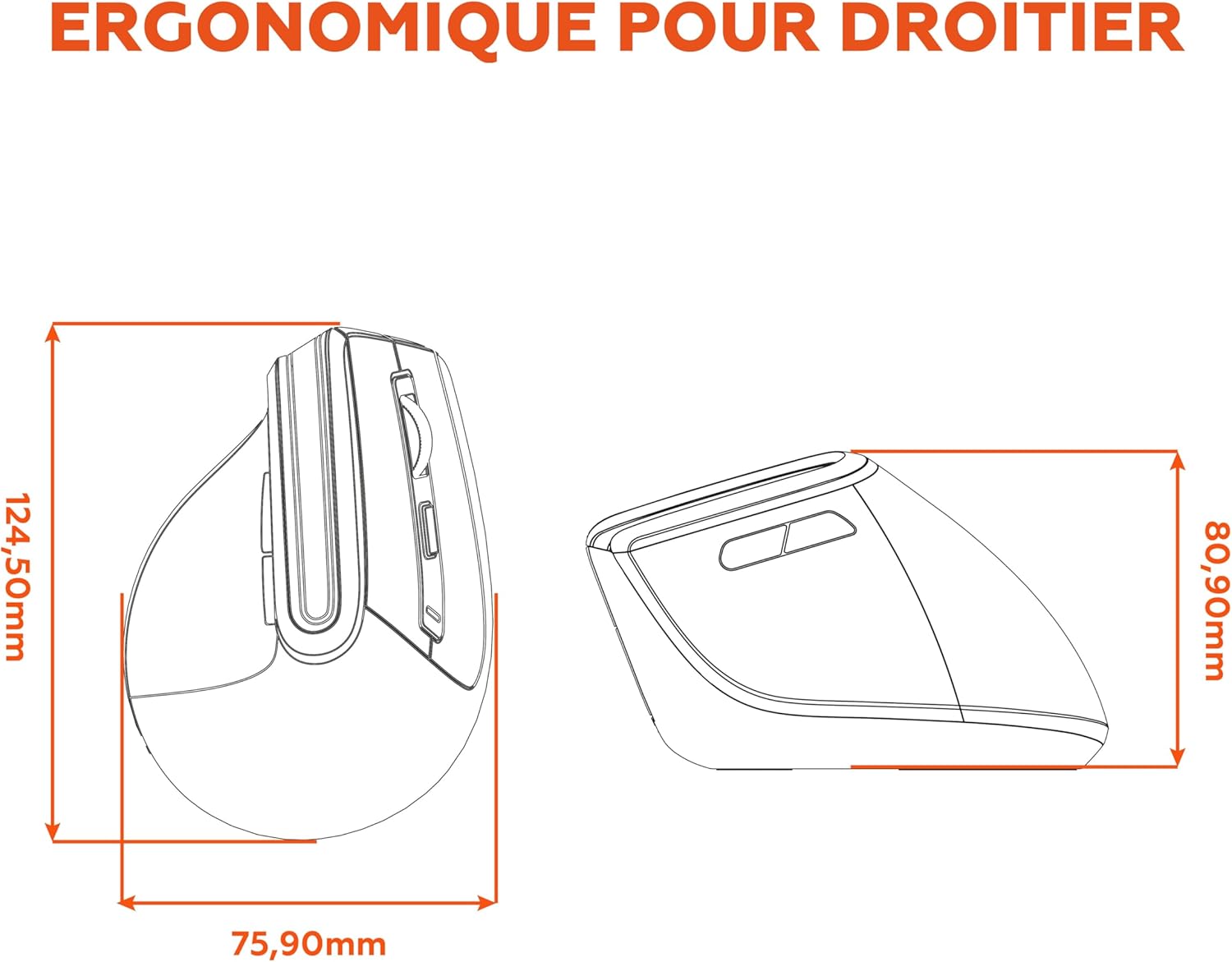
Image 8.1: Approximate dimensions of the Mobility Lab ML314259 mouse.
| Feature | Description |
|---|---|
| Brand | Mobility Lab |
| Model Number | ML314259 |
| Color | Black |
| Connectivity Technology | Bluetooth, 2.4GHz Wireless (via 2-in-1 USB/USB-C receiver) |
| Motion Detection Technology | Optical |
| DPI Levels | 800, 1200, 1600 (Adjustable) |
| Number of Buttons | 6 (Left, Right, Scroll Click, DPI, Forward, Back) |
| Hand Orientation | Right-Handed |
| Special Features | Ergonomic Vertical Design, RGB LED Lighting (4 animated patterns), Silent Clicks, Power Saving Mode, USB-C Rechargeable |
| Operating System Compatibility | macOS, Windows |
| Recommended Uses | Gaming, Office |
| Item Weight | 123g |
9. Warranty and Support
Your Mobility Lab ML314259 Wireless Ergonomic RGB Mouse comes with a standard manufacturer's warranty. Please refer to the warranty card included in your package or visit the official Mobility Lab website for detailed warranty terms and conditions.
For technical support, troubleshooting assistance, or to inquire about replacement parts, please contact Mobility Lab customer service through their official website or the contact information provided with your product.
Website: www.mobilitylab.com (Example link, please verify actual support website)

