
Introduction
This manual provides comprehensive instructions for the setup, operation, and programming of your FODEXAZY 384CH DMX Controller. Designed for stage lighting control, this DMX512 DJ console supports 30 banks of 8 programmable scenes and can manage up to 24 fixtures. Please read this manual thoroughly before use to ensure proper and safe operation.
Product Overview
The FODEXAZY 384CH DMX Controller is a robust and user-friendly device for managing stage lighting effects. Its compact and lightweight design, coupled with durable construction, makes it suitable for various environments.
Key Features:
- 384 DMX Channels: Provides extensive control over your lighting fixtures.
- 30 Banks x 8 Scenes: Allows for the creation and storage of 240 programmable scenes.
- 24 Fixture Control: Manage up to 24 individual lighting fixtures.
- Lightweight & Durable: Designed for portability and reliability with a sturdy structure and protective gel handles.
- LED Gooseneck Light: Ensures seamless operation in low-light conditions.
Component Identification:
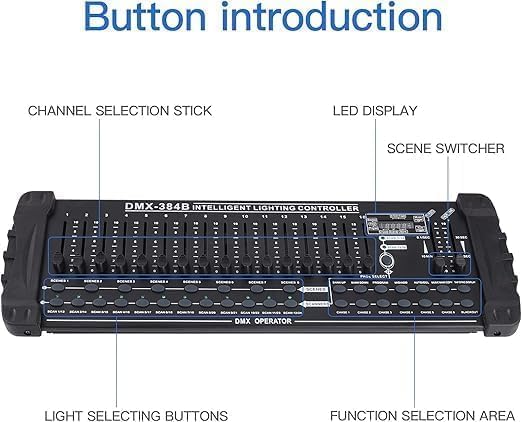
The front panel features Channel Selection Sticks (faders 1-16), an LED Display for status and values, Scene Switcher buttons, Light Selecting Buttons (SCAN 1/13 to SCAN 12/24), and a Function Selection Area for various modes like Program, Midi/Add, Auto/Del, Music/Bank Copy, and Tap Sync Display.

The compact size and moderate weight ensure easy transport and setup for any event.
Setup
Package Contents:
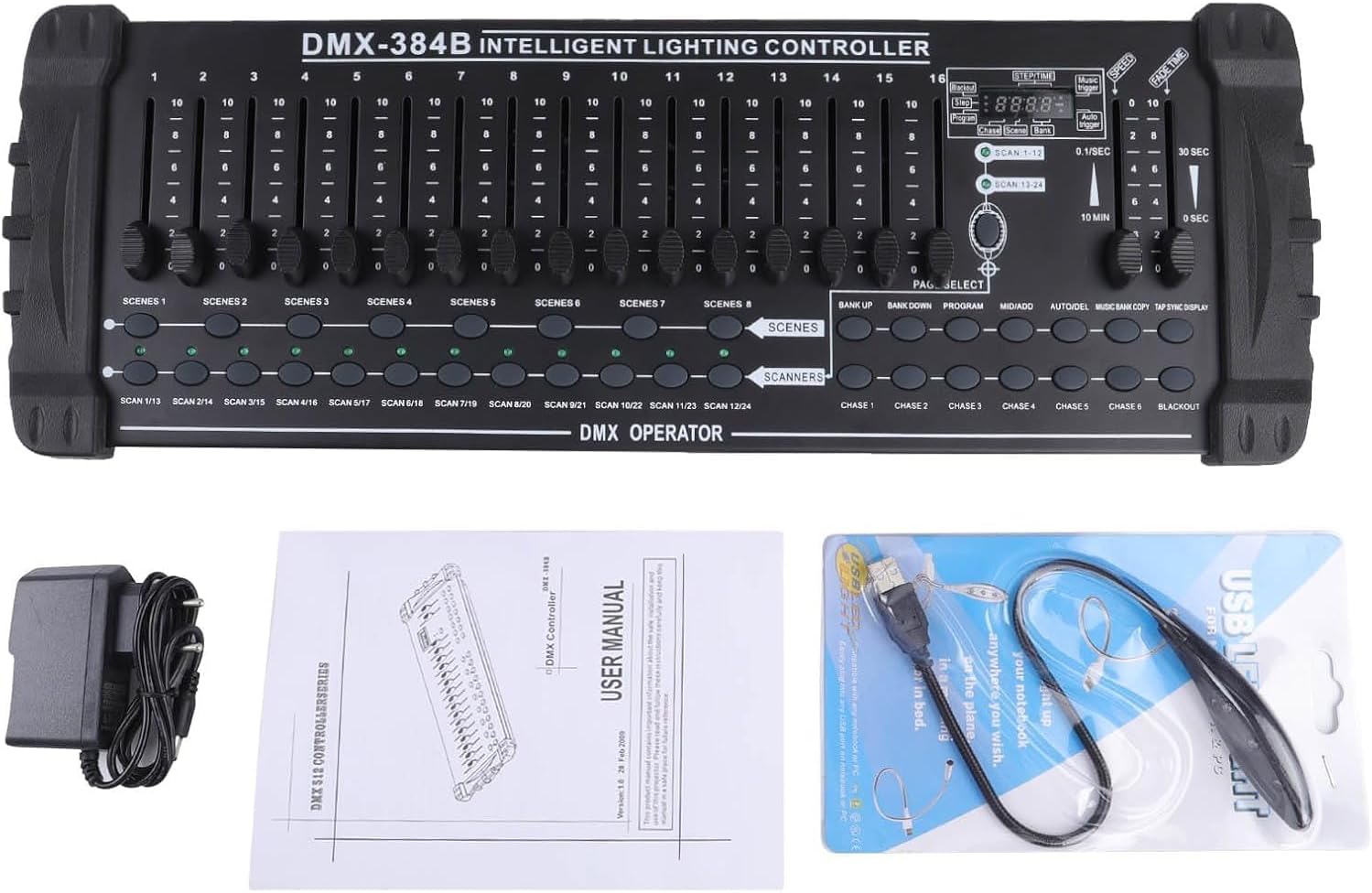
Before starting, ensure all components are present: DMX controller, power adapter, user manual, and USB gooseneck light.
Connecting Your DMX Controller:
- Power Connection: Connect the provided power adapter to the DC9V-12V input on the controller and plug it into a 110-240Vac, 50-60Hz power outlet.
- DMX Fixture Connection: Use standard 3-pin DMX cables to connect your lighting fixtures to the DMX512 output on the controller. Ensure proper daisy-chaining if connecting multiple fixtures.
- USB Light (Optional): Plug the USB gooseneck light into the USB port for illuminated control in dark environments.

Always ensure secure connections to prevent signal loss or damage to equipment.
Operating Instructions
Basic Operation:
- Power On: Flip the power switch to turn on the controller. The LED display will illuminate.
- Fixture Selection: Use the "SCAN" buttons (SCAN 1/13 to SCAN 12/24) to select the fixtures you wish to control. The corresponding LED will light up.
- Channel Control: Adjust the faders (1-16) to control individual DMX channels for the selected fixtures. Values range from 0 to 255.
Programming Scenes:
The controller allows you to program and store up to 240 scenes across 30 banks (8 scenes per bank).
- Enter Program Mode: Long press the "PROGRAM" button until the program indicator flashes on the LED display.
- Select Scene: Use the "BANK UP" or "BANK DOWN" buttons to select the desired bank (1-30). Then, select the specific scene button (SCENE 1-8) where you want to save your lighting configuration.
- Adjust Lighting: Use the "SCAN" buttons to select fixtures and adjust their DMX channels using the faders (1-16) to achieve your desired lighting effect.
- Save Scene: Click the "MIDI/ADD" button and then click the selected "SCENE" button (1-8) to save the current lighting configuration. The system will flash to confirm.
- Exit Program Mode: Click the "PROGRAM" button again to exit program mode.
Running Scenes:
- Enter Auto Mode: Click the "AUTO/DEL" button. The auto indicator will light up.
- Select Scene Bank: Use the "BANK UP" or "BANK DOWN" buttons to select the desired bank containing your saved scenes.
- Run Scene: Click the "SCENE" button (1-8) corresponding to the scene you wish to run. The scene will activate.
- Adjust Speed/Fade Time: Use the "SPEED" and "FADE TIME" faders to adjust the transition speed and fade duration between scenes.
Programming Chases:
Chases are sequences of scenes that run automatically. The controller supports 6 user-set chases.
- Enter Program Mode: Long press the "PROGRAM" button.
- Select Chase: Click one of the "CHASE" buttons (CHASE 1-6) to select the chase you want to program.
- Add Scenes to Chase: For each step in the chase, select a scene (from any bank) using the "BANK UP/DOWN" and "SCENE" buttons. Then, click the "MIDI/ADD" button to add it to the selected chase. Repeat for all desired scenes in the sequence.
- Exit Program Mode: Click the "PROGRAM" button again to exit program mode.
Running Chases:
- Enter Auto Mode: Click the "AUTO/DEL" button.
- Select Chase: Click the desired "CHASE" button (CHASE 1-6). The chase will begin to run.
- Adjust Speed/Fade Time: Use the "SPEED" and "FADE TIME" faders to control the pace and transitions of the chase.
Specifications
| Feature | Specification |
|---|---|
| Power Supply | 110-240Vac, 50-60Hz (DC9V-12V) |
| Current | Not less than 500mA |
| Power Consumption | 10W |
| Control Signal | DMX512 |
| Control Channels | 384CH |
| Product Dimensions (L x W x H) | 20.71 inches x 7.28 inches x 3.15 inches |
| Item Weight | 6 pounds |
| Model Number | ZQ12007 |
Maintenance
- Cleaning: Regularly wipe the surface of the controller with a soft, dry cloth. Avoid using harsh chemicals or abrasive materials.
- Storage: Store the controller in a cool, dry place away from direct sunlight and extreme temperatures when not in use.
- Cable Management: Ensure DMX cables are not tangled or stressed to prevent damage.
Troubleshooting
- No Power:
- Check if the power adapter is securely connected to the controller and the power outlet.
- Verify the power outlet is functional.
- Lights Not Responding:
- Ensure DMX cables are correctly connected and not damaged.
- Verify that the DMX addresses on your fixtures match the channels being controlled by the console.
- Check if the correct fixtures are selected using the "SCAN" buttons.
- Scenes/Chases Not Saving:
- Make sure you are in "PROGRAM" mode when attempting to save.
- Confirm that you are pressing "MIDI/ADD" followed by the desired "SCENE" or "CHASE" button.
Warranty and Support
This product is covered by a standard return policy allowing for refund/replacement within 30 days of purchase. Extended protection plans are available for purchase:
- 3-Year Protection Plan
- 4-Year Protection Plan
For any questions or assistance, please contact customer support. The manufacturer, FODEXAZY, is committed to providing high-quality products and professional after-sales service.