1. Introduction
This manual provides comprehensive instructions for the Newmen BK66 Foldable Bluetooth Keyboard with Touchpad. The BK66 is a portable, compact, and rechargeable wireless keyboard designed for multi-device compatibility across various operating systems. It features a three-fold design, an integrated touchpad with multi-touch gestures, and a numeric keypad.
Key features include:
- Multi-Device Pairing: Connects to up to three devices simultaneously via Bluetooth.
- Integrated Touchpad: Supports multi-touch gestures for enhanced navigation.
- Numeric Keypad: Full-size layout for efficient data entry.
- Compact and Portable: Three-fold design for easy transport.
- Rechargeable Battery: Built-in lithium battery with USB-C charging.
- Silent Scissor Switches: Provides a comfortable and quiet typing experience.
- Wide Compatibility: Supports Windows, Mac, Android, and iOS operating systems.
2. Package Contents
Please verify that all items are present in your package:
- 1 x Newmen BK66 Foldable Bluetooth Keyboard
- 2 x Keyboard Cover (one pre-installed, one spare)
- 1 x USB-C Charging Cable
- 1 x Storage Bag
- 1 x Mobile Phone Holder
- 1 x User Manual
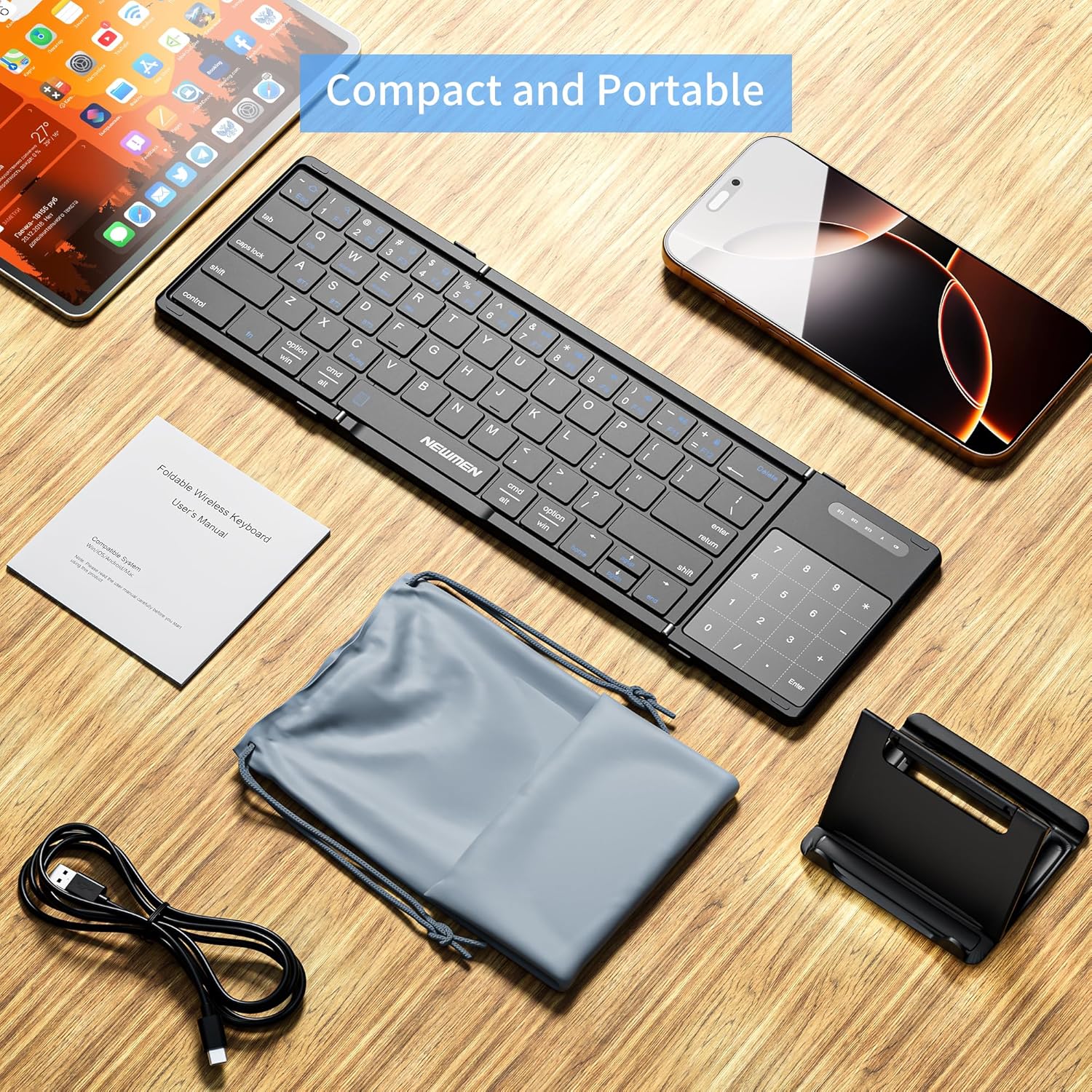
Image: The Newmen BK66 Foldable Bluetooth Keyboard shown with its included accessories: a USB-C charging cable, a storage bag, a mobile phone holder, and the user manual.

Image: The Newmen BK66 Foldable Bluetooth Keyboard in both its compact, folded state and its fully unfolded, operational state, showcasing its design.
3. Setup
3.1 Charging the Keyboard
Before initial use, fully charge the keyboard. Connect the provided USB-C charging cable to the keyboard's charging port and the other end to a USB power source (e.g., computer, wall adapter). The charging indicator light will illuminate during charging and turn off when fully charged.

Image: A close-up view of the Newmen BK66 keyboard showing the USB-C charging cable connected to its port, indicating the charging process.
3.2 Powering On/Off
Locate the power switch on the side of the keyboard. Slide it to the 'ON' position to power on the device. Slide it to the 'OFF' position to power off.

Image: A composite image highlighting the charging port, the power switch, and the scissor switch key mechanism of the Newmen BK66 keyboard.
3.3 Bluetooth Pairing
The Newmen BK66 keyboard supports pairing with up to three devices simultaneously. Follow these steps to pair your device:
- Ensure the keyboard is charged and powered on.
- Press and hold the Fn key and one of the Bluetooth channel keys (A for BT1, S for BT2, or D for BT3) for 3-5 seconds until the corresponding indicator light flashes, indicating pairing mode.
- On your device (smartphone, tablet, laptop), navigate to its Bluetooth settings.
- Search for available devices and select "Newmen BK66" from the list.
- If prompted, enter the pairing code displayed on your screen using the keyboard and press Enter.
- Once paired, the indicator light will stop flashing and remain solid for a few seconds before turning off.
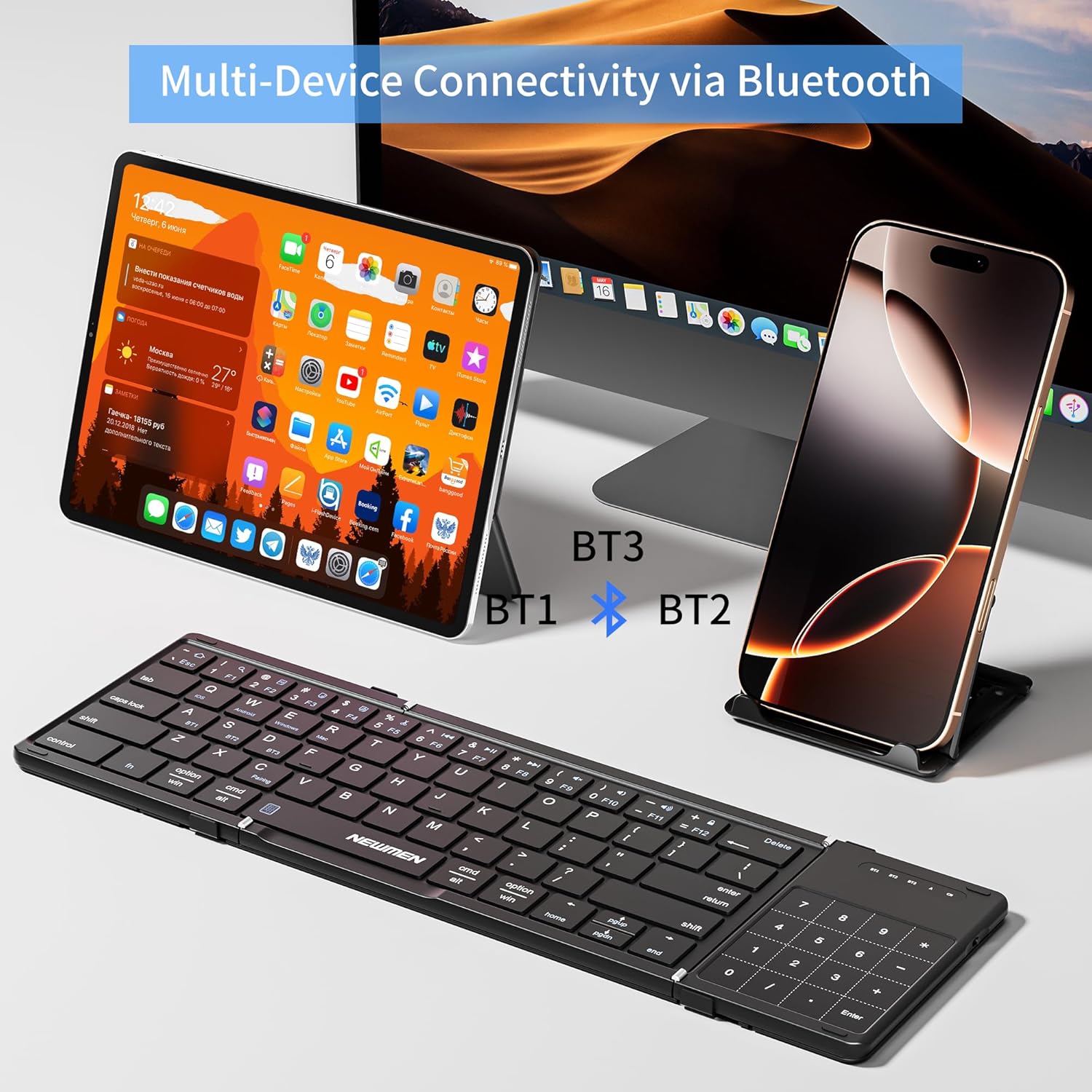
Image: The Newmen BK66 keyboard positioned in front of a tablet and a smartphone, illustrating its multi-device Bluetooth connectivity capabilities (BT1, BT2, BT3).

Image: A close-up of the Newmen BK66 keyboard highlighting the 'Fn' key and the 'A', 'S', 'D' keys, which are used in combination to switch between three paired Bluetooth devices (BT1, BT2, BT3).
3.4 Operating System Selection
The keyboard is compatible with various operating systems. To optimize key functions for your specific OS, use the following combinations:
- Fn + Q: iOS
- Fn + W: Android
- Fn + E: Windows
- Fn + R: Mac

Image: The Newmen BK66 keyboard surrounded by icons representing iOS, Android, Windows, and Mac operating systems, indicating its broad compatibility.
4. Operating Instructions
4.1 Switching Between Paired Devices
To switch between your paired devices, simply press the Fn key along with the corresponding Bluetooth channel key:
- Fn + A: Switch to Device 1 (BT1)
- Fn + S: Switch to Device 2 (BT2)
- Fn + D: Switch to Device 3 (BT3)
4.2 Touchpad Functions
The integrated touchpad supports various gestures for navigation and control:
- Single Tap: Left mouse click.
- Two-Finger Tap: Right mouse click.
- Two-Finger Slide (Vertical): Scroll up/down.
- Two-Finger Slide (Horizontal): Scroll left/right.
- Pinch In/Out: Zoom in/out.
- Three-Finger Tap: Search function (may vary by OS).

Image: The Newmen BK66 keyboard with its touchpad being used, demonstrating its 2-in-1 keyboard and mouse functionality alongside a tablet and a smartphone.

Image: A visual guide illustrating various touchpad gestures for the Newmen BK66 keyboard, including single tap, two-finger vertical/horizontal slides, three-finger tap, and two-finger pinch for zoom.
4.3 Folding and Unfolding
The keyboard features a three-fold design. To unfold, gently extend the two side panels outwards until they lock into place, forming a full-size keyboard. To fold, gently collapse the side panels inwards until the keyboard is compact for storage.

Image: A diagram showing the unfolded dimensions of the Newmen BK66 keyboard (13.39in x 4.13in x 0.31in) and its compact folded dimensions (7.09in x 4.13in x 0.39in).
5. Maintenance
To ensure the longevity and optimal performance of your Newmen BK66 keyboard, follow these maintenance guidelines:
- Cleaning: Use a soft, dry, lint-free cloth to wipe the keyboard surface. For stubborn dirt, slightly dampen the cloth with water or a mild cleaning solution. Avoid excessive moisture.
- Storage: When not in use, fold the keyboard and place it in the provided storage bag. The included PU cover also offers protection against daily wear and scratches. Store in a cool, dry place away from direct sunlight and extreme temperatures.
- Avoid Liquids: Do not expose the keyboard to liquids. In case of accidental spills, power off the keyboard immediately and allow it to dry completely before reuse.
- Handle with Care: Avoid dropping the keyboard or subjecting it to strong impacts.
6. Troubleshooting
If you encounter issues with your Newmen BK66 keyboard, please refer to the following common solutions:
- Keyboard does not power on:
- Ensure the keyboard is fully charged.
- Verify the power switch is in the 'ON' position.
- Unable to pair via Bluetooth:
- Ensure the keyboard is in pairing mode (indicator light flashing after pressing Fn + A/S/D).
- Check that Bluetooth is enabled on your device.
- Move the keyboard closer to your device.
- Forget the device from your device's Bluetooth list and attempt to re-pair.
- Ensure the correct operating system mode is selected (Fn + Q/W/E/R).
- Keyboard disconnects frequently:
- Ensure the keyboard is within the effective Bluetooth range (typically 10 meters).
- Check for interference from other wireless devices.
- Ensure the keyboard has sufficient battery charge.
- Touchpad or numeric keypad not responding:
- Ensure the keyboard is fully unfolded and locked into position.
- Verify that the touchpad is not accidentally disabled (if such a function exists, refer to the quick start guide for specific key combinations).
- Keys are not typing correctly or are unresponsive:
- Ensure the correct operating system mode is selected (Fn + Q/W/E/R).
- Re-pair the keyboard with your device.
- Clean any debris from around the keys.
If these steps do not resolve the issue, please contact customer support for further assistance.
7. Specifications
| Brand | Newmen |
| Model | BK66 |
| Connectivity Technology | Bluetooth |
| Keyboard Description | Membrane (Scissor Switch) |
| Compatible Devices | Laptop, PC, Smartphone, Tablet (iOS, Android, Windows, Mac) |
| Special Features | Foldable, Portable, Rechargeable, Silent, Touchpad, Numeric Keypad |
| Power Source | Battery Powered (Built-in 150mAh Rechargeable Lithium Battery) |
| Material | Plastic |
| Item Weight | 14 ounces (approximately 397 grams) |
| Package Dimensions | 12.36 x 4.72 x 1.02 inches |
8. Warranty and Support
For warranty information and customer support, please refer to the documentation included with your purchase or contact the seller directly. Newmen typically provides support for their products, and details can often be found on their official website or through the retailer where the product was purchased.


