Introduction
This manual provides comprehensive instructions for the installation, operation, and maintenance of your SONOFF ZBMINIR2 ZigBee Smart Light Switch. Please read this manual thoroughly before installation and use to ensure proper functionality and safety.
Safety Information
WARNING: Risk of Electric Shock. Installation must be performed by a qualified electrician in accordance with all local electrical codes and regulations. Always turn off power at the circuit breaker before installation or maintenance.
- Ensure the main power supply is disconnected before handling any wiring.
- This device requires a neutral wire for operation. Verify your electrical box has a neutral wire before proceeding.
- Do not operate or contact the terminal connector while the device is powered on.
- Do not exceed the maximum load rating of 10 Amps / 2400W.
- Keep the device away from water and high humidity environments.
What's in the Box
- Zigbee smart switch x 1
- Quick guide x 1
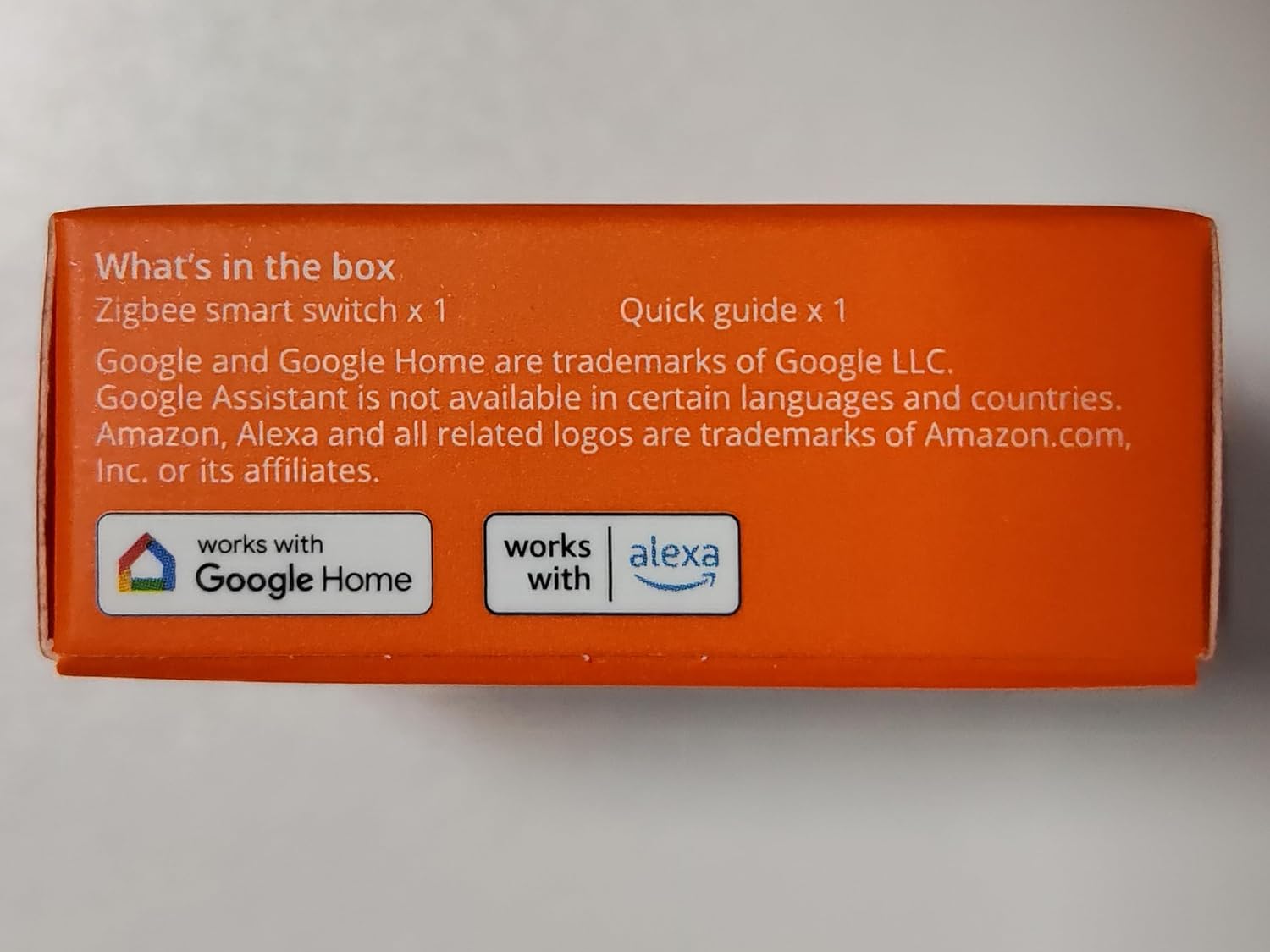
Image: The side of the product box indicating "What's in the box: Zigbee smart switch x 1, Quick guide x 1".
Specifications
| Feature | Detail |
|---|---|
| Model | ZBMINIR2 |
| Color | White |
| Rating | 100-240V~ 50/60Hz 10A Max Resistive Load |
| Max. Load | 2400W@240V |
| Wireless Connection | Zigbee 3.0 |
| Casing Material | PC V0 |
| Net weight | 26.7g |
| Dimension | 39.5x33x16.8mm |
| Product Dimensions | 1.56 x 1.3 x 0.66 inches |
| Operation Mode | ON-OFF |
| Circuit Type | 2-way |

Image: Detailed specifications and dimensions of the ZBMINIR2 device.
Setup and Installation
1. Pre-installation Checklist
- Power Off: Before any wiring, ensure the main power supply to the switch you are replacing is turned off at the circuit breaker. Use a voltage tester to confirm no power is present.
- Neutral Wire: The ZBMINIR2 requires a neutral wire. Confirm its presence in your switch box.
- Zigbee Hub: A SONOFF Zigbee hub or a compatible Zigbee gateway is required for smart functionality.
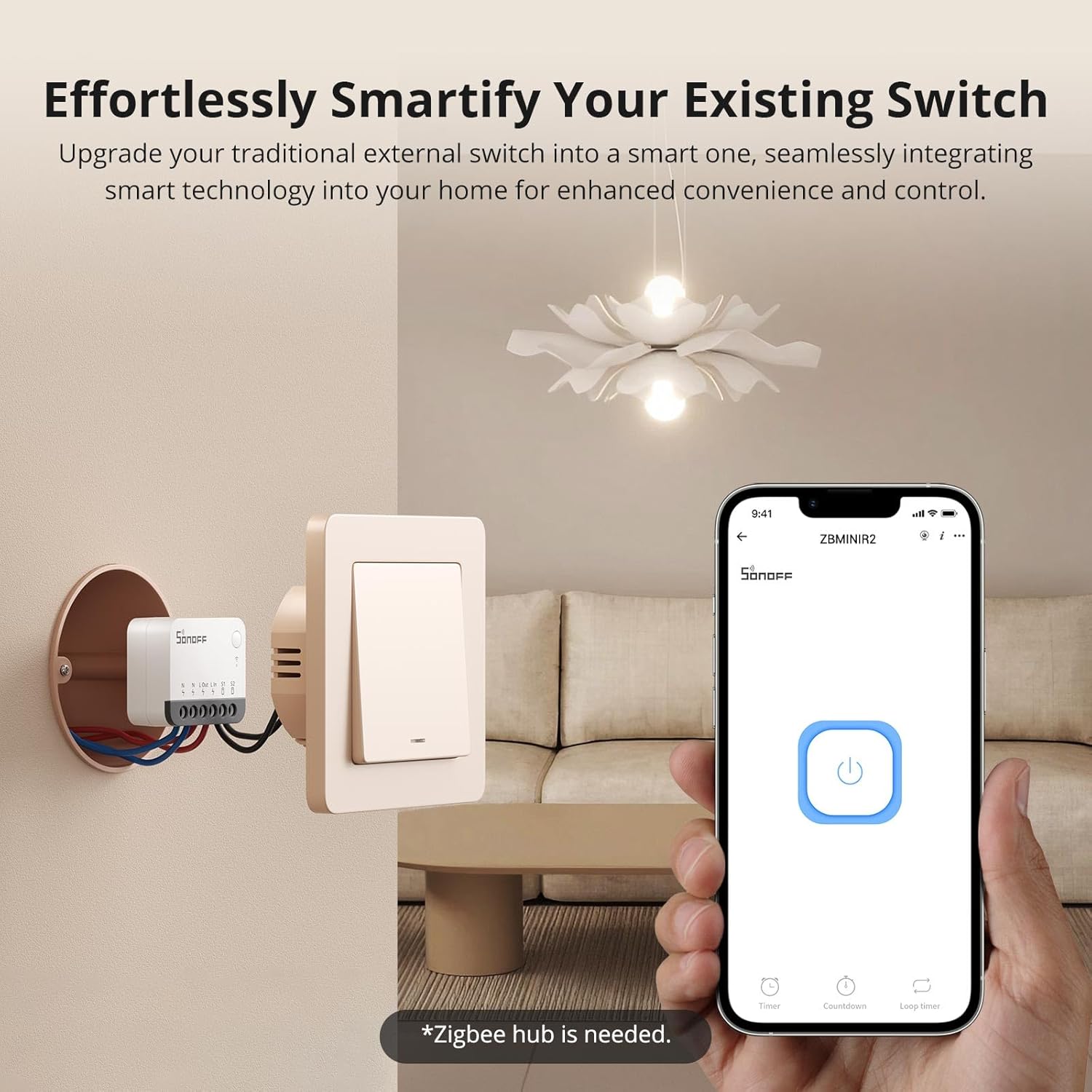
Image: The ZBMINIR2 device installed behind a traditional light switch, demonstrating how it smartifies existing switches. A smartphone displays the eWeLink app interface, indicating the need for a Zigbee hub.
2. Wiring Instructions
Follow the wiring diagrams carefully. Incorrect wiring can damage the device or cause electric shock.

Image: Detailed wiring diagrams for the ZBMINIR2, showing connections for neutral (N), live input (L In), live output (L Out), and external switch inputs (S1, S2). Two common wiring scenarios are illustrated.
For a visual guide on installation and wiring, please refer to the official installation tutorial video below:
Video: Official SONOFF ZBMINIR2 Installation Tutorial. This video demonstrates the unboxing, wiring process, and pairing steps for the smart switch.
3. Physical Installation
- After wiring, carefully tuck the ZBMINIR2 module into the electrical box. Its compact size (39.5x33x16.8mm) is designed to fit behind most standard switches.
- Re-attach the original switch panel securely.
- Restore power at the circuit breaker.

Image: The ZBMINIR2 module positioned within an electrical box behind a light switch, illustrating its small form factor for discreet installation.
4. App Pairing (eWeLink App)
To enable smart features, you need to pair the ZBMINIR2 with your Zigbee hub via the eWeLink app.
- Download the eWeLink app from your smartphone's app store (iOS/Android).
- Register or log in to your eWeLink account.
- Ensure your Zigbee hub is already set up and connected to the eWeLink app.
- In the eWeLink app, tap the "+" icon to add a device.
- Select "Scan" and scan the QR code located on the ZBMINIR2 device.
- After powering on the ZBMINIR2, it will automatically enter pairing mode (green LED indicator will flash slowly). If not, long-press the button on the device for 5 seconds to force pairing mode.
- Follow the on-screen prompts in the app to complete the pairing process. Select your Zigbee gateway when prompted.
- Once successfully added, you can rename the device and assign it to a room.
Operating the ZBMINIR2
1. Basic On/Off Control
- Via eWeLink App: Open the eWeLink app, select your ZBMINIR2 device, and tap the power icon to turn the connected light/appliance on or off.
- Voice Control: Integrate your eWeLink account with Alexa or Google Home. Use voice commands such as "Alexa, turn on the living room light" or "Hey Google, turn off the kitchen light."
- Physical Switch: The connected traditional wall switch will continue to function for manual control.

Image: Illustrations of various smart features: voice control with Alexa, smart timer settings (timer, countdown, loop timer), and group control for managing multiple devices.
2. Advanced Features
- Scene & Timer Control: Use the eWeLink app to set schedules for automatic light control (e.g., turn on at sunset, off at bedtime) or create custom scenes that trigger based on other smart home devices or conditions.
- Group Control: Group multiple ZBMINIR2 switches or other compatible devices in the eWeLink app to control them simultaneously with a single command.
- Detach Relay Mode: This feature allows the physical wall switch to control the smart bulb directly, while the ZBMINIR2 remains online and controllable via the app. This prevents smart bulbs from going offline when the external switch is turned off.
- Delay Power-on for Load Protection: Configure a delay before the load powers on after an outage. This prevents potential damage from high current surges when multiple loads turn on simultaneously.

Image: A visual comparison showing how a smart bulb goes offline when a traditional switch is off (Before) versus remaining online and controllable with the ZBMINIR2's Detach Relay Mode (Now).
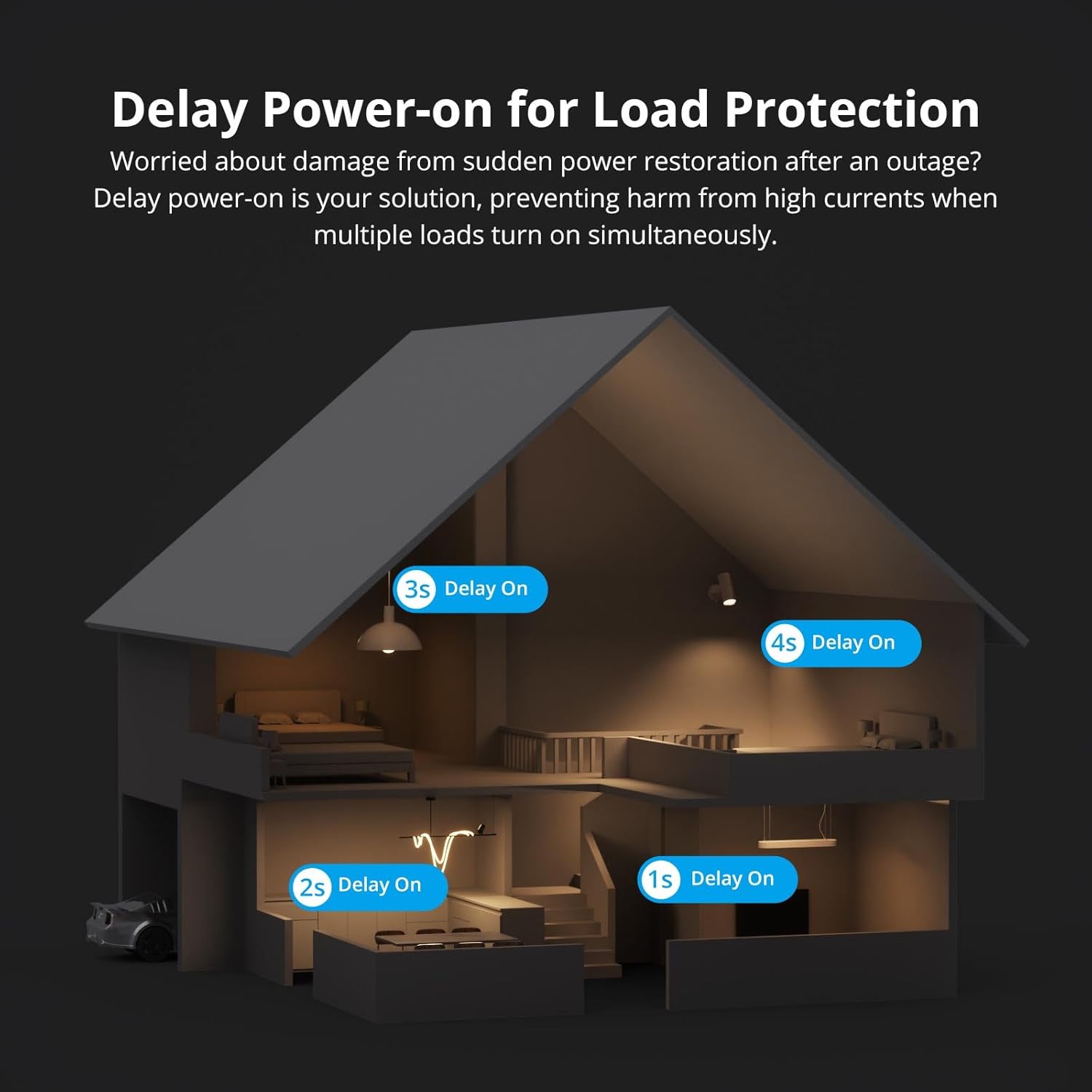
Image: A house diagram illustrating the "Delay Power-on for Load Protection" feature, showing different lights turning on with a staggered delay (1s, 2s, 3s, 4s) after power restoration.
3. Compatibility and Network Extension
- Zigbee Hub Compatibility: The ZBMINIR2 is compatible with various Zigbee hubs, including SONOFF Zigbee Bridge/Pro, ZBDongle-P/E, NSPanel Pro, iHost, ZBBridge-U, and SmartThings hub V3.
- Open Source Platforms: In addition to the eWeLink app, the ZBMINIR2 can be connected to Home Assistant via a Zigbee dongle and supports Zigbee2MQTT for integration with third-party platforms.
- Zigbee Router Functionality: The ZBMINIR2 acts as a Zigbee router, extending the range of your Zigbee network and boosting signal strength, especially with its "Turbo Mode" for wider coverage.

Image: A diagram illustrating an expansive Zigbee signal coverage, with ZBMINIR2 devices acting as Zigbee Routers (R) to extend the network from a central Zigbee Coordinator (Z), reaching various Zigbee End Devices (E).

Image: A chart displaying the compatibility of ZBMINIR2 with multiple Zigbee hubs and platforms, including Echo Plus, Echo 4th Gen, Echo Show 2nd, SmartThings hub V3, and various SONOFF bridges and dongles.

Image: A screenshot of a Home Assistant interface demonstrating the integration of the ZBMINIR2 with third-party open-source platforms, showing device information and control options.
Maintenance
- Cleaning: Use a soft, dry cloth to clean the device. Do not use harsh chemicals or abrasive cleaners.
- Firmware Updates: Regularly check for firmware updates through the eWeLink app to ensure optimal performance and security.
- Environmental Conditions: Avoid exposing the device to extreme temperatures, direct sunlight, or high humidity.
Troubleshooting
| Problem | Possible Cause / Solution |
|---|---|
| Device not pairing. |
|
| Device offline in app. |
|
| Physical switch not working. |
|
| Voice control not responding. |
|
Warranty
For detailed warranty information, please refer to the warranty card included with your product or visit the official SONOFF website.
Support
If you encounter any issues or have questions regarding your SONOFF ZBMINIR2, please contact SONOFF customer support:
- Website: sonoff.tech
- Service Email: support@itead.cc
You can also find additional resources and FAQs on the SONOFF website.


