1. Introduction and Overview
The BoxWave USB Expansion Adapter is designed to enhance the productivity of your USB Type-C enabled devices, such as the TP-Link M8550 5G Mobile Wi-Fi Router. This On-The-Go (OTG) Host Adapter transforms your device's USB Type-C port into a versatile hub, allowing you to connect various USB-compatible hardware.
With this adapter, you can expand your device's capabilities by adding external storage, input devices like a mouse or keyboard, and facilitate high-speed data transfers.
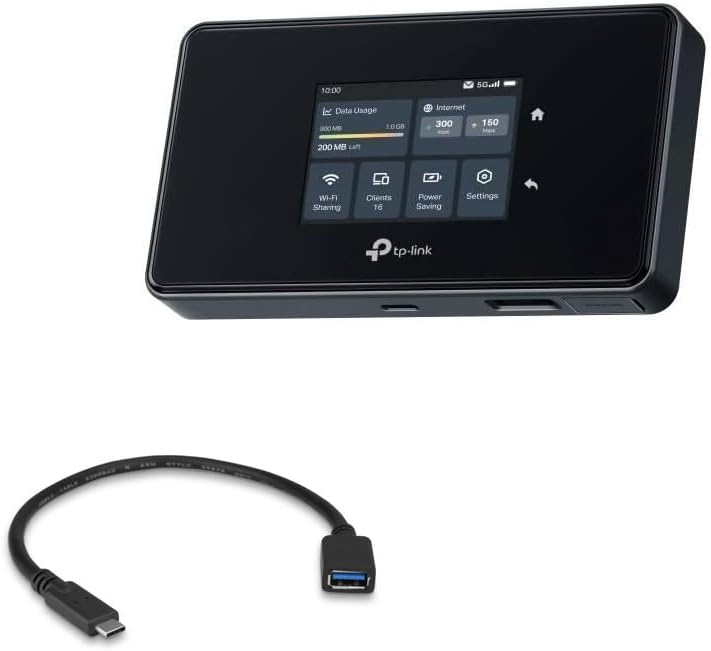
Image 1.1: The BoxWave USB Expansion Adapter shown alongside a TP-Link M8550 5G Mobile Wi-Fi Router, illustrating its intended use for expanding connectivity.
2. Features
- OTG (On-The-Go) Host Adapter: Connects to your device's USB Type-C port to enable host functionality.
- Expanded Storage: Allows connection of external thumb drives for additional storage space for photos, music, apps, and more.
- Input Device Support: Enables the use of a USB mouse or keyboard for quicker and more accurate navigation and typing.
- High-Speed Data Transfer: Utilizes USB 2.0 Standard for efficient backing up and transferring of files.
- Productivity Enhancement: Transforms your mobile device into a powerful productivity hub.

Image 2.1: A detailed view of the BoxWave USB Expansion Adapter, highlighting its USB Type-C male connector and USB-A female port.
3. Setup
- Identify USB Type-C Port: Locate the USB Type-C port on your compatible device (e.g., TP-Link M8550 5G Mobile Wi-Fi Router). This port is typically oval-shaped and reversible.
- Connect Adapter: Gently insert the USB Type-C male connector of the BoxWave USB Expansion Adapter into your device's USB Type-C port. Ensure it is fully seated.
- Ready for Use: Once connected, the adapter is ready to accept USB-A compatible peripherals.

Image 3.1: A close-up view of the USB Type-C male connector, which plugs into your device.
4. Operating Instructions
4.1 Connecting a USB Thumb Drive (External Storage)
- Ensure the BoxWave USB Expansion Adapter is securely connected to your device.
- Take your USB thumb drive and insert it into the USB-A female port of the adapter.
- Your device should recognize the thumb drive. You can now access, save, and transfer files to and from the thumb drive, freeing up internal memory.
4.2 Connecting a USB Mouse or Keyboard
- Ensure the BoxWave USB Expansion Adapter is securely connected to your device.
- Plug the USB connector of your mouse or keyboard into the USB-A female port of the adapter.
- Your device should detect the connected input device. You can now use the mouse for navigation or the keyboard for typing, enhancing your interaction with the device.

Image 4.1: A close-up view of the USB-A female port, where you connect your peripherals.
5. Maintenance
- Keep the adapter clean and free from dust and debris. Use a soft, dry cloth for cleaning.
- Avoid exposing the adapter to extreme temperatures, direct sunlight, or high humidity.
- Do not bend or twist the cable excessively to prevent internal damage.
- Store the adapter in a cool, dry place when not in use.
6. Troubleshooting
| Problem | Possible Cause | Solution |
|---|---|---|
| Device not recognizing connected peripheral (e.g., thumb drive, mouse). |
|
|
| Slow data transfer speeds. |
|
|
7. Specifications
| Attribute | Value |
|---|---|
| Brand | BoxWave |
| Model Number | c50bbe32-0d16-452f-914b-1af72d57602b |
| Connector Type | USB Type-C (Male) to USB-A (Female) |
| USB Standard | USB 2.0 |
| Compatible Devices | Devices with USB Type-C port (e.g., TP-Link M8550 5G Mobile Wi-Fi Router, Keyboards, Thumb Drives) |
| Number of Ports | 1 (USB-A Female) |
| Item Weight | 0.3 ounces |
| Manufacturer | BoxWave |
| Country of Origin | China |
8. Warranty and Support
This BoxWave USB Expansion Adapter includes limited third-party technical support. For assistance, you may submit up to three inquiries via electronic messaging. Please note that this support is provided by BoxWave Corporation and is not affiliated with or endorsed by TP-LINK.
For further support or inquiries, please refer to the contact information provided with your purchase or visit the official BoxWave website.