1. Introduction
The Optoma UHZ35 is a high-brightness 4K UHD HDR Home Theater and Gaming Laser Projector. It features DuraCore laser technology, delivering 3500 lumens of brightness and a 500,000:1 contrast ratio. With HDR10 support, eARC, 1.6x zoom, and an Enhanced Game Mode offering a 4K UHD input lag of 17ms, the UHZ35 provides an immersive experience for movies and gaming. This projector is also WiSA certified for wireless audio integration.
2. What's in the Box
- Optoma UHZ35 Projector
- Power Cord
- Remote Control
- User Manual
3. Product Overview
3.1 Physical Features
The Optoma UHZ35 features a sleek design with its lens prominently positioned on the front. Ventilation grilles are located on the sides to ensure optimal cooling during operation.

Figure 3.1: Front view of the Optoma UHZ35 Projector.
The top panel includes intuitive controls for power, menu navigation, and image adjustments. The focus and zoom rings are located around the lens for precise image tuning.
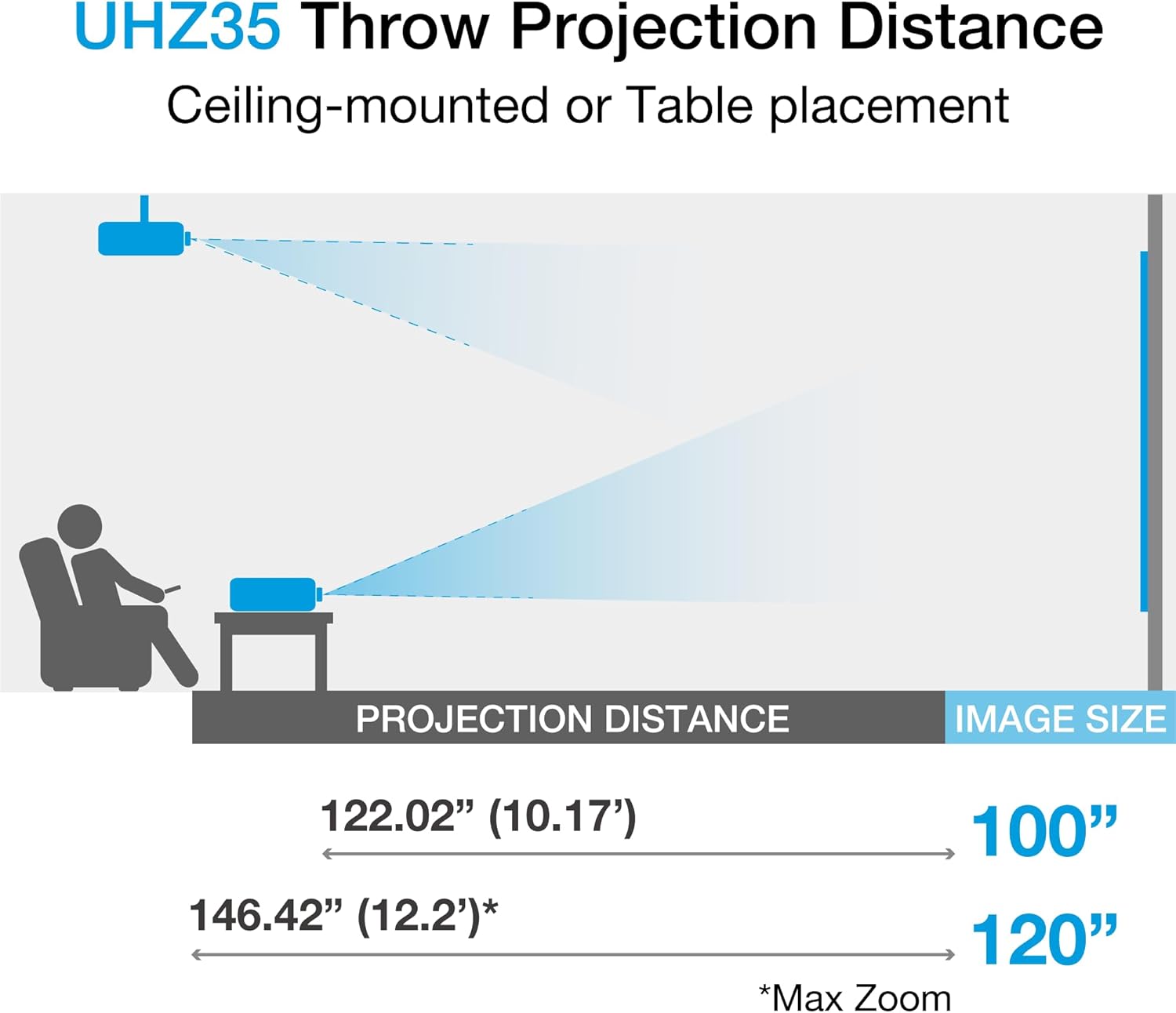
Figure 3.2: Top view of the Optoma UHZ35 Projector showing control panel.
3.2 Dimensions
The projector has compact dimensions, making it suitable for various installation environments.
- Product Dimensions: 10.79 x 8.5 x 4.49 inches
- Item Weight: 10.1 pounds
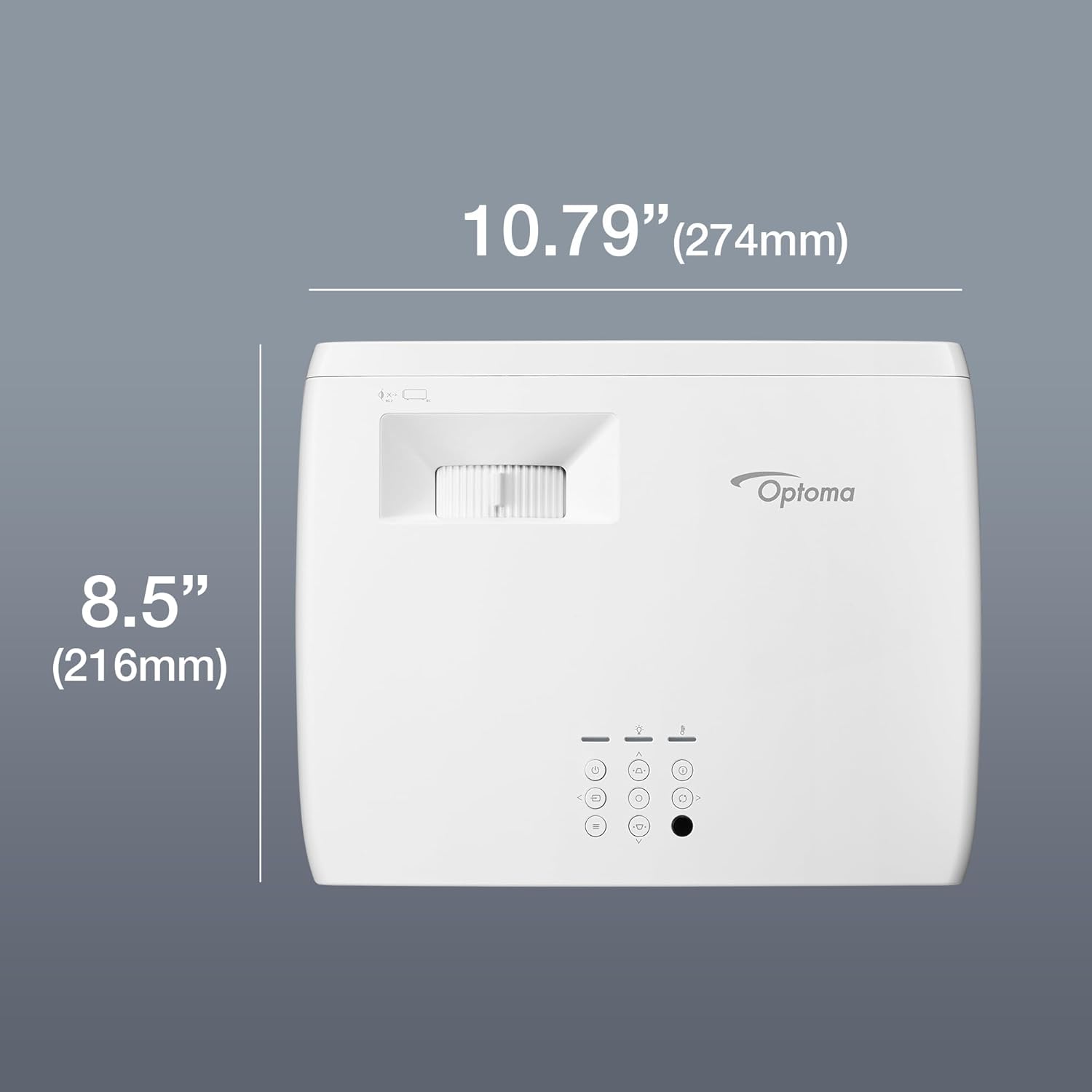
Figure 3.3: Optoma UHZ35 Projector with labeled dimensions.
3.3 Connectivity Ports
The rear panel of the UHZ35 offers a variety of ports for connecting external devices.

Figure 3.4: Rear view of the Optoma UHZ35 Projector with labeled connectivity ports.
- HDMI 1 (HDCP2.2 / 4K 60Hz compatible): For high-definition video and audio input.
- HDMI 2 (HDCP2.2 / 4K 60Hz compatible, eARC): For high-definition video and audio input, with Enhanced Audio Return Channel support.
- RS-232: For projector control via serial communication.
- USB Power OUT (5V/1.5A): For powering external devices like streaming sticks.
- Audio Out (stereo, 3.5mm jack): For connecting external audio systems.
- DC Power: Power input for the projector.
- RJ-45: Ethernet port for network connectivity and control.
- Kensington Lock: Security slot to deter theft.
4. Setup
4.1 Placement
The Optoma UHZ35 can be placed on a table or ceiling-mounted. Ensure the projector is positioned at an appropriate distance from the screen to achieve the desired image size.
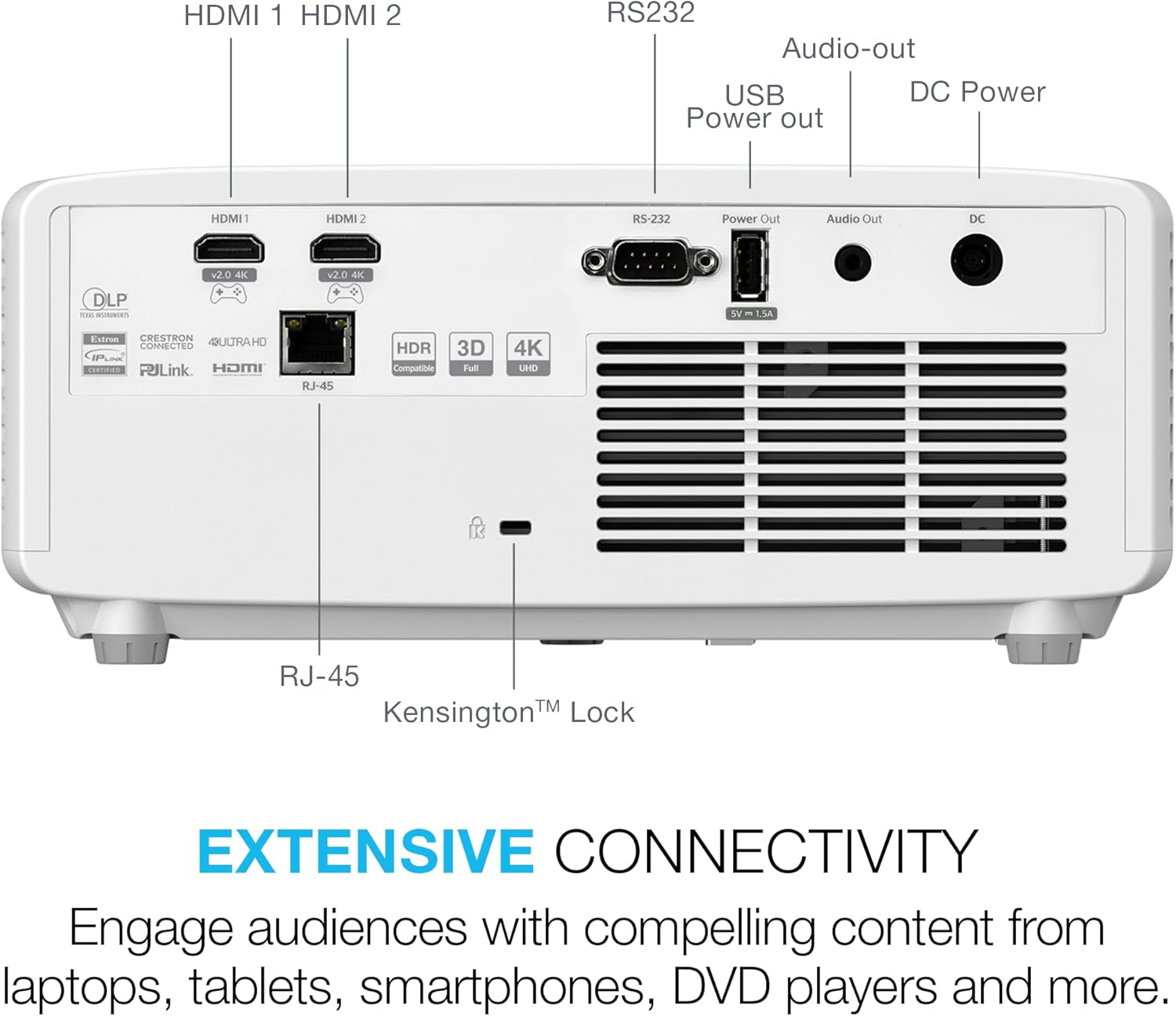
Figure 4.1: Throw projection distance guide for the Optoma UHZ35.
- For a 100-inch image, the projection distance is approximately 122.02 inches (10.17 feet).
- For a 120-inch image, the maximum projection distance is approximately 146.42 inches (12.2 feet).
4.2 Connecting Devices
- Connect the power cord to the projector's DC Power input and then to a power outlet.
- Connect your video source (e.g., Blu-ray player, gaming console, streaming device) to one of the HDMI inputs using an HDMI cable.
- If using external audio, connect your audio system to the Audio Out port or utilize the HDMI 2 eARC feature with a compatible sound system.
- For network control or updates, connect an Ethernet cable to the RJ-45 port.
4.3 Image Adjustment
- Focus: Rotate the focus ring around the lens until the image appears sharp and clear.
- Zoom: Adjust the zoom ring around the lens to change the image size without moving the projector.
- Keystone Correction: Use the keystone correction feature (accessible via the remote or top panel controls) to correct trapezoidal distortion if the projector is not perfectly perpendicular to the screen.
5. Operating Instructions
5.1 Power On/Off
- To power on, press the Power button on the projector's top panel or the remote control.
- To power off, press the Power button again. The projector will enter a cooling down cycle before completely shutting down.
5.2 Input Source Selection
Press the 'Source' button on the remote control or the projector's top panel to cycle through available input sources (e.g., HDMI 1, HDMI 2).
5.3 Basic Settings
Access the projector's on-screen display (OSD) menu by pressing the 'Menu' button on the remote or top panel. Use the arrow keys to navigate and 'Enter' to select options. Adjust settings such as:
- Picture Mode: Select predefined modes (e.g., Cinema, Game, Bright) or customize settings.
- Brightness/Contrast: Fine-tune image luminance and distinction.
- Color Settings: Adjust color temperature, tint, and saturation.
- Aspect Ratio: Select the appropriate aspect ratio for your content (e.g., 16:9, 4:3).
5.4 Official Product Video
Watch the official product video for a visual overview of the Optoma UHZ35 projector's features and capabilities.
Video 5.1: Optoma UHZ35 Projector - 4K UHD Laser Projector. This video provides an overview of the projector's key features and benefits.
6. Maintenance
6.1 Cleaning the Lens
Use a soft, lint-free cloth specifically designed for optical lenses to gently wipe the projector lens. Avoid using abrasive cleaners or excessive force, as this can damage the lens coating.
6.2 General Care
- Keep the projector in a well-ventilated area to prevent overheating.
- Avoid blocking the ventilation openings.
- Protect the projector from dust and moisture.
- When not in use, cover the lens with its cap and store the projector in a safe place.
7. Troubleshooting
- No Image: Ensure all cables are securely connected and the correct input source is selected. Check power connections.
- Blurry Image: Adjust the focus ring on the lens. Ensure the projector is placed at the correct distance from the screen.
- No Sound: Verify audio cables are connected correctly. Check the volume settings on both the projector and the audio source. If using eARC, ensure your audio system is compatible and configured correctly.
- Remote Control Not Working: Check the batteries in the remote. Ensure there are no obstructions between the remote and the projector's IR receiver.
8. Specifications
| Feature | Value |
|---|---|
| Product Dimensions | 10.79 x 8.5 x 4.49 inches |
| Item Weight | 10.1 pounds |
| ASIN | B0DGZ2FTJR |
| Item model number | UHZ35 |
| Manufacturer | Optoma |
| Brand | Optoma |
| Recommended Uses For Product | Gaming |
| Special Feature | 3d-Ready, Built-In Speaker, Lightweight, Portable |
| Connectivity Technology | Ethernet, HDMI |
| Display resolution | 3840 x 2160 |
9. Warranty and Support
For warranty information, please refer to the documentation included with your product or visit the official Optoma website. For technical assistance or support, please contact Optoma customer service.
Extended protection plans are available for purchase separately:
- 3-Year Protection Plan
- Complete Protect: One plan covers all eligible past and future purchases


