1. Introduction
This manual provides essential instructions for the setup, operation, and maintenance of your Crexyyo Retro Gaming Cassette Portable HDD. This device is designed to offer a vast library of retro games through a portable hard drive format, compatible with various computer operating systems.
2. Package Contents
Verify that all items listed below are included in your package:
- 1x Retro Gaming Cassette Portable HDD
- 1x USB 3.0 Data Cable
- 1x Instruction Manual

Figure 2.1: Contents of the Crexyyo Retro Gaming Cassette Portable HDD package.
The image above displays the Retro Gaming Cassette Portable HDD, its accompanying USB 3.0 data cable, and the printed instruction manual. These are the core components required for device operation.
3. Setup Instructions
The Retro Gaming Cassette Portable HDD operates by booting directly from a compatible computer. It is not a standalone console that connects directly to a TV without a computer intermediary.
3.1. System Requirements
- Compatible Hardware: X86_64 architecture (32-bit or 64-bit) computers.
- Incompatible Hardware: ARM-based devices (e.g., Windows Surface series, Mac with Power PC CPU or M1 and above CPU) are not supported.
- Recommended Port: USB 3.0 port for optimal performance.
3.2. Connecting the Device
- Ensure your PC or Mac is powered off.
- Connect the portable hard drive to an available USB port on your computer. A USB 3.0 port is recommended for faster data transfer.

Figure 3.1: The Retro Gaming Cassette Portable HDD connected to a laptop via USB 3.0.
This image illustrates the physical connection of the portable HDD to a laptop using the provided USB 3.0 cable. The device is designed for plug-and-play functionality once booted correctly.
3.3. Booting into the Game System (Batocera)
- Power on your computer. Immediately after pressing the power button, repeatedly tap the ESC or Delete key on your keyboard to enter the BIOS/UEFI settings. (For Mac users, hold down the Option key and select the portable hard drive to boot from.)
- Within the BIOS/UEFI menu, navigate to the boot options. Select the portable hard drive as the boot device.
- Your PC will boot into the Batocera operating system for a single session. After restarting, it will revert to your computer's default operating system.
- To set Batocera as the default booting option, go to the Boot page in your BIOS/UEFI settings and configure the portable hard drive as Boot Option #1.
Video 3.1: A short demonstration of the Game Stick Lite interface, showing game selection and system menus. This video provides a brief overview of the user experience once the device is successfully booted.
This video showcases the user interface of a similar game stick, demonstrating how to navigate through game lists and select emulators. It highlights the visual aspect of the gaming environment.
4. Operating Instructions
Once the Batocera system is loaded, you can navigate through the game library and select your desired games.
4.1. Navigating the Interface
- Use your connected game controller or keyboard to browse through the available game systems and individual game titles.
- The system supports 70 emulators and over 100,000 games across various platforms.

Figure 4.1: The main interface displaying various emulators and the number of built-in games.
This image shows the main menu of the gaming system, highlighting the wide array of emulators available, such as MAME, FC, GBA, GB, GBC, MD, SFC, PS1, and Atari, along with a large game count.
4.2. Starting a Game
- Select the desired game from the list.
- Press the designated button (usually 'Start' or 'A' on a controller) to launch the game.
- Games will load, and you can begin playing.
4.3. Exiting a Game
Specific button combinations are typically used to exit games within the Batocera system. Consult the on-screen prompts or the Batocera documentation for the exact key combination to return to the main menu.
5. Connectivity and Display
The device supports high-definition output and multiple languages.
5.1. 4K HDMI Output
- The system supports 4K high-definition HDMI output.
- Connect your computer (running the Batocera system) to a TV, monitor, or projector via an HDMI cable for an immersive display.
- Ensure your display device has an HDMI input port.

Figure 5.1: An example setup showing the 4K HDMI output on a television, displaying the game library.
This image illustrates the device's capability to output to a 4K television, showcasing the game library interface. It emphasizes the visual clarity and extensive game collection.
5.2. Multi-Language Support
- The system offers access to games in multiple languages.
- Language settings can typically be adjusted within the Batocera system's configuration menu.
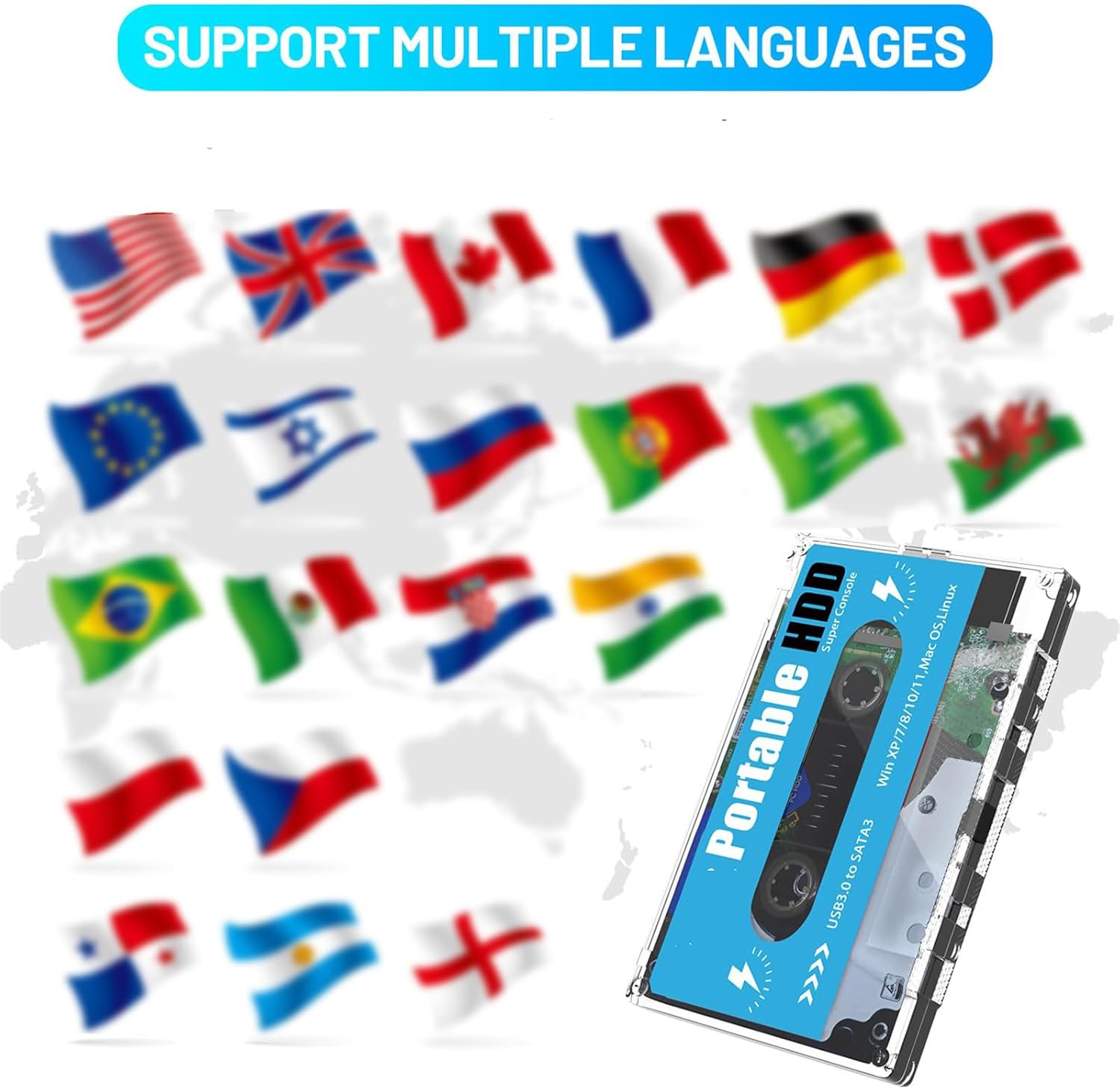
Figure 5.2: The portable HDD shown with various national flags, symbolizing its multi-language support.
This image visually represents the multi-language support feature of the gaming system, showing flags from different countries around the portable HDD.
6. Specifications
| Feature | Detail |
|---|---|
| Product Name | Retro Gaming Cassette Portable HDD |
| Model | B0DGY3QSWK |
| Color | Blue (Cassette design) |
| Weight | 50g |
| Material | ABS |
| Interface | USB 3.0 to SATA3 |
| Compatibility | Win XP/7/8/10/11, Mac OS, Linux (X86_64 hardware only) |
| Output | 4K HDMI (via connected computer) |
| Emulators | 70+ (pre-installed) |
| Games | 100,000+ (pre-installed) |

Figure 6.1: Dimensions of the Retro Gaming Cassette Portable HDD.
This image provides a visual representation of the device's physical dimensions, showing its length, width, and thickness for reference.
7. Troubleshooting
This section addresses common issues you might encounter with the Retro Gaming Cassette Portable HDD.
7.1. Device Not Booting
- Check Compatibility: Ensure your computer's hardware is X86_64 (32-bit or 64-bit). ARM-based systems are not supported.
- BIOS/UEFI Settings: Verify that you are correctly accessing your computer's BIOS/UEFI settings and selecting the portable hard drive as the boot device. Refer to your computer's manual for specific instructions on accessing BIOS/UEFI.
- USB Connection: Ensure the USB cable is securely connected to both the portable HDD and a functional USB port on your computer. Try a different USB port if necessary.
7.2. Games Lagging or Not Running Smoothly
- Computer Performance: The performance of the games is dependent on your computer's specifications (CPU, RAM, GPU). Higher-end games or emulators may require a more powerful computer for smooth operation.
- USB Port Speed: Use a USB 3.0 port if available, as it offers faster data transfer speeds compared to USB 2.0, which can improve game loading and performance.
- Background Processes: Close any unnecessary applications or background processes on your computer to free up system resources.
7.3. Unable to Exit a Game
- Controller Hotkeys: Batocera systems typically use specific hotkey combinations on the controller to exit games (e.g., "Hot Key + Start"). Refer to the Batocera system documentation or online resources for the exact combination.
- System Restart: If a game becomes unresponsive, a system restart of your computer may be necessary. Ensure to properly shut down the Batocera system before restarting your computer to prevent data corruption.
8. Maintenance
Proper care and maintenance will ensure the longevity of your portable HDD.
- Safe Ejection: Always safely eject the portable hard drive from your computer's operating system before disconnecting it to prevent data corruption.
- Storage: Store the device in a cool, dry place away from direct sunlight and extreme temperatures.
- Cleaning: Use a soft, dry cloth to clean the exterior of the device. Avoid using liquid cleaners or abrasive materials.
- Software Updates: Periodically check for updates to the Batocera system if you have configured internet connectivity. Updates can improve performance and add new features.
9. Warranty and Support
For warranty information and technical support, please refer to the seller's policies or contact the manufacturer directly. Keep your purchase receipt as proof of purchase.