
1. Introduction
This manual provides detailed instructions for the installation, operation, and maintenance of your YHV Keyless Entry Smart Door Lock with Camera. This smart lock integrates multiple access methods, including fingerprint, keypad, app control, and traditional key, along with a built-in camera for enhanced security and convenience. Please read this manual thoroughly before installation and use to ensure proper function and safety.
2. Product Overview
2.1 Components
The YHV Smart Door Lock system includes the following main components:
- Deadbolt Front Lock (Exterior Unit with Keypad and Camera)
- Deadbolt Rear Lock (Interior Unit with Thumb Turn)
- Doorbell (Integrated into Exterior Unit)
- Keys (Physical backup keys)
- Lock Cylinder
- Mounting Hardware (Screws, plates, etc.)
2.2 Key Features
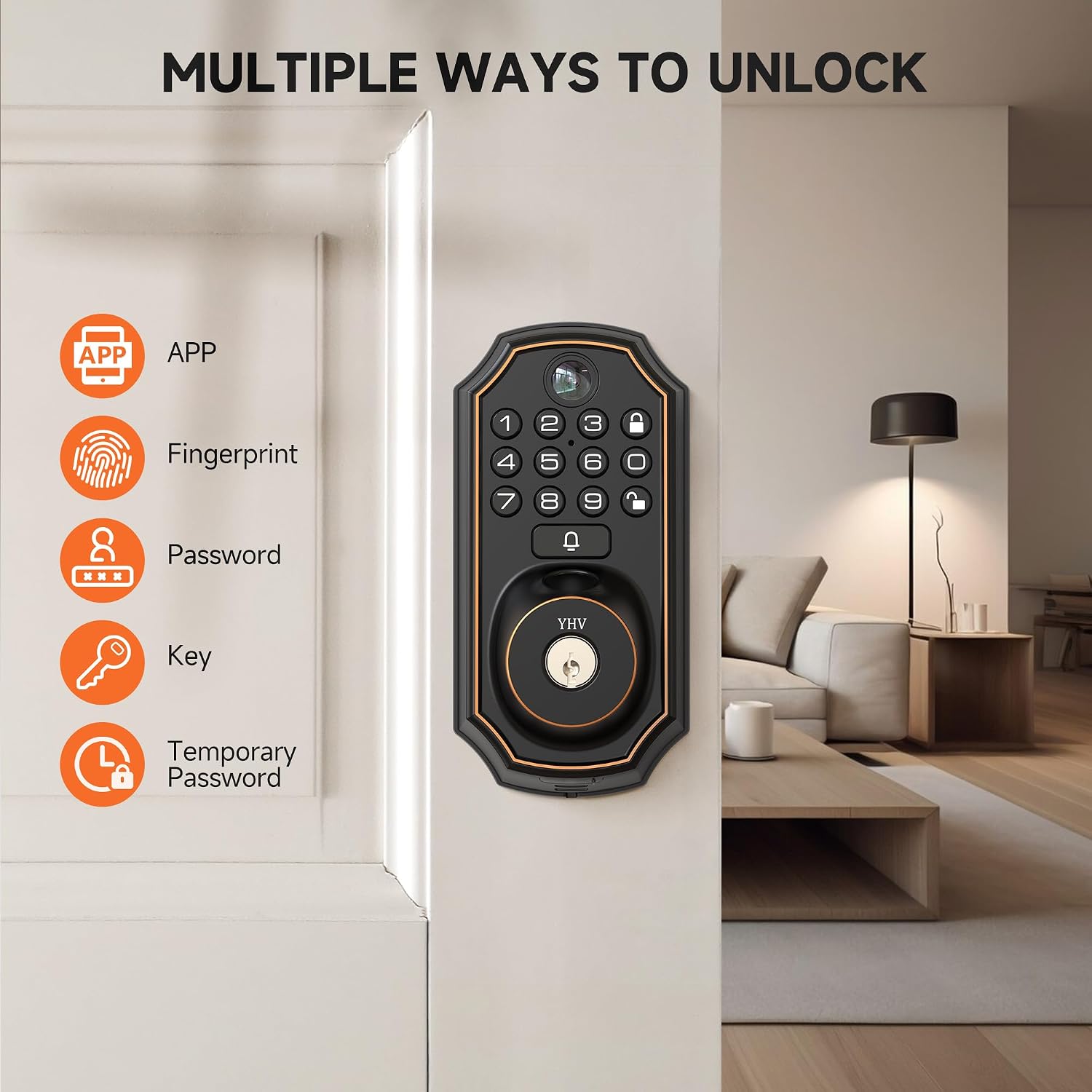
- Multi-Access Convenience: Unlock via remote WiFi, fingerprint, password, key, or temporary password.
- WiFi Remote Control: Lock and unlock from anywhere using the TUYA APP via 2.4GHz Wi-Fi.
- Integrated Camera & Two-Way Audio: View live video, capture photos/videos, and communicate with visitors via the app when the doorbell is pressed.
- One-Touch Lock/Unlock: Simple touch activation for locking/unlocking.
- Auto-Lock Feature: Customizable auto-lock timer from 10 to 90 seconds.
- High Capacity: Stores up to 50 unique fingerprints and 50 passwords.
- Anti-Peep Password: Enter random digits before or after your actual code to prevent unauthorized viewing.
- Emergency Power Supply: Type-C port for temporary power in case of battery depletion.
- Weather Resistance: IP54 rated for protection against dust and splashing water.

3. Installation Guide
3.1 Pre-Installation Checks
Before beginning installation, ensure your door meets the following specifications:
- Door Thickness: Compatible with standard door thicknesses.
- Door Hole Diameter: Fits door holes from 1.5 inches (38mm) to 2.21 inches (54mm).
- Backset: Adjustable for 2-3/8 inches (60mm) or 2-3/4 inches (70mm).
- Door Handing: Works with both left-handed and right-handed doors.

3.2 Step-by-Step Installation
Installation typically requires a screwdriver and a drilling machine if new holes are needed. Follow the detailed instructions provided in the physical installation guide included with your product. The process generally involves:
- Prepare the door by ensuring existing holes are correctly sized or drilling new ones according to the template.
- Install the deadbolt latch into the door edge.
- Mount the exterior keypad unit, feeding cables through the door.
- Install the interior unit, connecting the cables and securing it to the exterior unit.
- Insert batteries (4 AA batteries, not included) into the interior unit.
- Test the lock's basic functionality with the physical key.

3.3 App Connection
To utilize smart features, download the TUYA APP from your smartphone's app store. Enable Bluetooth and ensure your phone is connected to a 2.4GHz Wi-Fi network. Follow the in-app instructions to pair your smart lock. This will allow remote control, user management, and real-time notifications.
4. Operating Instructions
4.1 Multiple Unlock Methods
The YHV Smart Door Lock offers several ways to unlock:
- Fingerprint: Place your registered finger on the sensor for quick access. The lock supports up to 50 unique fingerprints with a recognition rate of over 99% in 0.3 seconds.
- Password: Enter your registered 6-digit password on the keypad.
- Anti-Peep Password: To enhance security, you can enter random digits before or after your actual password. For example, if your password is '123456', you can enter '987123456098' and the lock will still recognize the correct sequence.
- Physical Key: Use the provided physical keys as a traditional backup method.
- App Control: Use the TUYA APP on your smartphone to remotely unlock the door.
- Temporary Password: Generate one-time or time-limited passwords via the app for guests or service providers, even when offline.


4.2 App Control & Remote Access
The TUYA APP provides comprehensive control over your smart lock:
- Remote Lock/Unlock: Control your door from anywhere with an internet connection.
- Real-time Notifications: Receive alerts when the doorbell is pressed or the lock status changes.
- Live Video & Two-Way Audio: When a visitor presses the doorbell, you can view live video, capture images or recordings, and engage in two-way communication directly from your smartphone.

4.3 Auto-Lock Feature
The auto-lock feature automatically secures your door after a set period. You can configure the auto-lock timer from 10 to 90 seconds via the app settings. This ensures your door is always locked, providing peace of mind.

4.4 Mute Mode
The YHV Smart Door Lock includes a mute mode feature, allowing you to adjust the volume of the lock's sounds or set it to silent. This is useful for maintaining a quiet environment, especially during specific hours or if you prefer discreet operation.

5. Maintenance
5.1 Battery Management
The smart lock operates on 4 AA batteries (not included). It is recommended to use high-quality alkaline batteries for optimal performance. The lock features a low battery alert system:
- You will hear audible beeps when the battery level is low.
- The unlock button on the keypad will turn red, indicating it's time to replace the batteries.
In case of complete battery depletion, an emergency power supply is available via a Type-C port located on the exterior unit. Connect a portable power bank to temporarily power the lock and gain access.

5.2 Weather Resistance
The front lock (exterior unit) is IP54 rated, providing protection against dust ingress and splashing water from any direction. It is designed to operate in temperatures ranging from -31°F to 158°F (-35°C to 70°C). While robust, avoid direct high-pressure water exposure or prolonged submersion.

6. Troubleshooting
If you encounter issues with your YHV Smart Door Lock, please refer to the following common troubleshooting steps:
- Lock Not Responding: Check battery levels. If low, replace batteries or use the emergency Type-C power port.
- Fingerprint Not Recognized: Ensure your finger is clean and dry. Re-register your fingerprint if issues persist.
- Keypad Not Working: Verify batteries are correctly installed. Try a different unlock method (e.g., key).
- App Connectivity Issues: Ensure your phone's Bluetooth is on and connected to a 2.4GHz Wi-Fi network. Restart the app and the lock (by removing and reinserting batteries).
- Doorbell Not Notifying: Check app notification settings and ensure the lock is properly connected to Wi-Fi.
- Auto-Lock Malfunction: Verify the auto-lock timer settings in the app. Ensure there are no obstructions preventing the deadbolt from extending fully.
For more complex issues, consult the detailed troubleshooting section in the full product manual or contact customer support.
7. Specifications
| Feature | Specification |
|---|---|
| Brand | YHV |
| Model Name | CA-01 |
| Lock Type | Biometric, Combination Lock, Deadbolt, Keypad |
| Material | Stainless Steel, Zinc |
| Color | Black |
| Item Dimensions (L x W x H) | 2.78 x 1.6 x 5.8 inches |
| Item Weight | 2.95 pounds |
| Special Feature | Auto-Lock |
| Controller Type | Push Button, SmartThings, Touch |
| Control Method | Touch |
| Connectivity Protocol | Bluetooth, Wi-Fi (2.4GHz) |
| Power Source | 4 AA Batteries (not included) |
| Emergency Power | Type-C Port |
| Fingerprint Capacity | Up to 50 |
| Password Capacity | Up to 50 |
| Weather Resistance | IP54 (Exterior Unit) |
| Operating Temperature | -31°F to 158°F (-35°C to 70°C) |
| UPC | 850066337479 |
8. Warranty and Support
For warranty information, please refer to the documentation included with your product or visit the official YHV website. If you require technical assistance, have questions about installation, or need support with product features, please contact YHV customer service through the contact details provided on the product packaging or the official website. Please have your model number (CA-01) and purchase information ready when contacting support.