
KuWFi N650
KuWFi N650 5.8G Gigabit Point to Point WiFi Bridge Kit User Manual
Model: N650
1. Introduction
The KuWFi N650 is an enterprise-level outdoor 5.8G Gigabit wireless bridge kit designed for long-distance network extension. Utilizing the 802.11a/n/ac wave2 wireless standard and operating in the 5G ISM frequency band, this kit facilitates stable point-to-point and point-to-multipoint wireless connections over distances up to 10 kilometers (6.2 miles). It is ideal for extending network access to remote buildings, barns, farms, or for security camera monitoring applications.
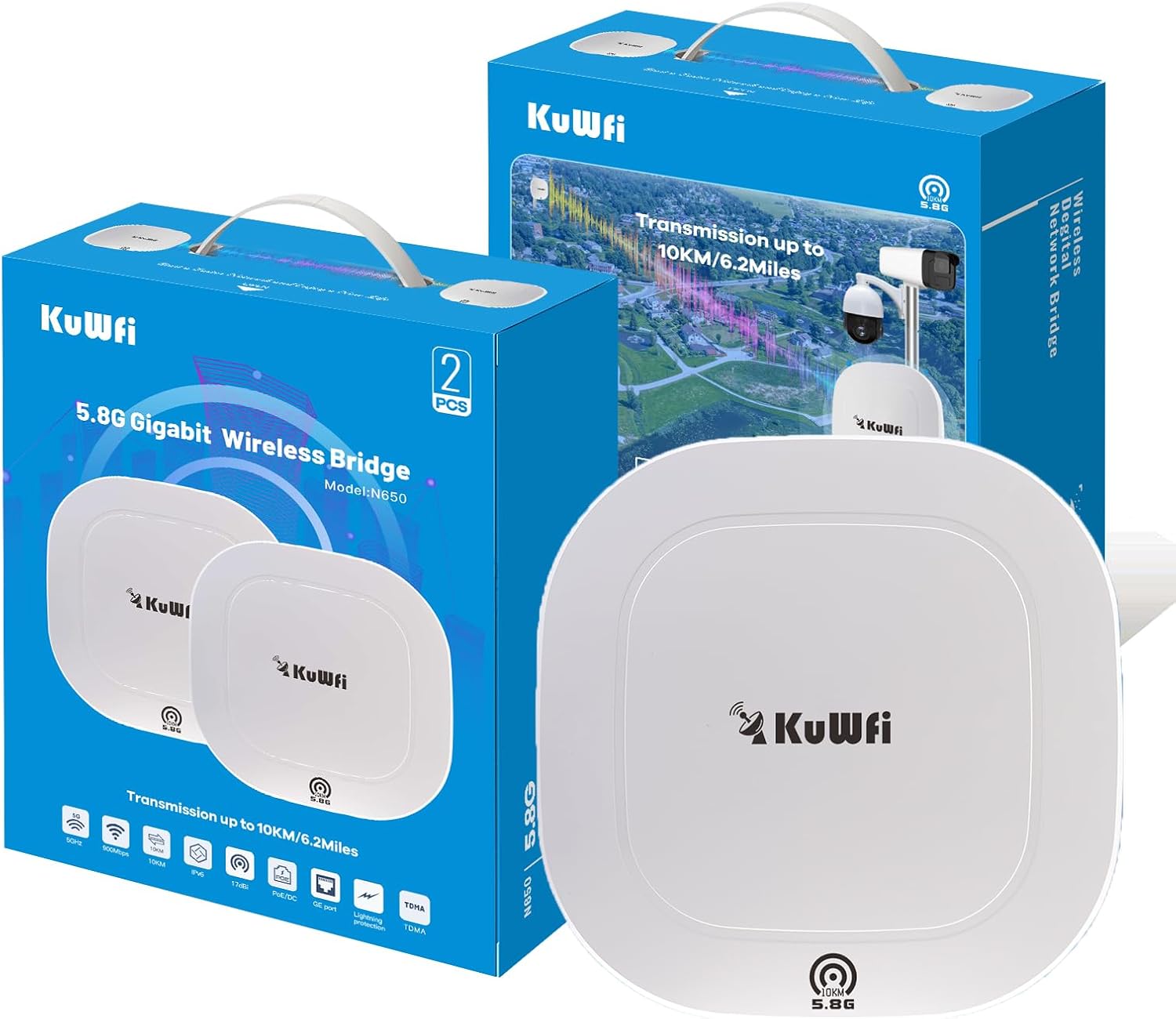
Image 1.1: KuWFi N650 WiFi Bridge Kit packaging and devices.
2. Package Contents
Verify that all items are present in your package:
- Wireless Bridge Unit (x2)
- Fixing Piece (x1)
- Rubber Plug (x3)
- Self-tapping Screw (x4)
- User Manual (this document)
3. Specifications
| Feature | Detail |
|---|---|
| Model Name | N650 |
| Wireless Communication Standard | 802.11a, 802.11ac, 802.11n |
| Frequency Band Class | Single-Band (5.8G) |
| Transmission Speed | Up to 900Mbps (5.8G) |
| WAN Port Speed | Up to 1000Mbps (Gigabit) |
| Antenna Gain | 17dBi Directional |
| Max Transmission Distance | 10KM / 6.2 Miles (Line of Sight) |
| Connectivity Technology | 5G, Ethernet, TDMA, Wi-Fi |
| Special Feature | Access Point Mode |
| Weather Protection | IP65 (Wind, Rain, Dust, Sun, Frost, Snow) |
| Operating Temperature Range | -40°C to 70°C |
| Power Input | 12V DC, PoE |
| Dimensions | 14.17 x 10.35 x 5.71 inches (Package) |
| Weight | 2.64 pounds (Item) |

Image 3.1: KuWFi N650 WiFi Bridge highlighting key features like 10KM range, 5G, 900Mbps, 17dBi antenna, PoE, and lightning protection.

Image 3.2: Rear view of the KuWFi N650 WiFi Bridge, illustrating the 12V DC port, LAN/PoE port, LAN port, and Reset Button.
4. Setup
4.1 Physical Installation
The KuWFi N650 units are designed for outdoor use and support both wall-mounted and pole-mounted installations. Ensure a clear line of sight between the two bridge units for optimal performance.
- Assemble the mounting bracket using the provided fixing piece, rubber plugs, and self-tapping screws.
- Attach the assembled bracket to the rear of the N650 unit.
- Mount the unit securely to a pole or wall in your desired outdoor location.
- Connect the Ethernet cable from the LAN/PoE port to a PoE injector or PoE switch.

Image 4.1: Assembly and mounting options for the KuWFi N650, illustrating how to attach the bracket and adjust the unit.
4.2 Initial Configuration (Pre-configured Kit)
The KuWFi N650 kit is pre-configured for ease of use. In most point-to-point scenarios, the units will automatically pair upon power-up. One unit acts as the 'Master' and the other as the 'Slave'.
If manual configuration or advanced settings are required, follow these steps:
- Connect to the WiFi Bridge: Connect your computer to one of the N650 units via Wi-Fi or Ethernet. The default Wi-Fi password is 12345678.
- Fixed IP Address: Temporarily set your computer's IP address to a static IP within the same subnet as the bridge (e.g., 192.168.1.10, Subnet Mask 255.255.255.0).
- Access Web Interface: Open a web browser and navigate to the bridge's default IP address, typically 192.168.1.20. Enter the default username (admin) and password (admin) to log in.
- Configure Master Unit: In the web interface, navigate to Wireless Settings > Basic Settings. Set the 'Mode' to AP. This unit will function as the Master Bridge.
- Configure Slave Unit: Log into the web interface of the second N650 unit. Set its 'Mode' to Station. This unit will function as the Slave Bridge and connect to the Master.
- Restore IP Address: After completing all configurations, revert your computer's IP address settings back to 'Obtain an IP address automatically' to allow normal network access.

Image 4.2: Connecting to the WiFi bridge using the default password.

Image 4.3: Configuring a fixed IP address on your computer for initial access.

Image 4.4: Login screen for the KuWFi N650 web management interface.

Image 4.5: Configuring the Master unit to operate in AP (Access Point) mode.

Image 4.6: Configuring the Slave unit to operate in Station mode, connecting to the Master.

Image 4.7: Restoring your computer's network settings to obtain an IP address automatically.
5. Operating Modes and Applications
5.1 Point-to-Point Topology
In a point-to-point setup, two N650 units establish a direct wireless link to connect two separate networks or extend a single network to a remote location. This is the simplest configuration and is commonly used for connecting a main building to an outbuilding like a garage or workshop.

Image 5.1: Point-to-Point Topology, showing two N650 units wirelessly linking two locations.
5.2 Point-to-Multipoint Topology
A point-to-multipoint topology allows a single Master N650 unit to connect to multiple Slave N650 units, distributing network access to several remote locations. This is useful for larger areas such as corporate campuses, school districts, or extensive security monitoring systems.

Image 5.2: Point-to-Multipoint Topology, showing one Master N650 connecting to multiple Slave N650 units.
5.3 Common Applications
The KuWFi N650 is versatile and suitable for various scenarios:
- Extending Internet to Outbuildings: Provide stable internet to garages, workshops, barns, or other ancillary buildings up to 10KM away.
- Security Camera Monitoring: Establish reliable wireless links for IP cameras and DVRs in remote areas, such as farms or parking lots.
- Starlink Router/Camera Support: Compatible with Starlink setups to extend network coverage.

Image 5.3: Example setup integrating KuWFi N650 with a Starlink router and cameras.

Image 5.4: Various application scenarios for the KuWFi N650, such as extending network to barns, parking areas, and for security monitoring.
6. Maintenance
To ensure the longevity and optimal performance of your KuWFi N650 WiFi Bridge Kit, consider the following maintenance guidelines:
- Clear Line of Sight: Regularly check that there are no new obstructions (e.g., growing trees, new buildings) blocking the line of sight between the two bridge units.
- Physical Inspection: Periodically inspect the units and their mounting hardware for any signs of wear, damage, or loose connections.
- Cleanliness: While the units are IP65 weatherproof, gently clean the exterior with a soft, damp cloth if dust or dirt accumulates. Avoid using harsh chemicals or abrasive materials.
- Firmware Updates: Check the manufacturer's website periodically for firmware updates. Keeping the firmware updated can improve performance, stability, and security.

Image 6.1: The KuWFi N650 WiFi Bridge is designed with IP65 weather protection, making it resistant to frost, sun, thunder, rain, wind, and snow.
7. Troubleshooting
If you encounter issues with your KuWFi N650 WiFi Bridge Kit, refer to the following common troubleshooting steps:
- No Connection/Poor Signal:
- Ensure both units have a clear, unobstructed line of sight.
- Verify that both units are powered on and their indicator lights are functioning correctly.
- Check all Ethernet cable connections for proper seating and integrity.
- Confirm that the Master and Slave units are correctly configured (AP mode for Master, Station mode for Slave).
- Adjust the alignment of the units to optimize signal strength.
- Cannot Access Web Interface:
- Ensure your computer's IP address is temporarily set to a static IP within the bridge's subnet (e.g., 192.168.1.10 for a bridge at 192.168.1.20).
- Verify you are using the correct default IP address (192.168.1.20) and login credentials (admin/admin).
- Try a different web browser or clear your browser's cache.
- Network IP Conflict:
- If your existing home network uses the 192.168.1.XXX subnet, you may need to change the IP address range of the KuWFi bridge or your main router to avoid conflicts.
- Slow Speed:
- Check for environmental interference from other 5GHz devices.
- Ensure the units are aligned for maximum signal strength.
- Verify that the connected devices (e.g., router, cameras) support Gigabit Ethernet if you expect maximum speeds.
8. Warranty and Support
The KuWFi N650 WiFi Bridge Kit is backed by a 30-day money-back guarantee, a month of free replacement, and a 1-year manufacturer warranty. Professional technical support is available to assist with any issues or questions you may have.
For technical assistance or warranty claims, please contact KuWFi customer support through the vendor's official channels or the platform where the product was purchased.
Related documentsN650


Ask a question about this manual
Ask about setup, troubleshooting, compatibility, parts, safety, or missing instructions. Manuals+ will review the question and use this page’s manual context to help answer it.