1. Introduction
The UGREEN 2K@30Hz HDMI Capture Card is a high-performance device designed for seamless video capture and streaming. Whether you're a gamer, streamer, or content creator, this capture card provides sharp and detailed recordings with low latency. Its robust design and broad compatibility make it an essential tool for various multimedia applications.
Key features include:
- Ultimate HD 2K@30Hz Capture: Supports capturing up to 2K 30fps for sharp and detailed recordings.
- 4K Input and HDMI Loop-out: Supports 4K@30Hz (4:4:4) input and 4K@30Hz loop-out for real-time preview and zero-latency monitoring.
- Versatile USB-A/C Dual Interface: Features USB 3.0 Type-C and Type-A ports for low-delay recording.
- Easy and Durable Design: Plug and Play with no driver installation or external power supply required. Sturdy aluminum casing for heat dissipation.
- Universal Compatibility: Supports Windows, macOS, Linux, and Android systems, compatible with various gaming consoles and devices.
2. Package Contents
- UGREEN 2K@30Hz HDMI Capture Card
- User Manual / Installation Guide
3. Product Overview
The UGREEN HDMI Capture Card is designed for ease of use and high performance. Below is an overview of the device's physical features and connectivity options.

Figure 1: UGREEN 2K@30Hz HDMI Capture Card
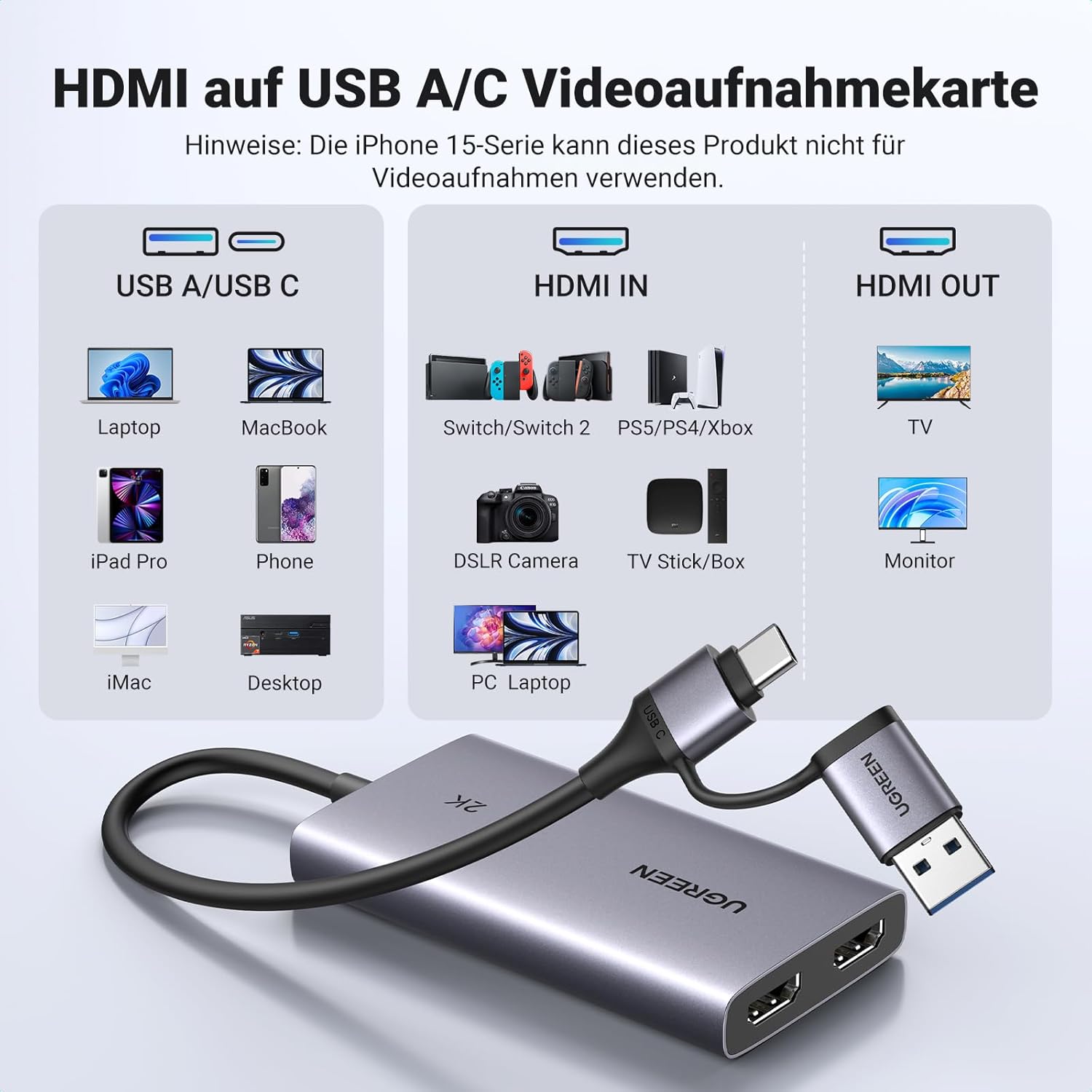
Figure 2: Connectivity Diagram and Compatible Devices
The device features both HDMI Input and HDMI Output ports, along with a flexible USB-A/USB-C connector for connecting to your computer or mobile device.
4. Setup Guide
Follow these steps to set up your UGREEN HDMI Capture Card for various devices.
4.1. Connecting to a PlayStation 5 (PS5)
Before connecting, ensure HDCP is turned off in your PS5 settings (Settings > System > HDMI > Enable HDCP: OFF). This is crucial for successful video capture.
- Prepare two HDMI cables.
- Connect one HDMI cable from your PS5's HDMI Out port to the HDMI IN port on the UGREEN Capture Card.
- Connect the second HDMI cable from the HDMI OUT port on the UGREEN Capture Card to your monitor or TV's HDMI input.
- Connect the USB-A or USB-C connector of the capture card to a compatible USB port on your laptop or PC.
- Open your preferred capture software (e.g., OBS Studio) on your computer to begin recording or live streaming.
Video: How to Use 2K@30Hz HDMI Capture Card (Seller Video). This video demonstrates the connection process for PS5, mobile phones, and cameras, along with OBS setup.
4.2. Connecting to a Mobile Phone
To capture video from a mobile phone, you will need a USB-C to HDMI cable (not included).
- Connect the USB-C end of the USB-C to HDMI cable to your phone's USB-C port.
- Connect the HDMI end of this cable to the HDMI IN port on the UGREEN Capture Card.
- Connect the USB-A or USB-C connector of the capture card to a compatible USB port on your laptop or PC.
- Open your capture software (e.g., OBS Studio) on your computer for recording or live streaming.

Figure 3: Example of streaming from a gaming console to a tablet.
4.3. Connecting to a Camera
To use your DSLR or other camera as a source, ensure it has an HDMI output.
- Prepare two HDMI cables.
- Connect one HDMI cable from your camera's HDMI Out port to the HDMI IN port on the UGREEN Capture Card.
- Connect the second HDMI cable from the HDMI OUT port on the UGREEN Capture Card to a monitor or TV for real-time viewing (optional).
- Connect the USB-A or USB-C connector of the capture card to a compatible USB port on your laptop or PC.
- Open your capture software (e.g., OBS Studio) on your computer to begin recording or live streaming.

Figure 4: Camera setup for live streaming or recording.
5. Operating Guide (OBS Studio)
The UGREEN Capture Card is compatible with popular software like OBS Studio. Here's a basic guide to setting it up in OBS:
- Launch OBS Studio on your computer.
- In the 'Sources' box, click the '+' icon to add a new source.
- Select 'Video Capture Device' from the list.
- In the new window, select 'Create new' and give your device a name (e.g., 'UGREEN Capture Card'). Click 'OK'.
- In the 'Properties for Video Capture Device' window, select 'UGREEN 25773' from the 'Device' dropdown menu.
- Adjust 'Resolution/FPS Type' to 'Device Default' or a specific resolution like 1920x1080 (1080p) or 2560x1440 (2K) at 30fps/60fps as needed.
- For audio, in the 'Sources' box, click '+' again and select 'Audio Input Capture'.
- Create a new audio source, select 'UGREEN 25773' from the 'Device' dropdown, and click 'OK'.
- In the 'Audio Mixer' section, ensure the audio levels for your capture device are active and adjust as necessary.
- You can now start streaming or recording using the controls on the right side of the OBS interface.

Figure 5: OBS Studio interface showing video and audio setup for the capture card.

Figure 6: Examples of using the capture card for video recording and live streaming.
6. Maintenance
To ensure the longevity and optimal performance of your UGREEN HDMI Capture Card, follow these simple maintenance tips:
- Keep the device clean and free from dust. Use a soft, dry cloth for cleaning.
- Avoid exposing the device to extreme temperatures or humidity.
- Store the capture card in a cool, dry place when not in use.
- Handle cables and connectors gently to prevent damage to the ports.
7. Troubleshooting
If you encounter issues with your UGREEN HDMI Capture Card, try the following solutions:
7.1. No Signal / Black Screen
- Check HDCP: For devices like PS4/PS5, ensure HDCP (High-bandwidth Digital Content Protection) is disabled in the console's system settings. HDCP is off by default on Switch/Xbox but may activate with media apps.
- Cable Connection: Ensure all HDMI and USB cables are securely connected to their respective ports. Try re-plugging them.
- Resolution Mismatch: Verify that the input resolution from your source device is supported by the capture card and your software.
- Software Settings: In your capture software (e.g., OBS), ensure the correct video capture device is selected and active.
- Restart Devices: Try restarting your source device (console/camera), computer, and the capture card.
7.2. Lag or Choppy Video
- USB 3.0 Port: Ensure the capture card is connected to a USB 3.0 port on your computer for optimal bandwidth.
- Computer Performance: Close unnecessary applications on your computer to free up CPU and RAM resources.
- Software Settings: Lower the output resolution or frame rate in your capture software settings.
- HDMI Cable Quality: Use high-quality HDMI cables, especially for 4K signals, to ensure stable transmission.
8. Specifications
| Attribute | Value |
|---|---|
| Brand | UGREEN |
| Model Number | 25773 |
| Item Weight | 4.9 ounces |
| Product Dimensions | 35.43 x 19.69 x 1.57 inches |
| Color | Grey |
| Hardware Interface | USB 3.0 Type C |
| Video Capture Resolution | 2K@30Hz |
| Operating System Compatibility | Android 5.0 and above, Linux, iOS 17, MacOS, Windows 8.1/10/11 |
| Recommended Uses | Video Recording |
9. Warranty and Support
For detailed warranty information and technical support, please refer to the official documentation included in your product package or visit the UGREEN official website. Keep your purchase receipt for warranty claims.


