
1. Introduction
This manual provides detailed instructions for the setup, operation, and maintenance of your GREALT Android TV Stick 14.0. This device transforms your television into a smart entertainment hub, offering access to various streaming services and applications in up to 4K Ultra HD resolution. Please read this manual thoroughly before using the product to ensure optimal performance and safety.
2. Package Contents
Verify that all items listed below are included in your package. If any items are missing or damaged, please contact customer support.
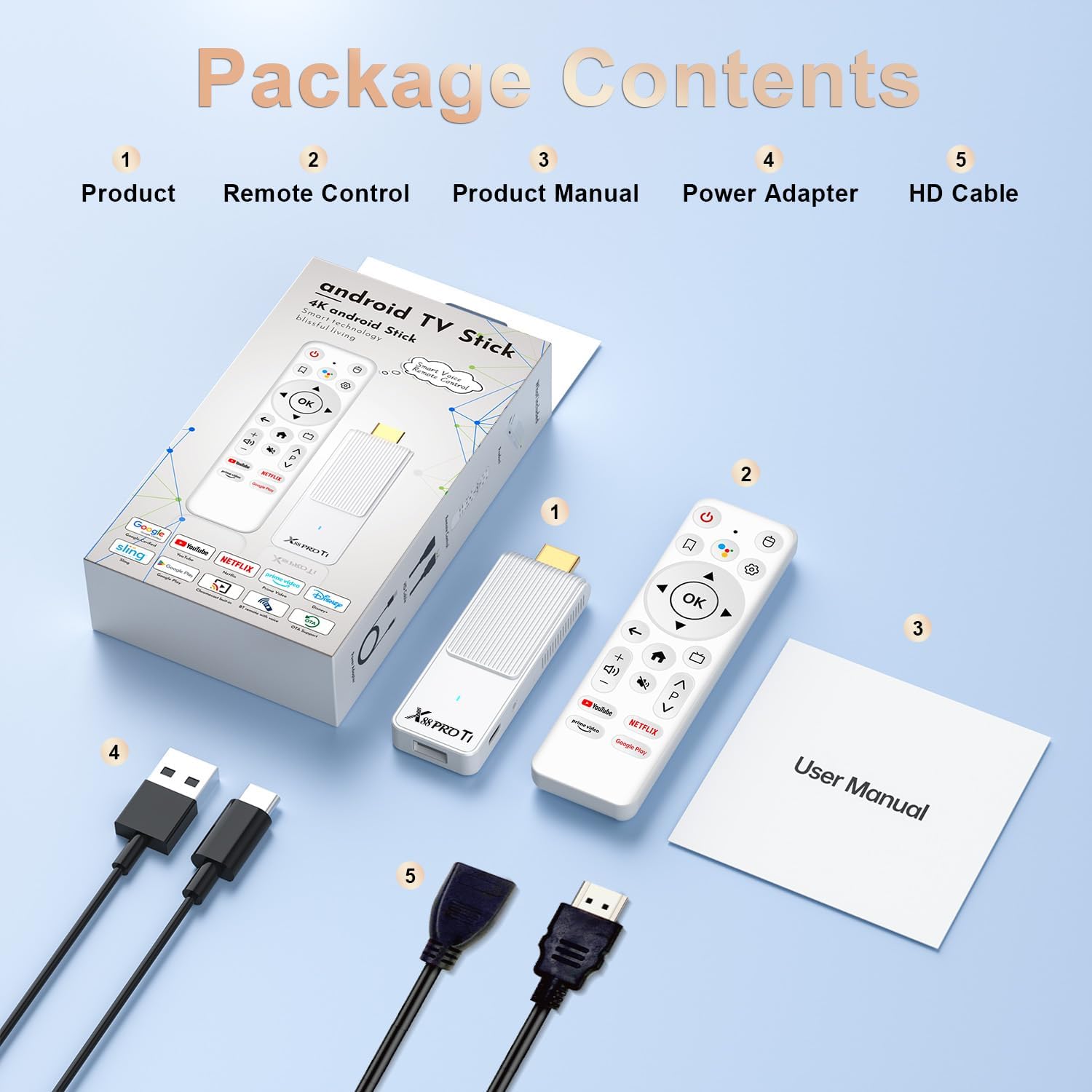
Figure 2.1: Package Contents. This image displays the GREALT Android TV Stick, its remote control, the user manual, a power adapter, and an HDMI cable, all neatly arranged as they would appear in the product packaging.
- GREALT Android TV Stick 14.0
- Bluetooth Voice Remote Control
- Power Adapter
- HD Cable (HDMI Cable)
- Product Manual (this document)
3. Setup Guide
Follow these steps to set up your Android TV Stick for the first time.
- Connect the TV Stick: Plug the GREALT Android TV Stick directly into an available HDMI port on your television.
- Connect Power: Connect the provided power adapter to the TV Stick and then plug it into a power outlet.
- Select HDMI Input: Turn on your TV and use your TV remote to select the correct HDMI input source to which the TV Stick is connected.
- Initial Setup: Follow the on-screen instructions to complete the initial setup, which includes connecting to your Wi-Fi network and logging into your Google account.
- Remote Control Pairing: If the Bluetooth Voice Remote Control is not automatically paired, follow the on-screen prompts or refer to the remote control section for manual pairing instructions.

Figure 3.1: 4K Video Output. This image illustrates the versatility of the GREALT Android TV Stick, demonstrating its ability to connect to various display devices such as a television, a computer monitor, and a projector via its HDMI output, all supporting 4K resolution.
4. Operating Instructions
4.1 Navigating the Interface
Once set up, the Android TV Stick will display the Google TV home screen. Use the directional pad (up, down, left, right) and the OK button on your remote control to navigate through menus, select apps, and browse content.

Figure 4.1: Android TV Stick Home Screen. This image displays the main interface of the Android TV Stick, featuring a selection of popular streaming applications such as Netflix, YouTube, Prime Video, HBO Max, Hulu, Disney+, ESPN, and Sling, indicating a wide range of entertainment options.
4.2 Voice Control
The included Bluetooth Voice Remote Control allows for convenient voice commands. Press the dedicated voice assistant button on the remote and speak clearly into the microphone to search for content, open applications, or control playback.
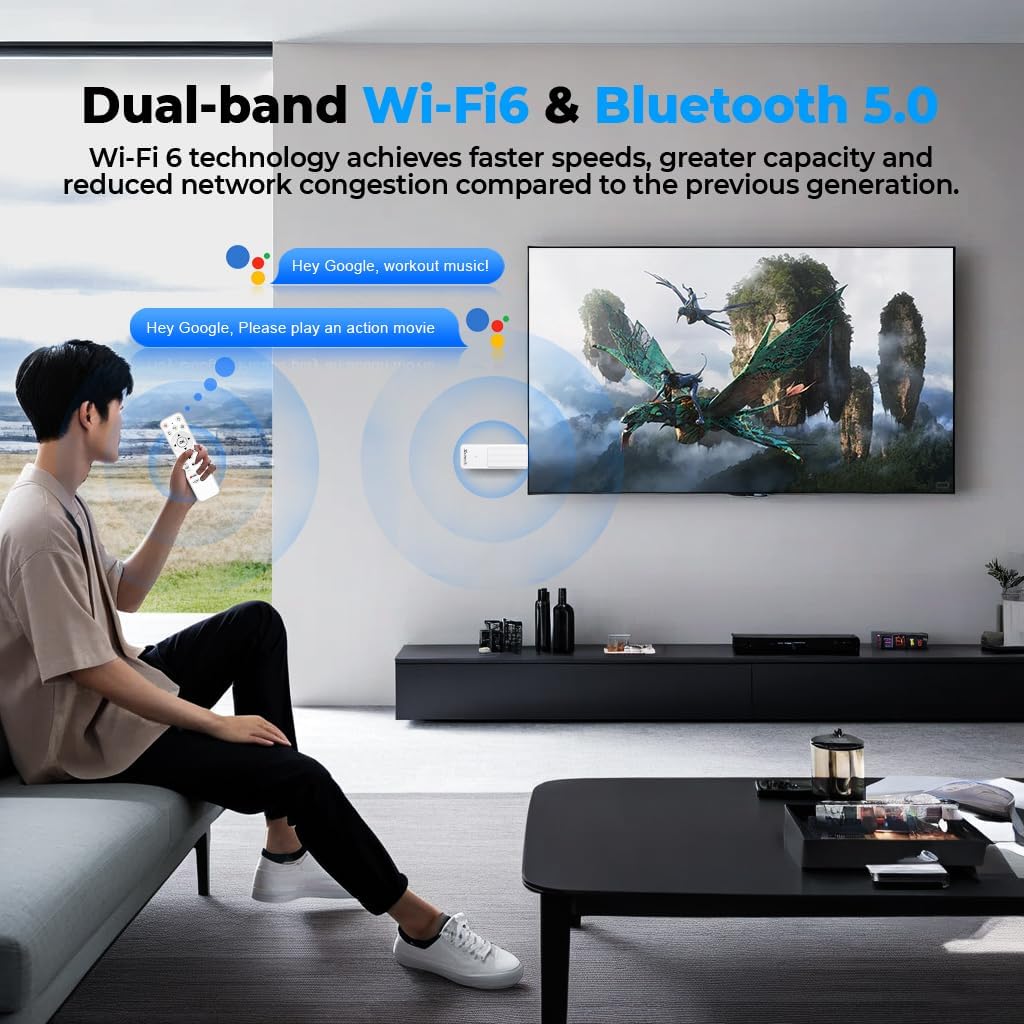
Figure 4.2: Voice Control Functionality. This image depicts a user interacting with the GREALT Android TV Stick using its voice-activated remote control, with voice commands like "Hey Google, workout music!" and "Hey Google, Please play an action movie" appearing on the television screen, highlighting the ease of hands-free operation.
4.3 Streaming in 4K Ultra HD
The GREALT Android TV Stick supports 4K Ultra HD resolution at 60 frames per second (fps), providing a clear and immersive viewing experience. Ensure your television and the content you are streaming also support 4K resolution for the best quality.
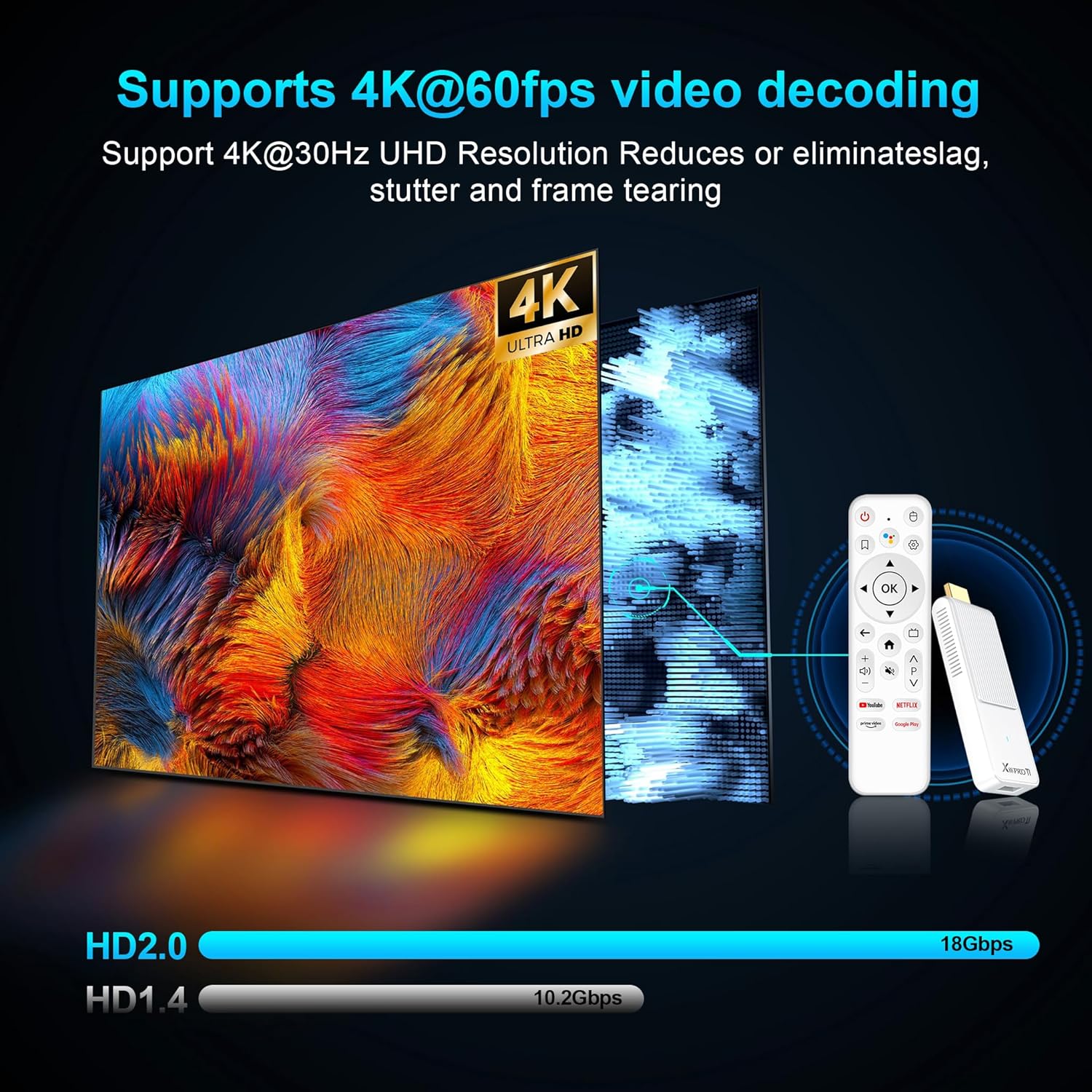
Figure 4.3: 4K@60fps Video Decoding. This image visually explains the device's capability to support 4K resolution at 60 frames per second, emphasizing how it reduces or eliminates lag, stutter, and frame tearing for a smoother viewing experience. It also compares the bandwidth of HD2.0 (18Gbps) with HD1.4 (10.2Gbps).

Figure 4.4: Advanced 4K Video Decoding. This image highlights the advanced video decoding features of the GREALT Android TV Stick, including support for 4K Ultra HD, HDR, HDR+, and 13-bit video processing, all contributing to superior picture quality.
4.4 Wi-Fi and Bluetooth Connectivity
The device features dual-band Wi-Fi (2.4G/5G) for stable and fast internet connectivity, and Bluetooth 5.0 for connecting accessories like the voice remote control, game controllers, or Bluetooth headphones.

Figure 4.5: High-speed Wi-Fi 6 and Bluetooth 5.0. This image visually represents the high-speed Wi-Fi 6 and Bluetooth 5.0 capabilities of the device, emphasizing reduced latency for a lag-free real-time experience, depicted with a race car on a track.
5. Maintenance
To ensure the longevity and optimal performance of your GREALT Android TV Stick, consider the following maintenance tips:
- Cleaning: Use a soft, dry cloth to clean the device. Avoid liquid cleaners or abrasive materials.
- Ventilation: Ensure the device is placed in a well-ventilated area to prevent overheating. Do not cover the device.
- Software Updates: Regularly check for and install system updates to benefit from new features and security enhancements.
- Storage: When not in use for extended periods, store the device in a cool, dry place.
6. Troubleshooting
If you encounter issues with your GREALT Android TV Stick, refer to the following common problems and solutions:
- No Power/No Display:
- Ensure the power adapter is securely connected to both the TV Stick and a working power outlet.
- Verify that your TV is set to the correct HDMI input source.
- Try a different HDMI port on your TV.
- Remote Control Not Responding:
- Check the batteries in the remote control and replace them if necessary.
- Ensure there are no obstructions between the remote and the TV Stick.
- Re-pair the remote control by following the instructions in the device settings.
- Wi-Fi Connectivity Issues:
- Restart your Wi-Fi router.
- Ensure the TV Stick is within range of your Wi-Fi router.
- Check your Wi-Fi password for accuracy.
- Go to network settings on the TV Stick and try reconnecting.
- Buffering or Lagging Video:
- Check your internet connection speed. A stable and fast connection is required for 4K streaming.
- Close other applications running in the background on the TV Stick.
- Clear the cache of the streaming application.
- Consider connecting to a 5Ghz Wi-Fi network if available for better performance.
7. Specifications
| Feature | Specification |
|---|---|
| Brand | GREALT |
| Model Number | Android TV Stick 14.0 |
| Processor | RK3518 CPU |
| RAM | 2GB |
| Storage | 16GB ROM |
| Operating System | Android TV 14.0 |
| Resolution | Up to 4K Ultra HD @ 60Hz |
| Wi-Fi | 2.4G/5G Dual-band Wi-Fi 6 |
| Bluetooth | Bluetooth 5.0 |
| Connectivity | HDMI |
| Special Features | HDR10, Voice Remote Control, Browser |
| Dimensions | Approximately 4 x 3 x 2 inches |
| Item Weight | Approximately 12.8 ounces |
8. Warranty and Support
Your GREALT Android TV Stick 14.0 comes with a standard manufacturer's warranty. Please refer to the warranty card included in your package for specific terms and conditions.
For technical support, troubleshooting assistance, or warranty claims, please contact GREALT customer service:
- Email: support@grealt.com
- Website: www.grealt.com/support
- Phone: 1-800-XXX-XXXX (Please check your product packaging for the most current contact number)
Please have your product model number and purchase date ready when contacting support.