
Product Overview
The innioasis 80GB MP3 Player is a versatile portable music and video player designed for a comprehensive entertainment experience. It features Bluetooth and Wi-Fi connectivity, a 4.0-inch touch screen, and comes pre-installed with popular streaming applications like Spotify, Spotify Kids, Pandora, and Audible. This device also includes robust parental control features, making it suitable for users of all ages. With expandable storage up to 1TB, it offers ample space for your media library.

Front and back view of the innioasis 80GB MP3 Player, showcasing its sleek design and touch screen interface.
What's in the Box
Upon unboxing your innioasis MP3 Player, please verify that all the following components are included:
- Mp3 player x 1
- 64GB SD card x 1
- USB-C cable x 1
- Wired headphones x 1
- User manual x 1

An illustration of all items included in the product packaging: the MP3 player, USB-C cable, wired headphones, 64GB SD card, and user manual.
Setup Guide
1. Initial Charging
Before first use, fully charge your MP3 player. Connect the provided USB-C cable to the device's charging port and the other end to a compatible USB power adapter (not included) or a computer's USB port. A full charge typically takes approximately 2 hours. The device is equipped with a 1500mAh lithium battery.
2. Powering On/Off
- To power on: Press and hold the power button located on the side of the device until the screen illuminates.
- To power off: Press and hold the power button until a power-off menu appears on the screen. Select 'Power off'.
3. Connecting to Wi-Fi
The MP3 player supports dual-band 2.4GHz and 5GHz Wi-Fi for stable wireless connectivity. To connect:
- Go to 'Settings' from the home screen.
- Select 'Network & Internet'.
- Toggle Wi-Fi 'On'.
- Select your desired Wi-Fi network from the list.
- Enter the network password if prompted and tap 'Connect'.

The MP3 player's screen displaying a strong Wi-Fi signal, indicating stable network connectivity.
4. Connecting to Bluetooth Devices
The device features a Bluetooth chip for two-way sending and receiving, allowing connection to headphones, speakers, or car audio systems.
- Ensure the Bluetooth device you wish to connect is in pairing mode.
- On your MP3 player, go to 'Settings' and select 'Connected devices'.
- Tap 'Pair new device'.
- Select your Bluetooth device from the list of available devices.
- Confirm the pairing on both devices if prompted.

The MP3 player screen showing a music interface with surrounding icons representing various Bluetooth devices like headphones, speakers, and car audio systems, indicating wide compatibility.
Operating Instructions
1. Music Playback
The MP3 player supports a wide range of audio formats including MP3, WAV, FLAC, AAC, APE, OGG, M4A, WMA, and MP2. You can enjoy music through pre-installed streaming apps or local files.
- Using Streaming Apps: Tap on icons for Spotify, Spotify Kids, Amazon Music, Deezer, Pandora, Apple Music, or Tidal directly from the home screen to access their respective music libraries.
- Playing Local Files: Use the built-in 'Music' app. You can scan for songs from folders, create unlimited playlists, and search for songs by name. The device features a noise reduction chip for enhanced sound quality.

The MP3 player displaying its powerful music application, highlighting features such as song category, search, playlist creation, and equalizer settings.
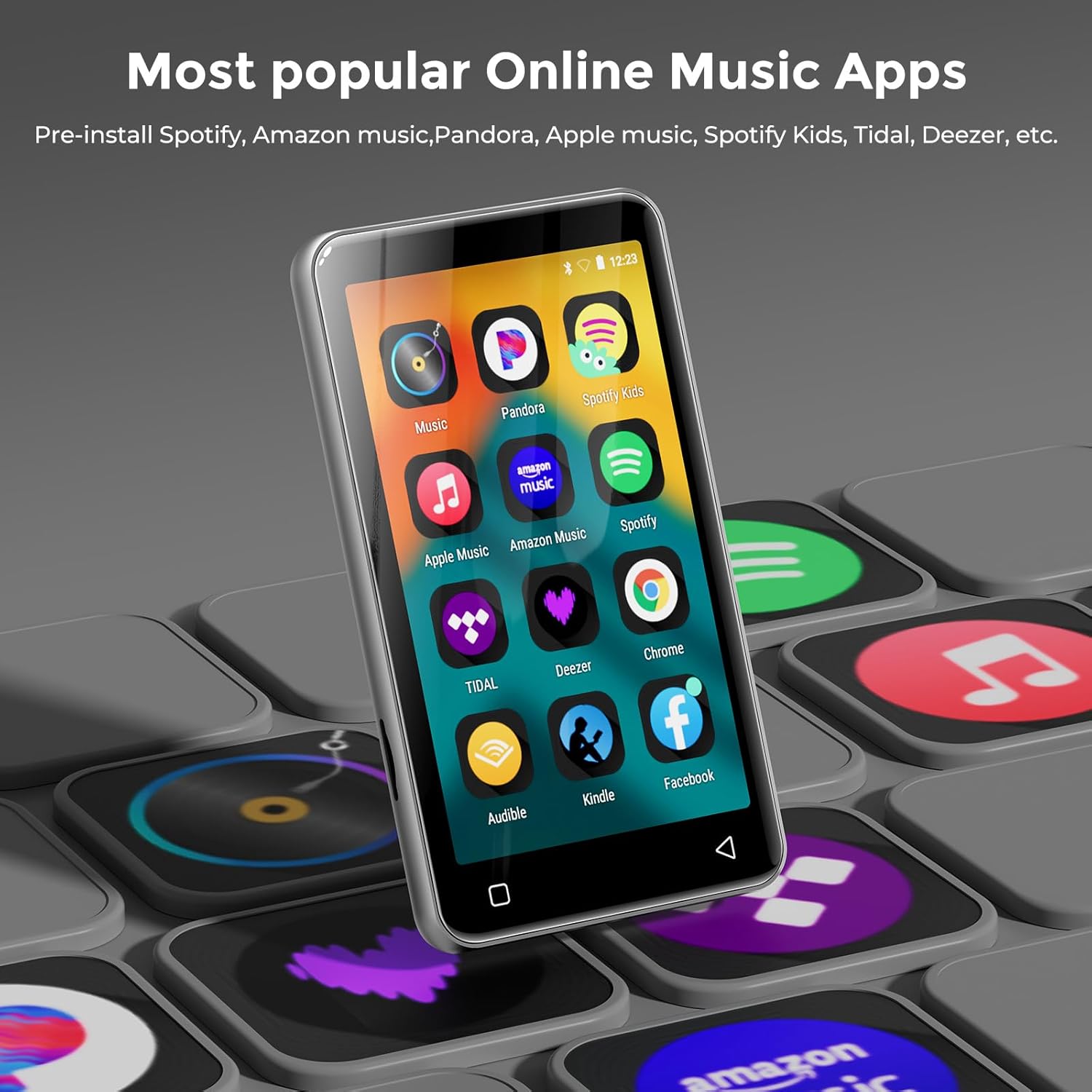
The MP3 player's home screen, showcasing pre-installed popular online music applications like Spotify, Pandora, Amazon Music, and Deezer.
2. Video Playback
The 4-inch IPS full touch LCD screen supports 480x800 pixel HD video playback. Compatible video formats include RM, AVI, RMVB, FLV, MP4, DAT, MKV, MPG, MOV, TS, and 3GP.
- To play videos, navigate to the 'Video' app on the device.
- Select the desired video file from your storage.

The MP3 player displaying a vibrant video, illustrating its capability as a 1080P HD full format video player.
3. Parental Controls
The device offers robust parental control features to manage content access and usage time.
- App Management: The player does not allow installation of additional apps beyond the pre-installed ones. You can uninstall any pre-installed apps you do not wish to be used.
- Reset Lock: Set a reset lock to prevent the device from being restored to factory settings without authorization, which would bring back uninstalled apps.
- Usage Limits: Limit the duration of both internet usage and overall player usage.
Access parental control settings via the 'Settings' menu.

The MP3 player's screen displaying the parental control settings interface, allowing users to manage access and usage.
4. File Transfer and Storage Expansion
The device comes with 16GB ROM and a 64GB TF card, supporting external storage expansion up to 1TB via the card slot.
- Via USB-C Cable: Connect the MP3 player to your computer using the provided USB-C cable. The device should appear as a removable storage device, allowing you to drag and drop files.
- Via SD Card: You can directly transfer files to the 64GB SD card using a card reader on your computer, then insert the card into the MP3 player.
- Wireless Transfer: Some users may find a dedicated music filesharing app useful for wireless transfer from a smartphone. Check the device's app store or manufacturer's website for compatible applications.

An image illustrating the MP3 player's 80GB large capacity and its expandability up to 1TB with an external TF card.
5. FM Radio
The MP3 player includes a built-in FM radio. To use:
- Connect the wired headphones (included) as they act as the antenna.
- Open the 'FM Radio' app from the home screen.
- Use the on-screen controls to scan for stations or tune manually.
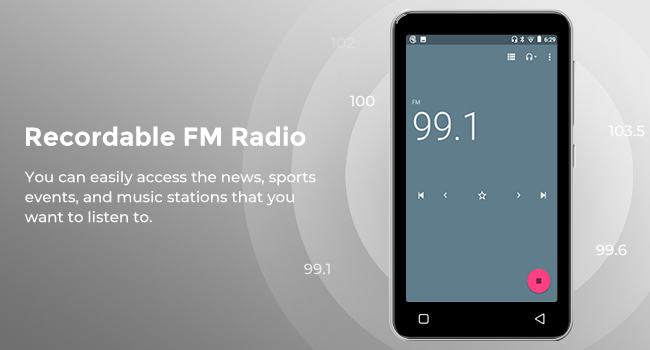
The MP3 player's screen displaying the interface for its recordable FM radio function, showing a frequency of 99.1.
Maintenance
1. Battery Care
To maximize battery lifespan:
- Avoid extreme temperatures.
- Do not allow the battery to fully deplete frequently.
- If the device is completely discharged and does not turn on with a standard charger, try using a lower amperage charger for a few minutes to initiate charging.
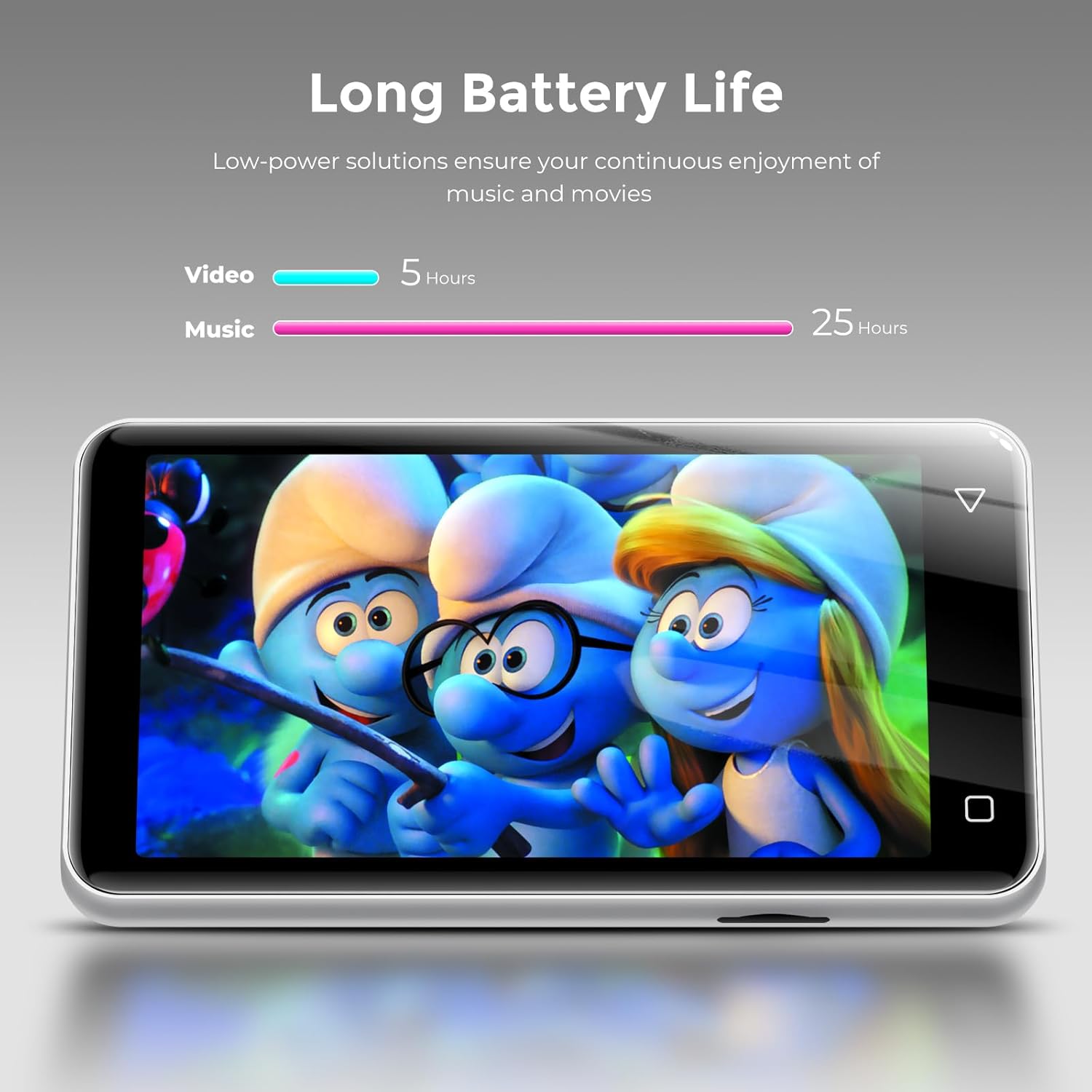
The MP3 player displaying its long battery life, indicating up to 25 hours for music playback and 5 hours for video playback.
2. Cleaning
Use a soft, lint-free cloth to clean the screen and body of the device. Avoid abrasive materials or harsh chemicals.
Troubleshooting
Device Does Not Turn On After Full Discharge
- If the device has completely run out of battery and won't power on with your usual charger, try connecting it to a lower amperage charger (e.g., a standard USB port on a computer or a less powerful wall adapter) for a few minutes. This can sometimes initiate the charging process when a fast charger might not.
- Ensure the USB-C cable is securely connected to both the device and the power source.
Music Files Not Appearing
- Verify that the music files are in a supported format (MP3, WAV, FLAC, AAC, APE, OGG, M4A, WMA, MP2).
- Ensure files are placed in the correct directories on the device's internal storage or SD card for the music app to detect them.
- Use the 'Music Scan' feature within the music app to refresh the library.
Device is Sluggish or Unresponsive
- Close any background applications that may be consuming resources.
- Restart the device.
- If issues persist, consider a factory reset (Note: This will erase all data and settings. Back up important files first. Be aware of parental control reset locks).
Specifications
| Model Number | G1-80GB |
| Product Dimensions | 0.39 x 2.56 x 4.33 inches |
| Item Weight | 5.9 ounces |
| Manufacturer | INNIOASIS |
| Batteries | 1 LR44 battery required (included) |
| Date First Available | September 14, 2024 |
| Special Features | Built-In Speaker, Equalizer, FM Radio, Video Playback, Voice Recorder |
| Connectivity Technology | Bluetooth, Wi-Fi (2.4GHz & 5GHz) |
| Memory Storage Capacity | 16GB ROM (internal), 64GB TF card included, expandable up to 1TB |
| Color | Silver |
| Screen Size | 4 Inches |
| Media Type | SDHC |
| Display Technology | LCD (IPS) |
| Supported Audio Formats | MP3, WAV, FLAC, AAC, APE, OGG, M4A, WMA, MP2 |
| Supported Video Formats | RM, AVI, RMVB, FLV, MP4, DAT, MKV, MPG, MOV, TS, 3GP |

The back of the product packaging, detailing the technical specifications of the innioasis G1 MP3 player.
Warranty and Support
For warranty information and customer support, please refer to the documentation included with your product or visit the official innioasis website. If you purchased the product through an online retailer, their customer service channels may also provide assistance.
For direct inquiries, you may attempt to contact the manufacturer, INNIOASIS, or the seller, Innioasis-US, through their respective support channels.