
1. Introduction
The Inseego MiFi X Pro M3000 is a powerful and secure mobile hotspot designed to provide reliable 5G and 4G LTE connectivity. Equipped with Wi-Fi 6 technology, it supports up to 32 Wi-Fi enabled devices, offering a virtually lag-free connected experience. This manual provides essential information for setting up, operating, and maintaining your device.
What's in the Box
- Inseego MiFi X Pro M3000 Hotspot Device
- USB Type-C Cable
- Power Adapter (if included with your specific package)
- Quick Start Guide (this document)
2. Setup
2.1 Inserting the SIM Card and Battery
- Ensure the device is powered off.
- Carefully remove the back cover of the MiFi X Pro.
- Insert your activated Nano SIM card into the designated SIM card slot. Ensure correct orientation as indicated on the device.
- Insert the battery into its compartment.
- Replace the back cover, ensuring it clicks securely into place.
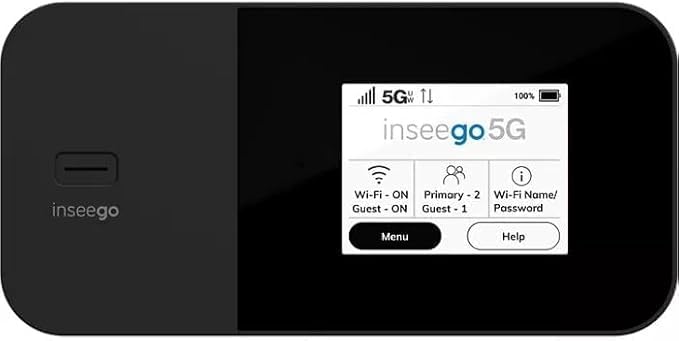
Figure 1: Front view of the Inseego MiFi X Pro M3000, showing the display with network status, Wi-Fi, and menu options.
2.2 Powering On and Initial Configuration
- Press and hold the Power button (usually located on the side or top) until the screen illuminates.
- Follow the on-screen prompts to complete the initial setup, which may include setting a device password and Wi-Fi network name (SSID) and password.
- Alternatively, you can manage settings via the Inseego Mobile app or a web interface by connecting a device to the hotspot and navigating to the device's IP address (typically 192.168.1.1).
3. Operating
3.1 Connecting Devices
- On your Wi-Fi enabled device (smartphone, tablet, laptop), search for available Wi-Fi networks.
- Select the Wi-Fi network name (SSID) displayed on your MiFi X Pro screen.
- Enter the Wi-Fi password displayed on your MiFi X Pro screen.
- Your device should now be connected to the internet.
3.2 Managing Wi-Fi Networks and Connections
- The MiFi X Pro supports simultaneous dual-band Wi-Fi 6 with primary and guest networks.
- Access the device's menu (via the touchscreen or web interface) to view connected devices, monitor data usage, and configure network settings.
- Guest networks can be enabled or disabled and configured with separate passwords for enhanced security.

Figure 2: Side view of the Inseego MiFi X Pro M3000, highlighting the USB-C port for charging and data, and the power button.
4. Maintenance
4.1 Battery Care and Charging
- Charge the MiFi X Pro using the provided USB Type-C cable and power adapter.
- The device features fast-charging capabilities.
- For 24/7 operation, utilize the proprietary battery preservation mode when connected to AC power.
- Avoid exposing the device to extreme temperatures or direct sunlight for prolonged periods to preserve battery life.
4.2 Device Reset
If you experience persistent issues, a factory reset may resolve them. Refer to the device's on-screen menu or web interface for instructions on performing a factory reset. This will erase all custom settings and return the device to its default state.
5. Troubleshooting
- No Internet Connection:
- Ensure your SIM card is properly inserted and activated with a data plan.
- Check the signal strength indicator on the device screen. Move to an area with better network coverage if necessary.
- Restart the MiFi X Pro and the connected device.
- Verify that your data plan has not been exceeded.
- Slow Speeds:
- Reduce the number of connected devices.
- Ensure you are within optimal Wi-Fi range (up to 35 feet).
- Check for network congestion in your area.
- Device Not Powering On:
- Ensure the battery is charged. Connect the device to a power source.
- If the battery is completely drained, it may take a few minutes of charging before the device can power on.
6. Specifications
| Feature | Detail |
|---|---|
| Model Name | Inseego MiFi X Pro (M3000) |
| Connectivity | 5G, 4G LTE, Wi-Fi 6 (802.11ax) |
| Frequency Band Class | Dual-Band |
| Max Connected Devices | Up to 32 |
| Ports | 1 Gbps Ethernet port, USB-C port |
| Security Features | Enterprise-grade security, Open VPN, VPN pass-through, static IP support, Wi-Fi privacy separation, WPA3 |
| Special Feature | WPS (Wi-Fi Protected Setup) |
| Battery | Long-lasting, fast-charging, proprietary battery preservation mode |
| Color | Black |
| Item Weight | 13.4 ounces |
| Package Dimensions | 6.69 x 4.37 x 2.32 inches |
7. Warranty and Support
For warranty information and technical support, please refer to the official Inseego website or contact your product retailer. Keep your purchase receipt for warranty claims.
This product is offered as an Amazon Renewed item, which typically includes a separate Amazon Renewed Guarantee. Please consult the Amazon Renewed Guarantee details for specific coverage and support related to your purchase.


