
1. Product Overview
The Loocam PoE Security Camera System provides comprehensive surveillance for your home or business. This system includes an 8-channel 5MP NVR with a pre-installed 2TB hard drive and eight 4MP wired bullet PoE IP cameras. Key features include 2.5K Ultra HD video, advanced AI-powered person and vehicle detection, 24/7 continuous recording, and convenient remote access via mobile app or computer software.

Figure 1: Loocam PoE Security Camera System components.
2. Package Contents
Verify that all items listed below are included in your package. If any items are missing or damaged, please contact Loocam customer support.

Figure 2: Detailed view of all items included in the package.
- 1x 8-Channel 5MP PoE NVR (with 2TB Hard Drive Pre-installed)
- 1x NVR Power Supply
- 1x USB Mouse
- 1x HDMI Cable
- 8x 4MP PoE IP Cameras
- 8x 60ft Ethernet Cables
- 1x 1m Ethernet Cable
- 8x Mounting Screws
- 8x Mounting Hole Templates
- 1x Quick Start Guide
3. Setup Guide
3.1 Initial System Connection
The Loocam PoE system simplifies installation by using Power over Ethernet (PoE) technology. A single Ethernet cable provides both power and video data to each camera from the NVR.

Figure 3: Simplified PoE connection diagram.
- Connect the NVR to a power outlet using the provided NVR power supply.
- Connect the NVR to your monitor or TV using the HDMI or VGA cable.
- Connect the USB mouse to the NVR's USB port for navigation.
- Connect each PoE IP camera to an available PoE port on the NVR using the provided Ethernet cables.
- For remote access, connect the NVR's LAN port to your router using an Ethernet cable.
3.2 Remote Access Setup
Access your security system remotely from your smartphone, tablet, or computer using the Loocam App or AVSS Client software.

Figure 4: Remote access options via Loocam App and AVSS Client.
- Download the Loocam App: Search for "Loocam" in your mobile device's app store (iOS or Android) and install it.
- Scan QR Code: Open the Loocam App, register an account, and then scan the QR code displayed on your NVR's monitor (or found on the NVR itself) to add your device.
- Live View: Once added, you can view live footage from your cameras, play back recordings, and configure settings from anywhere with an internet connection.
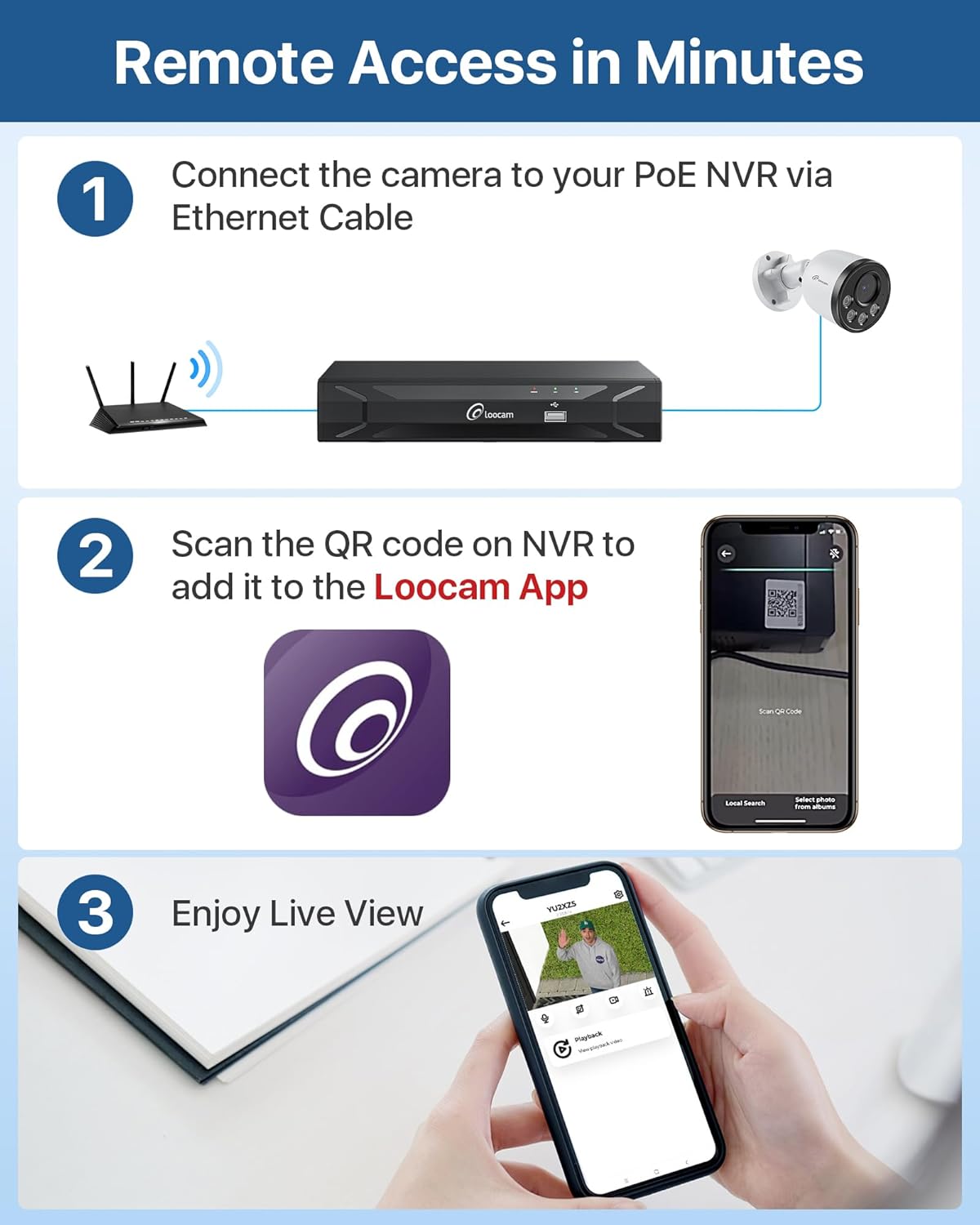
Figure 5: Step-by-step guide for setting up remote access.
4. Operating Instructions
4.1 24/7 Recording and Storage
The NVR comes with a 2TB security-grade hard drive pre-installed, enabling continuous 24/7 recording. The storage capacity can be expanded up to 8TB. The system utilizes H.265+ video compression technology, which significantly reduces bandwidth and storage requirements by up to 50% compared to H.264, allowing for longer recording times and smoother playback.

Figure 6: Local storage capabilities for continuous recording.
4.2 AI Person/Vehicle Detection and Alerts
The system features advanced AI algorithms for accurate detection of human and vehicle shapes, minimizing false alarms caused by environmental factors like swaying trees or animals. When a person or vehicle is detected, the system can send instant alerts via app push notifications, email, or an audible NVR buzzer.

Figure 7: AI-powered person and vehicle detection in action.
4.3 Night Vision
The 4MP cameras provide clear 2.5K Ultra HD video at 25 frames per second during the day and automatically switch to infrared night vision, capable of seeing up to 100 feet in low-light conditions, ensuring 24/7 surveillance coverage.

Figure 8: Day and night vision capabilities of the cameras.
4.4 One-Way Audio
Each camera is equipped with a microphone to record audio, providing an additional layer of security by capturing both visual and auditory information from the monitored area.

Figure 9: Illustration of the one-way audio recording feature.
5. Maintenance
5.1 Weatherproof Design
The PoE IP cameras are rated IP66 weatherproof, designed to withstand various outdoor conditions, including rain, snow, and extreme temperatures ranging from -20°C (-4°F) to 60°C (140°F). Ensure all connections are properly sealed to maintain waterproof integrity.

Figure 10: IP66 weatherproof rating and waterproof connection.
5.2 Hard Drive Management
The NVR's 2TB hard drive is configured for 24/7 recording with automatic overwrite functionality. When the hard drive is full, the system will automatically overwrite the oldest footage to continue recording. You can export video data to a USB drive or external hard drive for additional backup.
5.3 General Care
To ensure optimal performance and longevity of your security system:
- Regularly clean the camera lenses with a soft, damp cloth to prevent dust and dirt buildup from affecting image clarity.
- Ensure the NVR is placed in a well-ventilated area to prevent overheating.
- Periodically check cable connections for any signs of wear or damage.
6. Troubleshooting
This section addresses common issues you might encounter with your Loocam PoE Security Camera System.
6.1 No Video Display
- Check Power: Ensure the NVR is powered on and its power indicator light is illuminated.
- Monitor Connection: Verify the HDMI or VGA cable is securely connected between the NVR and your monitor/TV. Try a different cable or port if available.
- Camera Connection: Confirm that each camera's Ethernet cable is securely plugged into the NVR's PoE ports. The corresponding PoE port indicator light on the NVR should be on.
- Cable Integrity: Inspect Ethernet cables for any visible damage.
6.2 Poor Image Quality
- Clean Lens: Gently clean the camera lens with a soft cloth to remove dust or smudges.
- Lighting Conditions: Ensure adequate lighting in the monitored area, especially for optimal day vision. For night vision, ensure no obstructions are blocking the infrared LEDs.
- Resolution Settings: Check the NVR's video output settings to ensure it's set to the highest supported resolution for your monitor.
6.3 False Alarms from Motion Detection
- Adjust Sensitivity: Access the NVR's motion detection settings and reduce the sensitivity level.
- Customize Motion Zones: Define specific motion detection zones to exclude areas with frequent irrelevant movement (e.g., swaying trees, busy public roads).
- Enable AI Detection: Ensure Person/Vehicle Detection is enabled in the settings to filter out non-human/vehicle movements.
6.4 Remote Access Issues
- Network Connection: Verify the NVR is connected to your router and has internet access. Check the network status on the NVR.
- App/Software Version: Ensure your Loocam App or AVSS Client software is updated to the latest version.
- Firewall/Router Settings: If issues persist, check your router's firewall settings. You may need to enable UPnP or manually forward ports (refer to your router's manual).
7. Specifications
| Feature | Specification |
|---|---|
| Brand | Loocam |
| Model Number | LC8P6B-5W82S-180 |
| Connectivity Technology | Wired (PoE) |
| Video Capture Resolution | 4MP (2.5K Ultra HD) |
| Number of Channels | 8 |
| Memory Storage Capacity | 2 TB (Pre-installed, expandable up to 8TB) |
| Special Features | Human Detection, Vehicle Detection, Privacy Masking, Night Vision, Automatic Overwrite, App Control, Audio Recording, IP66 Weatherproof, Smart Playback, Motion Sensor |
| Night Vision Range | Up to 100 Feet |
| Frame Rate | 25 Frames per Second |
| Viewing Angle | 95 Degrees |
| Power Source | Corded Electric |
| Item Dimensions (L x W x H) | 17 x 11 x 11 inches |
| Item Weight | 19.51 pounds |
| Compatible Devices | Laptops, Personal Computers, Smartphones, TV, Tablets |
| Hardware Interface | HDMI, USB 2.0, VGA, RJ45 |
8. Warranty and Support
Loocam is committed to providing reliable products and excellent customer service.
8.1 Warranty Information
- 2-Year Limited Warranty: Your Loocam security system is covered by a 2-year limited warranty from the date of purchase, protecting against manufacturing defects.
- 30-Day Money Back Guarantee: Loocam offers a 30-day money-back guarantee for returns.
8.2 Technical Support
Loocam provides lifetime technical support for its products. If you encounter any issues or have questions regarding the setup, operation, or maintenance of your system, please contact our support team for prompt online assistance.
For the most up-to-date support information and contact details, please visit the official Loocam website or refer to the Quick Start Guide included in your package.