
Introduction
This manual provides essential information for setting up, operating, maintaining, and troubleshooting your Lenovo LOQ Gaming Tower Desktop Computer, model 17IRR9. Please read this guide thoroughly to ensure optimal performance and longevity of your device.
Setup
1. Unboxing and Contents
Carefully unpack your computer and verify that all components are present. The package should contain:
- Lenovo LOQ Tower 17IRR9 Desktop Computer
- Keyboard
- Mouse
- Quick User Guide
- 3-Month Xbox Game Pass voucher
2. Connecting Peripherals
Before powering on your computer, connect all necessary peripherals.
- Monitor: Connect your monitor to the graphics card ports (HDMI or DisplayPort) located at the rear of the tower.
- Keyboard and Mouse: Connect the keyboard and mouse to the available USB ports.
- Power: Connect the power cable to the power supply unit at the rear of the tower and then to a wall outlet.
- Network (Optional): For a wired internet connection, connect an Ethernet cable to the RJ45 port. For wireless, ensure your Wi-Fi antenna is properly connected if applicable.

Image: Front angled view of the Lenovo LOQ Gaming Tower Desktop Computer, showcasing its sleek design and front panel ports.
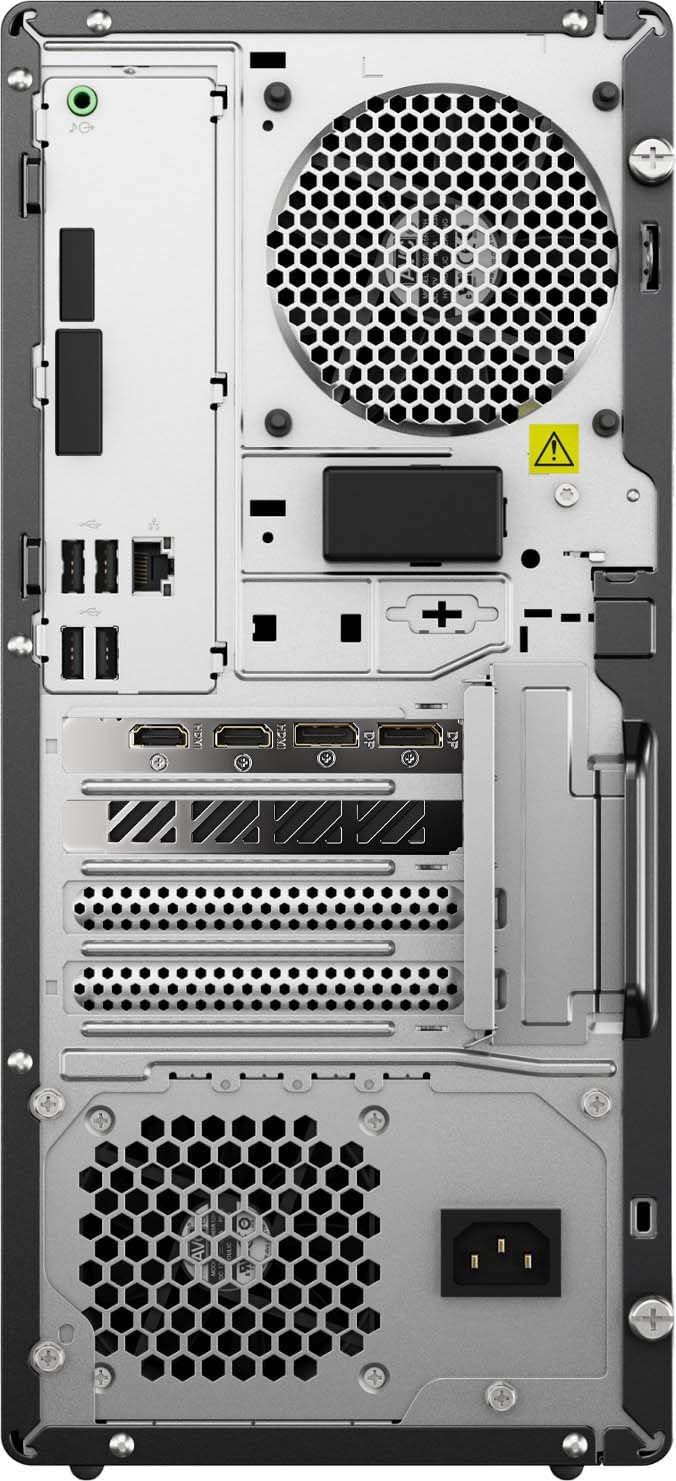
Image: Rear view of the Lenovo LOQ Gaming Tower Desktop Computer, illustrating the various connectivity ports including HDMI, DisplayPort, USB, and Ethernet.
3. Initial Power On
Press the power button located on the front panel of the tower. The system will boot up, and you will be guided through the Windows 11 Home setup process. Follow the on-screen instructions to configure your operating system, user accounts, and network settings.
Operating Instructions
1. Windows 11 Home Overview
Your Lenovo LOQ Gaming Tower comes pre-installed with Windows 11 Home. Familiarize yourself with the operating system's interface, Start Menu, taskbar, and settings to personalize your experience.
2. Gaming Performance
The system is equipped with an Intel Core i7-14700 processor and an NVIDIA GeForce RTX 3060 graphics card, designed for high-performance gaming and demanding applications. Ensure your graphics drivers are up to date for optimal gaming performance.
3. Performance Modes
Utilize the Fn+Q hotkey combination to switch between different performance modes. This allows you to balance system acoustics and performance based on your current task, from quiet operation for productivity to maximum power for gaming.
4. Xbox Game Pass
Your purchase includes a 3-month Xbox Game Pass subscription. Follow the instructions provided with your voucher to activate and enjoy a wide library of PC games.

Image: A complete desktop setup featuring the Lenovo LOQ Gaming Tower, monitor displaying the Xbox Game Pass interface, keyboard, mouse, and headphones.
Maintenance
1. Cleaning
Regularly clean the exterior of your computer with a soft, dry cloth. Use compressed air to clear dust from the ventilation grilles and internal components to prevent overheating. Ensure the computer is powered off and unplugged before cleaning.
2. Airflow Management
The Lenovo LOQ Tower 17IRR9 features optimized airflow with front and side vents and a robust 65W CPU cooler. Ensure the computer is placed in a location with adequate ventilation, avoiding enclosed spaces that could restrict airflow. Do not block the vents.

Image: An internal view of the Lenovo LOQ Gaming Tower, highlighting the blue and orange arrows representing efficient airflow for cooling internal components.
3. Software Updates
Keep your operating system and drivers updated. Windows Update will handle OS updates, and you can typically find graphics card driver updates on the NVIDIA website or through their GeForce Experience software. Regular updates ensure security, stability, and performance improvements.
Troubleshooting
This section addresses common issues you might encounter.
- No Power:
- Check if the power cable is securely connected to both the computer and the wall outlet.
- Verify the wall outlet is functional by plugging in another device.
- No Display:
- Ensure the monitor is powered on and the video cable (HDMI/DisplayPort) is securely connected to both the computer's graphics card and the monitor.
- Try a different video cable or monitor if available.
- System Unresponsive:
- If the system freezes, press and hold the power button for 10 seconds to force a shutdown. Wait a few moments, then power it back on.
- Check for any recent software installations or updates that might be causing conflicts.
- Slow Performance:
- Ensure all drivers are updated.
- Check for background applications consuming excessive resources using Task Manager (Ctrl+Shift+Esc).
- Run a disk cleanup and defragmentation (for HDD) or optimize (for SSD) to maintain storage performance.
Specifications
Detailed technical specifications for the Lenovo LOQ Gaming Tower Desktop Computer 17IRR9:
| Component | Specification |
|---|---|
| Model Number | 17IRR9 |
| Processor | 14th Generation Intel Core i7-14700 (20-Core, up to 5.40 GHz, 33MB Smart Cache) |
| RAM | 16GB DDR5 4800MHz |
| Storage | 512GB PCIe NVMe M.2 SSD + 2TB HDD (7200 RPM) |
| Graphics Card | NVIDIA GeForce RTX 3060 12GB GDDR6 |
| Operating System | Windows 11 Home (64-bit) |
| Wireless Connectivity | Wi-Fi 6E 2x2 AX, Bluetooth 5.3 |
| Front Ports | 2x USB-A 3.2 Gen 1, 1x USB-C 3.2 Gen 1, 1x Headphone / mic combo |
| Rear Ports | 4x USB-A 2.0, RJ45 (Ethernet), 1x Audio out, 1x HDMI, 3x DisplayPort (from GPU) |
| Dimensions (LxWxH) | 11.97 x 6.69 x 14.8 inches |
| Weight | 18.52 pounds |
| Color | Luna Grey |

Image: An internal view of the Lenovo LOQ Gaming Tower, highlighting the NVIDIA GeForce RTX graphics card installed.
Warranty and Support
1. Warranty Information
Your Lenovo LOQ Gaming Tower Desktop Computer is covered by a 2-Year Warranty provided by Techno Intelligence. This warranty covers manufacturing defects and hardware malfunctions under normal use conditions.
2. Technical Support
Free technical support is available for the duration of your warranty period. For assistance with setup, troubleshooting, or any technical inquiries, please refer to the contact information provided with your purchase documentation or visit the official Lenovo support website.
For general support and resources, you may visit the Lenovo Support Website.


