
1. Introduction
Welcome to the user manual for your new CUBOT KINGKONG ES Rugged Smartphone. This device is engineered for durability and performance, featuring an Android 14 operating system, a robust 5100mAh battery, and a 6.56-inch HD+ display. It is designed to withstand challenging environments with IP68/IP69K water and dust resistance and MIL-STD-810H certification. This manual provides essential information on setting up, operating, maintaining, and troubleshooting your smartphone.

Image 1.1: Overview of the CUBOT KINGKONG ES Rugged Smartphone highlighting its robust design and key specifications like 16GB RAM, 128GB ROM, 48MP camera, and 5100mAh battery.
2. Safety Information
Please read this section carefully before using your device to ensure safe and proper operation.
- Battery Safety: Do not attempt to replace the internal battery yourself. Use only CUBOT-approved chargers and cables. Avoid exposing the battery to extreme temperatures or direct sunlight.
- Water and Dust Resistance: While the device is IP68/IP69K rated, ensure all ports are securely closed before exposure to water or dust. Avoid prolonged submersion or high-pressure water jets. If the device gets wet, dry it thoroughly before charging.
- Temperature: Operate the device within a temperature range of -35°C to 75°C. Extreme temperatures can affect performance and battery life.
- Disposal: Dispose of the device and its battery responsibly according to local regulations. Do not dispose of in household waste.
3. Package Contents
Verify that your package contains the following items:
- CUBOT KINGKONG ES Smartphone
- USB Type-C Cable
- Power Adapter
- SIM Eject Tool
- User Manual (this document)
4. Device Layout
Familiarize yourself with the physical components of your CUBOT KINGKONG ES smartphone.

Image 4.1: Front, back, and side views of the CUBOT KINGKONG ES, showing button placement and camera module.
- Front: 6.56-inch HD+ display, 16MP front camera.
- Right Side: Power button, Volume Up/Down buttons.
- Left Side: SIM/TF card tray.
- Back: 48MP main camera, 2MP macro camera, LED flash, CUBOT branding.
- Bottom: USB Type-C port.
5. Setup
5.1. SIM/TF Card Installation
To use cellular services and expand storage, install your SIM and/or TF (microSD) cards.
- Locate the SIM card tray on the left side of the device.
- Insert the SIM eject tool into the small hole next to the tray and press firmly until the tray pops out.
- Carefully pull out the tray.
- Place your Nano-SIM card(s) and/or TF card into the designated slots on the tray, ensuring the gold contacts face down. The device supports Dual Nano SIM or one Nano SIM and one TF card.
- Gently push the tray back into the slot until it is flush with the device's side.

Image 5.1: Diagram showing the correct placement of SIM and TF cards in the tray.
5.2. Initial Power On and Configuration
After installing your cards, you can power on and set up your device.
- Press and hold the Power button on the right side until the CUBOT logo appears.
- Follow the on-screen prompts to select your language, connect to a Wi-Fi network, set up your Google account, and configure other initial settings.
6. Operating Your Device
6.1. Basic Navigation
The CUBOT KINGKONG ES uses standard Android gestures for navigation:
- Tap: Select an item or open an app.
- Swipe: Scroll through screens or lists.
- Pinch: Zoom in or out on photos and web pages.
- Long Press: Access contextual menus or move icons.
6.2. Calls and Messaging
To make a call, open the Phone app and dial the number or select a contact. To send a message, open the Messages app and compose your text.
6.3. Camera Operation
Your device is equipped with a 48MP main camera, a 16MP front camera, and a 2MP macro camera for versatile photography.
- Open the Camera app.
- Select your desired mode (Photo, Video, Portrait, Macro, etc.).
- Tap the shutter button to capture an image or start/stop recording a video.

Image 6.1: Details of the CUBOT KINGKONG ES camera system, highlighting the 48MP main camera and 2MP macro camera capabilities.
6.4. Connectivity
The device supports various connectivity options:
- Wi-Fi: Connect to wireless networks for internet access.
- Bluetooth: Pair with wireless headphones, speakers, or other devices.
- GPS: Utilize global positioning for navigation and location services. The device supports GPS, GLONASS, Galileo, and Beidou for enhanced accuracy.
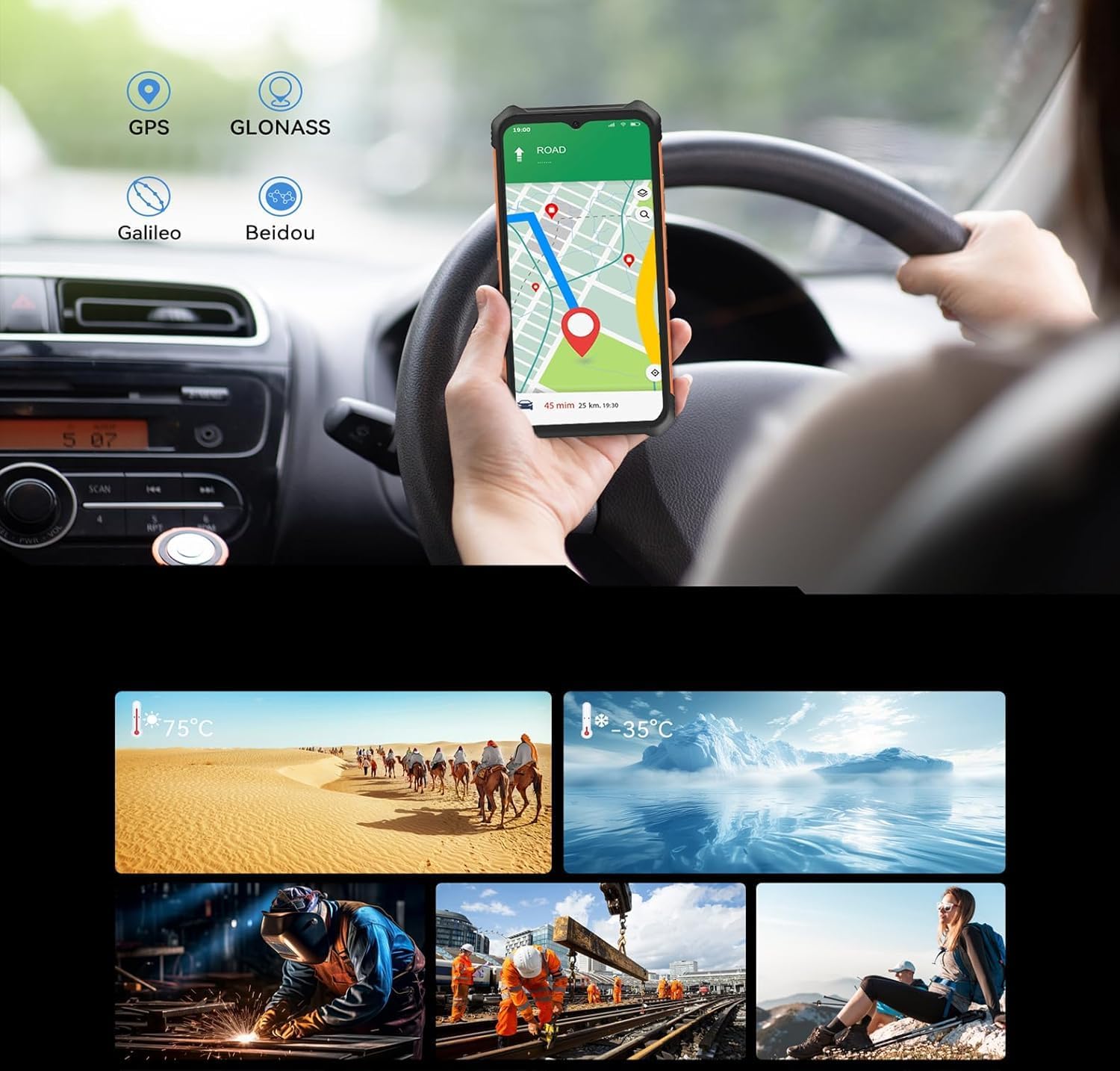
Image 6.2: The CUBOT KINGKONG ES displaying a navigation map, illustrating its GPS capabilities.
6.5. Battery Management
The 5100mAh battery provides extended usage. To charge, connect the USB Type-C cable to the device and the power adapter to a wall outlet.
- To optimize battery life, reduce screen brightness, disable unused features like Bluetooth or GPS, and close background applications.
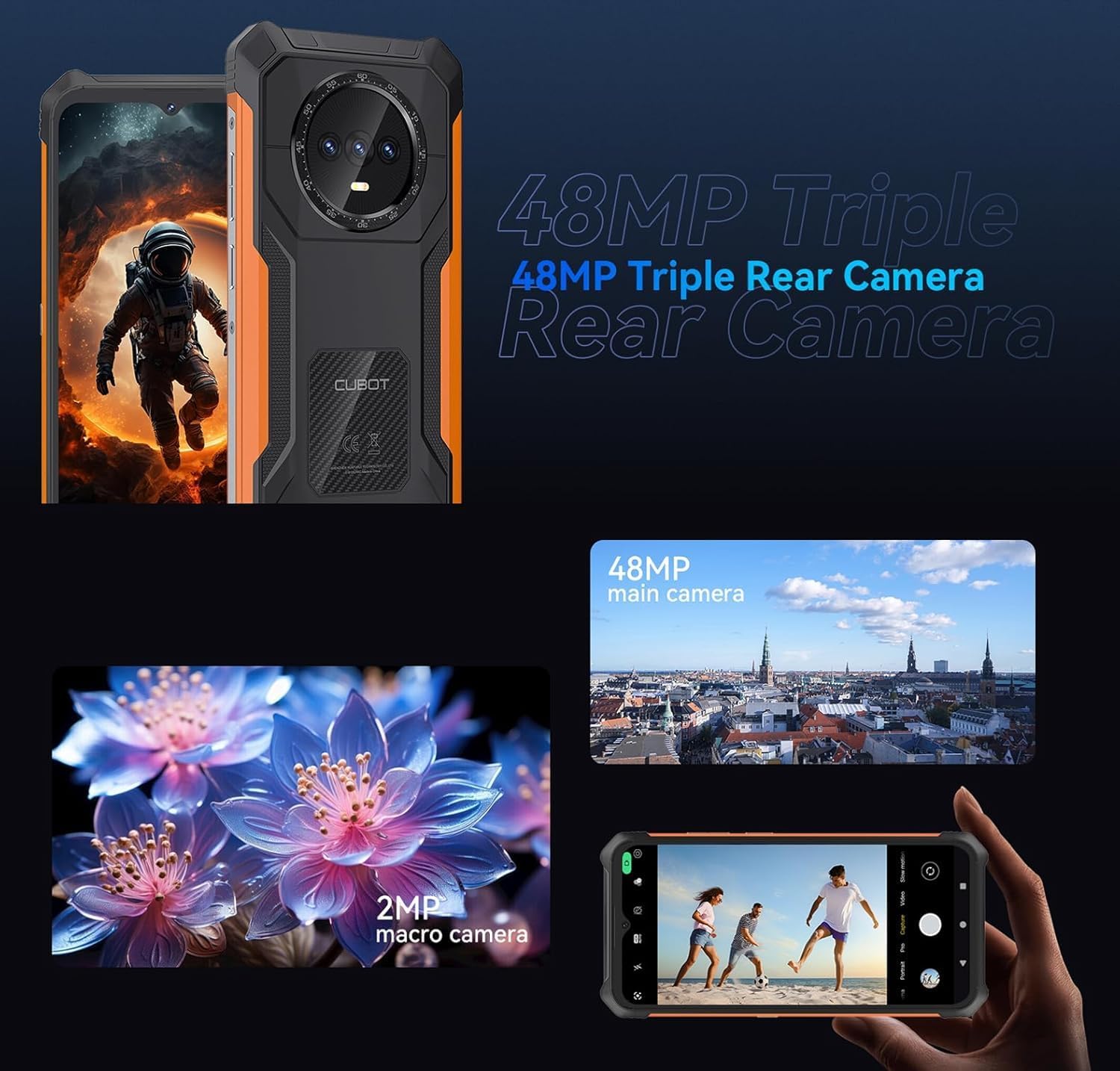
Image 6.3: An illustration of the 5100mAh battery's endurance, showing estimated hours for standby, calling, music playback, and video playback.
6.6. Rugged Features
The CUBOT KINGKONG ES is built to endure with IP68/IP69K ratings for water and dust resistance, and MIL-STD-810H certification for shock and extreme conditions.
- Ensure all port covers are sealed tightly before exposing the device to water or dusty environments.
- Avoid dropping the device from excessive heights, despite its rugged design.
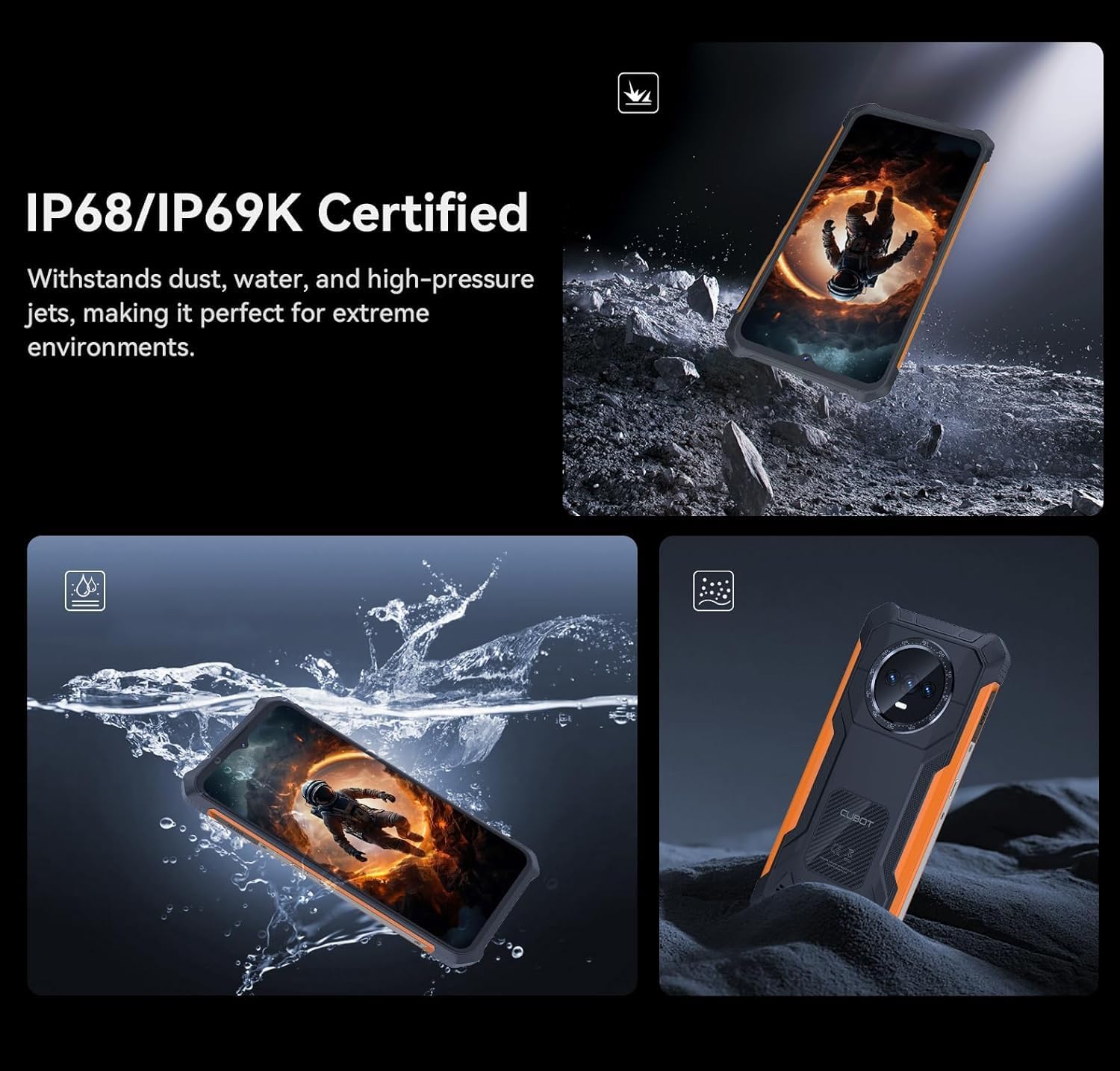
Image 6.4: The CUBOT KINGKONG ES submerged in water and covered in dust, illustrating its IP68/IP69K certified resistance.

Image 6.5: Collage showing the CUBOT KINGKONG ES being used in diverse extreme conditions, from desert heat to icy cold, and various demanding work or outdoor environments.
7. Maintenance
7.1. Cleaning Your Device
To clean your smartphone, use a soft, lint-free cloth. For stubborn dirt, a slightly damp cloth can be used. Avoid harsh chemicals or abrasive materials.
7.2. Software Updates
Regularly check for and install software updates to ensure optimal performance, security, and access to new features. Go to Settings > System > System update to check for updates.
8. Troubleshooting
This section addresses common issues you might encounter.
- Device not turning on: Ensure the battery is charged. Connect the charger and wait a few minutes before attempting to power on again. If the issue persists, perform a forced restart by holding the Power button for 10-15 seconds.
- Poor network signal: Check if your SIM card is correctly inserted. Move to an area with better network coverage. Restart the device.
- Battery draining quickly: Close unused apps running in the background. Reduce screen brightness. Disable Wi-Fi, Bluetooth, or GPS when not in use. Check battery usage in Settings to identify power-hungry apps.
- Screen unresponsive: Perform a forced restart. If the screen remains unresponsive, contact customer support.
- Water/Dust exposure issues: If the device has been exposed to water, ensure all ports are dry before charging. If functionality is affected, power off the device and allow it to dry completely.
9. Specifications
Key technical specifications for the CUBOT KINGKONG ES:
| Feature | Specification |
|---|---|
| Model Name | Kingkong ES |
| Operating System | Android 14 |
| Processor | T606 Octa-core (1.6 GHz) |
| RAM | 6 GB (Extendable to 10 GB) |
| Internal Storage | 128 GB |
| Expandable Storage | Up to 1 TB (TF Card) |
| Screen Size | 6.56 Inches |
| Resolution | 720 x 1612 HD+ |
| Refresh Rate | 90 Hz |
| Main Camera | 48 MP |
| Front Camera | 16 MP |
| Macro Camera | 2 MP |
| Battery Capacity | 5100 mAh |
| Water/Dust Resistance | IP68/IP69K |
| Durability Standard | MIL-STD-810H |
| SIM Card Support | Dual Nano SIM |
| Dimensions | 20.8 x 18.6 x 3.7 cm (Package) |
| Weight | 510 g (Package) |
10. Warranty and Support
Your CUBOT KINGKONG ES smartphone comes with a standard manufacturer's warranty. For specific warranty terms and conditions, please refer to the warranty card included in your package or visit the official CUBOT website. For technical support or service inquiries, please contact CUBOT customer service through their official channels.


