
Portronics POR-2129
Portronics VoltClock 15W Wireless Charger User Manual
Model: POR-2129
Brand: Portronics
Introduction
The Portronics VoltClock is a versatile device combining a 15W wireless charger with a digital clock, dual alarm settings, temperature display, and customizable RGB lighting. This manual provides detailed instructions for setting up, operating, maintaining, and troubleshooting your VoltClock.

Image: The Portronics VoltClock, a combination wireless charger and digital clock, shown with a smartphone wirelessly charging on its top surface. The clock display shows the time and day.
What's in the Box
- 1N Portronics VoltClock Wireless Charger
- 1N Charging Cable
- 1N User Manual
Key Features
- 15W Wireless Charging: Provides fast and efficient wireless charging for compatible smartphones.
- Digital Clock: Displays time, date, and room temperature. Supports 12/24-hour formats.
- Dual Alarm Clock: Set two independent alarms with a 5-minute snooze function.
- Adjustable Night Light: Features a gentle night light with multiple brightness levels.
- RGB Lighting: Customizable RGB lighting to personalize the ambiance.
Setup
- Power Connection: Connect the provided charging cable to the Type-C input port on the VoltClock and plug the other end into a power adapter. For optimal performance, use an 18W or higher power adapter.
- Initial Power On: The device will power on automatically once connected to a power source. The digital display will illuminate.
- Placement: Place the VoltClock on a stable, flat surface. Ensure there are no metallic objects between the charging pad and your smartphone during wireless charging.
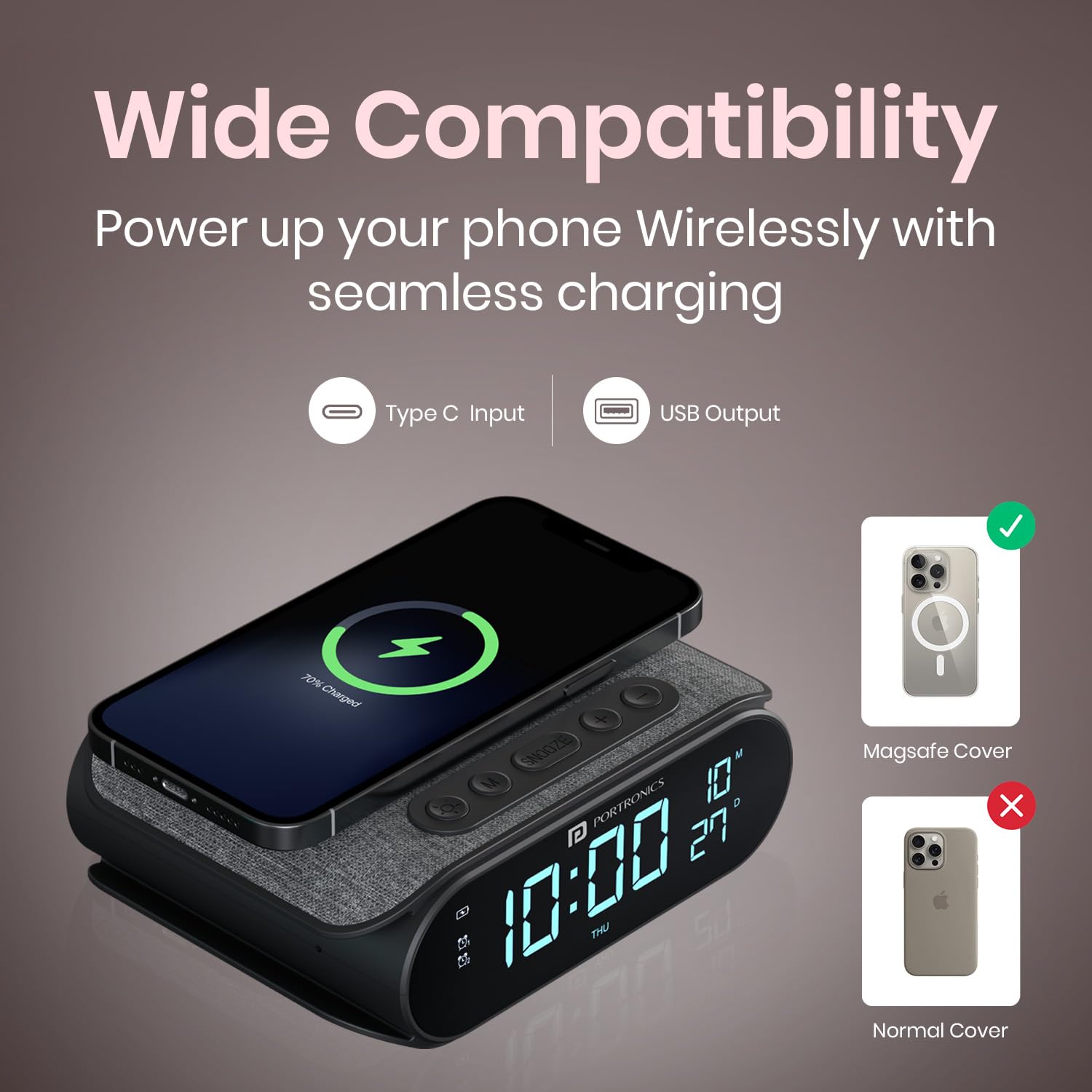
Image: A diagram illustrating the Type-C input and USB output ports on the VoltClock, along with a visual guide on phone compatibility for wireless charging, distinguishing between Magsafe and normal phone covers.
Operating Instructions
Wireless Charging
To wirelessly charge your smartphone, place it centrally on the charging pad located on top of the VoltClock. Ensure your phone is compatible with wireless charging. A charging indicator may appear on your phone's screen. Important Note: Use at least an 18W adapter or higher for optimal performance. Using a lower wattage adapter may result in slow charging speed.
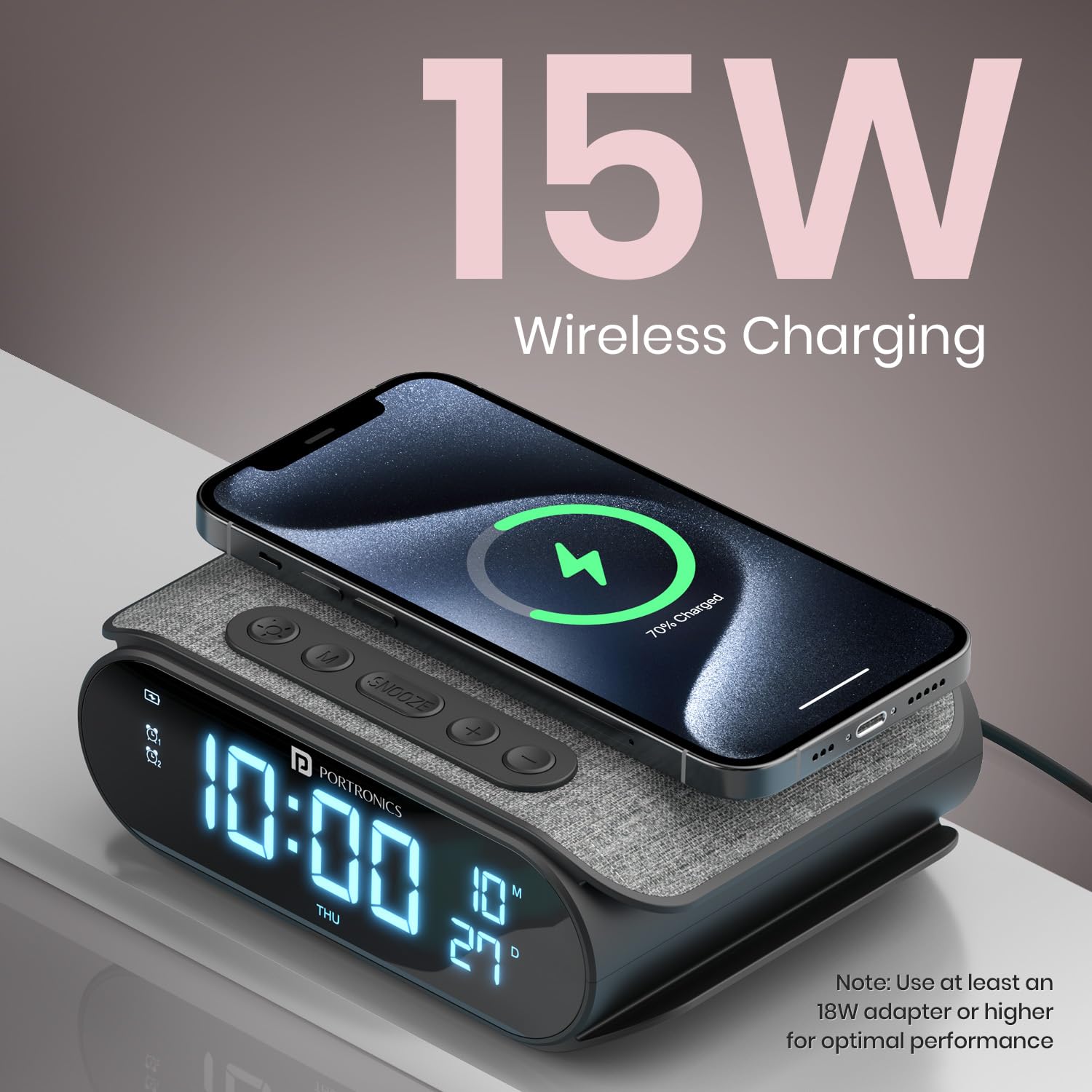
Image: The VoltClock demonstrating 15W wireless charging with a smartphone placed on its charging pad. A note emphasizes the requirement of an 18W or higher adapter for optimal performance.
Digital Clock Functions
The VoltClock displays time, date, and room temperature. You can switch between 12-hour and 24-hour time formats. Refer to the physical buttons on the device for time and date adjustment controls.
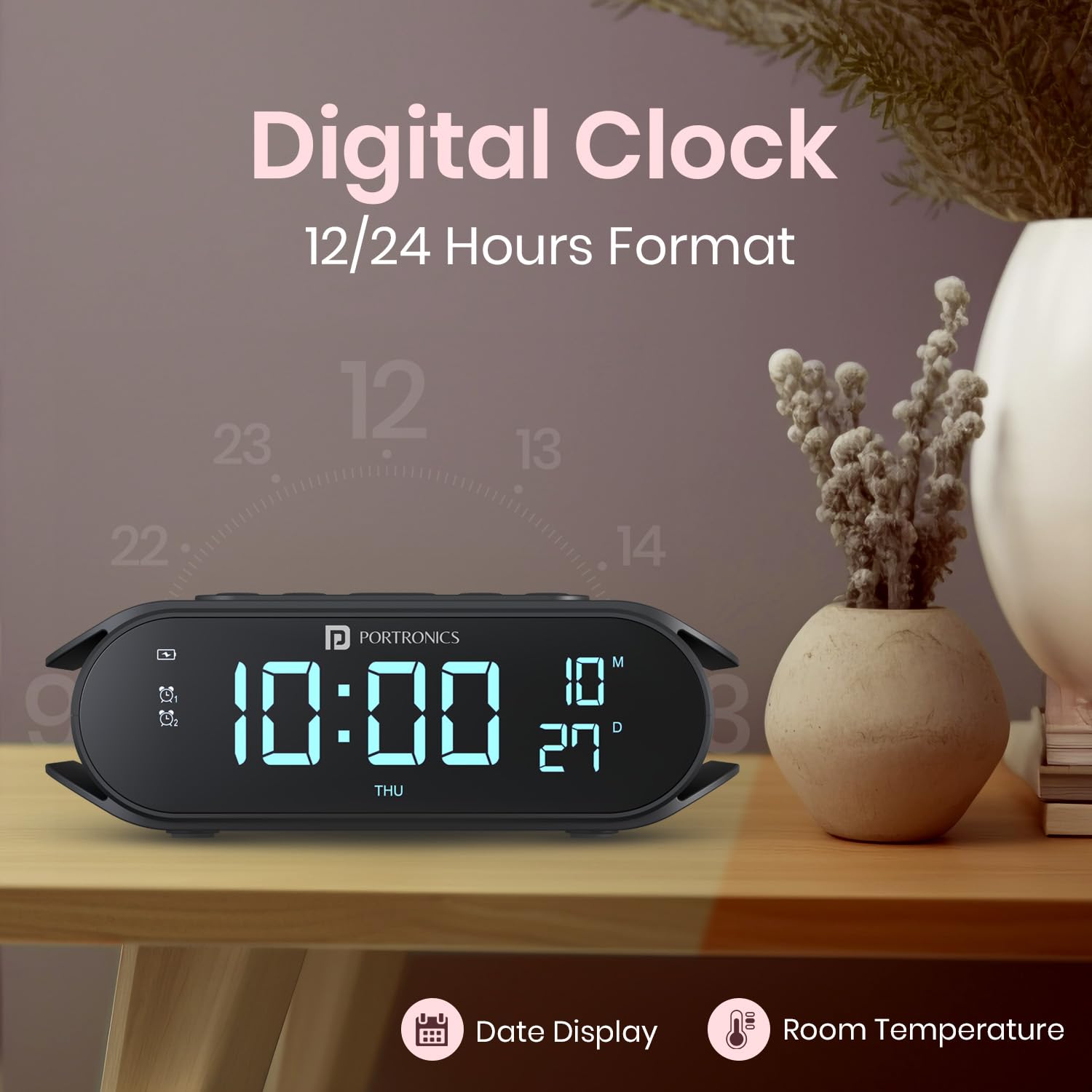
Image: The VoltClock's digital display showing the current time and day, highlighting its capabilities for date display, room temperature, and selectable 12/24-hour time formats.
Alarm Settings
The VoltClock features two independent alarm settings. Use the dedicated alarm buttons to set and activate Alarm 1 and Alarm 2. The snooze button provides an additional 5 minutes of sleep.
- Setting Alarms: Press and hold the Alarm 1 or Alarm 2 button to enter alarm setting mode. Use the '+' and '-' buttons to adjust the hour and minute. Press the Alarm button again to confirm.
- Activating/Deactivating Alarms: Briefly press the Alarm 1 or Alarm 2 button to toggle the alarm on or off. An alarm icon will appear on the display when active.
- Snooze Function: When an alarm sounds, press the 'SNOOZE' button to temporarily silence it for 5 minutes.

Image: A visual representation of the VoltClock's alarm features, showing icons for two distinct alarms and the prominent snooze button, indicating its functionality for dual alarm settings and snooze.
Night Light
The VoltClock includes a gentle night light with adjustable brightness levels. Use the dedicated light button to cycle through different brightness settings or turn the light off.

Image: The VoltClock showcasing its five levels of display brightness, ranging from dim to full illumination, illustrating how users can adjust the light intensity to their preference.
RGB Lighting
Personalize your VoltClock with customizable RGB lighting. Use the RGB button to cycle through various colors and lighting modes to match your mood or decor.
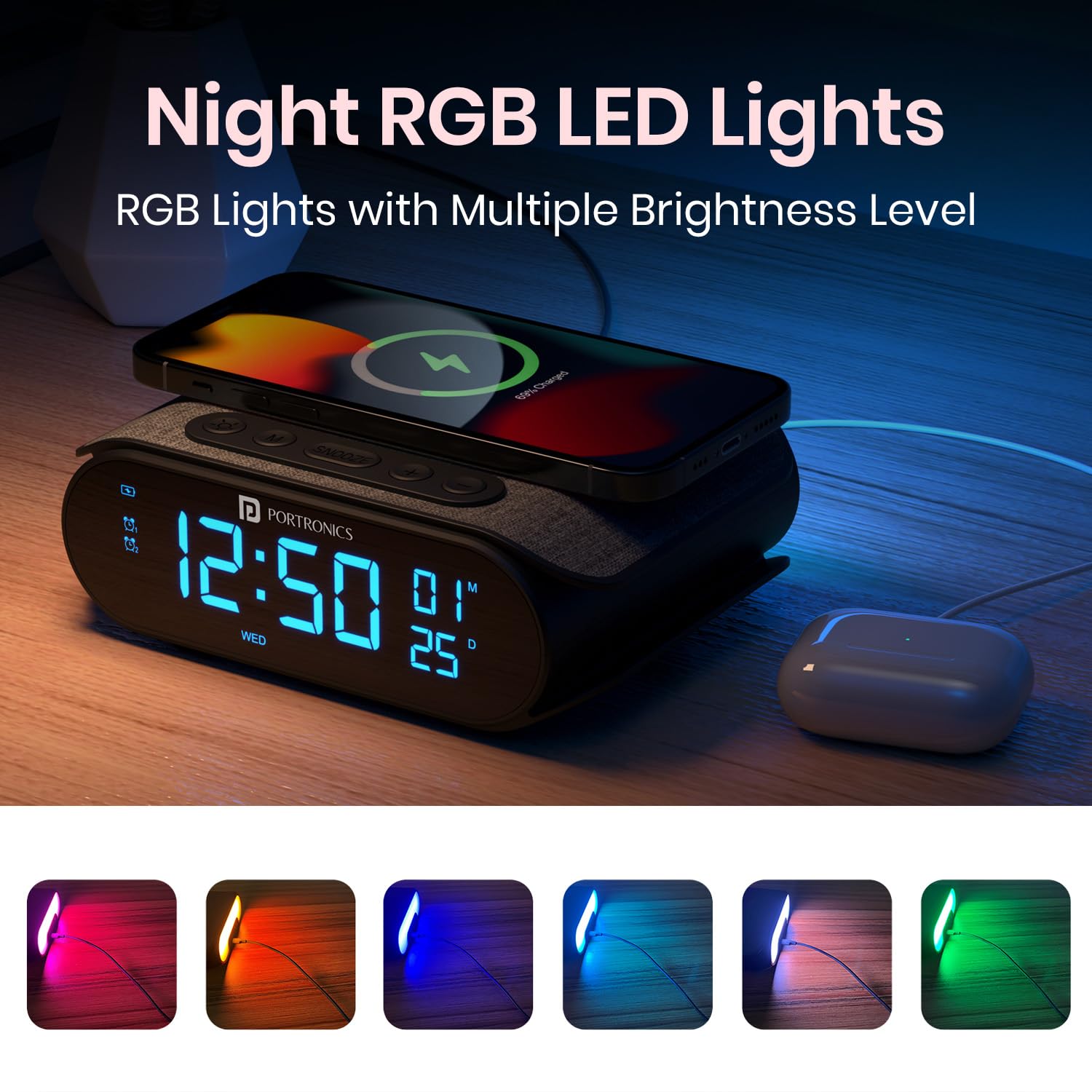
Image: The VoltClock featuring its Night RGB LED Lights, displaying a range of vibrant color options that can be selected to create a personalized ambiance.
Maintenance
- Cleaning: Use a soft, dry cloth to clean the surface of the VoltClock. Do not use abrasive cleaners or solvents.
- Storage: When not in use for extended periods, store the device in a cool, dry place away from direct sunlight and extreme temperatures.
- Power: Always disconnect the power cable before cleaning or moving the device.
Troubleshooting
| Problem | Possible Cause | Solution |
|---|---|---|
| Slow Wireless Charging | Power adapter wattage is too low (less than 18W). | Use an 18W or higher power adapter. |
| Phone not charging wirelessly | Phone not aligned correctly on the charging pad; phone case is too thick or contains metal; phone is not wireless charging compatible. | Re-position phone; remove thick/metal case; verify phone's wireless charging capability. |
| Digital display is off/blank | Device is not connected to power. | Ensure the power cable is securely connected to the device and a working power outlet. |
| Alarm not sounding | Alarm is not activated; volume is too low. | Ensure the alarm is toggled ON (icon visible); check device volume settings. |
Specifications
| Feature | Detail |
|---|---|
| Brand | Portronics |
| Model Number | POR-2129 |
| Colour | Black |
| Display Type | Digital |
| Wireless Charging Output | 15W |
| Input Voltage | 9 Volts |
| Product Dimensions | 19W x 6H Centimeters |
| Item Weight | 395 Grams |
| Country of Origin | China |
Warranty and Support
Portronics products are designed for reliability and performance. For any support or warranty-related queries, please contact Portronics Digital Pvt. Ltd. using the details below:
- Email: help@portronics.com
- Phone: +91 9555-245-245
- Address: First Floor Property No D 8 Upper Basement Sector 8 Noida Uttar Pradesh 201301, India
Please retain your purchase receipt for warranty claims.
Related documentsPOR-2129


Ask a question about this manual
Ask about setup, troubleshooting, compatibility, parts, safety, or missing instructions. Manuals+ will review the question and use this page’s manual context to help answer it.