
Introduction
This manual provides instructions for the Beyution RC1000W replacement infrared remote control, designed for use with Edifier S1000W WiFi Audiophile Active 2.0 Speakers. This remote control is a direct replacement and does not require any programming or pairing. It offers a convenient solution for replacing a damaged or lost original remote.

Image: Comparison of the Beyution RC1000W replacement remote control (left) with the original Edifier remote control (right).
Setup Instructions
The Beyution RC1000W remote control is designed for immediate use without any complex setup or programming. Simply install the batteries, and it will be ready to operate your compatible Edifier S1000W speakers.
Battery Installation
- Locate the battery compartment on the back of the remote control.
- Slide the battery compartment cover downwards or outwards to open it.
- Insert two AAA (R03/1.5V) batteries, ensuring the correct polarity (+ and -) as indicated inside the compartment.
- Replace the battery compartment cover by sliding it back into place until it clicks securely.

Image: Rear view of the remote control showing the battery compartment.
Operating Instructions
The RC1000W remote control uses infrared technology and has a maximum operating distance of approximately 10 meters (33 feet). Ensure a clear line of sight between the remote control and your Edifier S1000W speakers for optimal performance.
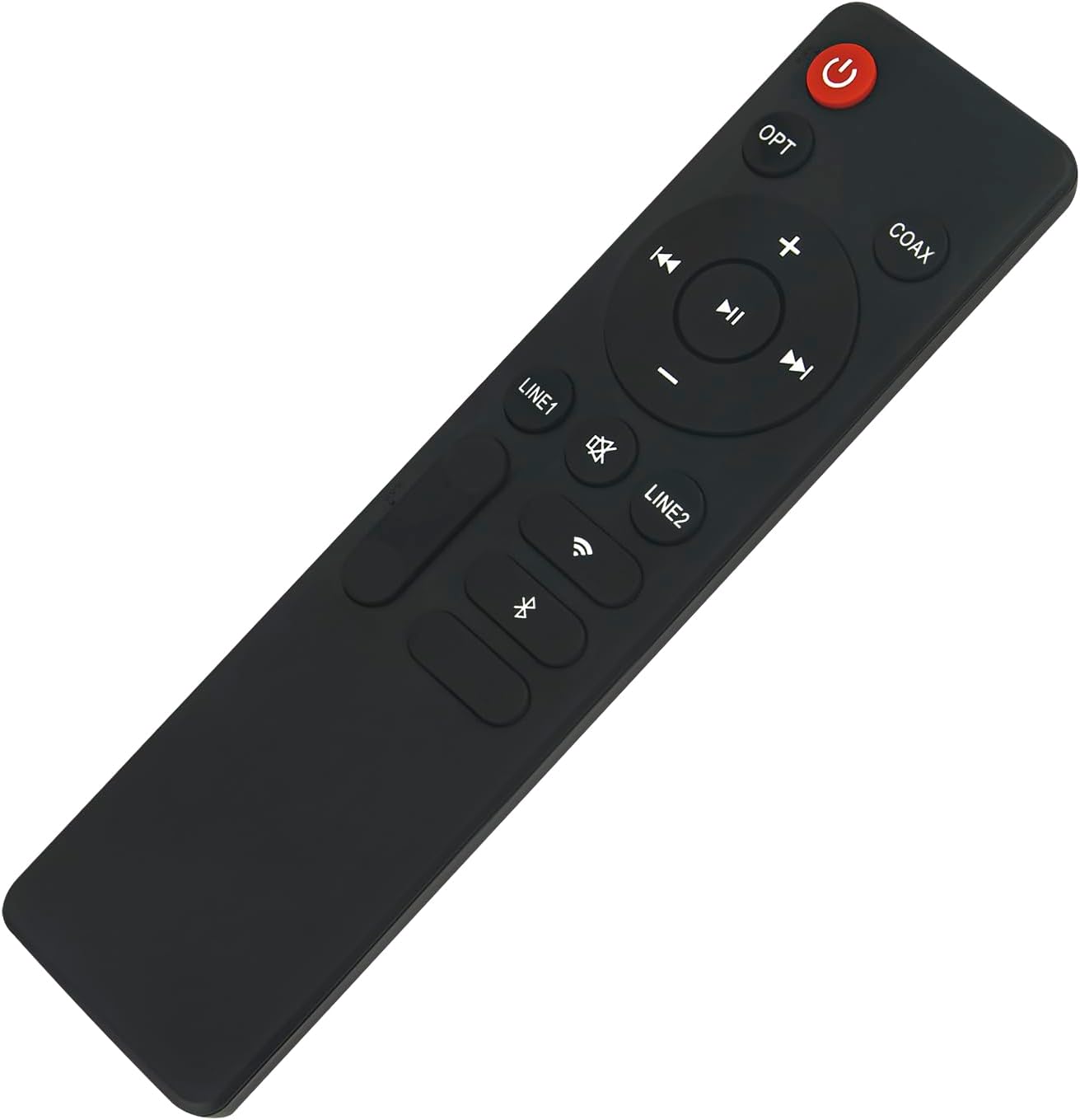
Image: Top-down view of the RC1000W remote control.
Button Functions
- Power Button (Red): Turns the speakers on or off.
- OPT: Selects Optical input.
- COAX: Selects Coaxial input.
- LINE1: Selects Line In 1 input.
- LINE2: Selects Line In 2 input.
- Volume Up (+): Increases speaker volume.
- Volume Down (-): Decreases speaker volume.
- Mute (Speaker with X): Mutes or unmutes the speaker audio.
- Play/Pause (►▮▮): Plays or pauses audio playback.
- Previous Track (◀◀): Skips to the previous track.
- Next Track (►►): Skips to the next track.
- Wi-Fi Symbol: Activates Wi-Fi input mode.
- Bluetooth Symbol: Activates Bluetooth input mode.

Image: User operating the remote control.
Maintenance
Cleaning
To clean the remote control, use a soft, dry cloth. Do not use abrasive cleaners, solvents, or chemical wipes, as these may damage the surface or buttons. For stubborn dirt, a slightly damp cloth can be used, followed by immediate drying.
Battery Replacement
Replace the batteries when the remote control's response becomes sluggish or stops working. Always replace both batteries at the same time with new AAA batteries. Dispose of old batteries responsibly according to local regulations.
Troubleshooting
Remote Control Not Responding
- Check Batteries: Ensure batteries are inserted correctly with the proper polarity. Replace old batteries with new ones.
- Line of Sight: Make sure there are no obstructions between the remote control and the Edifier S1000W speakers. The remote operates using infrared, which requires a direct line of sight.
- Distance: Confirm you are within the effective operating range of approximately 10 meters (33 feet).
- Speaker Power: Ensure your Edifier S1000W speakers are powered on and functioning correctly.
Buttons Not Working Properly
- Clean Buttons: If buttons feel sticky or unresponsive, gently clean around them with a soft, dry cloth.
- Battery Check: Weak batteries can sometimes cause intermittent button functionality. Replace them if necessary.
If the remote control you receive is damaged or does not work after following these steps, please contact customer support for assistance.
Specifications

Image: Dimensions of the RC1000W remote control.
| Model | RC1000W |
| Brand | Beyution |
| Connectivity Technology | Infrared |
| Maximum Range | 10 meters (33 feet) |
| Material | ABS Plastic, Soft Rubber |
| Color | Black |
| Number of Buttons | 20 |
| Power Source | 2 x AAA Batteries (not included) |
| Item Weight | 1.9 Ounces |
| Item Dimensions (L x W x H) | 5" x 1" x 0.5" (approximately 12.7 cm x 2.54 cm x 1.27 cm) |
Warranty Information
This Beyution RC1000W remote control comes with a 1-year warranty from the date of purchase. This warranty covers manufacturing defects under normal use. It does not cover damage caused by misuse, accidents, unauthorized modifications, or improper battery installation.
Please retain your proof of purchase for any warranty claims.
Customer Support
If you have any questions, encounter issues with your Beyution RC1000W remote control, or require assistance not covered in this manual, please contact our customer support team.
For support, please refer to the contact information provided by your retailer or the Beyution official website. When contacting support, please provide your product model (RC1000W) and a detailed description of the issue.