
1. Introduction
This manual provides detailed instructions for the setup, operation, and maintenance of your QIXZOCV MWE 32 Inch Digital Signage Display. This portable LCD digital kiosk is designed for displaying advertising content, information, and media with ease. It features an Android operating system, automatic media playback, and versatile input options including HDMI and USB.
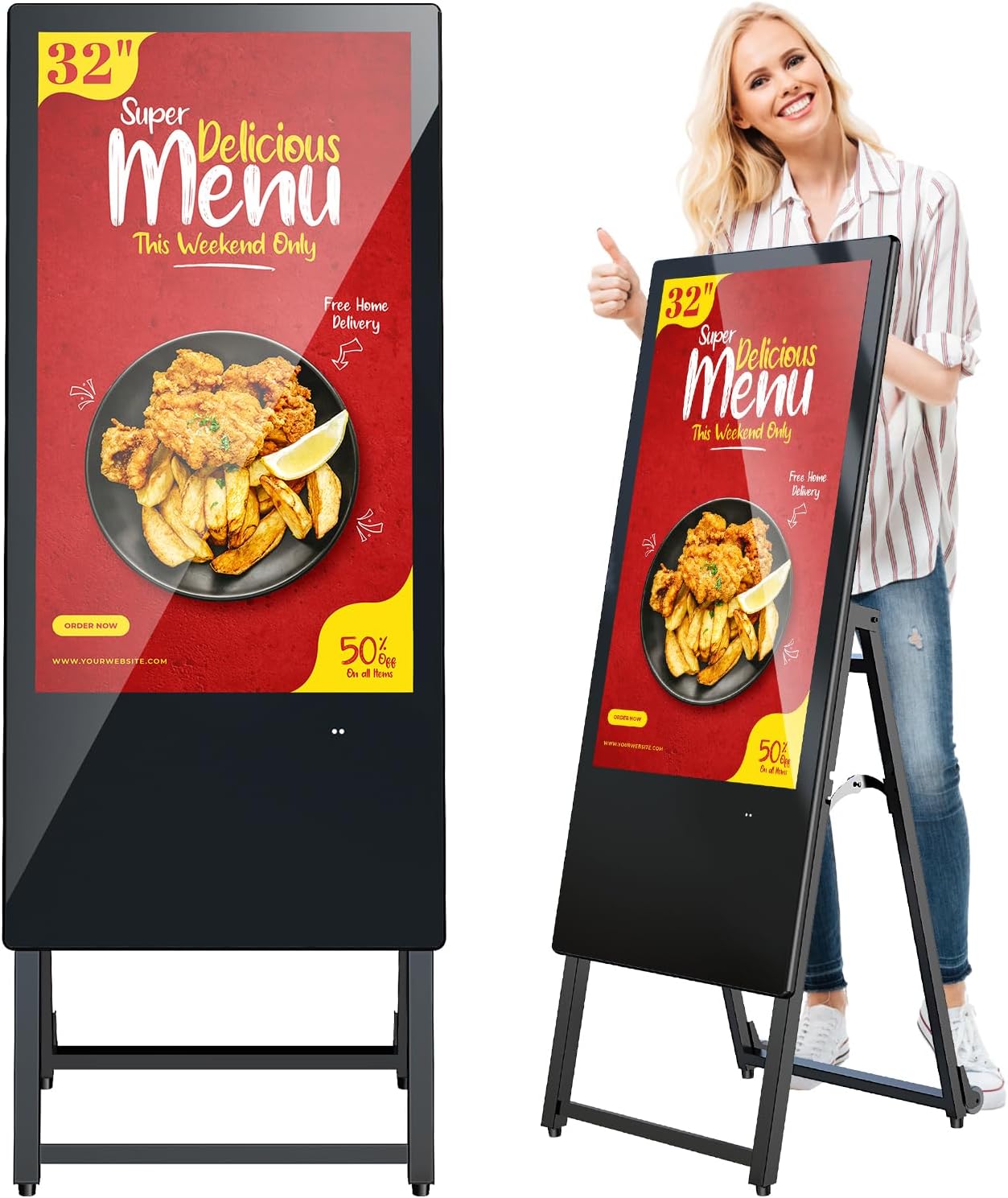
Figure 1: QIXZOCV MWE 32 Inch Digital Signage Display in use.
2. Safety Information
Please read all safety instructions before operating the device. Failure to follow these instructions may result in electric shock, fire, or damage to the product.
- Do not expose the device to rain or moisture.
- Do not open the casing; refer all servicing to qualified personnel.
- Ensure proper ventilation to prevent overheating.
- Use only the power adapter supplied with the device.
- Keep the device away from direct sunlight and heat sources.
- Clean the screen with a soft, dry cloth. Avoid abrasive cleaners.
3. What's in the Box
Verify that all items are present upon unpacking:
- 32" Digital Signage Display
- Screen Bracket
- Remote Control with Batteries
- USB Flash Disk
- Power Cable
- Keys (for secure compartment)
- Screwdriver with Screws (M3 & M4)
- User Manual

Figure 2: Packing List for the Digital Signage Display.
4. Setup
4.1 Assembly
- Carefully remove the display and the screen bracket from the packaging.
- Place the display face down on a soft, clean surface to prevent scratches.
- Align the screen bracket with the mounting holes on the back of the display.
- Secure the bracket to the display using the provided screws and screwdriver. Ensure all screws are tightened securely.
- Once assembled, carefully stand the display upright.
Video 1: Detailed installation and user guidance for the digital signage display.
4.2 Initial Power-Up
- Connect the power cable to the display's power input port.
- Plug the power cable into a standard electrical outlet.
- Flip the power switch (usually red) to the 'ON' position.
- The display will power on and show the Android home screen.
5. Operating Instructions
5.1 Content Playback via USB
The display supports automatic loop playback of media content from a USB disk.
- Copy your desired image and video files to the provided USB flash disk.
- Insert the USB disk into one of the USB ports on the display.
- The display will automatically detect the USB disk and begin playing the content in a loop.

Figure 3: Plug and Play functionality with USB disk.
5.2 HDMI Input
Connect external devices such as laptops, media players, or gaming consoles via HDMI.
- Connect an HDMI cable from your external device to the HDMI input port on the display.
- Use the remote control to select the HDMI input source.
5.3 Smart Split-Screen Playback
The display supports playing multiple images and videos simultaneously in a split-screen layout.
- Access the display's settings menu using the remote control.
- Navigate to the 'Setting Mode' or 'Screen Direction' option.
- Select your desired split-screen layout from the available templates.
- Assign media content to each section of the split screen.

Figure 4: Smart Split-Screen Playback options.
5.4 Timed Power On/Off Settings
Configure the display to automatically power on and off at specific times to save energy and manage display schedules.
- Access the display's settings menu using the remote control.
- Locate the 'Timed Settings' or 'Power Schedule' option.
- Set your desired power-on and power-off times.

Figure 5: Timed power on/off settings.
5.5 Content Management System (CMS)
The integrated CMS allows for remote publishing and real-time updates of displayed content via WiFi connectivity.
- Ensure the display is connected to a WiFi network.
- Access the CMS platform (details typically provided separately or through the manufacturer).
- Upload and manage your content, then publish it to the display remotely.

Figure 6: CMS Publishing System overview.
6. Maintenance
6.1 Cleaning
- Always power off and unplug the display before cleaning.
- Use a soft, lint-free cloth to gently wipe the screen. For stubborn marks, slightly dampen the cloth with water or a screen-specific cleaning solution.
- Avoid spraying liquids directly onto the screen or into any openings.
- Clean the exterior casing with a soft, dry cloth.
6.2 Storage
- When not in use for extended periods, store the display in a cool, dry place.
- If possible, use the original packaging for protection during storage or transport.
7. Troubleshooting
| Problem | Possible Cause | Solution |
|---|---|---|
| Display does not power on | Power cable not connected; Power switch off; No power from outlet. | Check power cable connection; Ensure power switch is ON; Test outlet with another device. |
| No content displayed from USB | USB not inserted correctly; Incompatible file format; USB disk corrupted. | Reinsert USB; Ensure files are supported (e.g., MP4, JPG); Try another USB disk. |
| Remote control not working | Batteries low/dead; Obstruction between remote and display; Remote sensor blocked. | Replace batteries; Remove obstructions; Ensure remote sensor is clear. |
| Screen is blank or frozen | Software issue; Temporary glitch. | Restart the display by powering it off and on. |
8. Specifications
- Brand: QIXZOCV
- Model Number: MWE-CS32BCN217
- Screen Size: 32 Inches
- Resolution: FHD 1080p (1920 x 1080 Pixels)
- Aspect Ratio: 16:9
- Screen Surface Description: Glossy
- Refresh Rate: 60 Hz
- Display Type: LCD
- Viewing Angle: 178 Degrees
- Item Dimensions (D x W x H): 1.06"D x 18.15"W x 48.87"H
- Item Weight: 21.55 Kilograms
- Response Time: 5 Milliseconds
- Processor Count: 1
- Total Number of HDMI Ports: 1
- Total USB Ports: 2 (USB 3.0)
- Connectivity Technology: Bluetooth, HDMI, USB, Wi-Fi
- Color: Black
- Manufacturer: Marvel Technology CO., LTD.

Figure 7: Product dimensions.
9. Warranty and Support
The QIXZOCV MWE 32 Inch Digital Signage Display comes with a 3-year warranty for products with quality defects. Professional technical support is available online to assist with any queries or issues.
For customer support or inquiries, please visit the QIXZOCV Direct Store on Amazon or contact the manufacturer, Marvel Technology CO., LTD.