
HOVERAir X1 PRO
HOVERAir X1 PRO 4K Action Flying Camera
Model: X1 PRO
Introduction
The HOVERAir X1 PRO is a foldable, 4K action flying camera designed for adventurers and creators. It features advanced flight modes, hands-free operation, and robust construction, allowing users to capture cinematic footage in various environments.
Key Features
- 4K@60fps Cinematic Footage: Capture ultra-clear, lifelike video.
- SmoothCapture 2.0: Two-axis gimbal with EIS and HL for steady shots.
- Totally Hands-free: Take off with a click or voice command, no controller needed.
- OmniTerrain Capability: Fly anywhere, including snow, water, and cliffs.
- Fast Follow Speed: Up to 42 KM/H (26 mph) with enhanced tracking.
- Rear Active Collision Detection: ToF proximity sensor for safer tracking.
- Portable, Foldable, Durable: Enclosed design with aerospace-grade HEM material.
- Smart App Control: Configure modes, download content, and more via the HOVERAir X1 app.
- Ample Internal Storage: 32GB internal storage, supports up to 1TB external SD card.
What's in the Box
- HOVERAir X1 PRO Drone
- Propeller
- Memory Card
- Carrying Case
- Remote Control
- Battery (2 A batteries included)
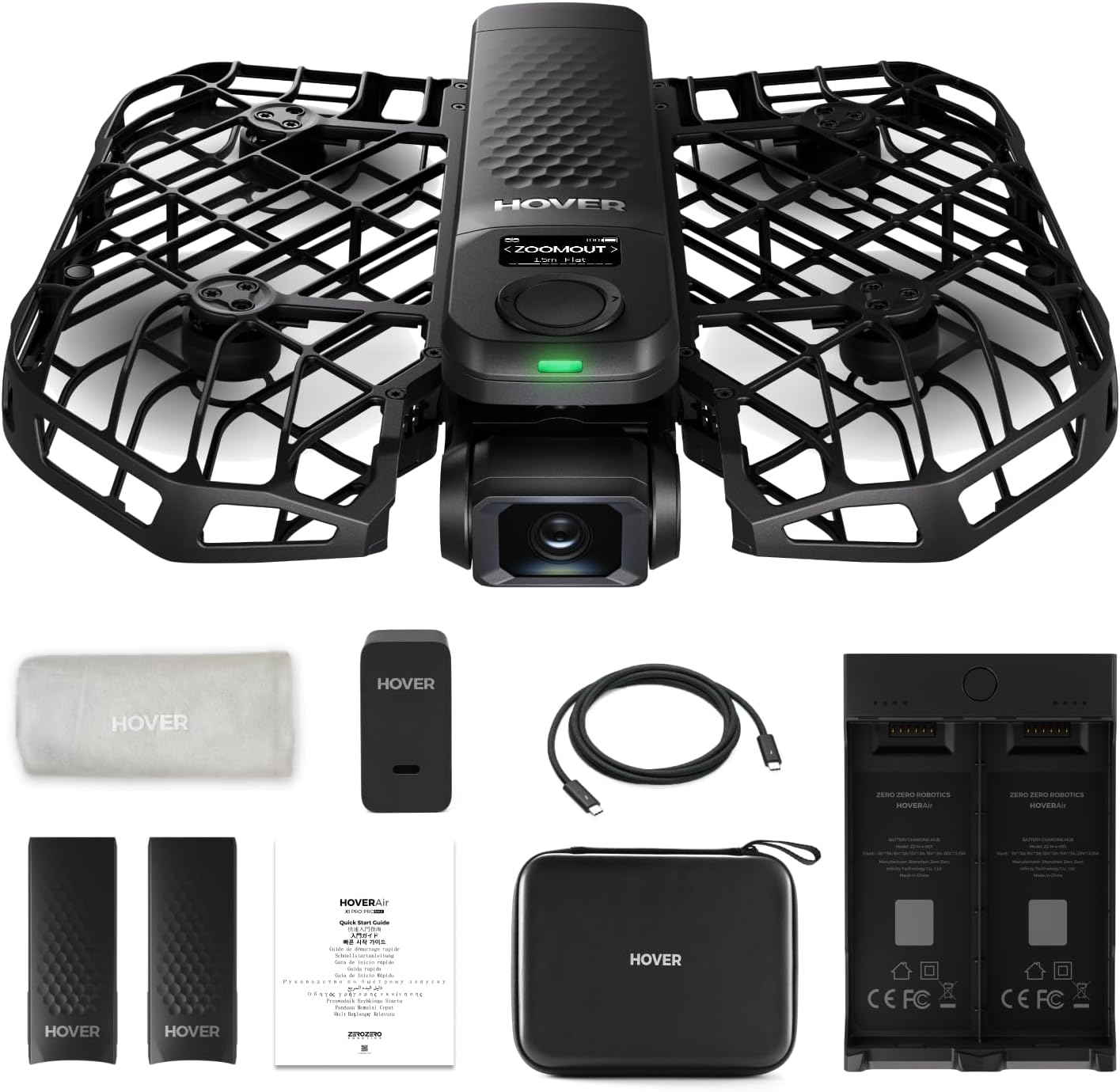
Image: The HOVERAir X1 PRO drone, along with its propeller, memory card, carrying case, remote control, and two batteries, neatly packed in its box.
Setup
Unfolding and Powering On
Gently unfold the drone's arms until they click into place. Press and hold the power button on the top of the drone until the indicator light turns green and you hear a chime, indicating it's powered on and ready for flight.

Image: A user's hands demonstrating the unfolding of the HOVERAir X1 PRO drone, revealing its propellers and camera.
Connecting to the App
Download the HOVERAir X1 app from your device's app store. Open the app and follow the on-screen instructions to connect to your drone via Wi-Fi. The app provides a live view from the drone's camera and access to various settings and flight modes.
Video: A demonstration of navigating through the HOVERAir X1 PRO's electronic screen to select different flight modes and adjust settings.
Charging the Battery
The HOVERAir X1 PRO battery can be charged directly via USB-C on the drone or using the dedicated charging hub. A full charge for one battery takes approximately 45 minutes, and two batteries can be fully charged in 60 minutes using the hub.
Video: A user guide demonstrating how to charge the HOVERAir X1 PRO battery using the charging hub and power adapter.
Operating Modes
The HOVERAir X1 PRO offers a variety of intelligent flight modes for diverse shooting scenarios. You can select modes directly on the drone's digital screen or through the app.
Video: A demonstration of navigating through the HOVERAir X1 PRO's electronic screen to select different flight modes and adjust settings.
Hands-Free Takeoff and Hover
Simply unfold the drone, power it on, and place it on your palm. With a single press of the power button or a voice command, the drone will take off and hover steadily in front of you, ready to capture your moments.

Image: A person launching the HOVERAir X1 PRO drone from their open palm, showcasing its hands-free takeoff capability.
Follow Mode
The drone can automatically follow you, keeping you centered in the frame. This is ideal for capturing dynamic activities like cycling or skiing, even at speeds up to 42 KM/H.

Image: The HOVERAir X1 PRO drone flying behind a cyclist, demonstrating its follow mode capability for action shots.
OmniTerrain Flight
The OmniTerrain feature allows the drone to operate across various challenging environments, including over snow, water, and cliffs, ensuring you can capture footage wherever your adventures take you.

Image: A composite image showing the HOVERAir X1 PRO drone flying over a cliff, water, and snow, highlighting its OmniTerrain capabilities.
Maintenance
Propeller Care
Regularly inspect the propellers for any signs of damage or wear. The propellor guards are made of HEM, an aerospace-grade material, providing superior safety and durability. Replace damaged propellers immediately to ensure safe and stable flight.
Battery Management
Smart batteries have built-in functions to prevent overcharging and over-discharging, extending their lifespan. Store batteries in a cool, dry place and avoid extreme temperatures.
Image: Two HOVERAir X1 PRO batteries standing upright, illustrating their design and smart charging features.
Troubleshooting
Connection Issues
If the drone fails to connect to the app, ensure both devices have Wi-Fi enabled and are within range. Restarting both the drone and the app can often resolve connectivity problems.
Flight Instability
Check propellers for damage or debris. Ensure the drone's gimbal is not obstructed. Calibrate the drone's sensors via the app if instability persists.
Poor Image Quality
Verify that the camera lens is clean and free from smudges. Ensure adequate lighting conditions. Adjust camera settings (e.g., resolution, frame rate) in the app for optimal results.
Specifications
| Brand | HOVERAir |
| Model | X1 PRO |
| Item Weight | 3.63 pounds |
| Product Dimensions | 9.99 x 6.69 x 1.97 inches |
| Item Model Number | ZZ-H-1-003 |
| Batteries | 2 A batteries required (included) |
| Image Stabilization | Yes |
| Screen Size | 0.77 Inches |
| Supported Image Format | JPEG |
Warranty and Support
The HOVERAir X1 PRO comes with a 1-year warranty against manufacturing defects. For any inquiries or assistance, 24/7 customer service is available. You can reach out to them via email at support@hoverair.com.
Image: A graphic detailing HOVERAir's service support, including 24/7 customer service, 1-year warranty, and after-sales email.
Related documentsX1 PRO


Ask a question about this manual
Ask about setup, troubleshooting, compatibility, parts, safety, or missing instructions. Manuals+ will review the question and use this page’s manual context to help answer it.