
1. Introduction
The ORICO DataMatrix Mini DMM23-18T is a versatile hybrid storage docking station designed for professionals requiring high-speed data processing and large-capacity backup. It integrates a 2TB M.2 NVMe SSD for fast data access and a 16TB Hard Disk Drive (HDD) for long-term storage. This device offers advanced connectivity and RAID capabilities to enhance data security and workflow efficiency.

Figure 1: Front view of the ORICO DataMatrix Mini DMM23-18T, showcasing its compact design and front-facing ports.
2. Package Contents
Please verify that all items are present in the package:
- ORICO DataMatrix Mini (DMM23-18T)
- 40Gbps Data Cable
- 180W Power Adapter
- User Manual (this document)
3. Setup Guide
3.1 Connecting to a Host Device
- Connect the 180W Power Adapter to the DC 20V port on the rear of the DataMatrix Mini and plug it into a power outlet.
- Use the provided 40Gbps Data Cable to connect the PC IN port (USB-C) on the DataMatrix Mini to a compatible Thunderbolt 3/4/5 or USB4 port on your host computer (e.g., MacBook, Mac Mini, Mac Studio, Mac Pro).
- The device will power on automatically.

Figure 2: Detailed view of the ORICO DataMatrix Mini's front and rear ports, including power, data, and card reader slots.
3.2 RAID Configuration
The DataMatrix Mini supports hardware RAID 0, RAID 1, and SPAN/JBOD modes. The RAID mode is configured using the DIP switches located on the rear of the device. Refer to the diagram below for switch settings.
- RAID 0 (Striping): Combines disks for increased speed and capacity. No data redundancy.
- RAID 1 (Mirroring): Duplicates data across disks for redundancy. Capacity is limited to the smallest disk.
- SPAN/JBOD: Combines disks into a single large volume without striping or mirroring.
Caution: Changing RAID modes will erase all data on the drives. Back up important data before making any changes.

Figure 3: Illustration of RAID 0/1 mode settings via DIP switches on the ORICO DataMatrix Mini.
4. Operating Instructions
4.1 Data Transfer
The DataMatrix Mini features a USB3.2 Gen2 interface, providing data transfer speeds up to 10Gbps. When connected via Thunderbolt 3/4/5, it supports up to 40Gbps, enabling rapid transfer of large files, 3D models, and multi-layer projects.

Figure 4: Visual representation of the ORICO DataMatrix Mini's high-speed data transfer capabilities, including 40Gbps via USB-C and 1000MB/s via USB-A/USB-C.
4.2 Card Reader Functionality
The front panel includes SD/TF/CF card reader slots, allowing for quick import of media files from cameras and other devices. This is particularly useful for post-production workflows, enabling immediate access to footage after shooting.
4.3 Display Output
The device supports 4K 60Hz display output, allowing you to connect an external monitor for an enhanced visual experience, especially beneficial for video editing and graphic design tasks.

Figure 5: The ORICO DataMatrix Mini connected to a Mac setup, demonstrating its ability to store and display content simultaneously at 4K 60Hz.
4.4 Hybrid Storage Solution
The integrated 2TB NVMe SSD is optimized for hot data processing, providing rapid access for active projects. The 16TB HDD is ideal for cold data backup and archival, ensuring a secure and organized storage strategy.
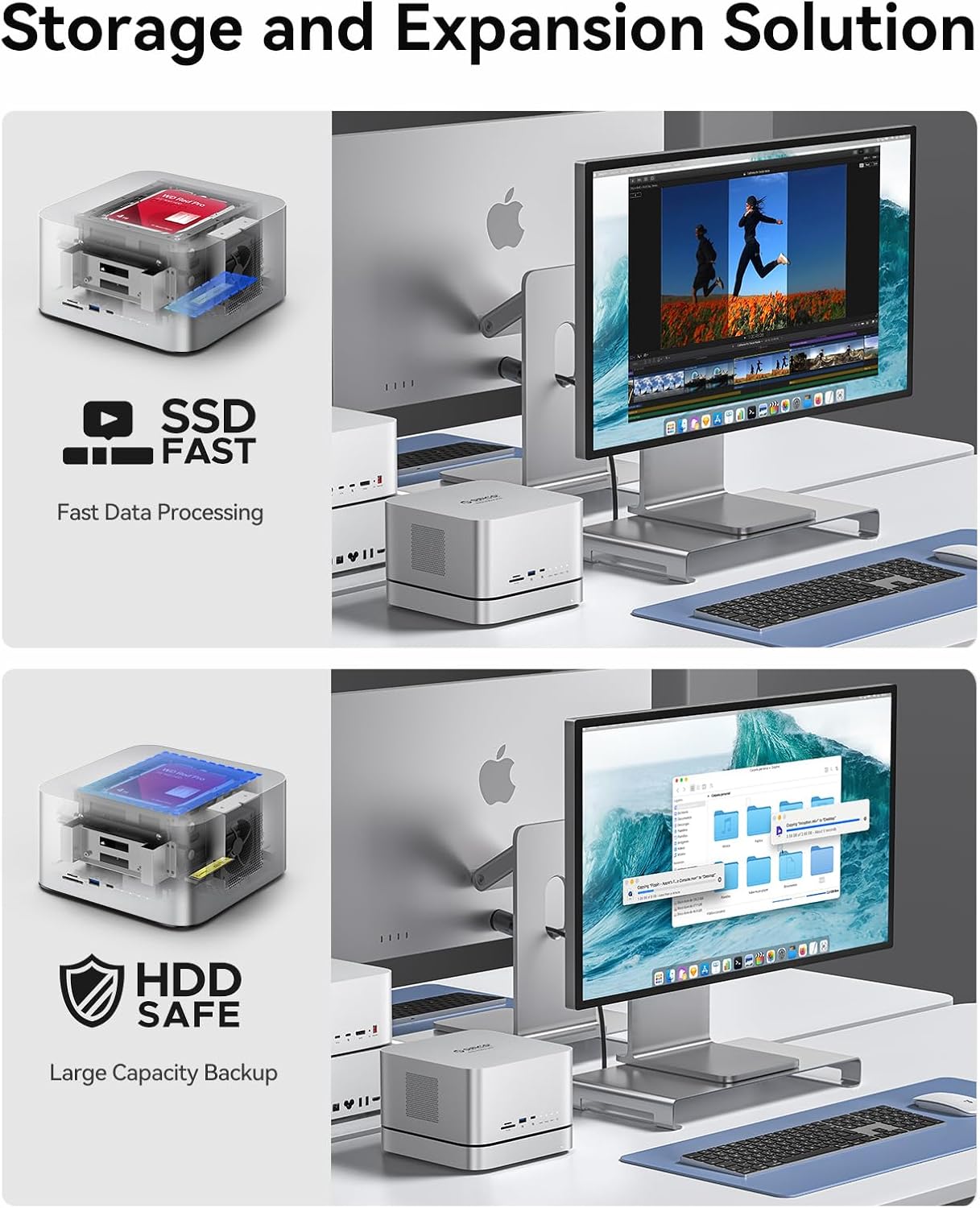
Figure 6: Diagram illustrating the hybrid storage solution with SSD for fast data processing and HDD for large capacity backup within the ORICO DataMatrix Mini.
5. Maintenance
5.1 Heat Dissipation
The DataMatrix Mini features an aluminum alloy shell and a powerful cooling fan to ensure efficient heat dissipation, maintaining optimal performance and extending the lifespan of the internal components.

Figure 7: Internal view of the ORICO DataMatrix Mini highlighting the cooling fan and airflow for excellent heat dissipation.
5.2 Data Backup Practices
Regularly back up your data, especially when using RAID 0, which does not provide redundancy. For critical data, consider implementing a 3-2-1 backup strategy (3 copies of data, on 2 different media, with 1 copy offsite).
6. Troubleshooting
- Device not recognized: Ensure all cables are securely connected. Try a different USB-C port on your host device. Verify that the power adapter is properly connected and receiving power.
- Slow transfer speeds: Confirm you are using the provided 40Gbps data cable and connecting to a compatible Thunderbolt 3/4/5 or USB4 port. Check your computer's drivers and operating system for updates.
- RAID configuration issues: Ensure DIP switches are set correctly according to the desired RAID mode. Remember that changing RAID modes will erase data.
- Overheating: Ensure the device has adequate ventilation and is not placed in an enclosed space. Check that the cooling fan is not obstructed.
7. Specifications
| Feature | Detail |
|---|---|
| Brand | ORICO |
| Model Number | DMM23-18T |
| Integrated Storage | 2TB M.2 NVMe SSD + 16TB HDD |
| Hardware Interface | USB 3.2 Gen 2, Thunderbolt 3/4/5 compatible |
| Data Transfer Speed | Up to 10Gbps (USB3.2 Gen2), Up to 40Gbps (Thunderbolt) |
| Card Reader | SD/TF/CF |
| Display Output | 4K 60Hz |
| RAID Support | RAID 0, RAID 1, SPAN/JBOD |
| Power Adapter | 180W |
| Dimensions | 11.81 x 9.84 x 5.9 inches |
| Item Weight | 2 pounds |
8. Official Product Video
Video 1: An official product video from ORICO Direct US Store, showcasing the features and benefits of the ORICO DataMatrix Mini hybrid external hard drive. This video highlights its high-speed capabilities, hybrid storage solution, and suitability for professional post-production workflows.
9. Warranty and Support
ORICO products come with a standard manufacturer's warranty. For specific warranty details, please refer to the warranty card included in your product packaging or visit the official ORICO website. For technical support, troubleshooting assistance, or service inquiries, please contact ORICO customer support through their official channels.