
1. Introduction
This manual provides detailed instructions for the setup, operation, and maintenance of your ProtoArc EKM01 Plus Ergonomic Wireless Keyboard and Mouse Combo. This combo is designed to enhance comfort and productivity with its ergonomic features and multi-device connectivity.
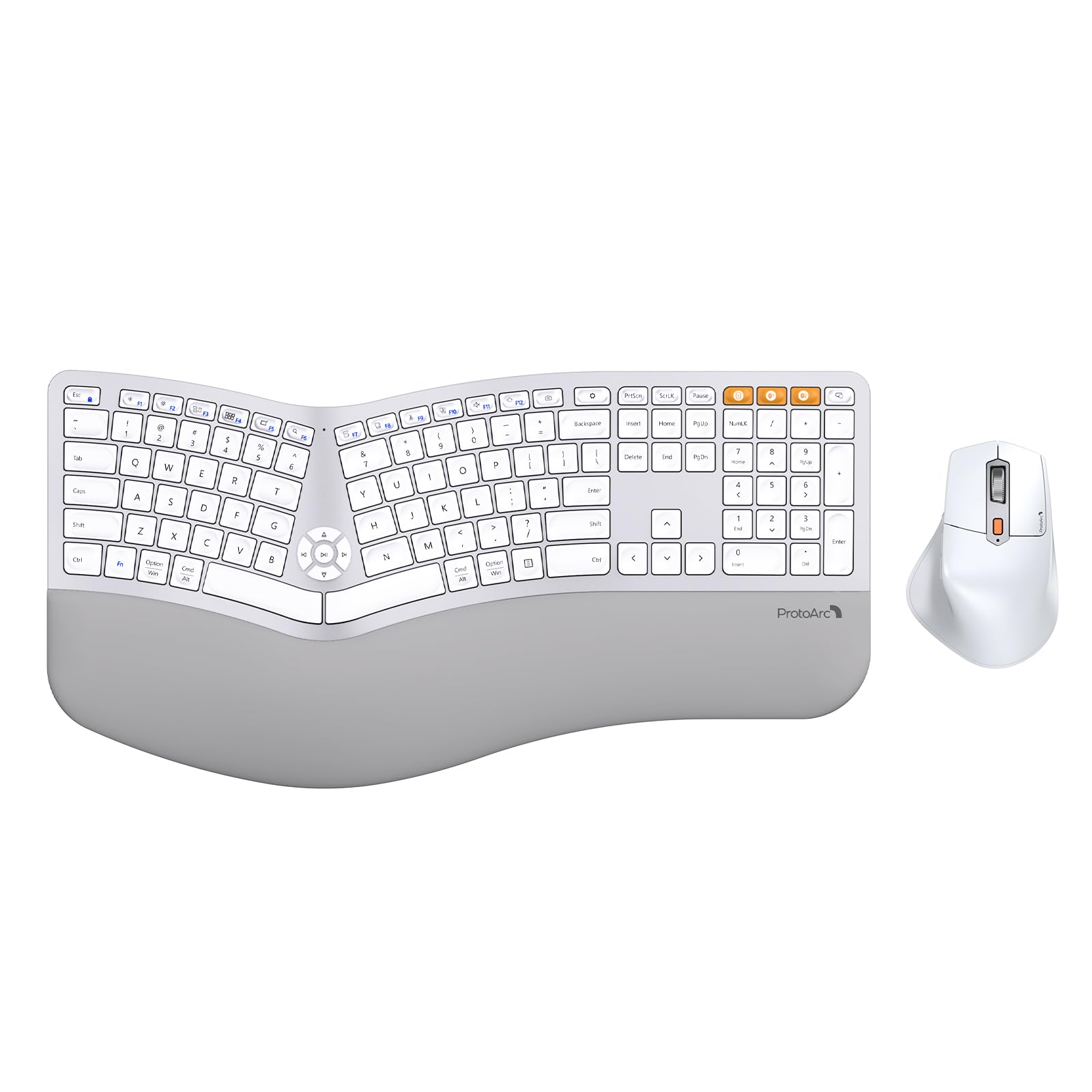
Image 1.1: ProtoArc EKM01 Plus Ergonomic Wireless Keyboard and Mouse Combo (White Silver).
2. Package Contents
Ensure all items are present in your package:
- ProtoArc EKM01 Plus Ergonomic Wireless Keyboard
- ProtoArc Ergonomic Wireless Mouse
- USB-A to USB-C Charging Cable (31 inches)
- 2.4G USB Receiver (stored in the keyboard's back compartment)
- User Manual
- Quick Start Guide
3. Product Overview
The ProtoArc EKM01 Plus combo features a full-size, curved, and split ergonomic design for natural hand and wrist positioning. Both the keyboard and mouse are rechargeable and support multi-device connectivity.
3.1. Ergonomic Design
The keyboard's split keyframe and curved layout promote a natural, relaxed posture for your wrists and forearms. Scooped keys are designed to fit your fingertips for comfortable typing. The integrated cushioned wrist rest provides additional support.

Image 3.1.1: Full-size, curved, split design of the keyboard and mouse.

Image 3.1.2: Hands positioned on the ergonomic keyboard.
3.2. Cushioned Wrist Rest
The keyboard features a soft memory foam layer wrist rest, reducing wrist bending and providing comfort during extended use. Adjustable tilt legs allow you to set the keyboard at an optimal angle.
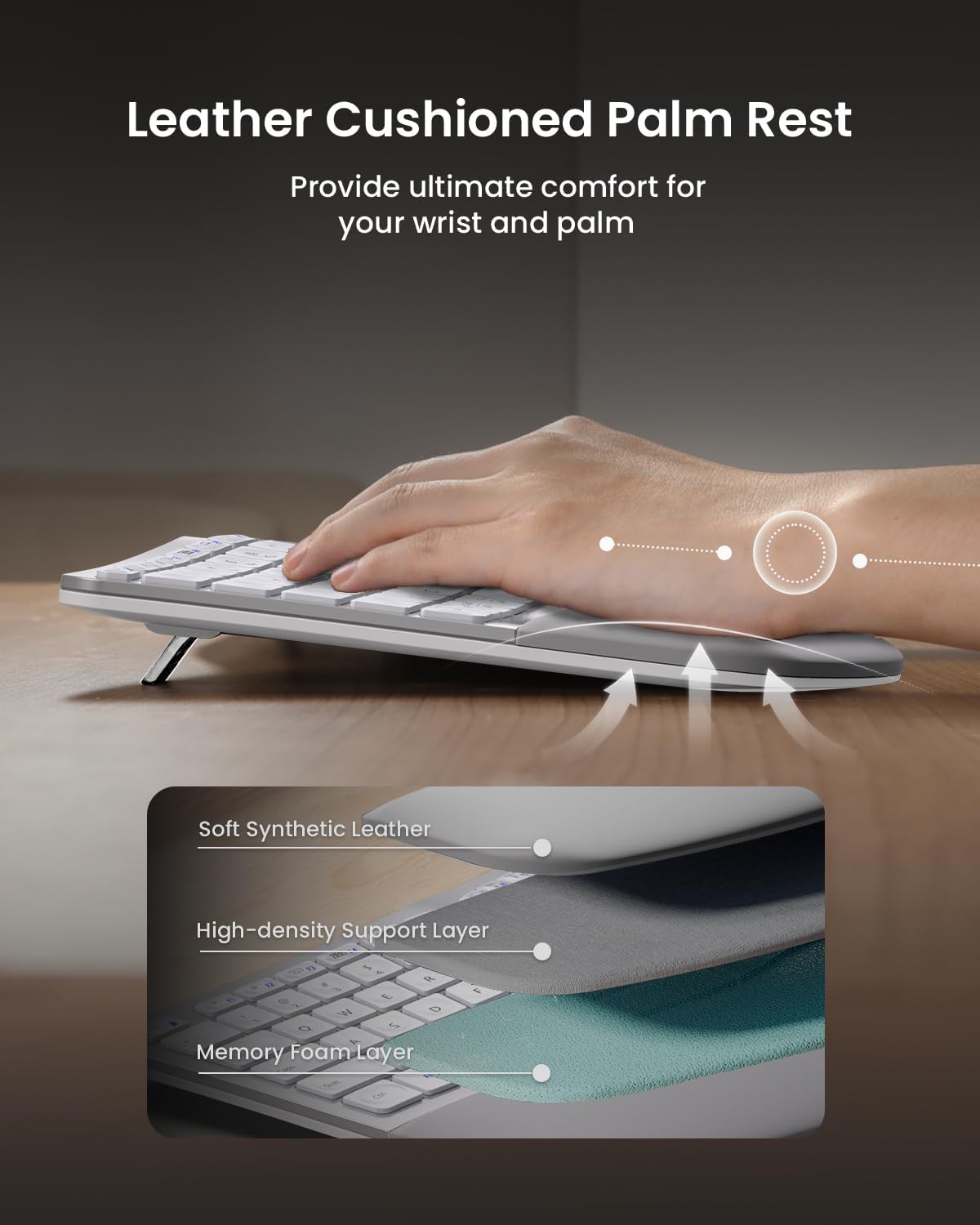
Image 3.2.1: Leather cushioned palm rest construction.

Image 3.2.2: Adjustable tilt legs for customized keyboard angle.
3.3. Ergonomic Mouse
The wireless ergonomic mouse is sculpted to fit the hand naturally, with a palm and thumb rest to reduce wrist strain. It features 2000 DPI for precise control and includes forward/backward buttons for convenient web browsing.

Image 3.3.1: Comfortable contoured shape of the ergonomic mouse.
4. Setup
4.1. Charging the Devices
Both the keyboard and mouse are equipped with built-in 500mAh lithium batteries. Use the included USB-A to USB-C cable to recharge them. An auto-sleep mode activates after 30 minutes of inactivity to conserve power.

Image 4.1.1: Type-C rechargeable design for keyboard and mouse.
4.2. Connecting to Devices
The combo supports connection to up to three devices simultaneously via a 2.4G USB receiver or Bluetooth. Quick switching between devices is possible with a single button press.
4.2.1. 2.4G USB Receiver Connection
- Locate the 2.4G USB receiver stored in the back compartment of the keyboard.
- Plug the USB receiver into an available USB port on your computer.
- Turn on the keyboard and mouse. They should automatically connect to your computer.
4.2.2. Bluetooth Connection
- Turn on the keyboard and mouse.
- On the keyboard, press the Bluetooth channel button (B1 or B2) for 3 seconds until the indicator light flashes, indicating pairing mode.
- On your device (computer, laptop, tablet), go to Bluetooth settings and select 'ProtoArc EKM01 Plus' to pair.
- Repeat for the mouse by pressing its Bluetooth channel button.
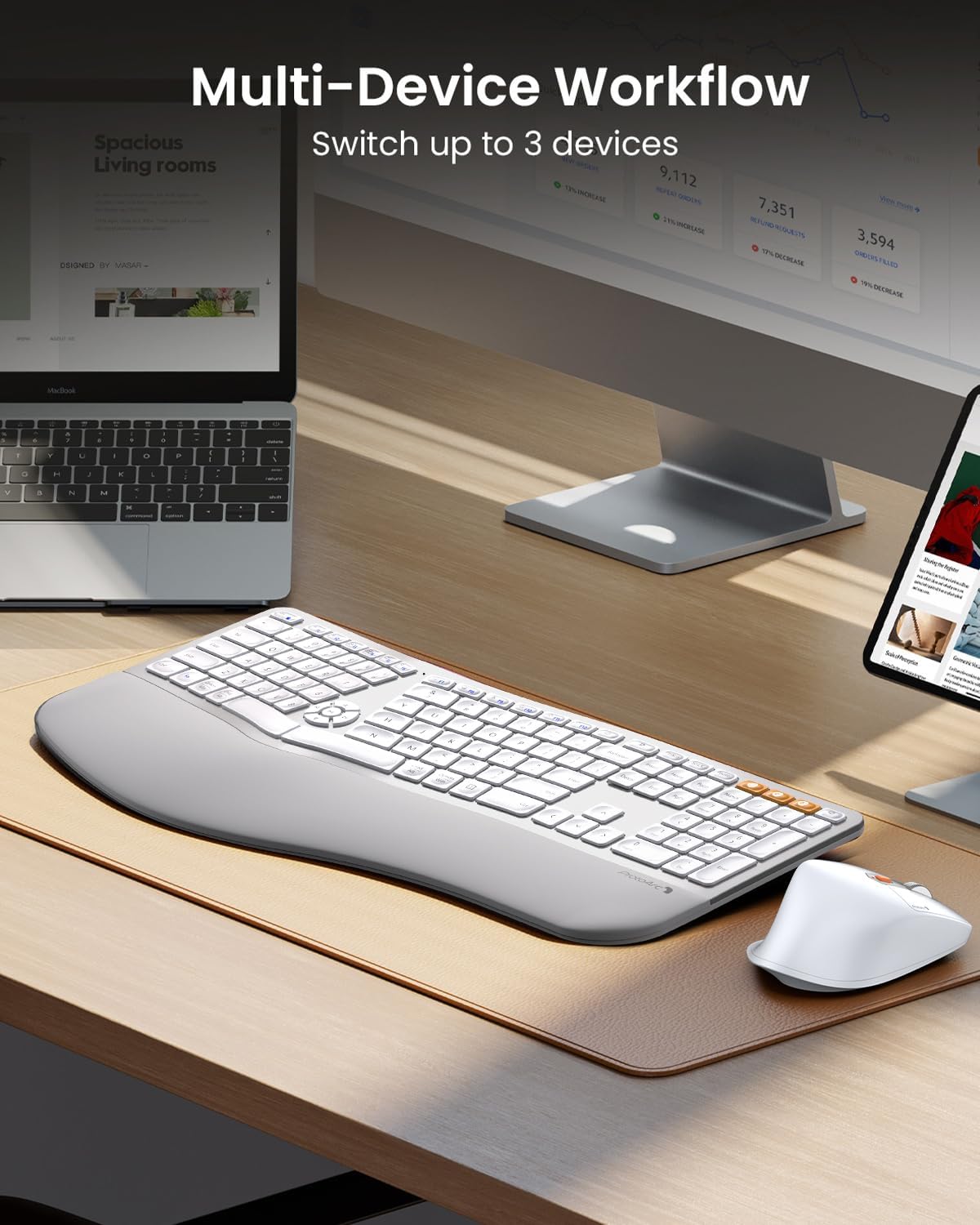
Image 4.2.1: Multi-device workflow setup.
5. Operating Instructions
5.1. Keyboard Features
- Split Design: Reduces wrist strain by allowing a more natural hand position.
- Cushioned Wrist Rest: Provides comfort and support for your wrists.
- Adjustable Tilt Legs: Customize the keyboard angle for optimal comfort.
- Multimedia Keys: Dedicated keys for media control (play/pause, volume, etc.) are centrally located.
- Compatibility: Compatible with Windows 7/8/10, Mac OS X 10.12 or higher, and Android 4.3 or higher.

Image 5.1.1: Key switch mechanism for quiet typing.
5.2. Mouse Features
- Ergonomic Sculpted Shape: Designed for palm and thumb rest, reducing wrist strain.
- Adjustable DPI: 2000 DPI for precise cursor control.
- Forward/Backward Buttons: Convenient for web page navigation.

Image 5.2.1: Mouse DPI settings indicator.

Image 5.2.2: Mouse side buttons for enhanced functionality.
5.3. Multi-Device Switching
To switch between connected devices, simply press the corresponding channel button (e.g., B1, B2 for Bluetooth, or the 2.4G indicator) on the keyboard or the mode switch button on the mouse. The devices will seamlessly transition to the selected connection.
6. Maintenance
- Cleaning: Use a soft, damp cloth to clean the surfaces of the keyboard and mouse. Avoid harsh chemicals.
- Dust Cover: Utilize the included dust cover to protect the keyboard from dust and spills when not in use.
- Charging: Recharge the devices when the low battery indicator appears to ensure uninterrupted use.
- Storage: Store the USB receiver in its designated slot on the keyboard's back when not in use to prevent loss.
7. Troubleshooting
| Issue | Possible Solution |
|---|---|
| Keyboard/Mouse not connecting via 2.4G USB receiver | Ensure the USB receiver is securely plugged into a working USB port. Turn the keyboard/mouse off and on again. Try a different USB port. |
| Keyboard/Mouse not connecting via Bluetooth | Ensure Bluetooth is enabled on your device. Press and hold the Bluetooth channel button (B1/B2 on keyboard, mode switch on mouse) for 3 seconds to enter pairing mode. Re-pair the device in your computer's Bluetooth settings. Ensure the device is within range. |
| Lag or delayed response | Check battery levels and recharge if necessary. Ensure no strong interference sources (e.g., other wireless devices) are nearby. Move the receiver closer to the devices if using 2.4G. |
| Keys not responding | Check if the keyboard is powered on and connected. Recharge the keyboard. Clean under the affected keys if debris is suspected. |
| Mouse cursor erratic or not moving | Check if the mouse is powered on and connected. Recharge the mouse. Clean the optical sensor on the bottom of the mouse. Ensure you are using the mouse on a suitable surface. |
8. Specifications
- Model: EKM01 Plus
- Brand: ProtoArc
- Connectivity Technology: Bluetooth, USB (2.4G Wireless)
- Special Features: Ergonomic, Rechargeable, Wrist Rest, Split Design, Multi-Device
- Compatible Devices: Laptop, Personal Computer (Windows 7/8/10, Mac OS X 10.12+, Android 4.3+)
- Keyboard Battery Capacity: 500mAh Lithium Battery
- Mouse Battery Capacity: 500mAh Lithium Battery
- Mouse DPI: Up to 2000 DPI
- Item Weight: 4.24 pounds (approximate for combo)
- Package Dimensions: 20.7 x 12.8 x 2.6 inches
9. Warranty and Support
The ProtoArc EKM01 Plus Ergonomic Wireless Keyboard and Mouse Combo comes with a 2-year warranty. For customer support, please refer to the contact information provided on your warranty card or visit the official ProtoArc website.
Contact information for support is typically available via phone number and email address on the warranty card.


