
1. Introduction
This manual provides essential information for the installation, operation, and maintenance of your ZEBRONICS GT740-4GD3 Graphics Card. Please read these instructions carefully before proceeding with installation to ensure proper functionality and to prevent damage to your system components. Keep this manual for future reference.
2. Product Overview
2.1 Key Features
- Memory Capacity: 4GB GDDR3 memory for graphics processing.
- Multiple Outputs: Equipped with HDMI, DVI, and VGA ports for display connectivity.
- Efficient Cooling: Features a heatsink with an integrated fan for optimized heat dissipation.
- PCIe 3.0 Interface: Utilizes PCIe 3.0 for increased bandwidth and data transfer rates.
- PhysX Support: Enhances visual effects in compatible applications.
- 3D Vision Ready: Supports 3D visuals with compatible hardware.
2.2 Package Contents
- ZEBRONICS GT740-4GD3 Graphics Card - 1 unit

Image 2.1: ZEBRONICS GT740-4GD3 Graphics Card and its retail packaging.
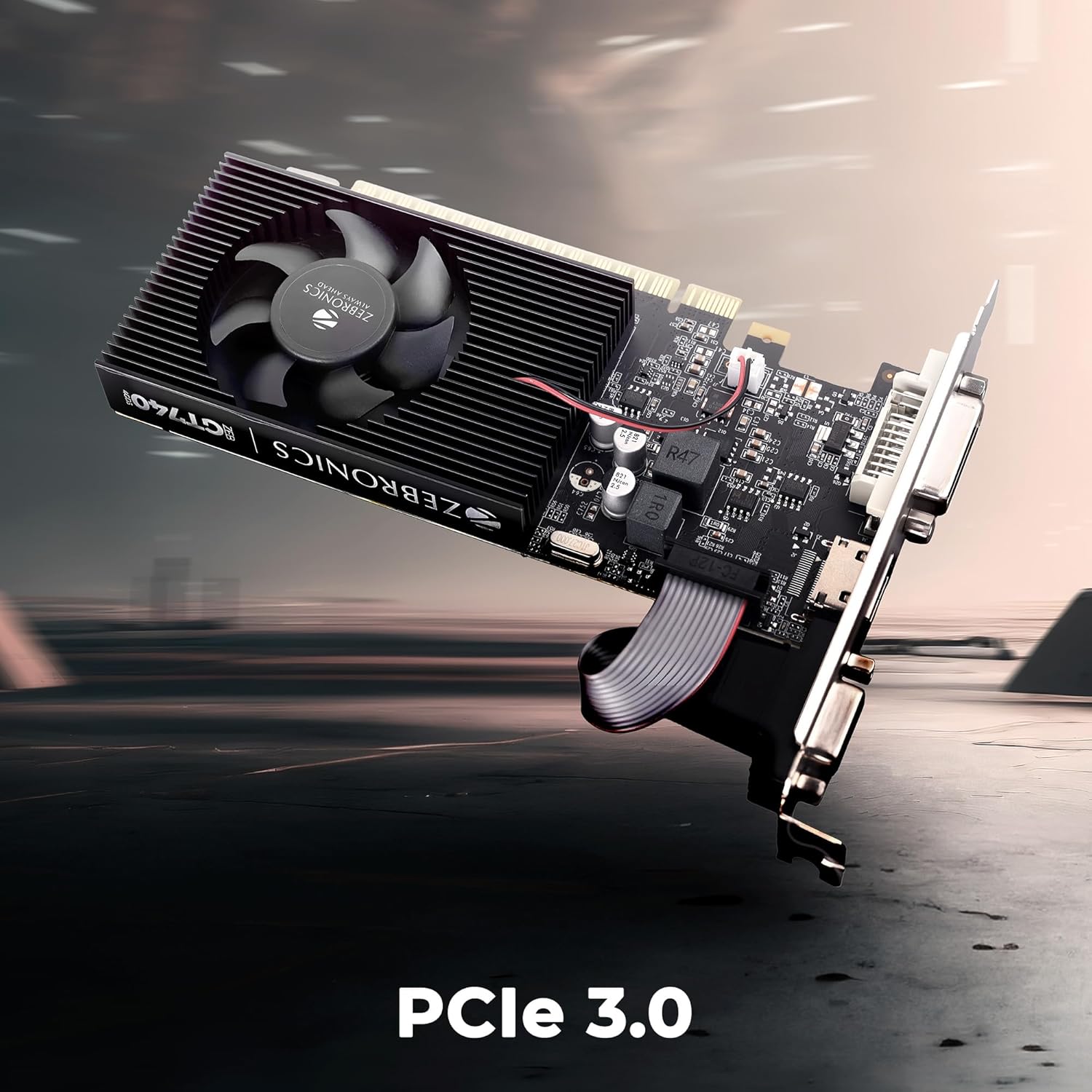
Image 2.2: The graphics card featuring its PCIe 3.0 interface for motherboard connection.

Image 2.3: Close-up view of the DVI, HDMI, and VGA output ports on the graphics card.
3. Setup and Installation
3.1 System Requirements
- Available PCI Express x16 slot on the motherboard.
- Minimum 300W power supply (consult your system's power supply specifications).
- Compatible operating system (Windows 7/8/10/11, Linux).
- Monitor with HDMI, DVI, or VGA input.
3.2 Physical Installation
- Power Off: Shut down your computer completely and disconnect the power cable from the wall outlet.
- Open Case: Open your computer case by removing the side panel.
- Locate PCIe Slot: Identify an available PCI Express x16 slot on your motherboard. Remove any slot covers if present.
- Insert Graphics Card: Carefully align the graphics card with the PCIe x16 slot and press down firmly until it is securely seated. A click may be heard.
- Secure Card: Secure the graphics card to the computer case with a screw or retention clip.
- Close Case: Replace the computer case side panel and reconnect the power cable.
3.3 Driver Installation
- Boot System: Power on your computer. The system may boot with a basic display driver.
- Download Drivers: Visit the official ZEBRONICS website or NVIDIA's website to download the latest drivers for the GT740 series graphics card compatible with your operating system.
- Install Drivers: Run the downloaded driver installer and follow the on-screen prompts. It is recommended to perform a clean installation.
- Restart: Restart your computer after the driver installation is complete.
4. Operating Instructions
4.1 Connecting Displays
- HDMI: Connect an HDMI cable from the graphics card's HDMI port to your monitor's HDMI input.
- DVI: Connect a DVI cable from the graphics card's DVI port to your monitor's DVI input.
- VGA: Connect a VGA cable from the graphics card's VGA port to your monitor's VGA input.
You can connect multiple displays simultaneously, depending on your monitor's capabilities and the graphics card's support for multi-monitor setups. Configure display settings through your operating system's display options or the NVIDIA Control Panel.

Image 4.1: Example of high-quality visuals rendered using the 4GB GDDR3 RAM.
5. Maintenance
Regular maintenance helps ensure optimal performance and longevity of your graphics card.
- Dust Removal: Periodically clean dust from the heatsink and fan using compressed air. Ensure the computer is powered off and unplugged before cleaning.
- Fan Check: Ensure the fan spins freely and is not obstructed. Excessive noise or lack of rotation may indicate a problem.
- Driver Updates: Keep your graphics drivers updated to benefit from performance improvements and bug fixes.

Image 5.1: The graphics card's heatsink and fan assembly, crucial for thermal management.

Image 5.2: Detailed view of the fan and heatsink, designed for optimized heat dissipation.
6. Troubleshooting
If you encounter issues with your graphics card, refer to the table below for common problems and solutions.
| Problem | Possible Cause | Solution |
|---|---|---|
| No display output | Incorrect cable connection, card not seated properly, driver issue. | Check display cables. Re-seat the graphics card. Install or update drivers. Ensure monitor is on correct input. |
| System crashes or freezes | Overheating, unstable drivers, insufficient power. | Ensure proper ventilation and clean heatsink/fan. Update drivers. Verify power supply meets requirements. |
| Poor graphics performance | Outdated drivers, incorrect settings, system bottleneck. | Update graphics drivers. Adjust in-game or application graphics settings. Check other system components (CPU, RAM). |
| Fan not spinning or noisy | Dust buildup, fan malfunction. | Clean the fan and heatsink. If noise persists or fan does not spin, contact support. |
7. Specifications
| Feature | Detail |
|---|---|
| Brand | ZEBRONICS |
| Model Number | ZEB-GT740-4GD3 |
| Graphics Coprocessor | NVIDIA GeForce GT 740 |
| Graphics RAM Type | GDDR3 |
| Graphics Card RAM Size | 4 GB |
| Memory Clock Speed | 1333 MHz |
| Graphics Card Interface | PCI-Express x16 |
| Video Output Interface | HDMI, DVI, VGA |
| Max Resolution | 2560 x 1440 @60Hz |
| Cooling Method | Heatsink with Fan |
| Product Dimensions | 12.2 x 16.7 x 0.1 cm |
| Item Weight | 380 g |
| Country of Origin | China |
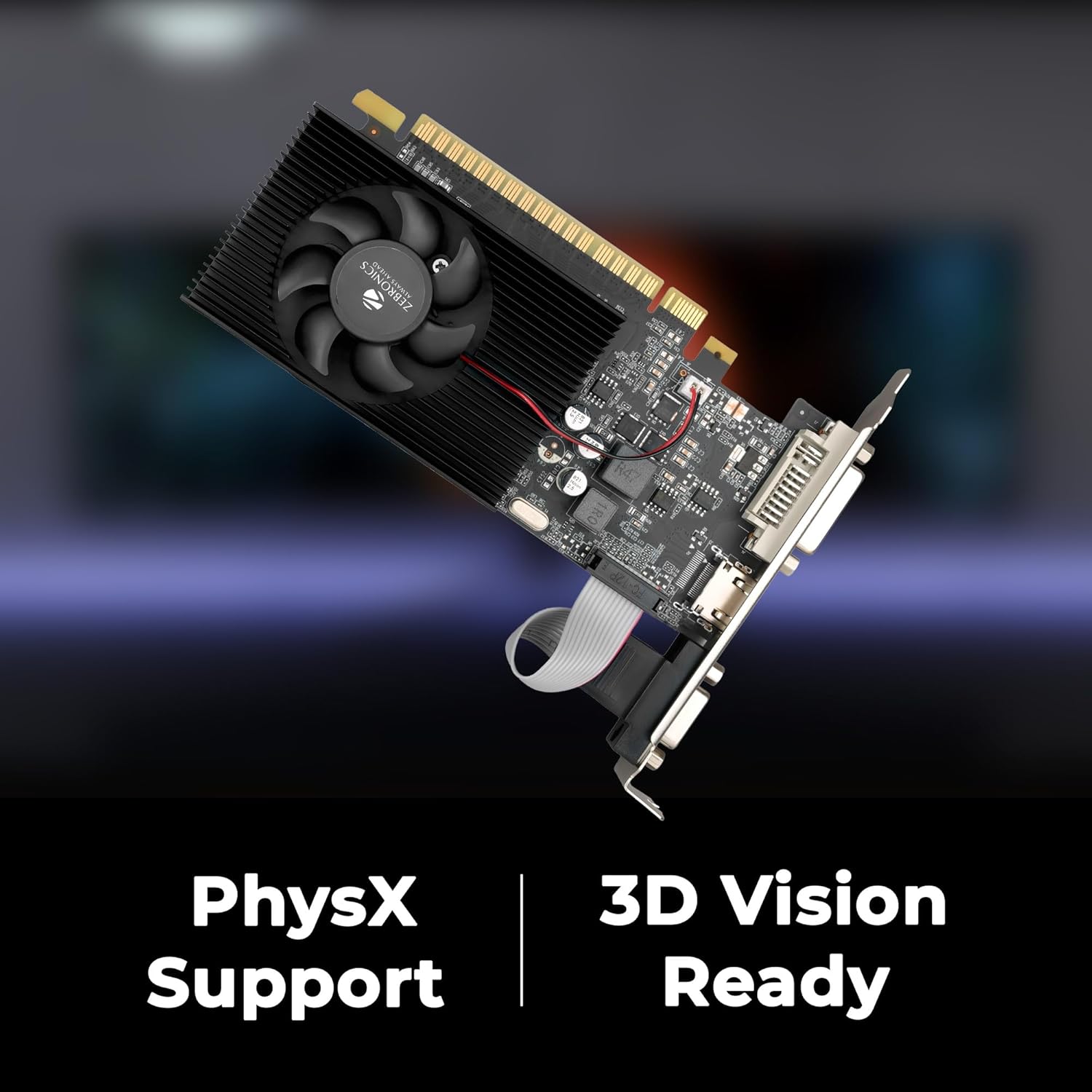
Image 7.1: The graphics card, indicating support for PhysX and 3D Vision technologies.
8. Warranty and Support
For warranty information, technical support, or service inquiries, please refer to the warranty card included with your product or visit the official ZEBRONICS website. Keep your purchase receipt as proof of purchase for warranty claims.
ZEBRONICS Official Website: www.zebronics.com