
1. Introduction
Thank you for choosing the ZZA 32-inch 240Hz Curved Gaming Monitor. This manual provides essential information for setting up, operating, and maintaining your monitor. Please read it thoroughly before use to ensure optimal performance and safety.
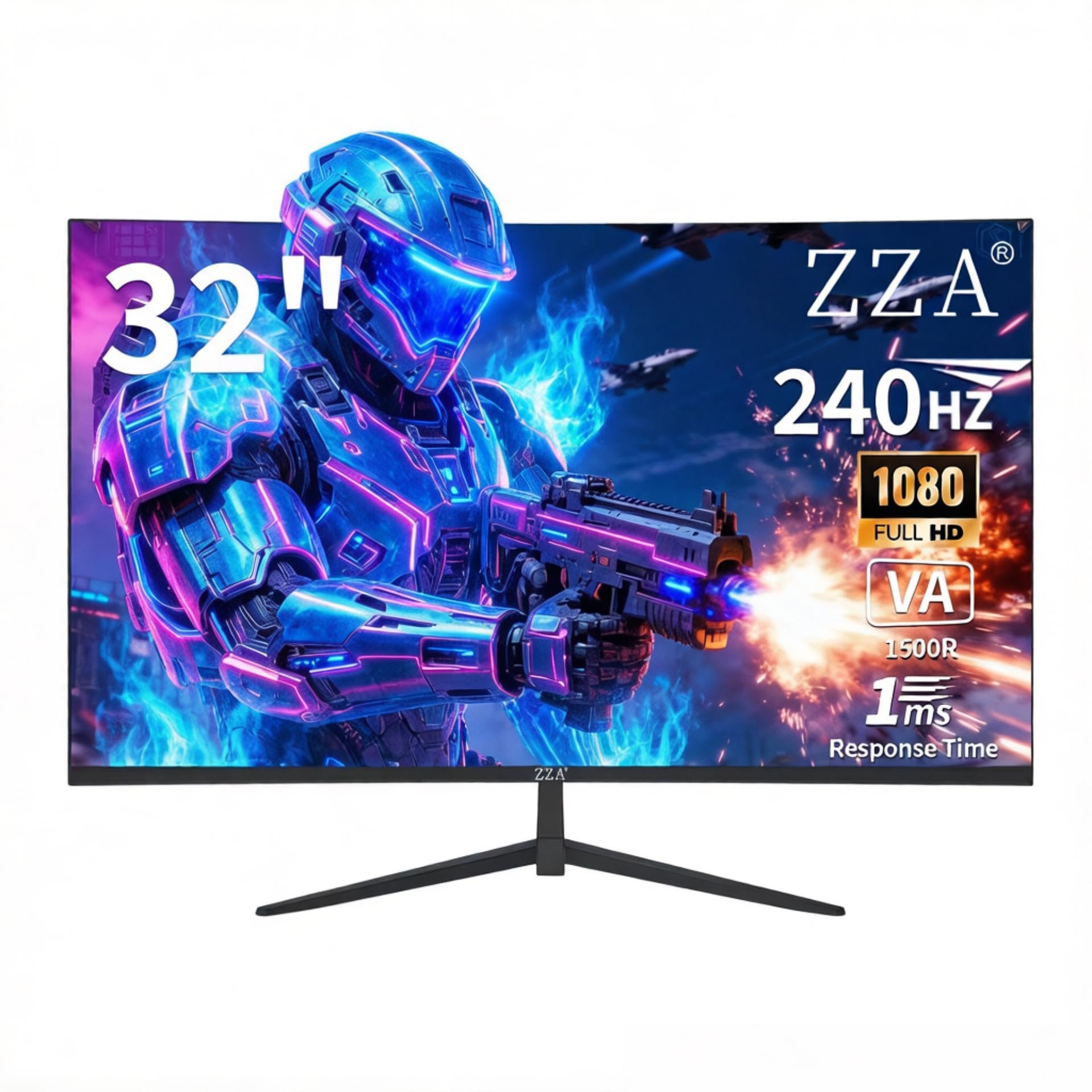
Image: The ZZA 32-inch Curved Gaming Monitor, showcasing its FHD 1920x1080 resolution, 100% sRGB color gamut, Adaptive Sync, 1500R curvature, 4000:1 contrast ratio, 178° wide view angle, HDR support, 240Hz refresh rate, Eye Care features, and VESA 100x100mm mounting compatibility.
2. Safety Information
- Ensure the monitor is placed on a stable, flat surface to prevent accidental falls.
- Do not expose the monitor to rain or moisture to avoid electric shock.
- Avoid blocking ventilation openings to prevent overheating.
- Use only the power adapter supplied with the monitor.
- Disconnect the power cable from the outlet during lightning storms or when unused for extended periods.
- Do not attempt to repair the monitor yourself. Refer all servicing to qualified personnel.
3. Package Contents
Verify that all items are present in your package:
- ZZA 32-inch Curved Gaming Monitor
- Monitor Stand (Base and Neck)
- Power Adapter
- DisplayPort (DP) Cable
- User Manual (this document)
4. Setup
4.1 Physical Assembly
Attaching the Stand:
- Carefully place the monitor face down on a soft, clean cloth to prevent scratches.
- Attach the stand neck to the back of the monitor, aligning the mounting holes.
- Secure the neck with the provided screws.
- Attach the stand base to the neck and tighten the screw at the bottom of the base.
- Gently lift the monitor and place it upright on a stable surface.
VESA Mounting (Optional):
The monitor supports VESA mounting standard 100x100mm. To use a VESA mount:
- Remove the stand if it is already attached.
- Attach your VESA-compatible wall mount or desk mount to the 100x100mm mounting holes on the back of the monitor using appropriate screws (not included).
- Ensure the mount is securely fastened before releasing the monitor.

Image: Rear view of the ZZA monitor, illustrating the VESA mountable area (100x100mm) and the attachment point for the monitor stand.
4.2 Connecting to Devices
The monitor features multiple ports for versatile connectivity:
- HDMI 2.0 Ports (x2): Connect to devices like gaming consoles, PCs, or media players. Supports refresh rates up to 144Hz.
- DisplayPort (DP 1.4) Ports (x2): Connect to PCs for optimal performance. Supports refresh rates up to 240Hz. A DP cable is included.
- USB Port (x1): For connecting peripherals or charging.
- 3.5mm Headphone Jack (x1): For audio output to headphones or external speakers.
- DC IN 12V: Power input for the monitor.
Connect the appropriate cable from your device to the corresponding port on the monitor. Then, connect the power adapter to the DC IN 12V port and plug it into a power outlet.
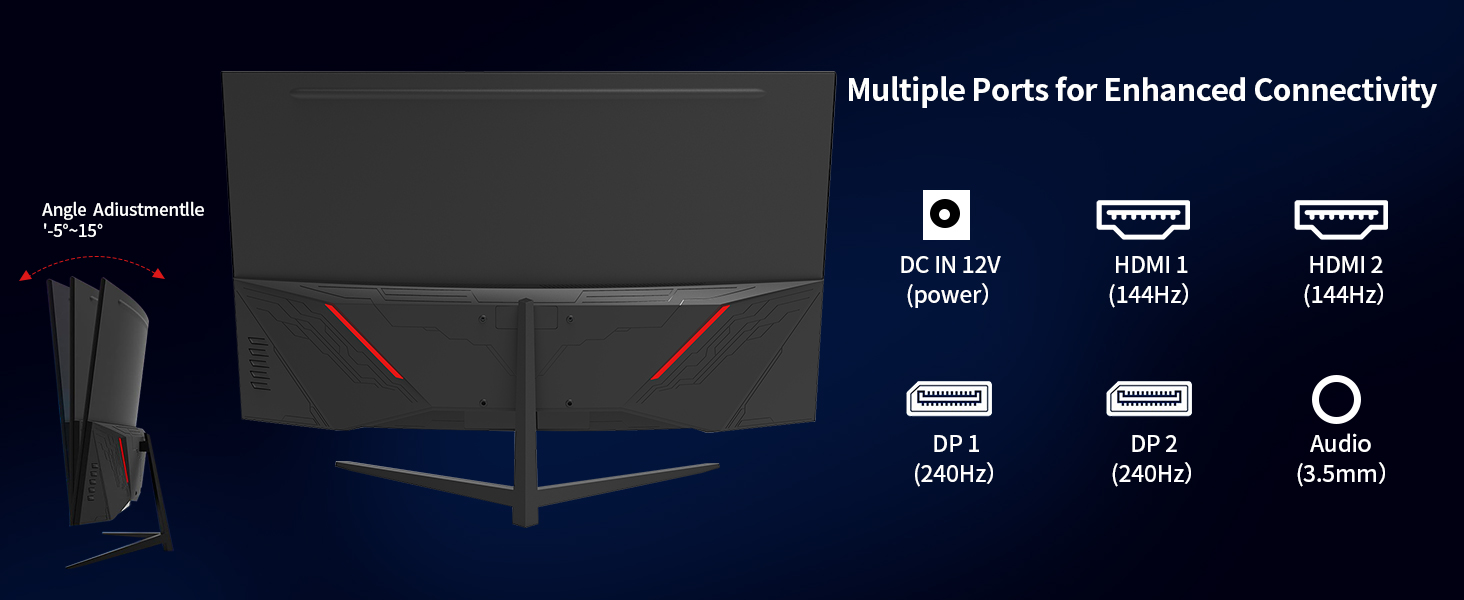
Image: A diagram illustrating the multiple connectivity ports on the ZZA monitor, including two HDMI ports, two DisplayPort ports, one USB port, a 3.5mm audio jack, and the DC 12V power input.
Video: This video demonstrates the ZZA 32-inch gaming monitor from various angles, highlighting its curved design, rear panel, and the location of its multiple input ports and VESA mounting points. It provides a visual guide to the monitor's physical features and connectivity options.
5. Operating Instructions
5.1 Power On/Off
Press the power button, usually located on the back or bottom right of the monitor, to turn the monitor on or off. The power indicator light will illuminate when the monitor is on.
5.2 OSD Menu Navigation
The On-Screen Display (OSD) menu allows you to adjust various monitor settings. Use the joystick or buttons (depending on your model) located on the back or bottom of the monitor to navigate the OSD menu:
- Press the joystick/button to open the OSD menu.
- Move the joystick up/down or use the corresponding buttons to navigate through menu options.
- Move the joystick left/right or use the corresponding buttons to adjust values or enter sub-menus.
- Press the joystick/button again to confirm a selection or exit a sub-menu.
5.3 Picture Settings
Adjust the display to your preference using these settings:
- Brightness: Adjust the overall luminance of the screen (typical brightness: 280 cd/m²).
- Contrast: Adjust the difference between the brightest and darkest areas of the image (contrast ratio: 4000:1).
- Color Temperature: Select from presets (e.g., Warm, Cool, User) or adjust RGB values manually. The monitor supports 100% sRGB color gamut.
- HDR (High Dynamic Range): Enable or disable HDR for enhanced contrast and color in compatible content.
- Eye Care: Activate modes designed to reduce eye strain, such as low blue light filters.
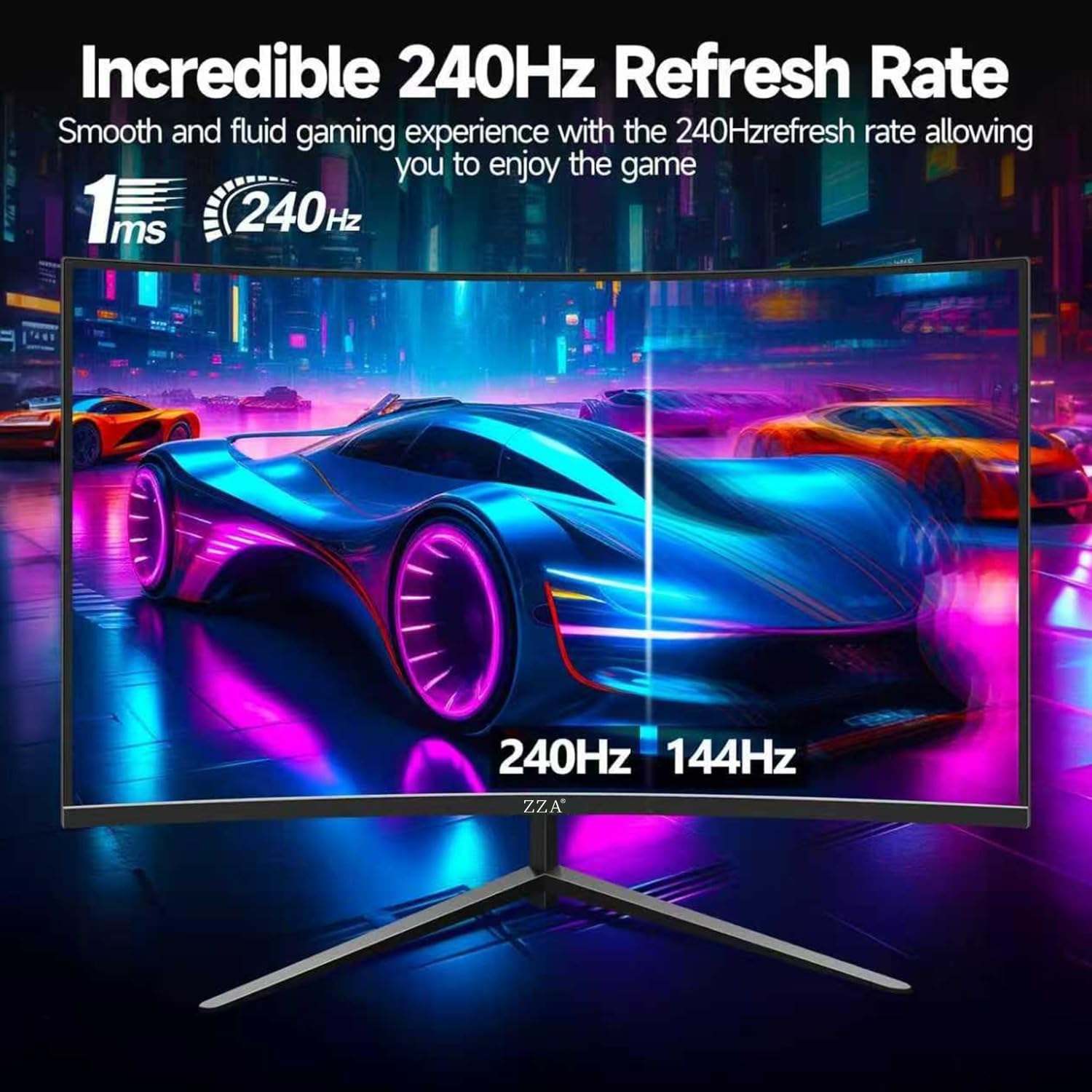
Image: The ZZA monitor showcasing a game scene with metrics for brightness (280 cd/m²), color gamut (100% sRGB), and contrast ratio (4000:1), emphasizing excellent visual effects.
5.4 Gaming Features
Optimize your gaming experience with these settings:
- Refresh Rate: The monitor supports up to 240Hz refresh rate via DisplayPort for smooth motion. Ensure your graphics card and cable support this rate.
- Response Time: Enjoy a fast 1ms response time to minimize motion blur.
- Adaptive-Sync (FreeSync): Enable Adaptive-Sync to synchronize the monitor's refresh rate with your graphics card's frame rate, eliminating screen tearing and stuttering.
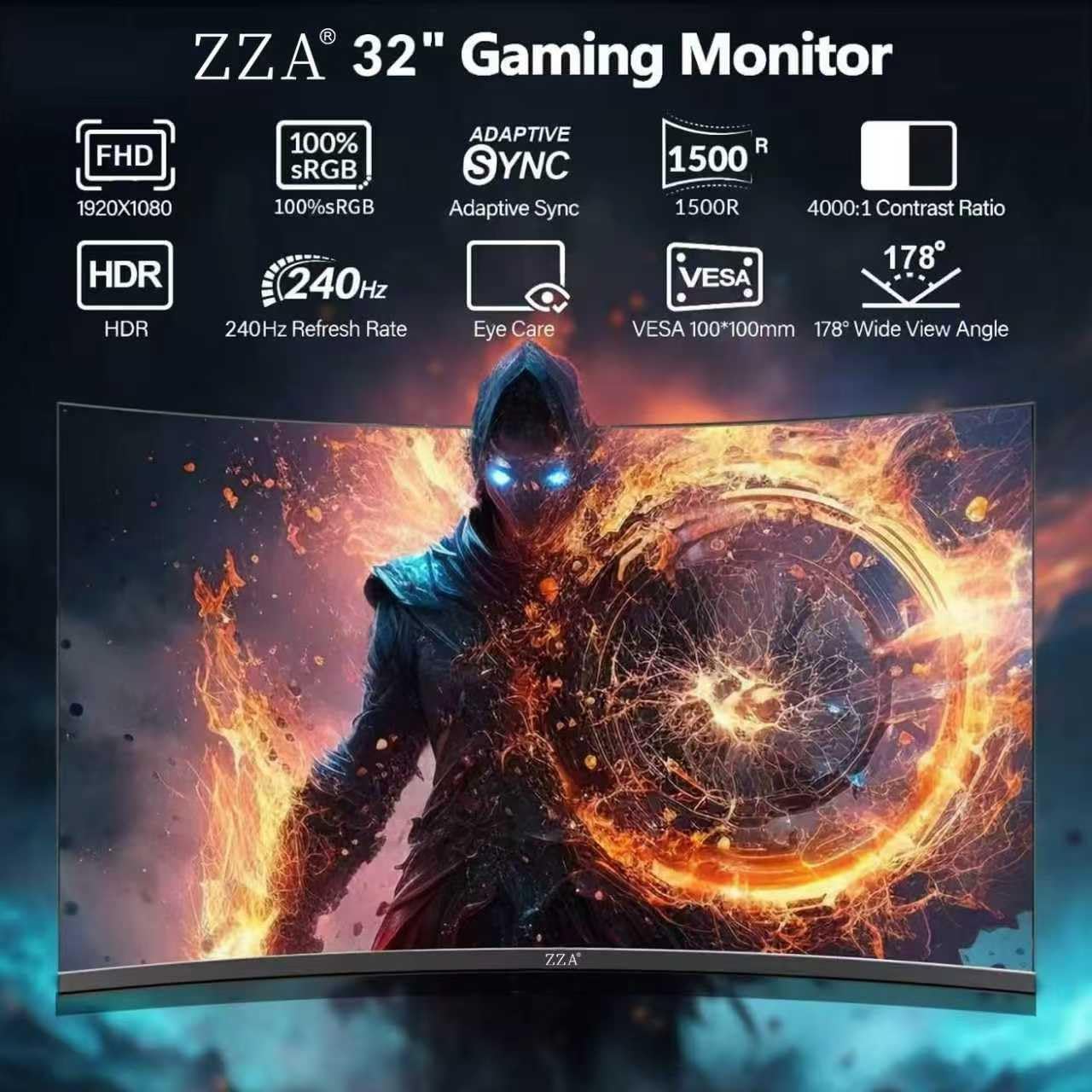
Image: The ZZA monitor displaying a high-speed racing game, highlighting its 240Hz refresh rate and 1ms response time for smooth and fluid gaming.

Image: A visual representation of AMD FreeSync Technology on the ZZA monitor, showing how it eliminates blur, lag, screen tearing, and stuttering in fast-moving game scenes.
5.5 Input Selection
Use the OSD menu or a dedicated input selection button to switch between connected devices (HDMI 1, HDMI 2, DP 1, DP 2).
5.6 Tilt Adjustment
The monitor stand allows for tilt adjustment from -5° to 20° (±3°). Gently hold the top and bottom edges of the monitor and tilt it to your desired viewing angle.
6. Maintenance
- Cleaning the Screen: Gently wipe the screen with a soft, lint-free cloth. For stubborn marks, dampen the cloth with a small amount of screen cleaner (do not spray directly onto the screen).
- Cleaning the Casing: Use a soft, dry cloth to wipe the monitor casing. Avoid abrasive cleaners.
- Storage: If storing the monitor for an extended period, disconnect all cables and store it in a cool, dry place, preferably in its original packaging.
7. Troubleshooting
| Problem | Possible Cause | Solution |
|---|---|---|
| No image on screen | Monitor not powered on; incorrect input selected; video cable loose or disconnected. | Ensure power cable is connected and monitor is on. Select correct input source. Check video cable connections. |
| Image flickering or unstable | Video cable issue; graphics card driver outdated; refresh rate mismatch. | Replace video cable. Update graphics card drivers. Adjust refresh rate in display settings. |
| Screen tearing or stuttering in games | Adaptive-Sync (FreeSync) is off or not supported by GPU. | Enable Adaptive-Sync in OSD menu and graphics card settings. Ensure your GPU supports FreeSync. |
| No sound from headphone jack | Headphones not properly connected; audio output not selected on PC. | Ensure headphones are fully plugged in. Select the monitor as the audio output device in your computer's sound settings. |
8. Specifications
| Feature | Detail |
|---|---|
| Model Number | Z32D |
| Screen Size | 32 Inches |
| Panel Type | Curved VA |
| Curvature | 1500R |
| Resolution | 1920 x 1080 (FHD 1080p) |
| Aspect Ratio | 16:9 |
| Refresh Rate | 240Hz (via DP 1.4) |
| Response Time | 1ms |
| Contrast Ratio | 4000:1 |
| Color Gamut | 100% sRGB |
| Brightness | 280 cd/m² |
| Viewing Angle | 178° (Horizontal/Vertical) |
| HDR Support | Yes |
| Adaptive Sync | Yes (FreeSync compatible) |
| Ports | 2x HDMI 2.0, 2x DisplayPort 1.4, 1x USB, 1x 3.5mm Audio Jack, 1x DC IN 12V |
| VESA Mount | 100x100mm |
| Tilt Adjustment | -5° to 20° (±3°) |
| Product Dimensions (with stand) | 28 x 7 x 19.6 inches |
| Item Weight (with stand) | 13.32 pounds |
9. Warranty and Support
ZZA products come with a 1-year warranty. For technical support, warranty claims, or any questions regarding your monitor, please contact us directly:
Email: zza-direct@outlook.com
Our dedicated technical support team is available to assist you and ensure your complete satisfaction.