
VIRAN V11
VIRAN V11 Action Camera User Manual
Model: V11
1. Introduction
This manual provides comprehensive instructions for the operation, maintenance, and troubleshooting of your VIRAN V11 Action Camera. Please read this manual carefully before using the product to ensure proper functionality and to prevent damage.
The VIRAN V11 is a high-performance action camera designed for capturing dynamic video and photo content in various environments, including underwater. It features 5K video recording, 48MP photo resolution, advanced image stabilization, and wireless connectivity.
2. Package Contents
Verify that all items listed below are included in your package:
- VIRAN V11 Action Camera
- Waterproof Box (included with this model)
- Remote Control
- Helmet Seat
- Transfer Bracket
- Transfer Joint
- Wipe Cloth
- Data Cable (Type-C)
- Instructions (this manual)
- 1 Lithium Ion battery (pre-installed)

Figure 2.1: VIRAN V11 Action Camera with its primary accessories, including the camera itself, remote control, waterproof housing, and a carrying case.
3. Product Overview
3.1 Camera Components
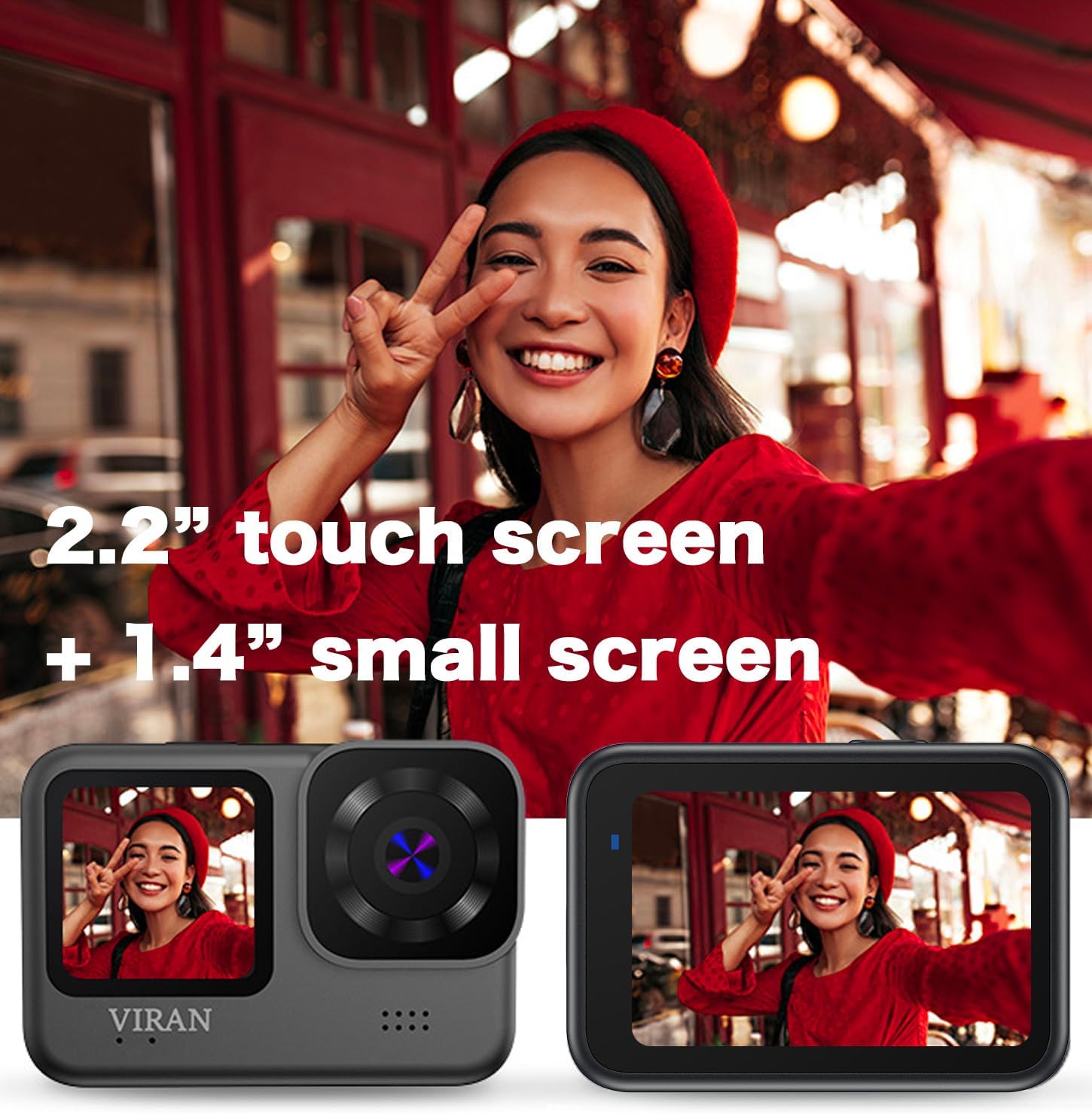
Figure 3.1: Front and rear views of the VIRAN V11 Action Camera, highlighting the 2.2-inch touch screen on the back and the 1.4-inch small screen on the front.
- Main Lens: Captures video and photo content.
- 2.2-inch Touch Screen: Rear display for live view, playback, and menu navigation.
- 1.4-inch Front Screen: Small display for monitoring status and framing selfies.
- Power/Mode Button: Turns the camera on/off and switches between modes.
- Shutter/Record Button: Initiates photo capture or video recording.
- USB Type-C Port: For charging and data transfer.
- Micro SD Card Slot: For memory card insertion.
- Microphone: Records audio.
- Speaker: For audio playback.
3.2 Remote Control

Figure 3.2: The wireless remote control, used for convenient operation of the camera from a distance.
The remote control allows for convenient operation of the camera from a distance, enabling hands-free recording and photo capture. It typically includes buttons for starting/stopping recording and taking photos.
4. Setup
4.1 Charging the Battery
The VIRAN V11 Action Camera has a built-in 1200mAh lithium-ion battery. Before first use, fully charge the camera.
- Locate the USB Type-C port on the side of the camera. This port is protected by a waterproof cover.
- Carefully open the waterproof cover. Note: This cover can be stiff and may require gentle prying. Ensure it is securely closed after charging to maintain waterproofing.
- Connect the provided USB Type-C data cable to the camera's port and the other end to a USB power adapter (not included) or a computer's USB port.
- The charging indicator light will illuminate. Once fully charged, the light will change or turn off.
A full charge typically takes approximately 90 minutes. The camera supports charging while in use.

Figure 4.1: The camera connected via USB Type-C, illustrating its use for data transfer or charging.
4.2 Inserting a Micro SD Card
A Micro SD card is required to store recordings. The camera supports Micro SD cards up to a certain capacity (e.g., 64GB). Use a high-speed card (Class 10 or UHS-I/U3 recommended).
- Ensure the camera is powered off.
- Open the waterproof cover protecting the USB Type-C port and Micro SD card slot.
- Insert the Micro SD card into the slot with the gold contacts facing the back of the camera until it clicks into place.
- To remove, gently push the card in until it clicks, then release to eject.
- Close the waterproof cover securely.
Figure 4.2: A Micro SD card shown alongside the camera, indicating its compatibility and necessity for storage.
4.3 Attaching the Waterproof Case
The VIRAN V11 is waterproof up to 10 meters without a case. For depths up to 30 meters, use the included waterproof case.
- Ensure the camera's waterproof cover for the ports is securely closed.
- Open the latch on the waterproof case.
- Carefully insert the camera into the case, ensuring it fits snugly.
- Close the latch firmly to seal the case.
- Before diving, perform a dry test of the waterproof case without the camera inside to ensure no leaks.

Figure 4.3: The VIRAN V11 camera enclosed within its waterproof housing, ready for underwater use.
5. Operating Instructions
5.1 Powering On/Off
- To Power On: Press and hold the Power/Mode button until the screen illuminates.
- To Power Off: Press and hold the Power/Mode button until the screen turns off.
5.2 Navigating Menus
The VIRAN V11 features a 2.2-inch touch screen for intuitive navigation. Swipe and tap to access different modes and settings.
- Swipe Left/Right: To switch between Video, Photo, and Playback modes.
- Swipe Down: To access quick settings (e.g., Wi-Fi, screen lock).
- Tap Icons: To enter specific settings menus within each mode.
5.3 Video Recording
The camera supports video resolutions up to 5K at 30 frames per second (FPS).

Figure 5.1: A dynamic shot of a motorcyclist, demonstrating the camera's 5K wide-angle video recording capabilities.
- From the main screen, ensure you are in Video mode.
- Tap the settings icon to adjust video resolution (e.g., 5K/30FPS, 4K/60FPS, 2.7K/60FPS, 1080P/120FPS, 720P/240FPS), EIS (Electronic Image Stabilization), and other parameters.
- Press the Shutter/Record button to start recording. A red indicator light will flash, and the recording timer will appear on the screen.
- Press the Shutter/Record button again to stop recording.
Electronic Image Stabilization (EIS)
The VIRAN V11 features 3.0 EIS anti-shake technology to improve video stability. EIS is available at resolutions up to 4K/30FPS.

Figure 5.2: Visual comparison demonstrating the effect of Electronic Image Stabilization (EIS) on video smoothness, with EIS "ON" showing significantly less blur.
Pre-Recording Function
The pre-recording function allows the camera to store a short video segment before you press the record button, ensuring you don't miss critical moments. Available durations include 3s, 5s, 10s, 15s, and 25s, depending on the selected resolution.

Figure 5.3: An illustration detailing the pre-record function, showing how different video resolutions support various pre-recording durations (e.g., 5K/30FPS for 3s, 4K/30FPS/60FPS for 5s).
5.4 Photo Capture
The camera captures photos up to 48 Megapixels.
- Switch to Photo mode.
- Adjust photo settings (e.g., resolution, wide-angle) as needed.
- Press the Shutter/Record button to take a photo.
170° Adjustable Wide Angle Lens
The VIRAN V11 features a 170° adjustable wide-angle lens, allowing you to expand or narrow the field of view to suit your shooting needs.

Figure 5.4: A visual representation of the 170° wide-angle lens, highlighting its broad field of view and multi-glass lens construction.
5.5 Wi-Fi Connectivity and Remote Control
Connect the camera to your smartphone or tablet via Wi-Fi using the dedicated app for remote control, live view, and file transfer.
- Download the dedicated app from your device's app store.
- On the camera, enable Wi-Fi through the quick settings or menu.
- On your smartphone/tablet, connect to the camera's Wi-Fi network (SSID and password will be displayed on the camera screen).
- Open the app to control the camera remotely, view footage, and transfer files.
The included wireless remote control also allows for basic camera operations without direct interaction with the camera itself.
Figure 5.5: The wireless remote control being used, demonstrating its convenience for hands-free operation during activities.
5.6 Special Modes and Features
- Dive Mode: Corrects underwater colors for more natural and realistic footage.
- Loop Recording: Overwrites the oldest footage when the memory card is full, useful for dashcam use.
- Time-Lapse Video: Captures frames at set intervals to create a sped-up video.
- Slow/Fast Motion: Adjusts playback speed for creative effects.
- Continuous Shooting: Takes multiple photos in quick succession.
- Driving Mode: Optimizes settings for use as a car recorder.
- Inversion Mode: Flips the image 180 degrees, useful when mounting the camera upside down.
- Webcam Functionality: Can be connected to a computer and used as a webcam.

Figure 5.6: The VIRAN V11 camera mounted in a vehicle, demonstrating its use as a dashcam.
6. Maintenance
6.1 Cleaning the Camera and Lens
- Use the provided wipe cloth or a soft, lint-free cloth to clean the camera body and screens.
- For the lens, use a lens cleaning solution and a microfiber cloth specifically designed for optical surfaces. Avoid abrasive materials.
- Do not use chemical cleaners or solvents on any part of the camera.
6.2 Waterproof Case Care
- After each use in water, especially saltwater, rinse the waterproof case with fresh water.
- Allow the case to air dry completely before storing.
- Inspect the O-ring seal regularly for any debris, cracks, or damage. Clean the O-ring with a soft cloth and apply silicone grease if necessary to maintain its seal.
- Do not expose the waterproof case to extreme temperatures.
6.3 Battery Care
- Store the camera in a cool, dry place when not in use.
- Avoid fully discharging the battery for extended periods. Charge it periodically if storing for a long time.
- Do not expose the battery to high temperatures or direct sunlight.
7. Troubleshooting
| Problem | Possible Cause | Solution |
|---|---|---|
| Camera does not power on. | Battery is depleted. | Charge the camera fully using the provided USB Type-C cable. |
| Camera freezes or becomes unresponsive. | Software glitch or temporary error. | Press and hold the Power/Mode button for 10 seconds to force a restart. If issue persists, ensure firmware is updated. |
| Cannot record video/take photos. | No Micro SD card inserted or card is full/corrupted. | Insert a Micro SD card. Format the card in the camera's settings. Replace the card if corrupted. |
| Poor video quality (blurry, shaky). | Lens is dirty; EIS is off; low light conditions. | Clean the lens. Enable EIS in settings. Ensure adequate lighting. |
| Water leakage into waterproof case. | Case not properly sealed; O-ring damaged or dirty. | Ensure latch is firmly closed. Inspect and clean the O-ring. Replace O-ring if damaged. |
| Cannot connect to Wi-Fi. | Wi-Fi not enabled on camera; incorrect password; app issue. | Enable Wi-Fi on camera. Re-enter password. Restart camera and app. |
8. Specifications
| Feature | Detail |
|---|---|
| Model | V11 |
| Video Resolution | Up to 5K/30FPS, 4K/60FPS, 2.7K/60FPS, 1080P/120FPS, 720P/240FPS |
| Photo Resolution | Up to 48MP |
| Image Stabilization | 3.0 EIS (Electronic Image Stabilization) |
| Lens Angle | 170° Adjustable Wide Angle |
| Display Screens | 2.2-inch Touch Screen (rear), 1.4-inch Small Screen (front) |
| Waterproof (Camera Only) | Up to 10 meters (33 feet) |
| Waterproof (With Case) | Up to 30 meters (98 feet) |
| Battery Capacity | 1200mAh Lithium Ion (included) |
| Charging Port | USB Type-C |
| Storage | Micro SD Card (not included, supports up to 64GB) |
| Connectivity | Wi-Fi, Wireless Remote Control |
| Item Weight | 1.21 pounds |
| Dimensions | 8.27 x 4.72 x 2.95 inches (Package) |
9. Warranty and Support
For warranty information and technical support, please refer to the official VIRAN website or contact their customer service directly. Contact details are typically found on the product packaging or the manufacturer's official online presence.
Manufacturer: Shenzhen VIRAN Communication Technology Co.,Ltd
For further assistance, please visit the VIRAN Store on Amazon.
Related documentsV11


Ask a question about this manual
Ask about setup, troubleshooting, compatibility, parts, safety, or missing instructions. Manuals+ will review the question and use this page’s manual context to help answer it.