
Introduction
Thank you for choosing the ZZA 32" Curved Gaming Monitor. This monitor is designed to provide an immersive visual experience with its Full HD (1920x1080) resolution, 240Hz refresh rate, and 1ms response time. The 1500R curvature enhances viewing comfort and immersion, making it suitable for both gaming and productivity. This manual provides essential information for setting up, operating, and maintaining your monitor.
Safety Information
- Read all instructions carefully before using the monitor.
- Do not expose the monitor to rain or moisture to prevent fire or shock hazards.
- Ensure the power cord is properly grounded and connected to a compatible power outlet.
- Avoid placing the monitor in direct sunlight or near heat sources.
- Do not block ventilation openings.
- Use only accessories specified by the manufacturer.
- Disconnect the power plug from the outlet if the monitor will not be used for a long period.
Package Contents
Verify that all items are present in your package:
- ZZA 32" Curved Gaming Monitor
- Monitor Stand (Base and Neck)
- Power Adapter
- DisplayPort (DP) Cable
- User Manual
Setup
1. Stand Assembly
- Carefully remove the monitor from its packaging, keeping the screen protected.
- Attach the stand neck to the monitor's rear panel.
- Secure the stand base to the stand neck using the provided screws.
- Place the assembled monitor on a stable, flat surface.

Image: Front view of the ZZA 32-inch Curved Gaming Monitor with its stand, illustrating the monitor's design and curvature.
2. VESA Mounting (Optional)
The monitor supports VESA 100mm x 100mm mounting for wall mounts or monitor arms. If using a VESA mount, remove the stand neck and attach the VESA mount bracket to the monitor's rear panel using appropriate screws (not included with the monitor).
Video: This video demonstrates the VESA mount compatibility of the ZZA 32-inch Curved Gaming Monitor, showing the 100x100mm mounting points on the rear of the monitor.
3. Connecting Devices
Connect your computer or other devices to the monitor using the available ports. Ensure the monitor is powered off before making connections.
- DisplayPort (DP 1.4): For optimal performance, especially at 240Hz refresh rate.
- HDMI (HDMI 2.0): Supports up to 120Hz refresh rate.
- 3.5mm Audio Jack: For connecting external speakers or headphones.
- DC IN 12V: Connect the power adapter here.
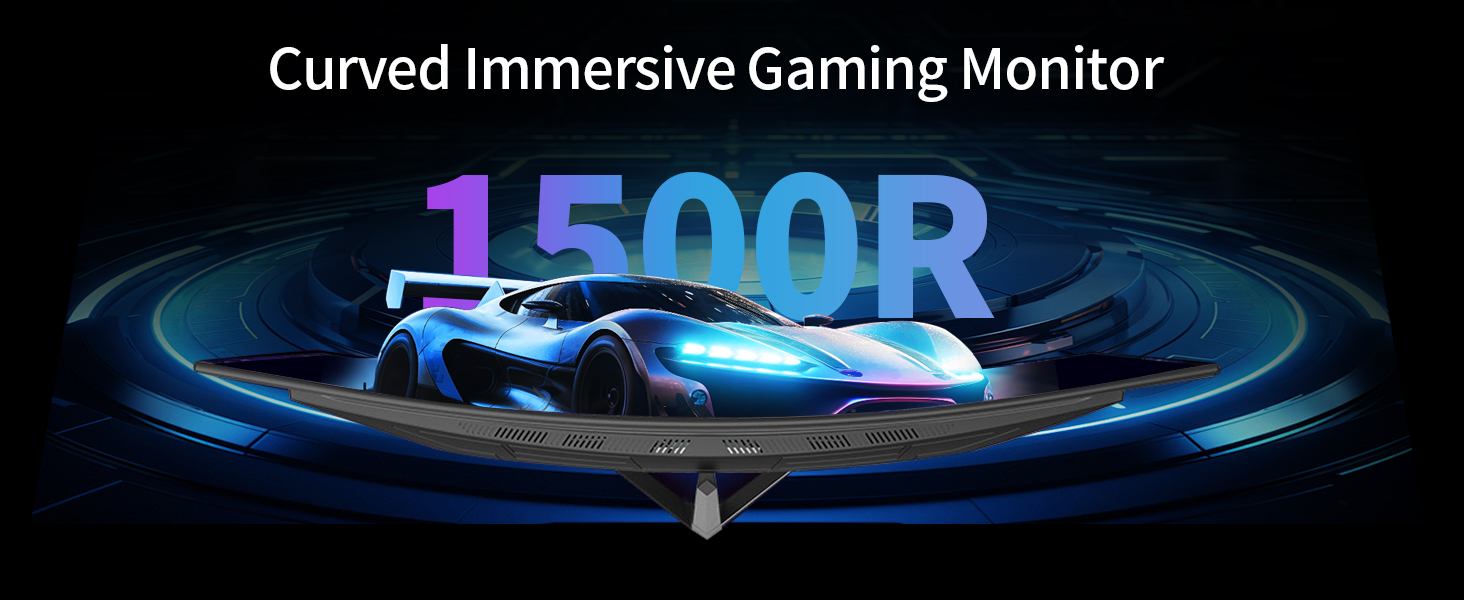
Image: A diagram illustrating the various input and output ports located on the back of the ZZA monitor, including DC IN, HDMI, DisplayPort, and Audio Out.
Operating Instructions
1. Power On/Off
Press the power button located on the monitor to turn it on or off. The power indicator light will illuminate when the monitor is active.
2. On-Screen Display (OSD) Menu
The OSD menu allows you to adjust various monitor settings. Use the control buttons (typically located on the back or bottom of the monitor) to navigate the menu. Common controls include Menu, Up, Down, Exit, and Power.
3. Picture Settings
Adjust the following settings for optimal visual quality:
- Brightness: Controls the overall luminance of the screen.
- Contrast: Adjusts the difference between light and dark areas.
- Color Temperature: Selects preset color modes (e.g., Warm, Cool, User).
- Aspect Ratio: Sets the display ratio (e.g., 16:9, 4:3).
4. Gaming Features
This monitor is equipped with features to enhance your gaming experience:
- 240Hz Refresh Rate: Provides ultra-smooth motion for fast-paced games. Ensure your graphics card and connection cable support this refresh rate.
- 1ms Response Time: Minimizes motion blur and ghosting.
- FreeSync Premium: Synchronizes the monitor's refresh rate with your GPU's frame rate to eliminate screen tearing and stuttering. Enable FreeSync in your graphics card settings and the monitor's OSD menu.
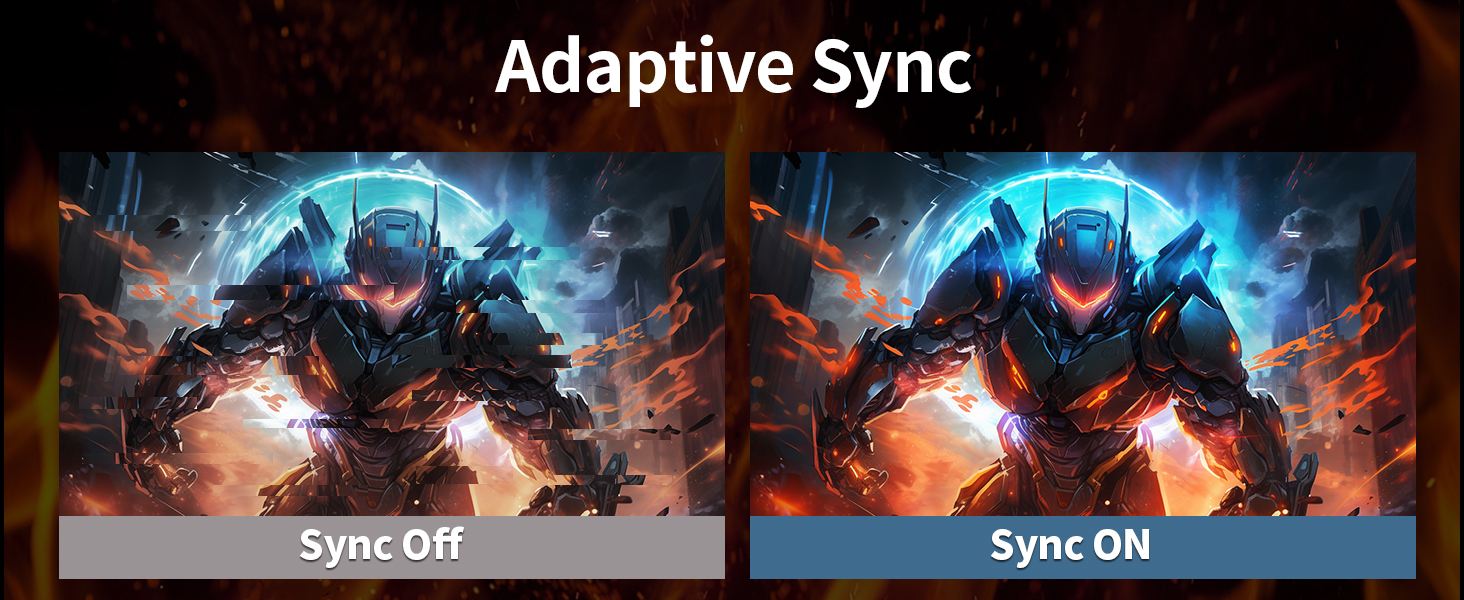
Image: A graphic comparing the smoothness of a 240Hz refresh rate versus a conventional 144Hz refresh rate, highlighting the enhanced visual fluidity.

Image: A graphic demonstrating the Adaptive Sync feature, showing a comparison between 'Sync Off' (with screen tearing) and 'Sync On' (with smooth visuals).
5. Eye Protection Features
The monitor includes features to reduce eye strain during prolonged use:
- Flicker-Free Technology: Eliminates screen flickering, which can cause eye fatigue.
- Blue Light Filter: Reduces harmful blue light emissions. This can be adjusted or enabled/disabled via the OSD menu.

Image: A graphic illustrating the effect of the blue light filter, showing a split screen with and without the filter applied to a gaming scene.
Maintenance
To ensure the longevity and optimal performance of your monitor, follow these maintenance guidelines:
- Cleaning the Screen: Gently wipe the screen with a soft, lint-free cloth. For stubborn marks, dampen the cloth with a small amount of screen cleaner (do not spray directly onto the screen).
- Cleaning the Casing: Use a soft, dry cloth to wipe the monitor casing. Avoid abrasive cleaners or solvents.
- Ventilation: Ensure the monitor's ventilation openings are clear of dust and obstructions.
- Power Off: Always turn off and unplug the monitor before cleaning.
Troubleshooting
If you encounter issues with your monitor, refer to the following common problems and solutions:
| Problem | Possible Cause | Solution |
|---|---|---|
| No image on screen | Power cable disconnected; Input source incorrect; Device not powered on. | Check power connections; Select correct input source via OSD; Ensure connected device is on. |
| Image is blurry or distorted | Incorrect resolution; Cable connection loose or faulty. | Set display resolution to 1920x1080; Reconnect or replace display cable. |
| Screen flickering | Refresh rate mismatch; Faulty cable. | Ensure refresh rate is set correctly (e.g., 240Hz); Try a different display cable. |
| No audio | External speakers not connected; Audio settings incorrect. | Connect external speakers/headphones to the 3.5mm jack; Adjust audio output settings on your device and monitor. |
Specifications
| Feature | Specification |
|---|---|
| Model Number | Z32D |
| Screen Size | 32 Inches |
| Panel Type | VA |
| Curvature | 1500R |
| Resolution | FHD 1920 x 1080 |
| Refresh Rate | 240Hz (via DisplayPort) |
| Response Time | 1ms |
| Adaptive Sync | FreeSync Premium |
| Connectivity | 2x HDMI 2.0, 2x DisplayPort 1.4, 1x USB, 1x 3.5mm Audio Jack, 1x DC IN 12V |
| VESA Compatibility | 100mm x 100mm |
| Tilt Adjustment | -5° to 15° |
| Product Dimensions (with stand) | 30.7 x 4.72 x 19.6 inches |
| Item Weight | 13.77 pounds |
Warranty and Support
The ZZA 32" Curved Gaming Monitor comes with a 1-year warranty. For technical support or warranty inquiries, please contact ZZA customer service at zza-direct@outlook.com. Our dedicated technical support team is available to assist you.