
1. Introduction
The SEQURE WiFi-Link is a specialized programmer designed for use with ESCape32 open-source Electronic Speed Controllers (ESCs). This tool enables convenient programming of parameters, configuration adjustments, and firmware updates directly from your mobile phone via a WiFi connection. This eliminates the need for a laptop, offering a portable and efficient solution for managing your ESCape32 ESCs.
2. Product Overview
The SEQURE WiFi-Link is a compact and lightweight device engineered for seamless integration with compatible ESCape32 ESCs. Its design prioritizes ease of use and portability.


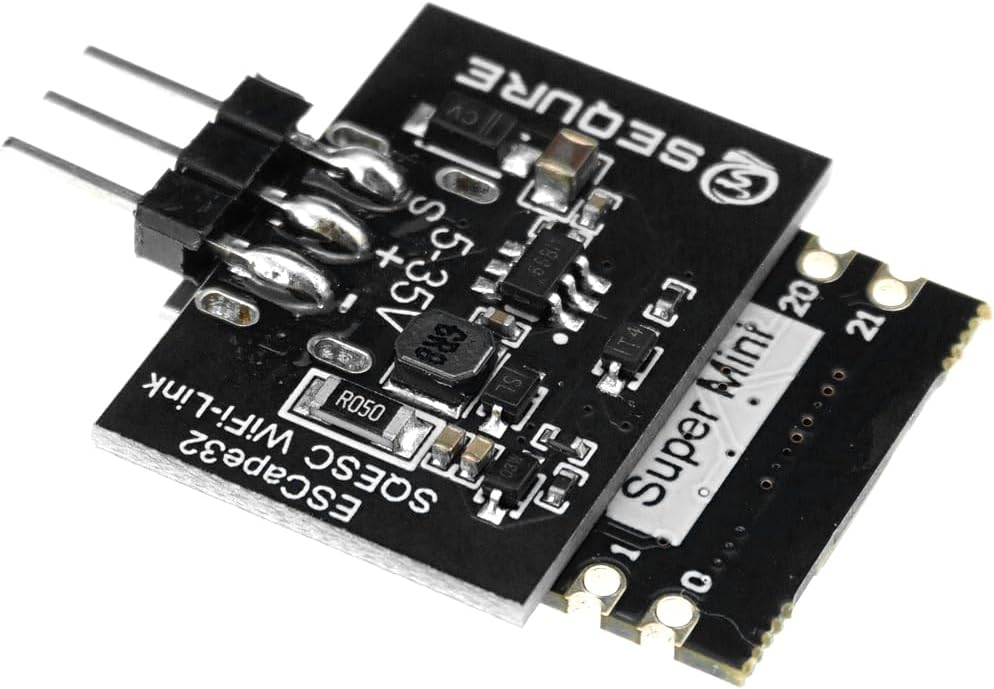


3. Specifications
| Feature | Detail |
|---|---|
| Brand | SEQURE |
| Product Dimensions | 1.1 x 0.7 x 0.3 inches |
| Item Weight | 0.634 ounces (approx. 18 grams) |
| Material | Metal |
| Color | Black |
| Display Type | No Display |
| Compatibility | ESCape32 open source ESCs |
| Incompatible with | ESCs with AM32/BLheli_32 firmware |
4. Setup and Connection
To begin using your SEQURE WiFi-Link, follow these steps to connect it to your ESC and computer for initial setup or firmware updates:
- Connect to PC: Connect the SEQURE WiFi-Link to your computer using a USB-C cable. Ensure the necessary USB drivers are installed.
- Input Power to ESC: Connect your ESC to a power source (e.g., battery). The WiFi-Link requires power from the ESC to function.
- Launch Configuration Software: Open the appropriate ESCape32 configuration software (GUI) on your computer.
- Connect GUI: Within the software, select the correct COM port and click 'Connect' to establish communication with the WiFi-Link and ESC.
- Flash Firmware (if needed): Navigate to the 'Flash' tab in the software. Load the desired ESCape32 firmware file (.hex) and click 'Flash Firmware' to update your ESC.
- Configure Settings: Go to the 'Settings' tab. Adjust parameters as required for your specific application. It is recommended to click 'Send Default Settings' first, then customize. Remember to click 'Save Settings' after making changes.
- Verify and Disconnect: After saving settings, you can re-read them to confirm. Once complete, click 'Close Connection' and disconnect the WiFi-Link.
For a visual demonstration of the ESC configuration and firmware flashing process, please refer to the video below. Note that the specific ESC shown in the video is for an AM32 system, which is not compatible with the SEQURE WiFi-Link. However, the general steps for connecting to a GUI, flashing firmware, and adjusting settings are similar.
Video 1: Demonstration of connecting an ESC to a PC for firmware flashing and settings configuration. This video illustrates the general process, though the specific ESC shown is not compatible with the SEQURE WiFi-Link.
5. Operating the WiFi-Link
Once the initial setup is complete, the SEQURE WiFi-Link allows for wireless configuration and updates of your ESCape32 ESCs using a mobile device. The specific application for mobile configuration will depend on the ESCape32 ecosystem and should be downloaded from official sources.
5.1. Wireless Connection
- Power on your ESC with the SEQURE WiFi-Link connected.
- On your mobile device, search for available WiFi networks. The WiFi-Link should broadcast a network name (SSID) related to ESCape32 or SEQURE.
- Connect to this WiFi network. Default passwords, if any, will be provided with the ESCape32 documentation.
- Open the dedicated ESCape32 mobile application. The app should automatically detect and connect to the ESC via the WiFi-Link.
5.2. Parameter Configuration
Through the mobile application, you can adjust various ESC parameters, such as motor timing, PWM frequency, startup power, and brake settings. Refer to the ESCape32 documentation for detailed explanations of each parameter.
5.3. Firmware Updates
The mobile application also supports wireless firmware updates. Ensure you have downloaded the latest compatible ESCape32 firmware to your mobile device before initiating an update. Follow the in-app instructions carefully to avoid interruption during the flashing process.
6. Maintenance
The SEQURE WiFi-Link is designed for durability. To ensure its longevity and optimal performance:
- Keep the device clean and free from dust and debris.
- Store in a dry environment, away from extreme temperatures.
- Avoid physical impact or excessive force on connectors.
- Regularly check for firmware updates for the WiFi-Link itself, if provided by SEQURE, to ensure compatibility and performance improvements.
7. Troubleshooting
If you encounter issues with your SEQURE WiFi-Link, consider the following common problems and solutions:
- No Connection to ESC:
- Ensure the ESC is powered on and correctly connected to the WiFi-Link.
- Verify that the WiFi-Link is receiving power from the ESC (5-35V).
- Check the USB-C cable connection to the PC and the selected COM port in the GUI.
- WiFi Network Not Visible:
- Confirm the WiFi-Link is powered on.
- Try restarting the ESC and WiFi-Link.
- Ensure your mobile device's WiFi is enabled and scanning for networks.
- Compatibility Issues:
- IMPORTANT: This programmer is NOT compatible with ESCs running AM32/BLheli_32 firmware. Ensure your ESC uses ESCape32 open-source firmware.
- Firmware Update Failure:
- Ensure a stable power supply to the ESC during the update.
- Do not interrupt the connection during the flashing process.
- Verify that the firmware file is correct and not corrupted.
8. Safety Information
No specific safety warnings are provided for this product. Always handle electronic components with care and follow general safety practices for RC equipment, including:
- Disconnect power before making or changing connections.
- Avoid short circuits.
- Keep out of reach of children.
- Operate in a well-ventilated area.
9. Warranty and Support
For warranty information and technical support, please refer to the official SEQURE website or contact your retailer. Keep your proof of purchase for any warranty claims.