
Product Overview
The Netis AC1200 Wireless Router is engineered to deliver fast and reliable internet connectivity. Featuring dual-band 2.4GHz and 5GHz frequencies, it offers wireless speeds up to 1200Mbps, ensuring smooth streaming, gaming, and browsing. The router incorporates MU-MIMO technology for efficient multi-device connections and supports various operating modes, including Router, Repeater, and Access Point.
Key features of this router include:
- Ultra-Fast Speeds Up to 1200Mbps (2.4GHz and 5GHz bands)
- Intuitive Mobile App-Based Management
- Advanced MU-MIMO Technology for multiple simultaneous connections
- Optimized for Gaming and 4K Streaming
- Four 10/100Mbps Ethernet ports for wired devices
What's in the Box
Please verify that all the following items are included in your product package:
- Netis AC1200 Wireless Router Body
- Power Adapter
- Ethernet Cable
- User Manual
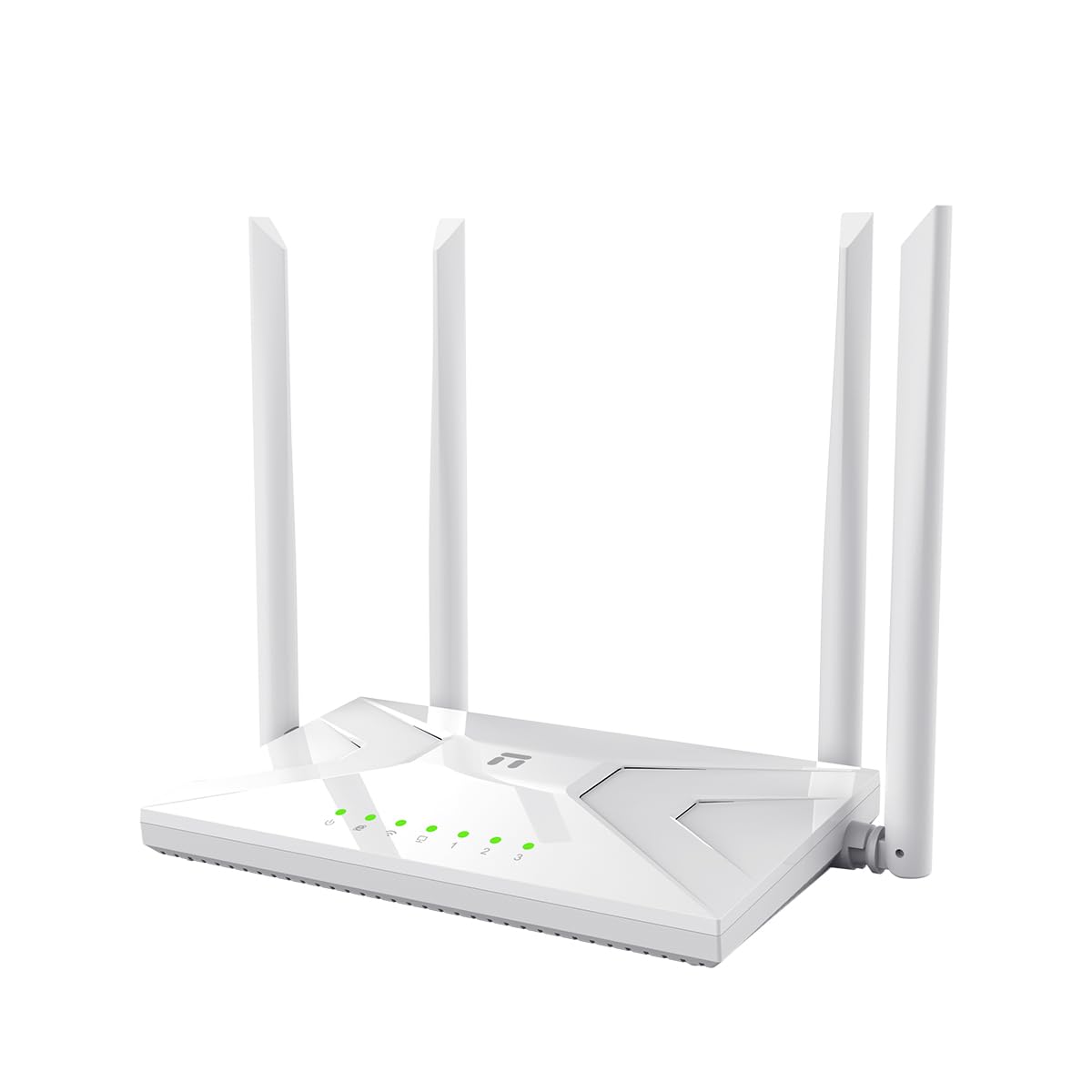
Image: The Netis AC1200 Wireless Router, its power adapter, an ethernet cable, and the user manual are shown as the package contents.
Setup Guide
1. Hardware Connection
- Power On: Connect the provided power adapter to the router's power port. Plug the other end of the adapter into a standard electrical outlet.
- Connect to Modem: Use the included Ethernet cable to connect your internet modem's LAN port to the WAN port (typically colored blue) on the Netis router.
- Connect Devices (Optional): For wired network access, connect an Ethernet cable from your computer or other network devices to any of the router's LAN ports (typically colored yellow).
Image: A visual representation of the router's rear panel with labeled ports for power, WAN, and LAN connections, demonstrating proper hardware setup.
2. Initial Configuration (Router Mode)
- Connect to Router: Connect your computer to the router. You can do this either by plugging an Ethernet cable into a LAN port or by connecting wirelessly using the default Wi-Fi name (SSID) and password found on the router's label.
- Access Web Interface: Open a web browser (e.g., Chrome, Firefox, Edge) and type the default IP address (e.g., 192.168.1.1) or domain name (e.g., netis.cc) into the address bar. Press Enter.
- Login: When prompted, enter the default username and password. These are typically 'admin' for both, but always refer to the label on your router for exact credentials.
- Run Quick Setup: Follow the on-screen instructions of the Quick Setup Wizard. This wizard will guide you through configuring your internet connection type (e.g., DHCP, Static IP, PPPoE) and setting up your personalized wireless network name (SSID) and password.
- Save Settings: Apply the configured settings. The router may prompt you to restart for the changes to take effect.
3. Mobile App Management
The Netis AC1200 Wireless Router offers convenient management through a dedicated mobile application. This app simplifies setup, monitoring, and control of your network settings from your smartphone.
- Download App: Search for the "Netis" app in your device's respective app store (Google Play Store for Android, Apple App Store for iOS).
- Install and Launch: Install the application on your smartphone and open it.
- Connect to Router: Ensure your smartphone is connected to the router's Wi-Fi network.
- Follow In-App Instructions: The app will provide step-by-step guidance to connect to your router and manage various settings, including parental controls, guest networks, and device prioritization.
Operating Modes
The Netis AC1200 Wireless Router supports multiple operating modes to adapt to different networking environments and requirements.
1. Router Mode (Default)
In Router Mode, the device functions as the primary gateway for your network. It connects to your internet modem and distributes internet access to all connected devices, both wired and wireless. This mode provides essential network services such as Network Address Translation (NAT), DHCP server functionality, and a built-in firewall.
2. Repeater Mode
Repeater Mode is used to extend the coverage of an existing wireless network. The router connects to an existing Wi-Fi signal and re-broadcasts it, effectively expanding the wireless range and eliminating Wi-Fi dead zones.
- Access Web Interface: Log in to the router's web management page using a web browser.
- Navigate to Operation Mode: Locate the "Operation Mode" or "Wireless Settings" section within the interface.
- Select Repeater Mode: Choose "Repeater" or "Range Extender" mode from the available options.
- Scan for Networks: The router will scan for nearby Wi-Fi networks. Select the network you wish to extend.
- Enter Password: Input the wireless password for the selected network.
- Save and Reboot: Apply the settings and allow the router to reboot for the changes to take effect.
3. Access Point (AP) Mode
In AP Mode, the router connects to an existing wired network and transforms it into a wireless network. This mode is ideal for adding Wi-Fi capability to a wired-only network or extending a wired network wirelessly.
- Access Web Interface: Log in to the router's web management page.
- Navigate to Operation Mode: Find the "Operation Mode" or "Wireless Settings" section.
- Select AP Mode: Choose "Access Point" mode.
- Configure Wireless Settings: Set up your desired Wi-Fi name (SSID) and password for the new wireless network.
- Connect to Main Router: Connect an Ethernet cable from a LAN port of your main router to the WAN/LAN port of the Netis router (when in AP mode, the WAN port often functions as an additional LAN port).
- Save and Reboot: Apply the settings and allow the router to reboot.
Maintenance
- Regular Firmware Updates: Periodically check the official Netis website for the latest firmware updates. Firmware updates can enhance performance, introduce new features, and address security vulnerabilities.
- Router Placement: For optimal Wi-Fi coverage, position the router in a central location within your home or office. Avoid placing it near obstructions, large metal objects, or sources of interference such as microwaves and cordless phones.
- Cleaning: Keep the router clean and free from dust accumulation. Use a soft, dry cloth to gently wipe the exterior. Do not use liquid cleaners or abrasive materials.
- Restarting: Regularly restarting your router (also known as power cycling) can resolve minor network issues, refresh network connections, and improve overall performance. To do this, unplug the power adapter, wait for 10-15 seconds, and then plug it back in.
- Security: To enhance network security, regularly change your Wi-Fi password and the router's administrative login credentials. Ensure that WPA2 or WPA3 encryption is enabled for your wireless network.
Troubleshooting
- No Internet Access:
- Verify that your internet modem is functioning correctly and has an active internet connection.
- Ensure the Ethernet cable from your modem is securely connected to the router's WAN port.
- Perform a restart (power cycle) of both your modem and the Netis router.
- Access the router's web interface and confirm that your internet connection settings are correctly configured.
- Slow Wi-Fi Speed:
- Relocate the router to a more central position, away from physical obstructions and potential sources of interference.
- Ensure your devices are connected to the appropriate Wi-Fi band (5GHz for higher speeds, 2.4GHz for broader coverage).
- Check for and install any available firmware updates for your router.
- Reduce the number of active devices or bandwidth-intensive activities on your network.
- Cannot Access Router Web Interface:
- Confirm that your device is properly connected to the router's network, either via Ethernet cable or Wi-Fi.
- Double-check the IP address or domain name entered in your web browser (e.g., 192.168.1.1 or netis.cc).
- Try using a different web browser to access the interface.
- If you have forgotten the login password, a factory reset may be necessary (refer to the 'Factory Reset' section below).
- Factory Reset:
To restore the router to its original factory default settings, follow these steps:
- With the router powered on, locate the small Reset button (usually recessed in a tiny hole on the back panel).
- Using a paperclip or a similar pointed object, press and hold the Reset button for approximately 5-10 seconds until the router's indicator lights begin to flash.
- Release the button and allow the router to complete its reboot process. All custom configurations will be erased, and you will need to reconfigure the router from scratch.
Specifications
| Feature | Detail |
|---|---|
| Model Number | NC21 |
| Wireless Type | 802.11ac, 802.11n |
| Frequency Band Class | Dual-Band (2.4GHz & 5GHz) |
| Wireless Speed | Up to 1200Mbps |
| Antenna Type | Fixed, 4 x Antennas |
| Ethernet Ports | 4 x 10/100Mbps LAN Ports, 1 x 10/100Mbps WAN Port |
| Special Features | Access Point Mode, Beamforming, Internet Security, Parental Control, QoS, MU-MIMO |
| Operating System | RouterOS |
| Product Dimensions (LxWxH) | 10 x 3 x 10 inches |
| Item Weight | 1.2 pounds |
| Voltage | 12 Volts |
Warranty Information
Netis products typically include a limited warranty. For precise warranty terms and conditions, please refer to the warranty card provided within your product packaging or visit the official Netis website. It is important to retain your purchase receipt as proof of purchase for any potential warranty claims.
Note: The warranty generally does not cover damage resulting from accidents, misuse, unauthorized modifications, or natural disasters.
Technical Support
Should you encounter any issues or have questions regarding your Netis AC1200 Wireless Router, please contact Netis technical support for assistance.
- Official Website: Visit the official Netis website for access to Frequently Asked Questions (FAQs), firmware downloads, and additional support resources.
- Contact Information: Refer to the contact section on the Netis website or your product packaging for specific phone numbers or email addresses for technical assistance.
Before contacting support, please ensure you have your router's model number (NC21) and serial number readily available.


