
Introduction
Welcome to your new ACUMEN M4 2CH 4K Rear View Mirror Dash Cam. This device is designed to enhance your driving safety and provide reliable video recording of your journeys. Please read this manual thoroughly before installation and operation to ensure proper use and optimal performance.

Image: ACUMEN M4 2CH Mirror Dash Cam providing an expanded view from inside a vehicle.
Product Overview
Key Features
- 4K UHD Front Camera: Records 2160P video with a 140° wide-angle lens, capturing clear details.
- 2.5K Rear Camera: Records 1440P video with a 155° wide-angle lens, reducing blind spots.
- WDR Technology: Ensures clear image quality in varying light conditions (day and night).
- 12-inch Touch Screen: Intuitive interface for easy control and footage review.
- Built-in GPS: Provides accurate route tracking.
- 5.8G WiFi: Enables fast download and sharing of footage.
- G-Sensor: Automatically locks collision footage.
- Loop Recording: Continuous recording, overwriting oldest files when the memory card is full.
- Time-Lapse Parking Mode: 24/7 surveillance for parking protection.
- Supports up to 256GB Memory: Expandable storage for extended recording.

Image: Visual summary of the ACUMEN M4 2CH's primary features.
Components
The ACUMEN M4 2CH package typically includes the following items:
- ACUMEN M4 2CH Mirror Dash Cam Unit
- Rear Camera
- GPS Module
- Hardwire Kit
- 64GB Memory Card (may vary by package)
- Power Cable
- Rear Camera Cable
- Mounting Straps/Bands

Image: Contents of the ACUMEN M4 2CH package.
Setup and Installation
Mounting the Mirror Dash Cam
- Secure the mirror dash cam over your existing rearview mirror using the provided rubber straps. Ensure it is firmly attached and does not obstruct your view.
- Adjust the angle of the front camera lens to capture the desired field of view.
Installing the Rear Camera
- Choose a suitable location for the rear camera, typically above the license plate or inside the rear window.
- Route the rear camera cable from the rear of the vehicle to the main mirror unit, ensuring it is tucked away neatly to avoid interference.
- Connect the rear camera cable to the designated port on the mirror dash cam.

Image: ACUMEN M4 2CH mirror dash cam mounted in a vehicle.
Connecting Power
- Connect the power cable to the Type-C port on the mirror dash cam.
- Route the power cable along the vehicle's trim to the cigarette lighter socket or use the hardwire kit for a permanent installation.
- If using the hardwire kit, follow the instructions provided with the kit for connecting to your vehicle's fuse box to enable parking mode functionality.
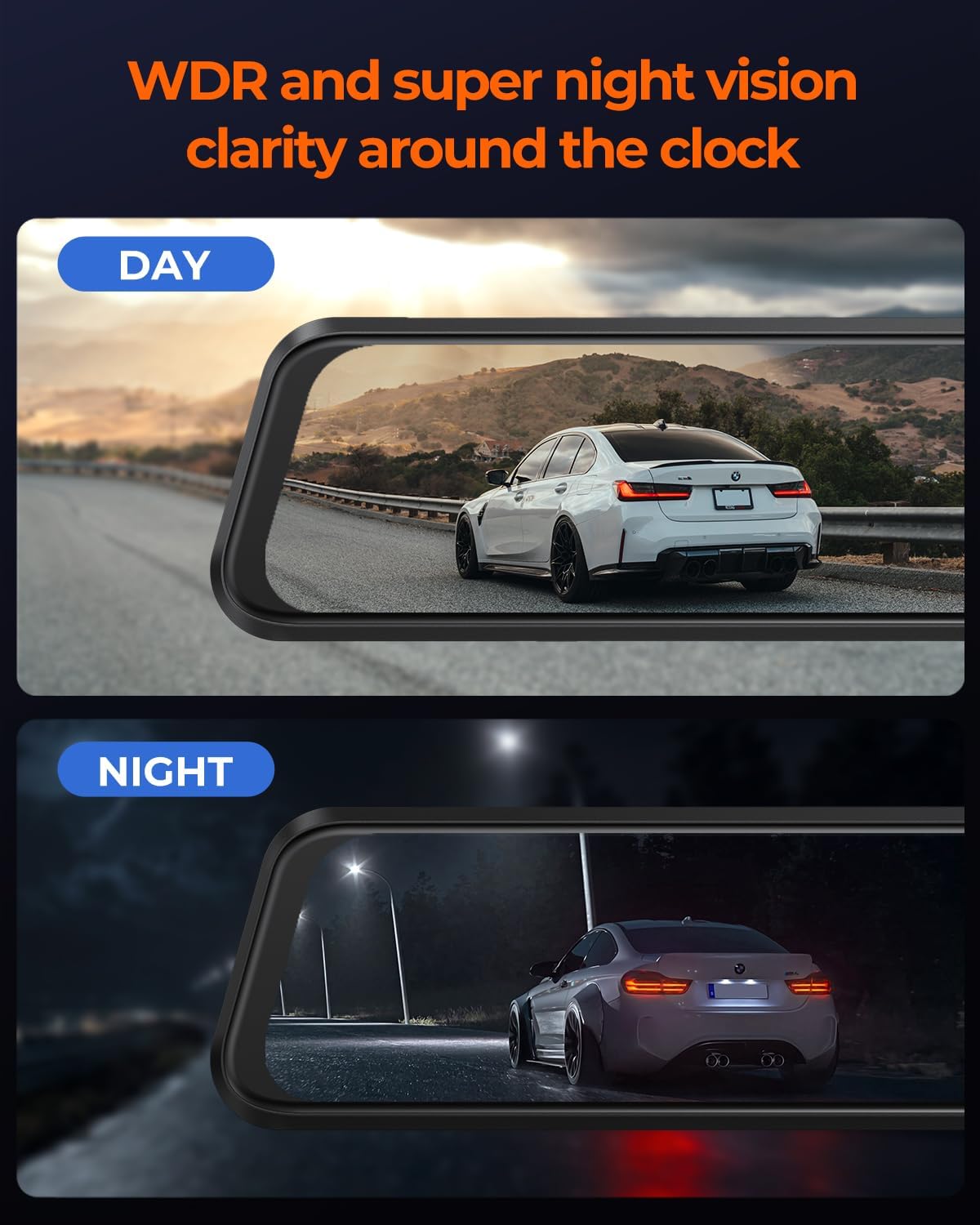
Image: Secure power and camera cable connections.
GPS Module Installation
- Connect the GPS module to the designated port on the mirror dash cam.
- Mount the GPS module on the dashboard or windshield in a location with a clear view of the sky to ensure optimal signal reception.
Operating Instructions
Powering On/Off
- The device will automatically power on and begin recording when the vehicle's ignition is turned on.
- To manually power off, press and hold the power button. The device will automatically power off when the vehicle's ignition is turned off.
Touch Screen Interface
The 12-inch touch screen allows for intuitive control and navigation. Swipe gestures and tap icons to access various functions and settings.

Image: ACUMEN M4 2CH touch screen interface.
Recording Modes
- Loop Recording: The dash cam continuously records video in segments. When the memory card is full, it automatically overwrites the oldest unlocked files.
- G-Sensor (Emergency Recording): In the event of a sudden impact or collision, the built-in G-sensor detects the event and automatically locks the current video footage to prevent it from being overwritten.
- Parking Monitoring (Time-Lapse): When connected via the hardwire kit, the dash cam can monitor your vehicle 24/7. In time-lapse mode, it records at a low frame rate to conserve storage while providing continuous surveillance.

Image: G-Sensor automatically locks collision footage.

Image: 24/7 loop recording with time-lapse parking mode.
Viewing Footage
- On Device: Access recorded videos directly on the 12-inch touch screen.
- Via App: Use the dedicated mobile application to view, download, and manage footage wirelessly via WiFi.
GPS Tracking
The built-in GPS module records your driving route, speed, and location data. This information can be viewed alongside your video footage via the mobile app or dedicated PC viewer.

Image: Built-in GPS provides accurate route tracking.
WiFi Connectivity and App Usage
Connect your smartphone to the dash cam via 5.8G WiFi for fast file transfer and easy access to settings and live view through the ACUMEN app.

Image: 5.8G WiFi enables fast download and sharing of footage.
Rear View Display and Parking Assist
The rear camera feed is displayed on the mirror screen, providing an expanded view of the area behind your vehicle. When reversing, adjustable parking guidelines appear to assist with maneuvering.

Image: Rear view display with adjustable parking assist lines.
Maintenance
Cleaning the Device
Use a soft, dry cloth to clean the mirror screen and camera lenses. Avoid using abrasive cleaners or solvents that could damage the surfaces.
Memory Card Management
- Regularly format the memory card (e.g., once a month) to ensure optimal performance and prevent data corruption.
- Use a high-quality, high-speed (Class 10 or U3 recommended) microSD card from a reputable brand.
Firmware Updates
Check the ACUMEN official website periodically for available firmware updates. Follow the provided instructions carefully to update the device firmware, which can improve performance and add new features.
Troubleshooting
Common Issues and Solutions
- Device not powering on: Ensure the power cable is securely connected and the vehicle's power outlet is functioning. Check the fuse if using a hardwire kit.
- Recording issues: Format the memory card. Ensure the memory card is inserted correctly and is not full. Check for any error messages on the screen.
- Poor image quality: Clean the camera lenses. Ensure the protective film has been removed from the lenses. Check video resolution settings.
- GPS signal loss: Ensure the GPS module has a clear view of the sky. Avoid mounting it under metal objects that could block the signal.
- WiFi connection problems: Ensure the ACUMEN app is installed and updated. Restart both the dash cam and your smartphone.
Specifications
| Feature | Detail |
|---|---|
| Product Dimensions | 0.5 x 10 x 2.7 inches |
| Item Weight | 11.2 ounces |
| Item Model Number | M4 |
| Connectivity Technologies | Type C |
| Special Features | Built-In Display, Built-In GPS, Night Vision |
| Color | Black |
| Vehicle Service Type | Car |
| Video Capture Resolution | 1080p (Note: Front camera records 4K, rear 2.5K, 1080p might be a general spec or default setting) |
| Included Components | Hardwire Kit |
| Mounting Type | Rearview Mirror Mount |
| Field Of View | 155 Degrees (Rear Camera) |
| Control Method | Touch |
| Manufacturer | Acumen Robot Intelligence Inc |
| Date First Available | September 11, 2024 |
Warranty and Support
Warranty Information
ACUMEN products are covered by a comprehensive warranty. This typically includes a 30-day money-back guarantee and quality assurance. For specific warranty terms and conditions, please refer to the documentation included with your product or visit the official ACUMEN website.
Contact Support
For technical support, warranty claims, or any inquiries regarding your ACUMEN M4 2CH dash cam, please contact ACUMEN customer service:
Email: info@acumen-camera.com

Image: ACUMEN warranty and support information.