
1. Introduction
Thank you for choosing the Advwin Model 2200 Black Computer Desk. This manual provides essential information for the safe assembly, operation, and maintenance of your new desk. Please read these instructions carefully before beginning assembly and retain them for future reference.

Image 1.1: The Advwin Model 2200 Black Computer Desk, featuring RGB LED lighting, a monitor stand, and integrated storage drawers.
2. Safety Information
- Always assemble the desk on a soft, clean surface to prevent scratches.
- Ensure all screws and fasteners are securely tightened before use. Periodically check and re-tighten as necessary.
- Do not overload the desk or shelves beyond their stated weight capacity.
- Keep small parts and packaging materials away from children to prevent choking hazards.
- Avoid placing hot items directly on the desk surface without protection.
- Ensure power cables for the LED lights and outlets are routed safely to prevent tripping hazards or damage.
3. Package Contents
Before assembly, verify that all components are present and undamaged. If any parts are missing or damaged, please contact customer support.
- Desk frame components (metal legs, crossbars)
- Desk tabletop and monitor stand panels (engineered wood)
- Four fabric drawers
- Power outlet unit with USB ports
- RGB LED light strip
- Assembly hardware (screws, bolts, Allen wrench)
- Instruction manual
4. Setup
4.1 Assembly Instructions
Follow the numbered steps below for proper assembly. It is recommended to have two people for certain steps to ensure stability and ease of construction.

Image 4.1: Visual guide illustrating the five main assembly stages of the desk, from frame construction to drawer installation.
- Step 1: Assemble the Main Frame. Connect the metal legs and crossbars using the provided hardware. Ensure all connections are firm but do not fully tighten screws until the entire frame is assembled.
- Step 2: Attach Desk Panels. Secure the main tabletop and side panels to the assembled metal frame.
- Step 3: Install Monitor Stand. Position and secure the monitor stand to the main tabletop. This stand is designed to elevate your screen for ergonomic viewing.
- Step 4: Insert Fabric Drawers. Place the four fabric drawers into their designated compartments. The drawers can be arranged on either the left or right side according to your preference.
- Step 5: Install Power Unit and LED Lights. Integrate the power outlet unit into its designated slot on the desk. Attach the RGB LED light strip to the underside of the monitor stand or desk edge as desired.
- Step 6: Final Tightening. Once all components are in place, carefully tighten all screws and bolts to ensure the desk is stable and secure.
4.2 Ergonomic Monitor Stand
The integrated monitor stand helps elevate your screen to an optimal viewing height, promoting better posture and reducing strain on your neck and back during extended use.

Image 4.2: Comparison showing improved posture with the monitor stand installed versus without it.
5. Operating Instructions
5.1 Using the RGB LED Lights
The desk features integrated RGB LED lighting. Connect the LED light strip to a power source using the provided cable. Use the inline controller or remote (if included) to adjust the lighting settings.

Image 5.1: Diagram illustrating the control options for the RGB LED lights, including 20 static colors, 21 dynamic modes, adjustable brightness, and adjustable speed.
- Static Colors: Choose from 20 different static color options to match your mood or environment.
- Dynamic Modes: Select from 21 dynamic lighting effects, such as fading, flashing, or color cycling.
- Brightness Adjustment: Increase or decrease the intensity of the lights.
- Speed Adjustment: For dynamic modes, adjust the speed at which the effects transition.
5.2 Using the Power Outlets and USB Ports
The desk includes a built-in power strip with 2 AC outlets and 2 USB ports for convenient charging and powering of your devices. Connect the desk's main power cord to a wall outlet.

Image 5.2: Close-up view of the integrated power unit, showing 2 AC outlets, 2 USB ports, and the single power cord for connection.
- Plug your computer, monitor, or other AC-powered devices into the 2 AC outlets.
- Use the 2 USB ports to charge smartphones, tablets, or other USB-powered accessories.
- Ensure the total power draw of connected devices does not exceed the desk's rated capacity.
5.3 Utilizing Storage Drawers
The four fabric drawers provide ample storage for documents, office supplies, or gaming accessories, helping to keep your workspace organized.

Image 5.3: Detailed view highlighting key features such as waterproof particle board, fabric drawers, mesh shelves, and adjustable feet.
- The drawers are designed for easy access and can hold various items.
- The fabric construction allows for flexibility and lightweight storage.
6. Maintenance
6.1 Cleaning the Desk Surfaces
The desk surface is made of engineered wood with a waterproof finish, making it easy to clean.
- Wipe the desk surface with a soft, damp cloth.
- For stubborn marks, use a mild, non-abrasive cleaner.
- Avoid harsh chemicals or abrasive cleaning tools that could damage the finish.
- Dry the surface immediately after cleaning to prevent water spots.
6.2 Care for Fabric Drawers
- Spot clean fabric drawers with a damp cloth and mild soap if necessary.
- Allow drawers to air dry completely before placing items inside.
- Do not machine wash or tumble dry the fabric drawers.
7. Troubleshooting
| Issue | Possible Cause | Solution |
|---|---|---|
| Desk is wobbly | Loose screws; uneven floor | Tighten all assembly screws. Adjust the leveling feet at the bottom of the desk legs. |
| LED lights not working | Power connection issue; faulty strip | Ensure the LED strip is properly connected to its power source and the wall outlet. Check for any visible damage to the strip or cable. |
| Power outlets/USB ports not working | Desk power cord unplugged; circuit overload | Verify the desk's main power cord is securely plugged into a functional wall outlet. Reduce the number of devices connected if overloaded. |
| Drawers do not slide smoothly | Improper installation; obstruction | Ensure drawers are inserted correctly and nothing is obstructing their path. |
8. Specifications
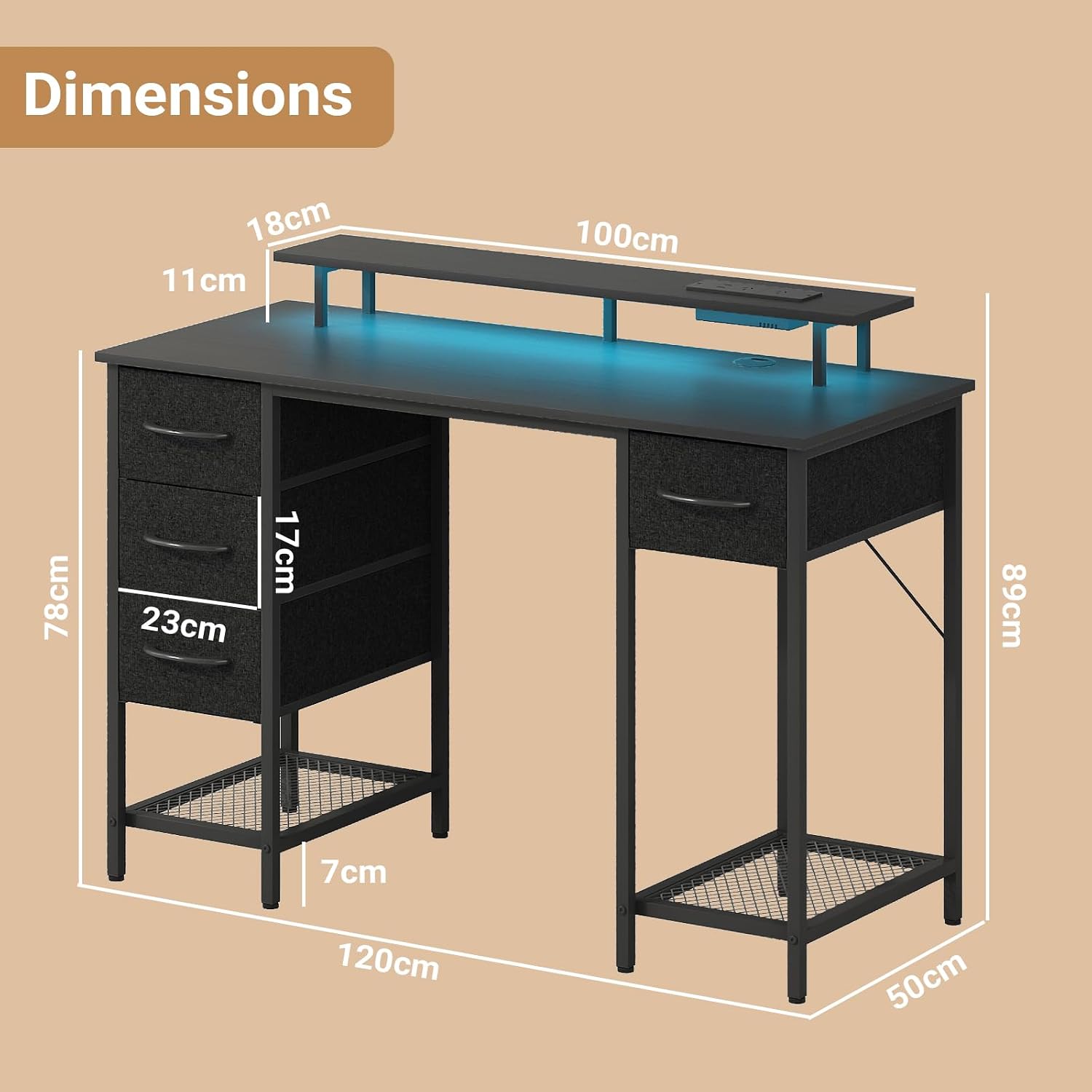
Image 8.1: Detailed dimensions of the Advwin Model 2200 Computer Desk, including overall width, depth, height, and monitor stand measurements.
| Feature | Detail |
|---|---|
| Model Number | 2200 |
| Brand | Advwin |
| Color | Black |
| Product Dimensions (D x W x H) | 19.69" x 47.24" x 30.71" (50cm x 120cm x 78cm) |
| Monitor Stand Dimensions (W x D x H) | 39.37" x 4.33" x 7.09" (100cm x 11cm x 18cm) |
| Material | Engineered Wood (Top), Metal (Frame), Fabric (Drawers) |
| Number of Drawers | 4 |
| Power Outlets | 2 AC Outlets |
| USB Ports | 2 USB Ports |
| LED Lighting | RGB, 20 Static Colors, 21 Dynamic Modes, Adjustable Brightness & Speed |
| Item Weight | 16.5 Kilograms |
| Assembly Required | Yes |
9. Warranty and Support
This product comes with a standard manufacturer's warranty. Please refer to the warranty card included in your package for specific terms and conditions. For any questions, missing parts, or assistance with assembly or operation, please contact Advwin customer support.
Contact information for support is typically found on the product packaging or the official Advwin website.