
Introduction
This manual provides essential information for the proper setup, operation, and maintenance of your Lenovo ThinkPad P16 Gen 2 mobile workstation. Please read this guide thoroughly to ensure optimal performance and longevity of your device. The ThinkPad P16 Gen 2 is designed for demanding professional tasks, featuring a powerful Intel Core i7-14700HX processor, NVIDIA RTX 1000 Ada graphics, and a high-resolution 16-inch WUXGA display.

Image: The Lenovo ThinkPad P16 Gen 2 laptop, showcasing its design and capability to handle professional applications like 3D CAD modeling.
Setup
1. Unpacking and Initial Inspection
Carefully remove all components from the packaging. Verify that the following items are present:
- Lenovo ThinkPad P16 Gen 2 Laptop
- Power Adapter
- Power Cord
Inspect the laptop for any physical damage. If any components are missing or damaged, contact your vendor immediately.
2. Connecting to Power
- Connect the power cord to the power adapter.
- Plug the power adapter into a suitable electrical outlet.
- Connect the power adapter's output cable to the power input port on your ThinkPad P16 Gen 2.
It is recommended to fully charge the battery before initial use, although the laptop can be used while charging.
3. Initial Boot and Operating System Setup
Press the power button to turn on your laptop. The system will guide you through the initial setup process for Windows 11 Pro. Follow the on-screen instructions to configure language, region, network settings, and user accounts.
4. Fingerprint Reader Setup
For enhanced security, configure the integrated fingerprint reader during the Windows 11 Pro setup or later via Windows Settings. This allows for quick and secure login.
Operating
1. Keyboard and Input Devices
The ThinkPad P16 Gen 2 features a full-sized backlit keyboard, a TrackPoint pointing device, and a multi-touch touchpad. Use the TrackPoint for precise cursor control and the touchpad for gestures and navigation.
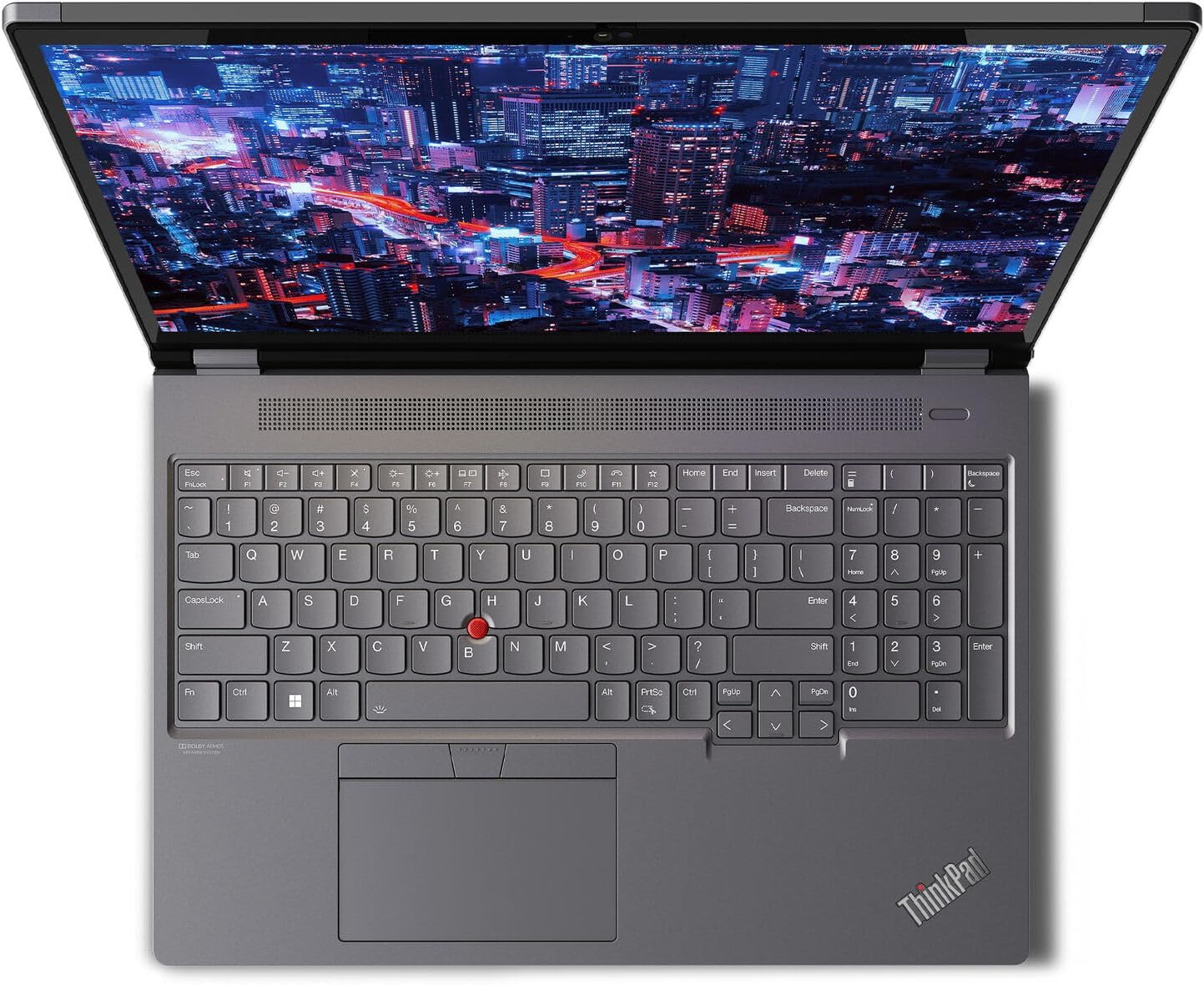
Image: A top-down perspective of the Lenovo ThinkPad P16 Gen 2, highlighting the keyboard layout, TrackPoint, and touchpad, with a dynamic image on the display.
2. Display Features
Your laptop is equipped with a 16-inch WUXGA (1920 x 1200) IPS Anti-Glare display, offering 400 nits brightness and 100% sRGB color accuracy at 60Hz. The anti-glare coating reduces reflections, improving visibility in various lighting conditions. The Low Blue Light feature helps reduce eye strain during extended use.

Image: Two Lenovo ThinkPad P16 Gen 2 laptops, one in an open position displaying a vibrant image, and another in a closed position, illustrating the device's form factor.
3. Ports and Connectors
The ThinkPad P16 Gen 2 provides a variety of ports for connectivity:
- USB 3.0 Ports: Four USB 3.0 ports are available for connecting peripherals such as external drives, keyboards, and mice.
- Other Ports: Depending on the specific configuration, additional ports may include Thunderbolt, HDMI, Ethernet, and an SD card reader. Refer to the physical layout of your device for exact port locations.

Image: A detailed view of the left side of the Lenovo ThinkPad P16 Gen 2, illustrating the arrangement of its various input/output ports.
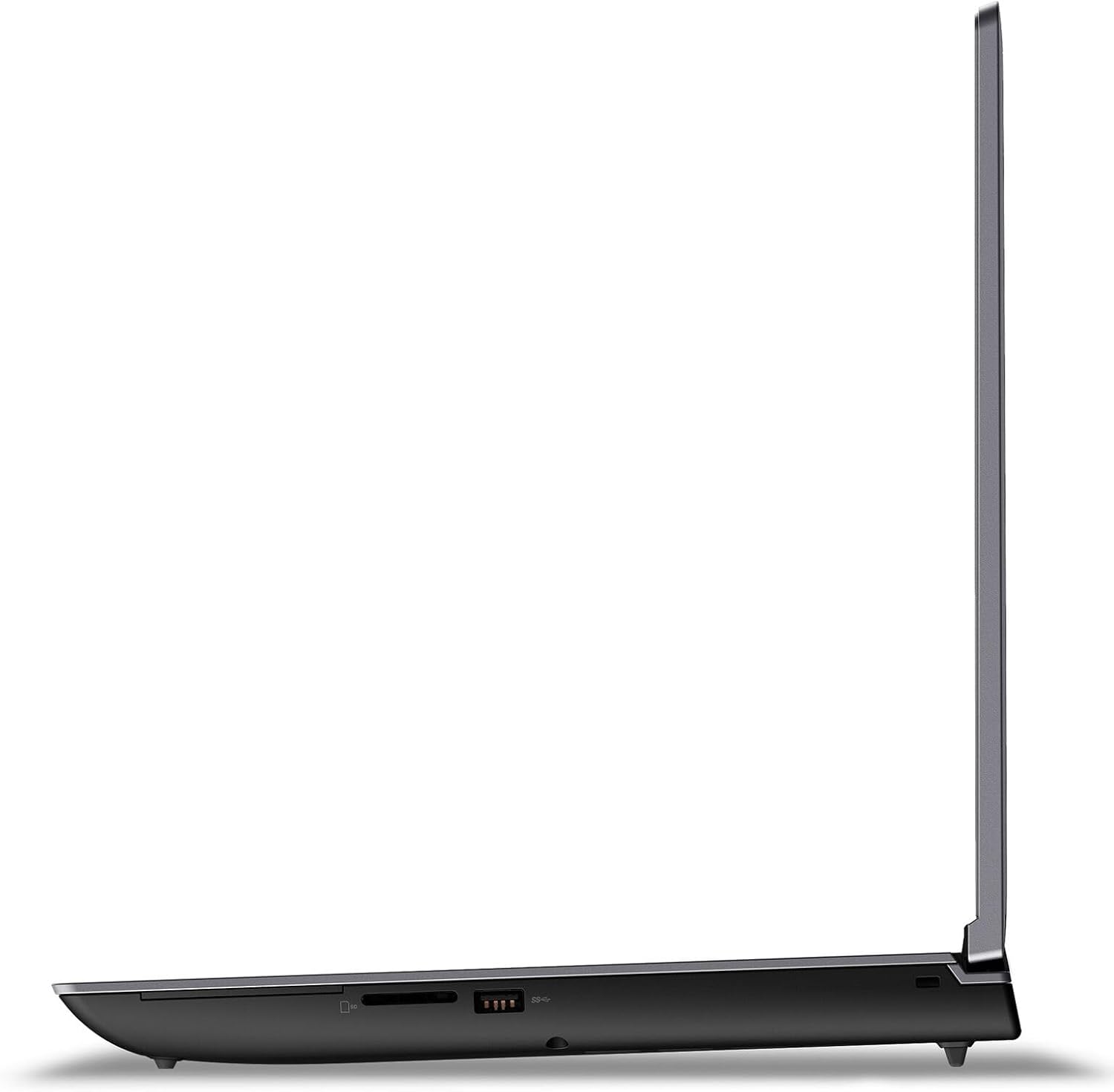
Image: A detailed view of the right side of the Lenovo ThinkPad P16 Gen 2, illustrating the arrangement of its various input/output ports.
4. Wireless Connectivity
The laptop supports Bluetooth for connecting wireless accessories such as headphones, mice, and keyboards. Wi-Fi connectivity is also integrated for internet access.
5. Workstation Capabilities
The ThinkPad P16 Gen 2 is engineered for demanding professional applications. Its NVIDIA RTX 1000 Ada Generation Laptop GPU with 6GB GDDR6 memory is optimized for tasks such as 3D rendering, CAD, video editing, and scientific simulations.

Image: The Lenovo ThinkPad P16 Gen 2 displaying a detailed 3D engineering model within a CAD application, demonstrating its suitability for professional design and analysis.

Image: The Lenovo ThinkPad P16 Gen 2 running 3D animation software, showcasing its performance capabilities for creative and demanding visual tasks.
Maintenance
1. Cleaning the Device
To maintain the appearance and functionality of your laptop:
- Use a soft, lint-free cloth slightly dampened with water or a specialized screen cleaner to clean the display. Avoid harsh chemicals.
- Wipe the chassis and keyboard with a soft, dry cloth. For stubborn dirt, a slightly damp cloth can be used, ensuring no liquid enters openings.
- Regularly clean the fan vents to prevent dust buildup, which can affect cooling performance.
2. Battery Care
The laptop is equipped with a 94WHr battery that supports Rapid Charge technology. To maximize battery lifespan:
- Avoid frequently discharging the battery completely.
- Store the laptop in a cool, dry place if not used for extended periods.
- Utilize power management settings in Windows to optimize battery usage.
3. Storage Management
The 1 TB SSD M.2 2280 PCIe Gen4 Performance TLC Opal provides fast storage. Regularly back up important data and manage disk space to maintain optimal system performance.
Troubleshooting
1. Power Issues
- Laptop does not turn on: Ensure the power adapter is securely connected to both the laptop and a working electrical outlet. Verify the power adapter's indicator light is on. Try a different outlet.
- Battery not charging: Check the power adapter and cable for damage. Ensure the charging port is clean. Update power management drivers.
2. Display Problems
- No image on screen: Connect an external monitor to check if the issue is with the laptop's display. Restart the laptop. Ensure display drivers are up to date.
- Flickering or distorted image: Update graphics drivers. Adjust display resolution and refresh rate in Windows settings.
3. Performance Issues
- Slow system response: Check Task Manager for high CPU or memory usage by applications. Close unnecessary programs. Ensure sufficient free space on the SSD.
- Overheating: Ensure fan vents are clear of obstructions. Use the laptop on a hard, flat surface to allow proper airflow.
Specifications
| Feature | Detail |
|---|---|
| Model Number | 21FA004VUS |
| Processor | 14th Generation Intel Core i7-14700HX (E-cores up to 3.90 GHz P-cores up to 5.50 GHz) |
| Operating System | Windows 11 Pro 64 |
| Graphics Card | NVIDIA RTX 1000 Ada Generation Laptop GPU 6GB GDDR6 |
| Memory | 32 GB DDR5-4000MHz (SODIMM) |
| Storage | 1 TB SSD M.2 2280 PCIe Gen4 Performance TLC Opal |
| Display | 16" WUXGA (1920 x 1200), IPS, Anti-Glare, Non-Touch, 100%sRGB, 400 nits, 60Hz, Low Blue Light |
| AC Adapter | 170W |
| Battery | Up to 94WHr, supports Rapid Charge |
| Dimensions (WxDxH) | 364 x 266 x 30.23 mm (14.3 x 10.5 x 1.2 inches) |
| Weight | Starting at 2.95 kg (6.5 lbs) |
| Wireless Type | Bluetooth, Wi-Fi |
| USB Ports | 4x USB 3.0 (Number of USB 3.0 Ports) |
| Special Feature | Fingerprint Reader |
Warranty and Support
1. Product Warranty
Your Lenovo ThinkPad P16 Gen 2 comes with a 1-Year Courier or Carry-in Warranty. This warranty covers manufacturing defects and hardware failures under normal use conditions. For specific terms and conditions, please refer to the warranty documentation included with your product or visit the official Lenovo support website.
2. Technical Support
For technical assistance, driver downloads, and further support resources, please visit the official Lenovo support website. You will need your product's serial number, which can typically be found on a label on the bottom of the laptop or within the system's BIOS/UEFI settings.
Online Support: https://support.lenovo.com


