
DJI 6941565996244
DJI Osmo Action Multifunctional Battery Case 2 User Manual
Model: 6941565996244
1. Product Overview
The DJI Osmo Action Multifunctional Battery Case 2 is designed to efficiently manage and charge your Osmo Action batteries. It serves as a compact storage solution for three batteries and two microSD cards, while also providing intelligent fast charging capabilities for the batteries. Furthermore, it can function as a power bank, allowing you to charge other devices like smartphones when connected to the inserted batteries.

Image: The DJI Osmo Action Multifunctional Battery Case 2 in its closed state, showcasing its compact and portable design.
2. What's in the Box
- Osmo Action Multifunctional Battery Case 2 × 1
3. Compatibility
This battery case is compatible with the following DJI Osmo Action camera models:
- Osmo Action 5 Pro
- Osmo Action 4
- Osmo Action 3
4. Setup and Battery Installation
Follow these steps to set up your battery case and install batteries and microSD cards:
- Open the Case: Gently press the latch and lift the lid of the battery case.
- Insert Batteries: Align the Osmo Action batteries with the battery slots inside the case. Ensure the battery contacts are facing the correct direction as indicated by the markings. Insert up to three batteries.
- Insert MicroSD Cards: Locate the two microSD card slots. Carefully insert your microSD cards until they click into place.
- Close the Case: Close the lid firmly until you hear a click, ensuring it is securely latched.

Image: The battery case open, showing the three battery slots with batteries inserted and the LED indicator lights. Two microSD card slots are also visible.
5. Operating Instructions
5.1. Charging Batteries
To charge the batteries inside the case:
- Ensure batteries are properly inserted into the case.
- Connect a USB-C charging cable (not included) to the USB-C port on the battery case and to a power adapter (not included).
- The LED indicators above each battery slot will illuminate to show the charging status. A solid green light indicates a fully charged battery.
5.2. Using as a Power Bank
The battery case can also act as a power bank to charge other devices:
- Ensure there are charged batteries inside the case.
- Connect your external device (e.g., smartphone) to the USB-C port on the battery case using an appropriate charging cable.
- The battery case will begin to supply power to your device, utilizing the charge from the inserted Osmo Action batteries.
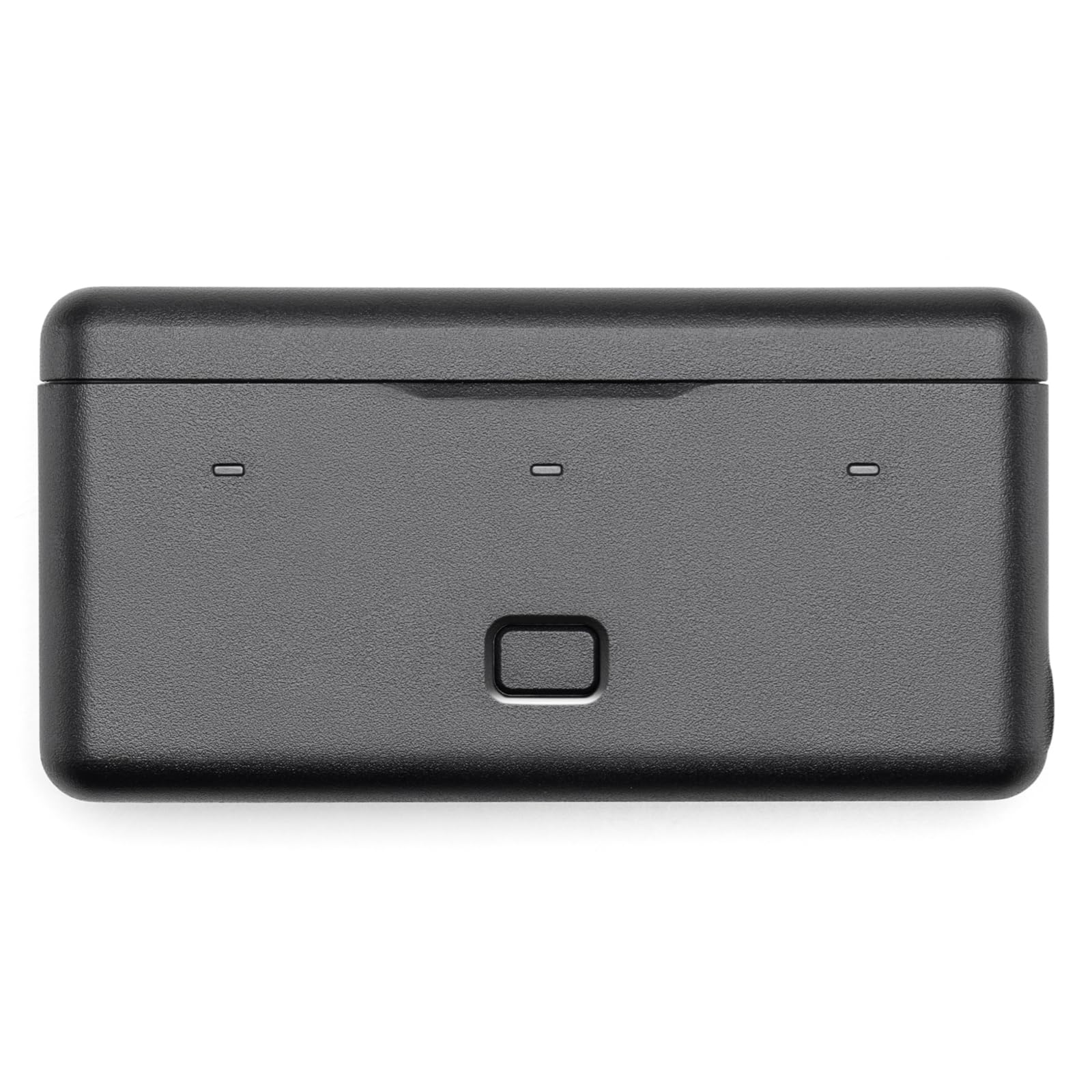
Image: Top view of the battery case, highlighting the three LED indicator lights and the central button, which can be used to check battery status.
6. Maintenance
- Cleaning: Use a soft, dry cloth to clean the exterior of the battery case. Do not use liquid cleaners or solvents.
- Storage: Store the battery case in a cool, dry place away from direct sunlight and extreme temperatures.
- Avoid Impact: Protect the case from drops and impacts, which can damage internal components.
7. Troubleshooting
| Problem | Possible Cause | Solution |
|---|---|---|
| Batteries not charging. | Loose cable connection, faulty cable/adapter, battery not inserted correctly. | Ensure USB-C cable is securely connected. Try a different cable or power adapter. Re-insert batteries, ensuring proper alignment. |
| Power bank function not working. | Batteries are depleted, device not compatible, cable issue. | Ensure batteries in the case are charged. Try a different USB-C cable. Verify device compatibility. |
| LED indicators not lighting up. | No power input, internal malfunction. | Check power source and cable. If problem persists, contact DJI support. |
8. Specifications
| Feature | Detail |
|---|---|
| Product Dimensions | 3.15 x 5.51 x 1.57 inches (80 x 140 x 40 mm) |
| Item Weight | 2.93 ounces (83 grams) |
| Model Number | 6941565996244 |
| ASIN | B0DGLTP6GR |
| Manufacturer | DJI |
| Date First Available | September 19, 2024 |
9. Warranty and Support
For detailed warranty information and technical support, please refer to the official DJI website or contact DJI customer service directly. Keep your proof of purchase for warranty claims.
Official DJI Website: www.dji.com
Related documents6941565996244


Ask a question about this manual
Ask about setup, troubleshooting, compatibility, parts, safety, or missing instructions. Manuals+ will review the question and use this page’s manual context to help answer it.