
1. Introduction
This manual provides detailed instructions for the installation, operation, and maintenance of your MekedeTech Android Car Radio Stereo. Please read this manual thoroughly before installation and use to ensure proper function and to prevent damage.
2. Safety Information
- Ensure the vehicle's ignition is off and the battery is disconnected before starting installation.
- Consult a professional for installation if you are unsure about any steps.
- Do not operate the device in a way that distracts you from driving.
- Avoid exposing the unit to extreme temperatures, direct sunlight for prolonged periods, or moisture.
- Use only specified power cables and accessories.
3. Package Contents
Verify that all items are present in the package:
- MekedeTech Android Car Radio Stereo Head Unit
- Dash Kit (vehicle-specific)
- Power Cable Harness
- RCA Cable
- Reversing Camera Cable
- USB Cables
- GPS Antenna
- 4G LTE Antenna (if applicable)
- User Manual (this document)
4. Setup and Installation
This unit is designed for a plug-and-play installation for compatible Chevrolet Colorado, Silverado, and GMC Sierra models from 2014-2018. Ensure all vehicle-specific accessories are used.
4.1 Pre-Installation Steps
- Disconnect the vehicle's battery to prevent electrical shorts.
- Carefully remove the factory radio and trim panels. Refer to your vehicle's service manual for specific instructions.
4.2 Wiring Connections
- Connect the provided power cable harness to the vehicle's wiring harness.
- Connect the RCA cables for external amplifiers or subwoofers if applicable.
- Connect the reversing camera cable to the designated input.
- Attach the GPS antenna and position it in a location with a clear view of the sky (e.g., dashboard).
- Insert a 4G SIM card into the designated slot if you intend to use 4G LTE connectivity.
- Connect any USB devices to the provided USB cables.
4.3 Head Unit Installation
- Mount the MekedeTech head unit into the dash opening using the provided dash kit.
- Secure the unit firmly.
- Reinstall all trim panels.
- Reconnect the vehicle's battery.
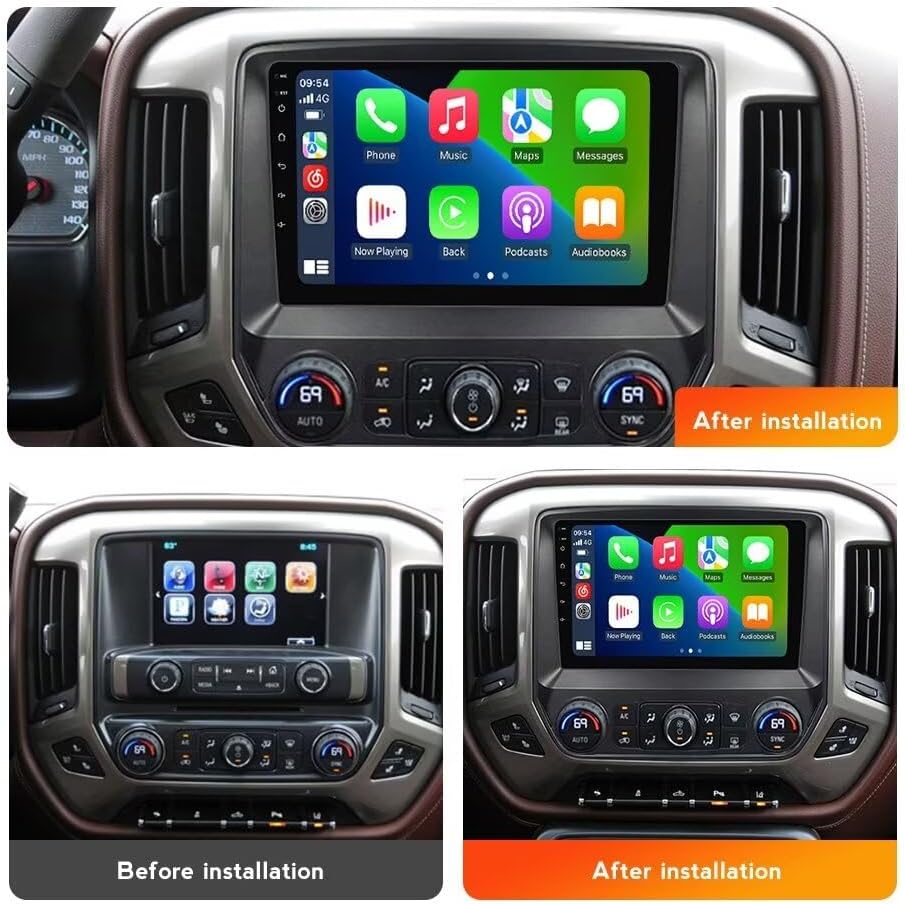
Figure 4.3.1: Comparison of the vehicle dashboard before and after the installation of the MekedeTech Android Car Radio Stereo.

Figure 4.3.2: Illustration of the cooling fan system and initial setup steps for device configuration.
4.4 Initial Power-On and Configuration
- Turn on the vehicle's ignition. The unit should power on automatically.
- Follow the on-screen prompts for initial setup, including language selection and time zone.
- Connect to a Wi-Fi network or ensure your 4G SIM card is active for internet access.
- Navigate to the device settings to verify all components are recognized and functioning correctly.
5. Operating Instructions
5.1 Basic Navigation
The unit operates on Android 12 OS. Navigate through applications and settings using the 9-inch IPS touchscreen. Swipe, tap, and pinch gestures are supported.
5.2 Wireless CarPlay and Wired Android Auto
The unit supports both wireless Apple CarPlay and wired Android Auto for seamless smartphone integration.
For Wireless CarPlay (iOS devices):
- Ensure Bluetooth is enabled on your iPhone.
- On the head unit, open the 'Car Link' application or similar.
- Pair your iPhone via Bluetooth with the head unit.
- Confirm the CarPlay prompt on your iPhone.
For Wired Android Auto (Android devices):
- Ensure Android Auto is installed on your Android phone.
- Connect your Android phone to the head unit using a USB cable.
- Follow any on-screen prompts on both the head unit and your phone.

Figure 5.2.1: Visual guide for connecting iOS devices via Wireless CarPlay and Android devices via Wired Android Auto.
5.3 GPS Navigation
The unit includes built-in GPS navigation. Access the pre-installed navigation application or download your preferred navigation app from the Google Play Store (requires internet connection).
5.4 Bluetooth Connectivity
Bluetooth 5.0 allows for hands-free calling and audio streaming.
- Go to the Bluetooth settings on the head unit.
- Enable Bluetooth on your mobile device and search for available devices.
- Select the head unit from the list and pair.
5.5 4G LTE and Wi-Fi Functionality
The unit supports 4G LTE connectivity via a SIM card and Wi-Fi for internet access.
- 4G LTE: Insert a compatible 4G SIM card into the designated slot. The unit will automatically connect to the cellular network.
- Wi-Fi: Go to Wi-Fi settings, scan for networks, and connect to your desired Wi-Fi hotspot.

Figure 5.5.1: Illustration of the 4G LTE SIM card slot and the integrated DSP processor.
5.6 Steering Wheel Controls
The unit retains original steering wheel control functionality, allowing you to manage audio and calls without removing your hands from the steering wheel. Configuration may be required in the system settings.
5.7 DSP Audio Settings
The built-in Digital Sound Processor (DSP) allows for advanced audio customization. Access the DSP settings in the audio menu to adjust equalization, balance, fader, and other sound parameters for optimal audio quality.
6. Maintenance
- Cleaning: Use a soft, dry cloth to clean the screen and unit. Avoid abrasive cleaners or solvents.
- Software Updates: Periodically check for system software updates via the settings menu to ensure optimal performance and access to new features. An internet connection is required for updates.
- Cooling Fan: Ensure the cooling fan area is free from obstructions to maintain proper ventilation and prevent overheating.
7. Troubleshooting
If you encounter issues, refer to the following common problems and solutions:
- No Power: Check all power connections and the vehicle's fuse box. Ensure the battery is properly reconnected.
- No Sound: Verify speaker connections, volume levels, and audio source selection. Check DSP settings.
- GPS Signal Loss: Ensure the GPS antenna is properly connected and has a clear view of the sky.
- CarPlay/Android Auto Not Connecting: For wireless CarPlay, ensure Bluetooth is on and paired. For wired Android Auto, try a different USB cable and ensure the Android Auto app is updated on your phone.
- Touchscreen Unresponsive: Try restarting the unit. If the issue persists, a factory reset may be necessary (note: this will erase all user data).
- Unit Overheating: Ensure the cooling fan is functioning and not obstructed. Reduce prolonged heavy usage in extreme temperatures.
If problems persist, contact customer support.
8. Specifications
| Operating System | Android 12 OS |
| CPU | 8-Core A53 1.8GHz |
| Memory | 4GB RAM, 64GB ROM |
| Display Size | 9 Inches |
| Display Resolution | 1280 x 720 (HD IPS Touch Screen) |
| Power Output | 4*50W |
| Connectivity | Built-in 4G LTE, Wi-Fi, Bluetooth 5.0 |
| Navigation | Built-in GPS |
| Smartphone Integration | Wireless CarPlay, Wired Android Auto |
| Audio Features | Built-in DSP Sound System |
| Human Interface Input | Buttons, Keyboard, Touchscreen |
9. Warranty Information
This MekedeTech Android Car Radio Stereo comes with a 1-Year Warranty from the date of purchase. This warranty covers manufacturing defects and malfunctions under normal use. It does not cover damage caused by improper installation, misuse, accidents, or unauthorized modifications.
Please retain your proof of purchase for warranty claims.
10. Customer Support
For technical assistance, troubleshooting, or warranty inquiries, please contact MekedeTech customer support through the retailer where the product was purchased or visit the official MekedeTech website for contact information.
Online Resources:
- MekedeTech Store on Amazon: Visit Store
