
1. Introduction
The Rii RK707 is a versatile 2.4GHz wireless device combining a keyboard, touchpad, and gamepad into a single ergonomic unit. It is designed for use with various systems including Smart TVs, Mini PCs, HTPCs, and game consoles, offering a convenient input solution for gaming, email, chat, and media control.

Figure 1: Rii RK707 Mini Wireless Keyboard Gamepad (Keyboard Side)
2. Package Contents
Please verify that all items are present in your package:
- 1 x Rii RK707 Wireless Keyboard Gamepad
- 1 x USB Receiver (2.4GHz)
- 1 x USB Charging Cable
- 1 x Lanyard (Suspension Rope)
- 1 x User Manual (English)

Figure 2: Package Contents
3. Product Overview
3.1 Keyboard Side (Side A)
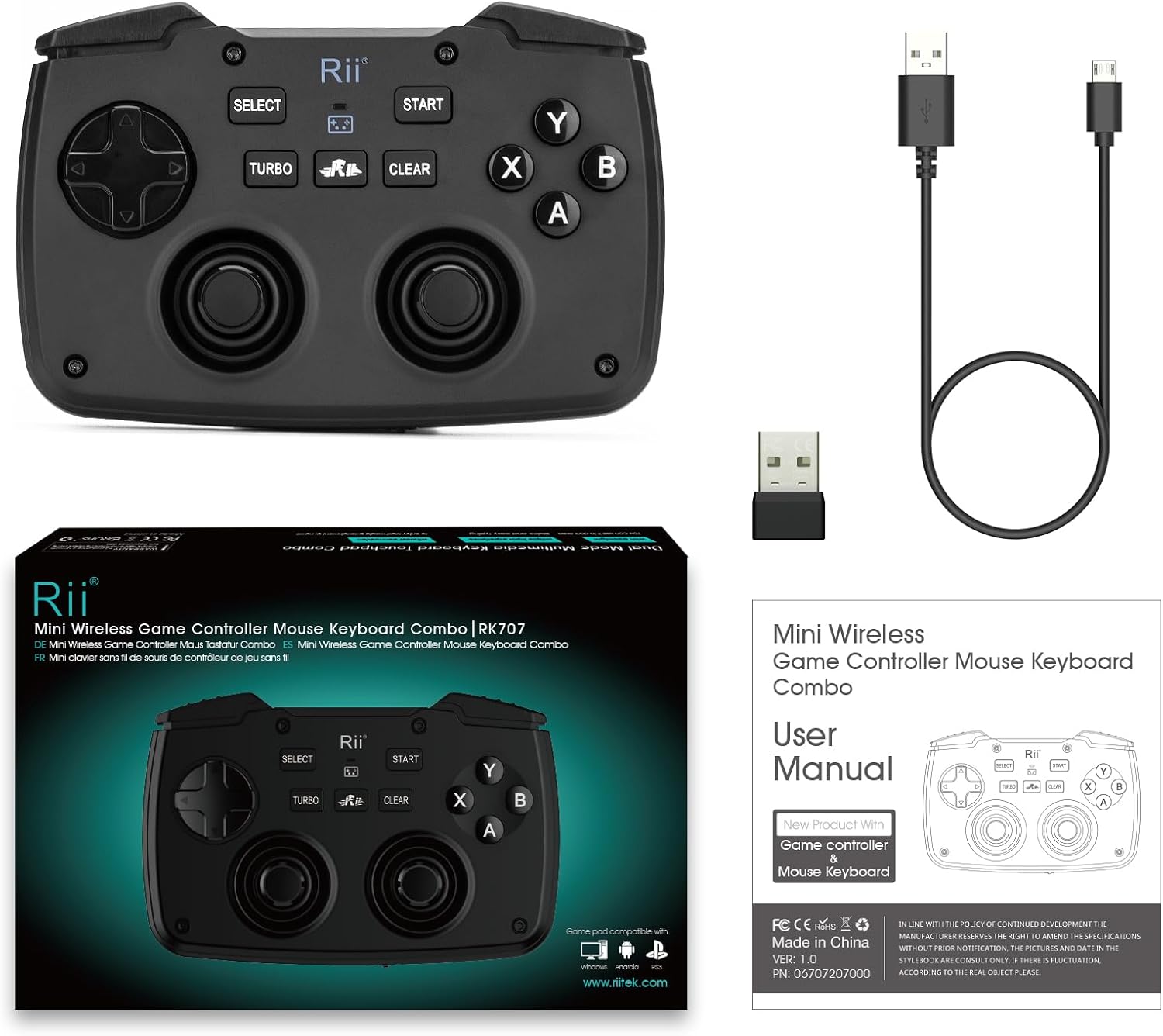
Figure 3: Keyboard Side Components
- QWERTY Keyboard Layout: Full set of alphanumeric and function keys.
- Touchpad: Supports multi-finger gestures for navigation.
- Left/Right Mouse Buttons: Dedicated buttons below the touchpad.
- LED Indicators: For keyboard mode, capital lock, and charge status.
- Multimedia Keys: Integrated function keys for media control.
3.2 Gamepad Side (Side B)

Figure 4: Gamepad Side Components
- D-Pad: Directional pad for movement.
- Dual Analog Joysticks: For precise control in games.
- Action Buttons (A, B, X, Y): Standard gamepad action buttons.
- Select/Start Buttons: For in-game menu navigation.
- Turbo/Clear Buttons: For specific gaming functions.
- Shoulder Triggers (L1, R1, L2, R2): For additional in-game actions.
3.3 Side View and Ports
The device features a Micro USB charging port and a power switch on its side for easy access.
Figure 5: Side View with Charging Port and Power Switch
4. Setup and Connection
4.1 Charging the Device
Before initial use, fully charge the Rii RK707. Connect the provided USB charging cable to the device's Micro USB port and the other end to a standard USB power source (e.g., computer USB port, USB wall adapter). The charging indicator LED will illuminate during charging and turn off when fully charged.
4.2 Connecting to a Device
The Rii RK707 uses a 2.4GHz wireless connection via a USB receiver.
- Insert the 2.4GHz USB receiver into an available USB port on your target device (Smart TV, Mini PC, HTPC, console, etc.).
- Turn on the Rii RK707 using the power switch located on the side of the device.
- The device should automatically connect to the receiver. No additional drivers are typically required for most compatible systems (Plug and Play).
Compatibility: The Rii RK707 is compatible with Windows (2000/XP/Vista/7/8/10), Linux, Android OS (with standard USB interface), Mac OS, Smart TV, Android TV Box, Raspberry Pi, and PS3.

Figure 6: Device Compatibility and Dimensions
5. Operating Instructions
5.1 Switching Modes (Keyboard/Gamepad)
The Rii RK707 features a physical switch to toggle between keyboard/touchpad mode (Side A) and gamepad mode (Side B). Locate the switch on the top edge of the device and slide it to select the desired mode.
5.2 Touchpad Functions
The integrated touchpad supports multi-finger gestures:
- Single Finger Tap: Left mouse click.
- Two Finger Tap: Right mouse click.
- Two Finger Slide: Scroll function (vertical and horizontal).
- Single Finger Drag: Moves the cursor.
5.3 Keyboard Functions (FN Key Combinations)
Many keys have secondary functions accessed by holding the FN key and pressing the desired key. Refer to the table below for common combinations:
| Combination | Function |
|---|---|
| FN + ESC | F1 |
| FN + 1 | F2 |
| FN + 2 | F3 |
| FN + 3 | F4 |
| FN + 4 | F5 |
| FN + 5 | F6 |
| FN + 6 | F7 |
| FN + 7 | F8 |
| FN + 8 | F9 |
| FN + 9 | F10 |
| FN + 0 | F11 |
| FN + = | F12 |
| FN + C | Pairing Mode |
| FN + K | < |
| FN + L | > |
| FN + Up Arrow | Page Up |
| FN + Down Arrow | Page Down |
| FN + Left Arrow | Home |
| FN + Right Arrow | End |
Table 1: FN Key Combinations
5.4 Gamepad Functions
In gamepad mode, the device functions as a standard game controller. Use the D-pad and analog joysticks for movement and camera control, and the action buttons (A, B, X, Y) and shoulder triggers (L1, R1, L2, R2) for in-game actions. The Turbo and Clear buttons may offer specific functionalities depending on the game.
5.5 Backlight Control
The keyboard features a backlight for improved visibility in low-light conditions. To activate or adjust the backlight, use the dedicated backlight key combination (often FN + a specific key, refer to the device's key markings for exact combination, typically indicated by a light bulb icon). The backlight may need to be reactivated after the device enters sleep mode or is powered off and on.
5.6 Automatic Sleep Mode
To conserve battery power, the Rii RK707 will automatically enter sleep mode after 3 minutes of inactivity. All indicator lights will turn off. To wake the device, press any key on the keyboard or move the touchpad.
6. Maintenance
- Cleaning: Use a soft, dry cloth to clean the device. Avoid using harsh chemicals or abrasive materials.
- Storage: Store the device in a cool, dry place away from direct sunlight and extreme temperatures.
- Battery Care: To prolong battery life, avoid fully discharging the battery frequently. Charge the device regularly, even if not in constant use.
- USB Receiver: Keep the USB receiver in a safe place to prevent loss.
7. Troubleshooting
- Issue: Device does not respond.
- Solution: Ensure the device is powered on. Check the battery level and charge if necessary. Verify the USB receiver is securely plugged into the host device. Try re-pairing the device by pressing FN+C if available, or by power cycling both the device and the host.
- Issue: Touchpad is unresponsive or inaccurate.
- Solution: Ensure your fingers are clean and dry. Restart the device. Check for any obstructions on the touchpad surface. If the issue persists, try connecting to a different USB port or host device.
- Issue: Connection drops frequently.
- Solution: Ensure the device is within the 10-meter operating range of the USB receiver. Avoid sources of strong electromagnetic interference. Try moving the USB receiver to a different port or using a USB extension cable to position it closer to the device.
- Issue: Backlight does not turn on.
- Solution: Ensure the device is not in sleep mode. Press the backlight key combination (e.g., FN + light bulb icon key) to activate it. If the battery is very low, the backlight may not function.
8. Specifications
| Feature | Specification |
|---|---|
| Brand | Rii |
| Model Name | RK707 |
| Color | Black |
| Connectivity Technology | 2.4GHz Wireless (USB A receiver) |
| Transmission Mode | GFSK 2.4GHz wireless |
| Remote Control Distance | Up to 10 meters |
| Special Features | Ergonomic, Multi-purpose, Wireless |
| Compatible Devices | Android, iOS, Smart TV, Windows, PS3 |
| Battery Type | Rechargeable Lithium Polymer |
| Operating Current | <70mA |
| Standby Current | 65uA (keyboard) |
| Operating Voltage | 3.7V |
| Charging Voltage | 4.4V-5.25V |
| Power Source | Battery Powered |
| Included Components | USB Charging Cable, USB Receiver |
Table 2: Product Specifications
9. Warranty and Support
This Rii product is covered by a standard manufacturer's warranty against defects in materials and workmanship. The specific terms and duration of the warranty may vary by region and retailer. Please retain your proof of purchase for warranty claims.
For technical support, troubleshooting assistance, or warranty inquiries, please contact your retailer or visit the official Rii website for customer service contact information.


