
Introduction
This user manual provides comprehensive instructions for the operation and maintenance of your FOXWELL NT630 Plus and NT630 Pro OBD2 Scanners. These devices are designed to assist in diagnosing vehicle issues related to the Anti-lock Braking System (ABS), Supplemental Restraint System (SRS), and general On-Board Diagnostics (OBD2) systems, as well as performing battery health tests.
The NT630 Plus focuses on ABS and SRS diagnostics, while the NT630 Pro combines these with advanced battery testing capabilities. Please read this manual thoroughly before operating the device to ensure proper usage and to maximize its diagnostic potential.
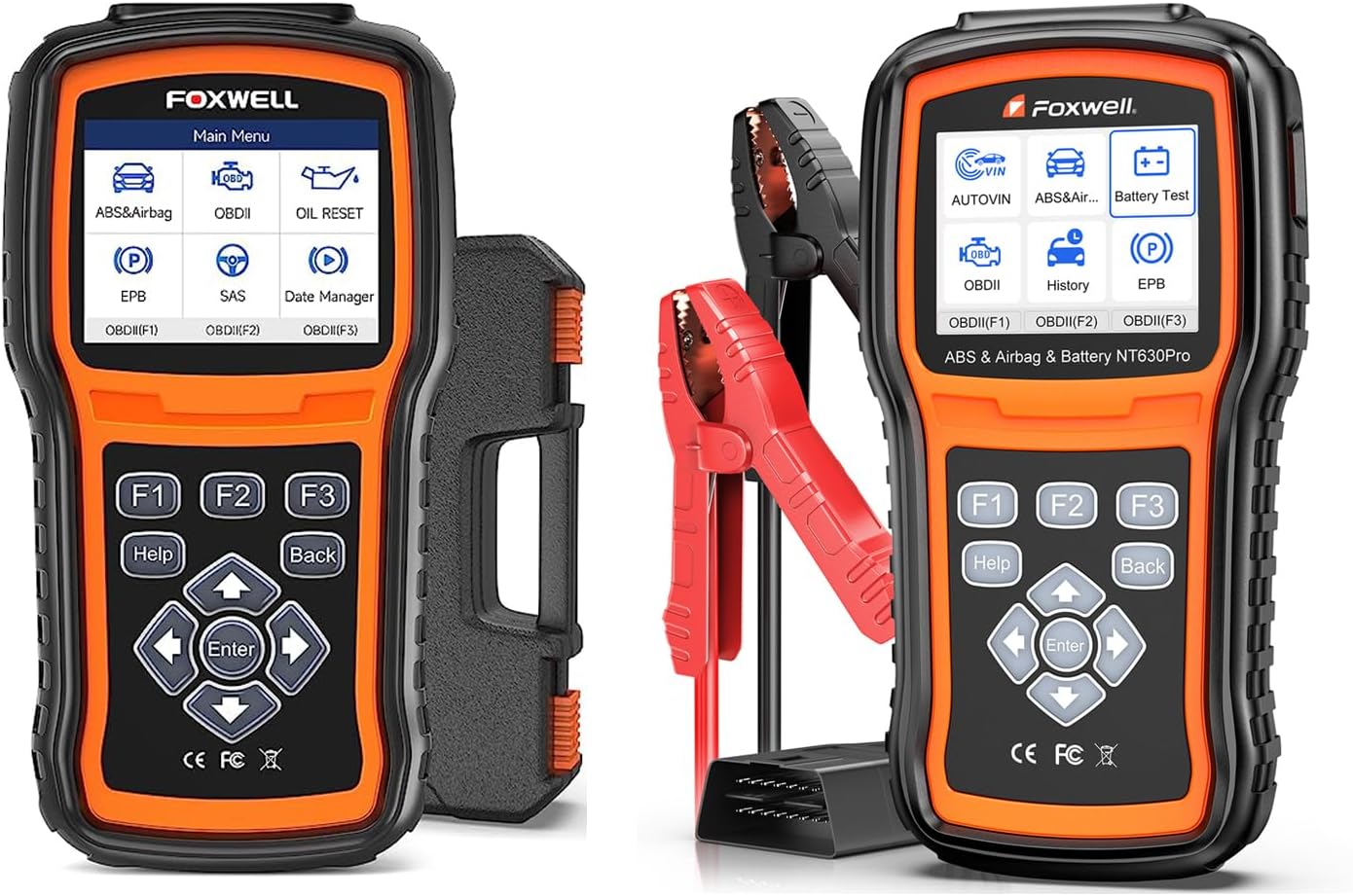
Image: The FOXWELL NT630 Plus (left) and NT630 Pro (right) diagnostic tools. The NT630 Pro includes battery clamps for testing.

Image: The FOXWELL NT630 Pro, highlighting its capability as a 2-in-1 diagnostic tool for both vehicle systems and battery health.
Setup
Package Contents
Before beginning, ensure all components are present:
- FOXWELL NT630 Plus / NT630 Pro Main Unit
- OBD2 Diagnostic Cable
- USB Cable (for updates)
- User Manual (this document)
- For NT630 Pro: Battery Test Clamps
Initial Power On
The device powers on automatically when connected to a vehicle's OBD2 port. Alternatively, it can be powered via the USB cable connected to a computer for software updates.
Connecting to Vehicle
- Locate the vehicle's 16-pin Data Link Connector (DLC), usually under the dashboard on the driver's side.
- Turn the vehicle's ignition to the ON position (engine off).
- Connect the OBD2 diagnostic cable to the vehicle's DLC and to the scanner's port.
- The scanner will power on and display the main menu.
Operating Instructions
Navigation
The scanner features a clear display and intuitive button layout:
- Up/Down Arrows: Navigate through menu options.
- Left/Right Arrows: Move cursor, change values, or navigate sub-menus.
- ENTER Button: Confirm selection or enter a function.
- BACK Button: Return to the previous screen or exit a function.
- HELP Button: Access context-sensitive help information.
- F1, F2, F3 Buttons: Function keys, their purpose changes based on the current screen, indicated on the display.
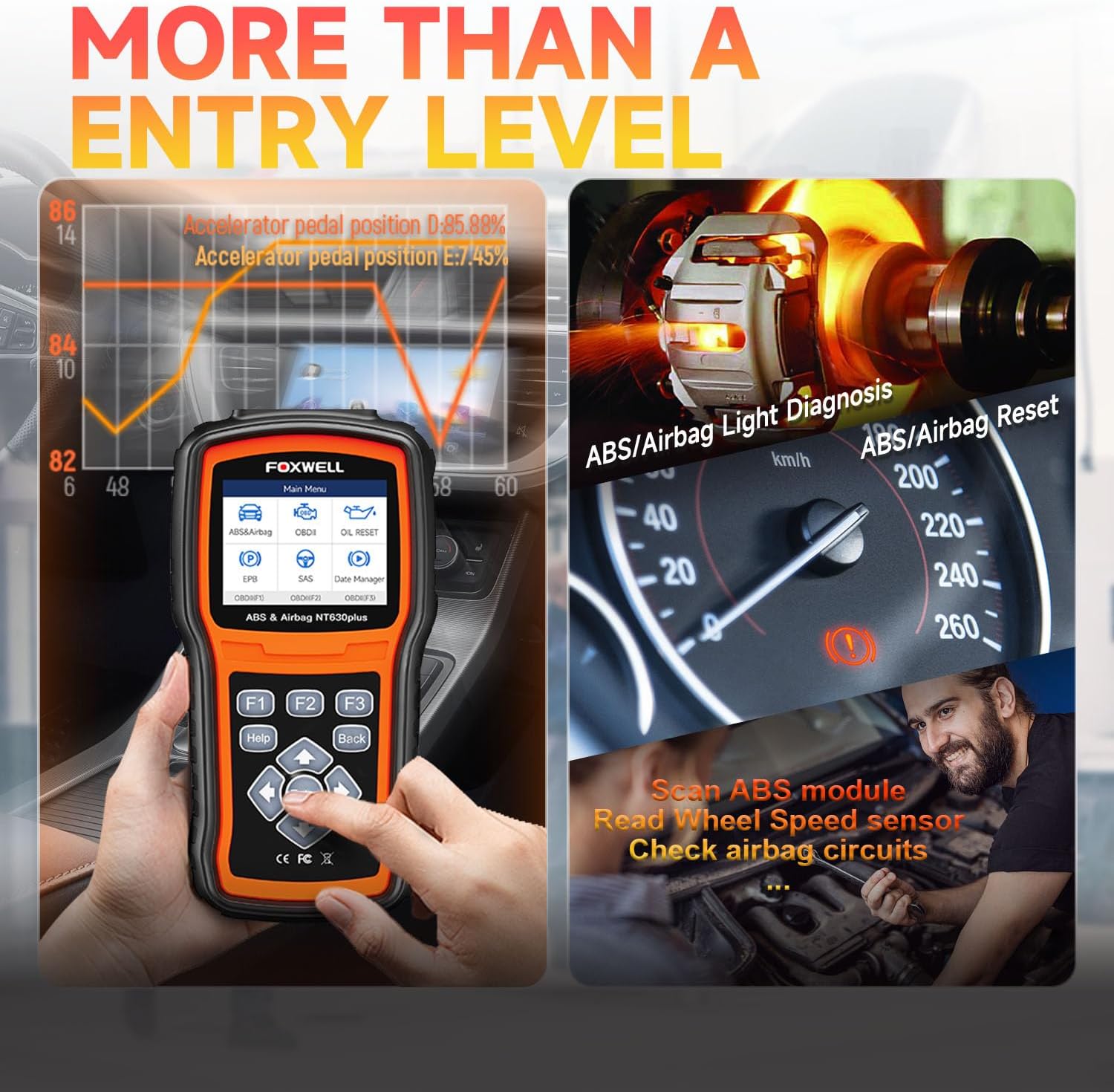
Image: Close-up of the FOXWELL NT630 Plus screen and control buttons, illustrating the user interface for navigation and function selection.
ABS and SRS Diagnostics
The NT630 Plus and NT630 Pro are capable of reading and clearing diagnostic trouble codes (DTCs) from the Anti-lock Braking System (ABS) and Supplemental Restraint System (SRS) modules. They also provide live data streams for these systems.
- From the main menu, select ABS & Airbag.
- Choose the vehicle make and model.
- Select Read Codes to view current or pending DTCs.
- Select Clear Codes to erase DTCs after repairs are made.
- Select Live Data to view real-time sensor information.

Image: Visual representation of the scanner's capability to diagnose ABS, SRS, and OBD2 systems, highlighting its comprehensive diagnostic functions.

Image: Diagrams explaining the function of the ABS (Anti-lock Braking System) and Airbag (Supplemental Restraint System) in a vehicle, emphasizing their role in safety.
OBD2 Functions
Both models support full OBD2 diagnostic functions for engine-related issues.
- Read Codes: Displays generic and manufacturer-specific DTCs.
- Clear Codes: Erases DTCs and turns off the Check Engine Light (MIL).
- I/M Readiness: Checks the readiness of emission-related monitors.
- Live Data: Displays real-time data from various engine sensors.
- Freeze Frame Data: Shows engine conditions at the time a DTC was set.
- O2 Sensor Test: Retrieves O2 sensor monitor test results.
- On-Board Monitor Test: Retrieves results for emission-related powertrain components.
- Component Test: Allows testing of specific components.
- Vehicle Information: Retrieves VIN, Cal ID, CVN.
Special Functions (NT630 Plus & Pro)
These scanners offer several advanced service functions:
- ABS Bleeding: Performs automated bleeding procedures for the ABS module on supported vehicles to remove air from the brake lines. Note: This function is vehicle-specific and not all vehicles support auto bleed.
- Oil Reset: Resets the oil service light and calculates the optimal oil life change interval.
- EPB Reset: Resets the Electronic Parking Brake (EPB) system after brake pad replacement.
- SAS Calibration: Calibrates the Steering Angle Sensor (SAS) after steering system repairs or alignment.
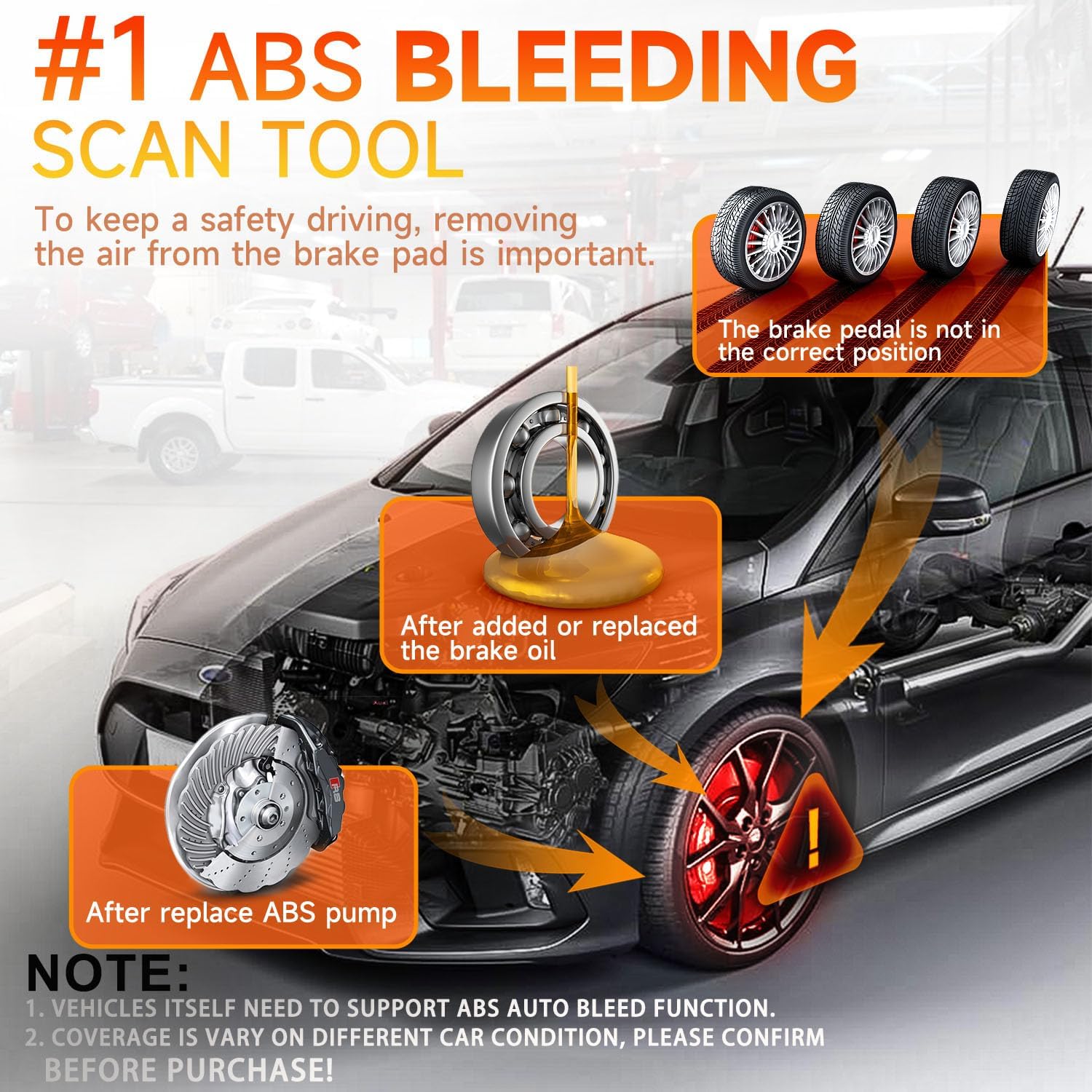
Image: An infographic detailing the ABS bleeding process, showing how air is removed from the brake system to restore proper brake pedal feel.

Image: Visuals demonstrating the SAS (Steering Angle Sensor) calibration, Oil/Service Light Reset, and EPB (Electronic Parking Brake) Reset functions available on the scanner.
Battery Test Functions (NT630 Pro Only)
The NT630 Pro includes comprehensive 12V battery testing capabilities. Connect the battery clamps to the vehicle battery terminals (red to positive, black to negative).
- Battery Test: Analyzes the battery's State of Health (SOH), State of Charge (SOC), voltage, and internal resistance.
- Cranking Test: Measures the actual cranking voltage and cranking time to determine the battery's cranking ability.
- Charging Test: Checks the vehicle's charging system, including generator output and rectifier diode.

Image: Screenshots of the NT630 Pro displaying results for Battery Test, Cranking Test, and Charging Test, along with icons for various battery status checks.

Image: An illustration detailing the various battery types supported (AGM, Gel, Flooded) and the wide range of vehicles (cars, trucks, boats, motorcycles) that can be tested with the NT630 Pro's battery function.
Maintenance
Software Updates
Regular software updates are crucial for maintaining compatibility with new vehicle models and for accessing new features. Updates are performed via a computer using the provided USB cable and FOXWELL's update software.
- Visit the official FOXWELL website to download the latest update tool and firmware.
- Install the update tool on your computer.
- Connect the scanner to your computer using the USB cable.
- Follow the on-screen instructions in the update tool to download and install the firmware.
Cleaning and Storage
- Clean the scanner's screen and casing with a soft, damp cloth. Do not use abrasive cleaners or solvents.
- Keep the device dry and away from extreme temperatures.
- Store the scanner and its accessories in the provided case to prevent damage.
Troubleshooting
| Problem | Possible Cause | Solution |
|---|---|---|
| Scanner does not power on. | Loose connection; Vehicle ignition off; Blown fuse in vehicle's OBD2 port. | Ensure cable is securely connected. Turn ignition to ON. Check vehicle's fuse box for a blown fuse related to the OBD2 port. |
| "Link Error" or "Communication Error" message. | Incorrect protocol; Faulty cable; Vehicle not OBD2 compliant; Damaged DLC. | Verify vehicle is OBD2 compliant (1996 and newer for US). Check cable for damage. Try on another vehicle if possible. |
| Cannot perform ABS Bleeding/Special Function. | Vehicle not supported; Incorrect procedure. | Check FOXWELL's official website for vehicle compatibility list. Ensure all steps in the procedure are followed correctly. |
| Battery test results are inconsistent (NT630 Pro). | Loose clamps; Dirty battery terminals; Battery not fully charged. | Ensure clamps are securely attached. Clean battery terminals. Charge battery fully before testing. |
Specifications
| Feature | Detail |
|---|---|
| Display | Color LCD |
| Connectivity | OBD2 16-pin, USB |
| Operating Voltage | 8-18V (Vehicle power) |
| Operating Temperature | 0 to 60°C (32 to 140°F) |
| -20 to 70°C (-4 to 158°F) | Storage Temperature |
| Dimensions | (Approximate, specific dimensions not provided in input) Compact handheld design |
| Weight | (Approximate, specific weight not provided in input) Lightweight |
| Supported Protocols | ISO9141-2, ISO14230-4, KWP2000, J1850 VPW, J1850 PWM, CAN, ISO15765 |
| Battery Test Range (NT630 Pro) | 12V batteries, 100-2000 CCA |