
Introduction
This manual provides detailed instructions for the Camiysn Moon84 Wireless RGB Mechanical Keyboard. It covers setup, operation, maintenance, and troubleshooting to ensure optimal performance and user experience. The Moon84 keyboard features an 84-key layout, triple-mode connectivity (2.4GHz wireless, Bluetooth, USB-C wired), RGB backlighting, and low-profile brown mechanical switches for a responsive typing experience.
Safety Information
- Keep the keyboard away from liquids and excessive moisture.
- Avoid exposing the keyboard to extreme temperatures.
- Do not attempt to disassemble or modify the keyboard, as this may void the warranty and cause damage.
- Use only the provided USB-C cable for charging and wired connection.
Package Contents
Verify that all items are present in the package:
- Camiysn Moon84 Mechanical Keyboard
- USB-C to USB-A Cable
- 2.4GHz USB Receiver
- Keycap Puller (if included)
- User Manual (this document)

Image: Contents of the Camiysn Moon84 keyboard package.
Setup
Charging the Keyboard
Connect the provided USB-C cable to the keyboard's USB-C port and the other end to a USB power source (e.g., computer USB port, USB wall adapter). The keyboard will charge automatically.
Connectivity Modes
The Camiysn Moon84 keyboard supports three connection modes: 2.4GHz Wireless, Bluetooth, and USB-C Wired.

Image: Overview of the three connection modes.

Image: Visual representation of the 3-in-1 connectivity modes.
1. 2.4GHz Wireless Mode
- Locate the 2.4GHz USB receiver.
- Plug the receiver into an available USB port on your computer or device.
- Ensure the toggle switch on the keyboard is set to the "ON" position for wireless mode.
- Press Fn + 4 for 3 seconds to enter 2.4G pairing mode. The keyboard should automatically connect.
2. Bluetooth Mode
- Ensure the toggle switch on the keyboard is set to the "ON" position for wireless mode.
- Press and hold Fn + 1, Fn + 2, or Fn + 3 for 3 seconds to enter Bluetooth pairing mode for the respective device slot. The indicator light will flash.
- On your device (computer, laptop, smart TV), enable Bluetooth and search for "Camiysn Moon84" or a similar device name.
- Select the keyboard to pair. The indicator light will stop flashing once connected.
- You can switch between paired Bluetooth devices by pressing Fn + 1, Fn + 2, or Fn + 3 briefly.
3. USB-C Wired Mode
- Connect the USB-C cable to the keyboard's USB-C port and the other end to your computer's USB port.
- Ensure the toggle switch on the keyboard is set to the "OFF" position for wired mode.
- The keyboard will be recognized as a standard USB keyboard and is ready for use.
Operating Instructions
RGB Backlight Control
The Camiysn Moon84 keyboard features adjustable RGB backlighting. Use the following Fn key combinations to control the lighting effects:

Image: Fn key combinations for RGB backlight adjustments.
- Fn + Ins: Switch between different backlight effects.
- Fn + Del: Select backlight color (for static color modes).
- Fn + ↑: Increase backlight luminance.
- Fn + ↓: Decrease backlight luminance.
- Fn + ←: Decrease backlight circulation speed.
- Fn + →: Increase backlight circulation speed.
Special Key Functions
The keyboard includes an Fn key to access secondary functions printed on certain keys. Refer to the keycaps for specific combinations (e.g., media controls, volume, application shortcuts).

Image: Camiysn Moon84 keyboard layout.
Maintenance
- Cleaning: Use a soft, dry cloth to wipe the keyboard surface. For deeper cleaning, use a can of compressed air to remove dust and debris from between the keycaps. Avoid using harsh chemicals or abrasive materials.
- Storage: When not in use for extended periods, store the keyboard in a cool, dry place away from direct sunlight.
- Battery Care: To prolong battery life, avoid fully discharging the keyboard frequently. Charge it when the battery indicator is low.
Troubleshooting
| Problem | Possible Cause | Solution |
|---|---|---|
| Keyboard not responding in wireless mode. | Low battery, incorrect mode selected, receiver not plugged in (2.4GHz), not paired (Bluetooth). |
|
| Backlight not working or flickering. | Backlight turned off, low battery, software glitch. |
|
| Keyboard not charging. | Faulty cable, faulty USB port, keyboard issue. |
|
| Keys are unresponsive or sticky. | Debris under keycaps, switch malfunction. |
|
Specifications
Key technical specifications for the Camiysn Moon84 Mechanical Keyboard:
- Brand: Camiysn
- Model: Moon84
- Connectivity: Bluetooth, 2.4GHz Wireless, USB-C Wired (Triple Mode)
- Keyboard Description: Mechanical
- Switch Type: Low-Profile Brown Tactile Switches
- Number of Keys: 84
- Backlighting: RGB
- Compatible Devices: Laptop, PC, Smart TV, Tablet
- Compatible Operating Systems: Win2000, Win XP, Win ME, Vista, Win7, Win8, Win10, Android, Linux, Mac
- Material: Plastic
- Special Feature: Low-Profile Key, Ergonomic Design
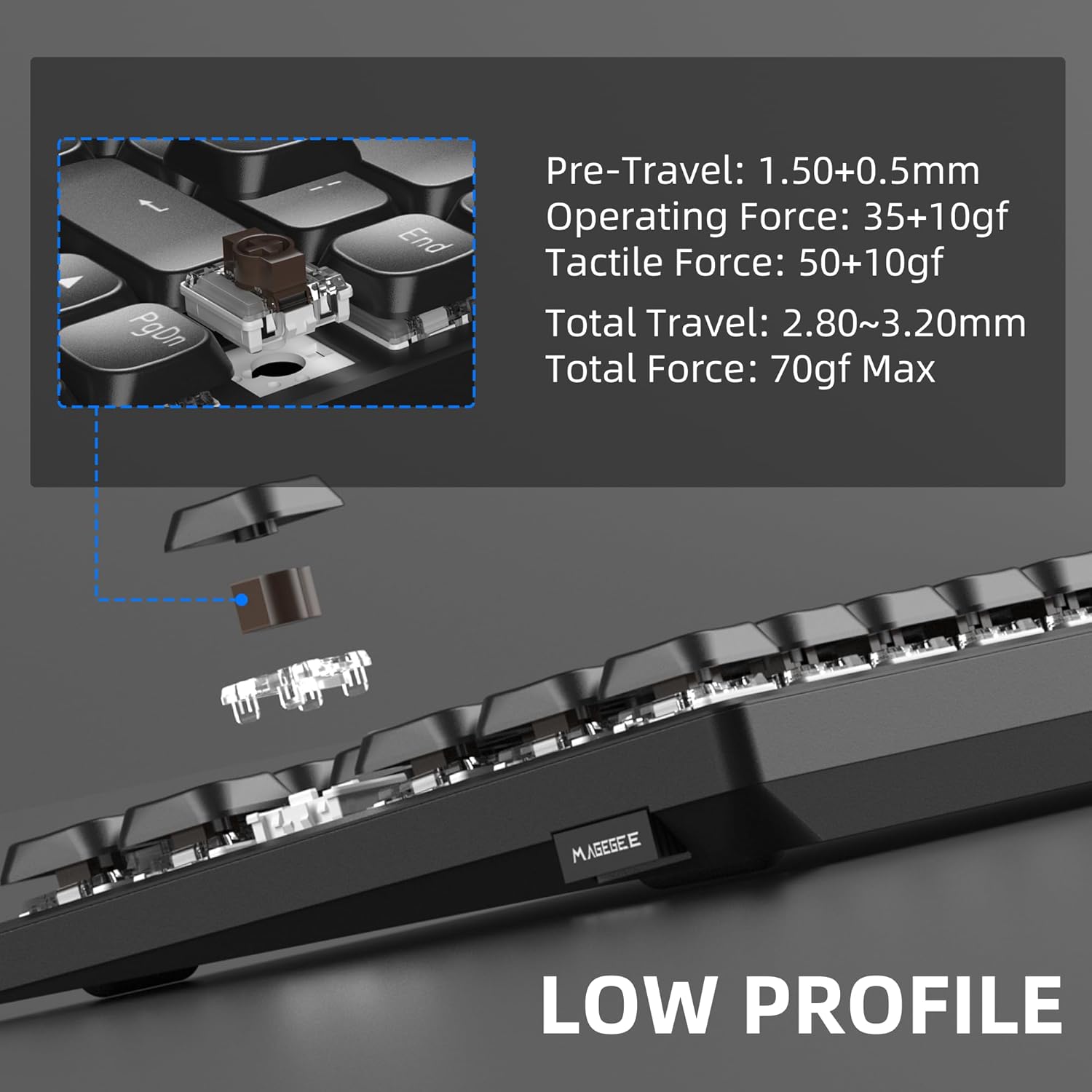
Image: Detail of the low-profile mechanical switch.

Image: Specifications for low-profile brown tactile switches.

Image: Ergonomic design with adjustable feet.
Warranty and Support
Camiysn products are designed for reliability and performance. For warranty information or technical support, please refer to the official Camiysn website or contact their customer service directly. Keep your purchase receipt as proof of purchase for warranty claims.
For further assistance, you may visit the Camiysn Store on Amazon.