
COOLHOOD 156DS1-GS
COOLHOOD 18.5-inch Portable Dual Monitor User Manual
Model: 156DS1-GS
1. Introduction
This manual provides detailed instructions for the setup, operation, and maintenance of your COOLHOOD 18.5-inch Portable Dual Monitor. This device is designed to expand your visual workspace, offering a versatile and portable solution for enhanced productivity and entertainment.
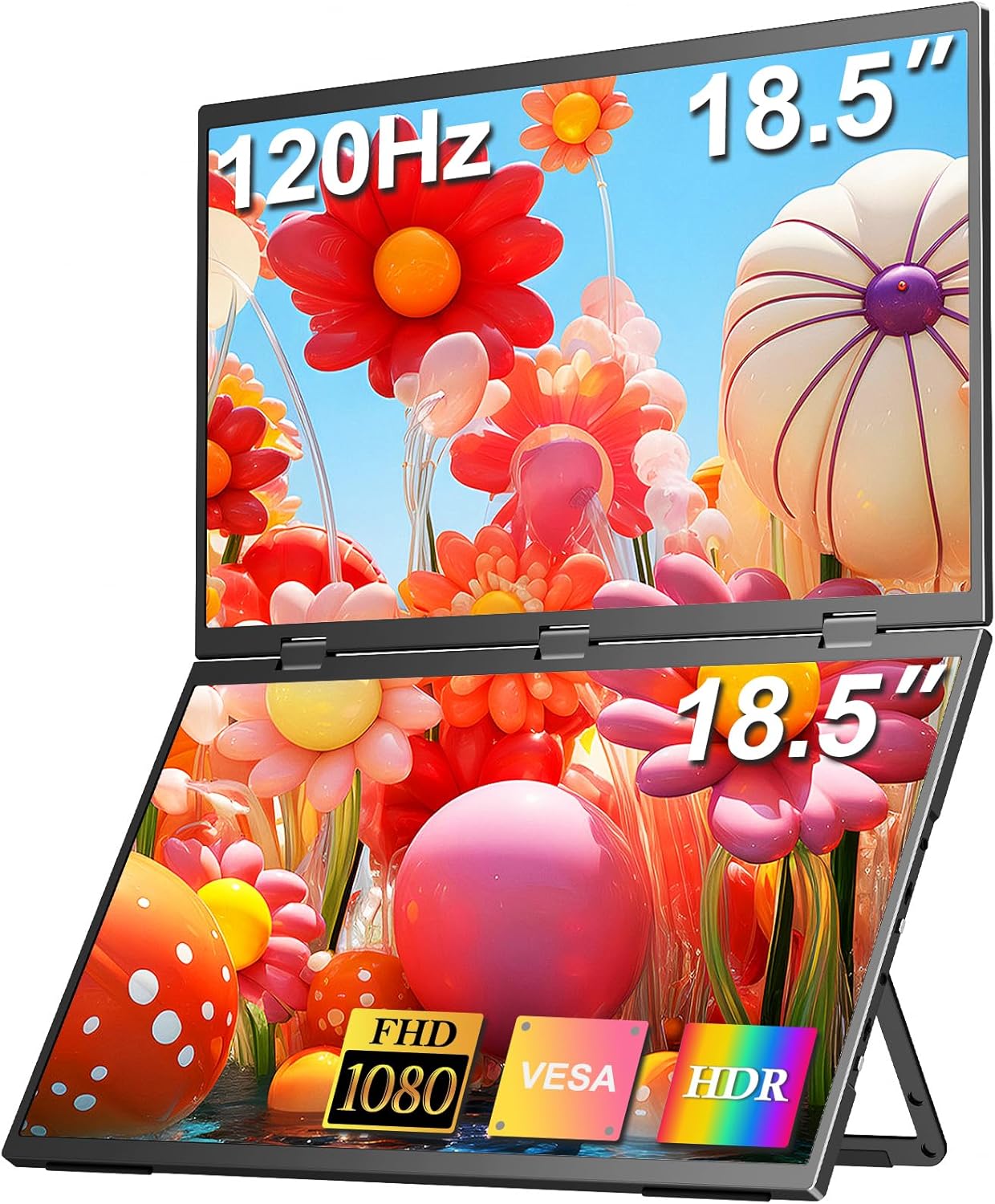
COOLHOOD 18.5-inch Portable Dual Monitor in an open, stacked configuration, displaying vibrant floral imagery.
2. Package Contents
Please verify that all items are present in the package:
- 1 x 18.5 Inch Dual Portable Monitors
- 3 x USB-C TO USB-C Cables
- 2 x Mini HDMI TO HDMI Cables
- 1 x Power Adapter
3. Product Features
The COOLHOOD 18.5-inch Portable Dual Monitor offers a range of features designed for optimal performance and user convenience:
- Display: Dual 18.5-inch Full HD (1920 x 1080) IPS Matte screens.
- Refresh Rate: 120Hz for smooth visuals.
- Color Performance: 125% sRGB, 16.7 million display colors, with a Delta E (ΔE) less than 2.
- Brightness & Contrast: 400 Candela (nits) brightness, 2000:1 contrast ratio, and HDR support.
- Eye Protection: Integrated low blue light technology to reduce eye fatigue.
- Audio: Built-in dual stereo speakers.
- Connectivity: Multiple ports including USB-C Display Port, USB-C Power Port, and Mini-HDMI Ports.
- Design: Folding stacked design with ultra-narrow 2mm bezels, constructed from durable aluminum alloy.
- Versatility: Integrated 120-degree adjustable stand and VESA mountable (75x75mm) for flexible positioning. Supports 315-degree rotation.
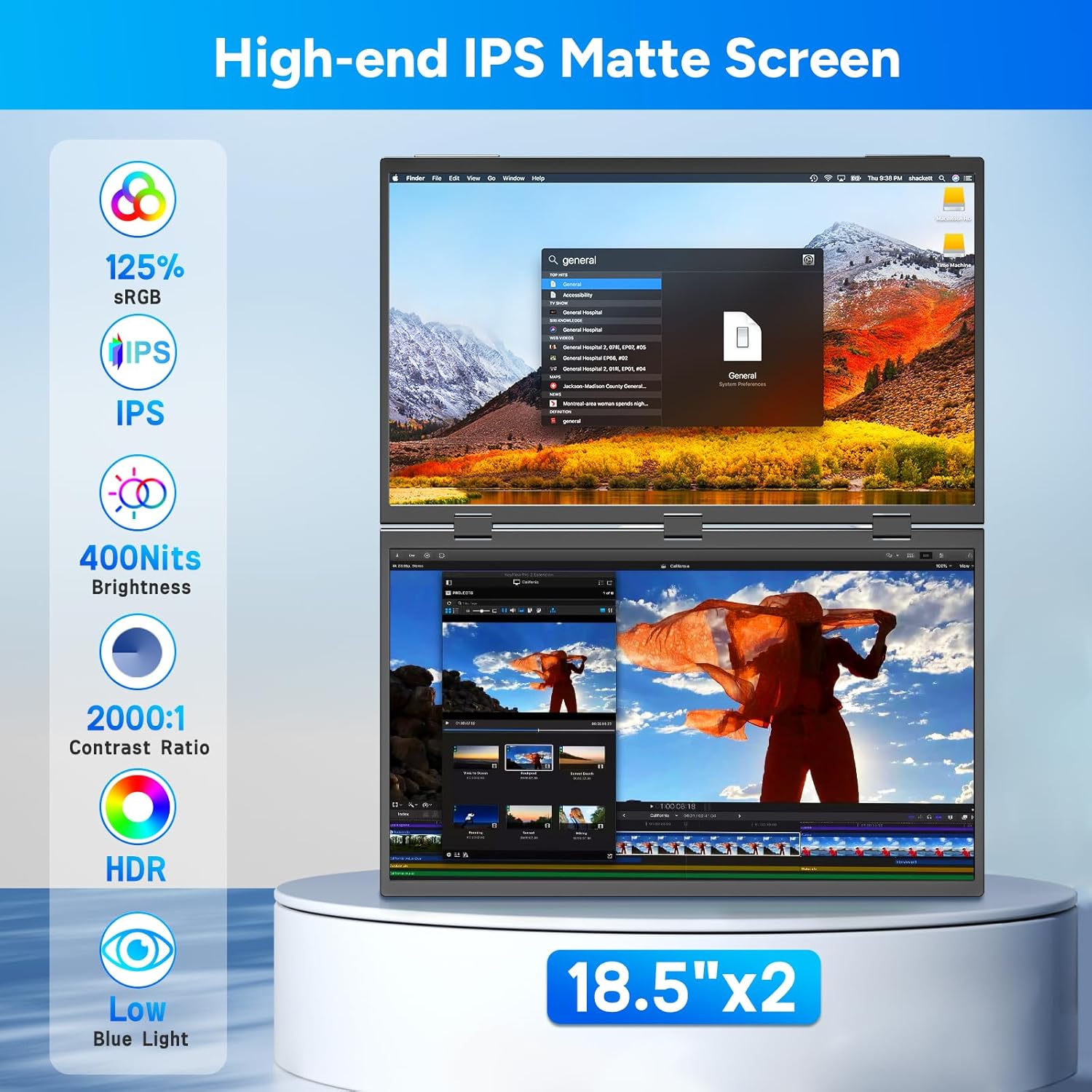
Close-up of the monitor screens highlighting features like IPS Matte screen, 400 Nits brightness, 2000:1 contrast ratio, HDR support, and low blue light technology.

Comparison image showing a screen with harmful blue light versus a screen with low blue light for eye protection.
4. Product Overview: Ports and Controls
Familiarize yourself with the ports and control buttons on your dual monitor:

Detailed view of the monitor's ports and controls, including USB-C Display Port, USB-C Power Port, Mini-HDMI Ports, Audio Jack, and Pulley/Power Buttons.
- USB-C Display Port (x2): For video and power transmission from compatible devices.
- USB-C Power Port (x1): Dedicated port for external power supply.
- Mini HDMI Port (x2): For video input from devices using HDMI.
- Audio Jack (x2): For connecting external audio devices.
- Pulley Button: Used for navigation within the On-Screen Display (OSD) menu.
- Power/Back Button: Used to power on/off the monitor and navigate back in the OSD menu.
5. Setup and Connection
Follow these steps to connect your COOLHOOD Portable Dual Monitor to your device:
5.1. Power Connection
For optimal performance and brightness, it is recommended to connect the monitor to an external power source using the provided power adapter and a USB-C power cable, especially when using HDMI connections or if your device's USB-C port does not supply sufficient power.
5.2. USB-C Connection (Single Cable Solution)
If your laptop or device has a full-featured USB-C port (supporting DisplayPort Alternate Mode / Thunderbolt 3/4 / USB Type-C 3.1 or above), you can connect the monitor with a single USB-C to USB-C cable for both video and power.
- Connect one end of the USB-C to USB-C cable to your device's compatible USB-C port.
- Connect the other end to the USB-C Display Port on the COOLHOOD monitor.
- If both screens do not display, ensure the monitor is also connected to external power.

Laptop connected to the dual monitor via a single USB-C cable.
5.3. Mini HDMI Connection
For devices with HDMI output, use the Mini HDMI ports. This connection requires a separate power supply for the monitor.
- Connect one end of the Mini HDMI to HDMI cable to your device's HDMI port.
- Connect the other end to a Mini HDMI Port on the COOLHOOD monitor.
- Ensure the monitor is connected to external power via the USB-C Power Port.

Laptop connected to the dual monitor via Mini HDMI, with separate power.
5.4. Simultaneous Connection of Two Devices
The monitor supports simultaneous connection to two different devices, allowing each screen to function independently.
- Connect the first device to one screen using either USB-C or Mini HDMI.
- Connect the second device to the other screen using an available USB-C or Mini HDMI port.
- Ensure both screens receive adequate power.

Simultaneous connection of the dual monitor to a laptop and a smartphone.
6. Operating Modes
The COOLHOOD Portable Dual Monitor supports various display modes to suit your needs:

Various display modes: Extend, Duplicated, Link, and Portrait.
6.1. Extend Mode
Extends your desktop across multiple screens, providing more workspace.
- For Windows: Connect via a single USB-C cable for ABC mode (three screens displaying different content). Connect via an HDMI cable for ABB mode (laptop + two mirrored external screens).
- For Mac: Connect via a USB-C or HDMI cable for ABB mode.

Extend Mode for Windows, showing a laptop and the dual monitor displaying different content (A, B, C).
6.2. Duplicate (Mirror) Mode
Displays the same content on all connected screens.
- Refer to your operating system's display settings to select 'Duplicate' or 'Mirror' mode.
6.3. Link Mode
Connects the two external screens to function as a single, continuous extended display, separate from the laptop screen.
- This mode is typically available when connected with a Type-C cable (ABC mode).
6.4. Portrait Mode
Allows the monitors to be oriented vertically for specific tasks like document viewing or coding.
- Adjust the physical orientation of the monitors.
- Change the display orientation in your operating system's display settings.

Windows display modes: Duplicate, Extend, and Link.

macOS display modes: Duplicate, Extend, and Link.
7. Display Settings
Each screen of the dual monitor can be individually adjusted using the On-Screen Display (OSD) menu.
- Press the Power/Back Button or Pulley Button to access the OSD menu.
- Use the Pulley Button to navigate through menu options (e.g., Brightness, Contrast, Color Temperature, Volume).
- Press the Power/Back Button to confirm selections or go back.
- Adjust settings as desired for each screen to optimize your visual experience.

On-screen display (OSD) menu for individual screen settings.
8. Compatibility
The COOLHOOD Portable Dual Monitor is compatible with a wide range of devices and operating systems:
- Operating Systems: Windows, macOS.
- Devices: Laptops, PCs, PlayStation 4/5, Xbox, Nintendo Switch, Smartphones (with compatible USB-C output).
Note: For USB-C connectivity, ensure your device's USB-C port supports DisplayPort Alternate Mode / Thunderbolt 3/4 / USB Type-C 3.1 or above.
9. Maintenance
To ensure the longevity and optimal performance of your monitor, follow these maintenance guidelines:
- Cleaning: Use a soft, lint-free cloth to gently wipe the screen and exterior surfaces. For stubborn marks, slightly dampen the cloth with water or a screen-safe cleaning solution. Avoid harsh chemicals or abrasive materials.
- Storage: When not in use, fold the monitor and store it in a safe place to protect it from dust and physical damage.
- Handling: Avoid applying excessive force to the screens or hinges. Handle the monitor by its edges.
- Ventilation: Ensure proper airflow around the monitor during operation to prevent overheating.
10. Troubleshooting
If you encounter issues with your COOLHOOD Portable Dual Monitor, refer to the following common solutions:
- No Display / Black Screen:
- Ensure the monitor is properly connected to a power source and your device.
- Verify that the cables are securely plugged into both the monitor and your device.
- If using HDMI, confirm the monitor is connected to external power.
- Check your device's display settings to ensure the external monitor is detected and enabled.
- Flickering / Unstable Display:
- Ensure the monitor is receiving sufficient power. Connect to an external power adapter if not already.
- Try a different USB-C or HDMI cable.
- Adjust the refresh rate in your device's display settings.
- One Screen Not Working:
- Check the specific cable connection for the non-working screen.
- Ensure your device's graphics card supports multiple external displays.
- Verify that the display mode (Extend, Duplicate) is correctly configured in your operating system.
- No Sound from Speakers:
- Check the volume settings on both the monitor (via OSD menu) and your connected device.
- Ensure the monitor is selected as the audio output device in your operating system's sound settings.
- Extend/Link Modes Not Functioning (Windows/Mac):
- Confirm your laptop's USB-C port is a full-featured port (Thunderbolt 3/4 or USB Type-C 3.1 with DisplayPort Alt Mode).
- Ensure all necessary drivers for your laptop's graphics card are up to date.
- If using HDMI, remember that Link mode (ABC) is typically only available with a single USB-C cable connection.
If the issue persists after trying these steps, please contact customer support.
11. Specifications
| Feature | Specification |
|---|---|
| Model Number | 156DS1-GS |
| Screen Size | 18.5 Inches (x2) |
| Resolution | 1920 x 1080 Pixels (FHD 1080p) |
| Refresh Rate | 120 Hz |
| Panel Type | IPS Matte |
| Aspect Ratio | 16:9 |
| Image Brightness | 400 Candela |
| Contrast Ratio | 2000:1 |
| Color Gamut | 125% sRGB |
| Total USB Ports | 3 (2x USB-C Display, 1x USB-C Power) |
| HDMI Ports | 2 (Mini HDMI) |
| Product Dimensions | 0.4 x 15 x 9 inches |
| Item Weight | 4.14 pounds |
| Manufacturer | COOLHOOD |
12. Warranty and Support
COOLHOOD is committed to providing high-quality products and customer satisfaction.
- Warranty: This product comes with a 24-month warranty from the date of purchase.
- Returns: Enjoy a 30-day money-back guarantee and 60-day free returns.
- Customer Support: For any technical assistance, troubleshooting, or warranty claims, please contact COOLHOOD customer support. Refer to the product packaging or the official COOLHOOD website for contact information.
Related documents156DS1-GS

Ask a question about this manual
Ask about setup, troubleshooting, compatibility, parts, safety, or missing instructions. Manuals+ will review the question and use this page’s manual context to help answer it.