
1. Introduction
Thank you for choosing the OMOTON KB568 Foldable Bluetooth Keyboard with Touchpad. This compact and versatile keyboard is designed to enhance your productivity across various devices. Featuring a foldable design, integrated touchpad, and multi-device Bluetooth connectivity, it is an ideal companion for your iPad, iPhone, Windows PC, Android tablet, or smartphone.
This manual provides detailed instructions for setting up, operating, and maintaining your keyboard to ensure optimal performance.
2. Package Contents
- OMOTON KB568 Foldable Bluetooth Keyboard with Touchpad
- USB-C Charging Cable
- User Manual
3. Product Overview
Familiarize yourself with the keyboard's components and layout.

Image: The OMOTON KB568 keyboard unfolded, showing its dimensions (11.9in width, 3.8in height, 0.7in thickness) and key features like the USB-C port, power switch, Bluetooth indicator, power indicator, and touchpad. The folded size is also shown as 5.9in x 3.8in x 0.7in, comparable to a mobile phone.
Key Components:
- Power Switch: Located on the side for manual power control.
- USB-C Charging Port: For recharging the internal battery.
- Bluetooth Indicator: Lights up during pairing and connection.
- Power Indicator: Shows battery status.
- Touchpad: Integrated for mouse functionality, with separate left and right click buttons.
- Foldable Hinges: Allows the keyboard to fold for portability and automatically powers off when folded.
4. Setup
4.1. Charging the Keyboard
Before first use, fully charge the keyboard. Use the provided USB-C cable to connect the keyboard to a USB power source (e.g., computer, wall adapter).
- A full charge takes approximately 2 hours.
- The keyboard provides up to 60 hours of continuous use on a single charge.
- The power indicator light will show charging status.
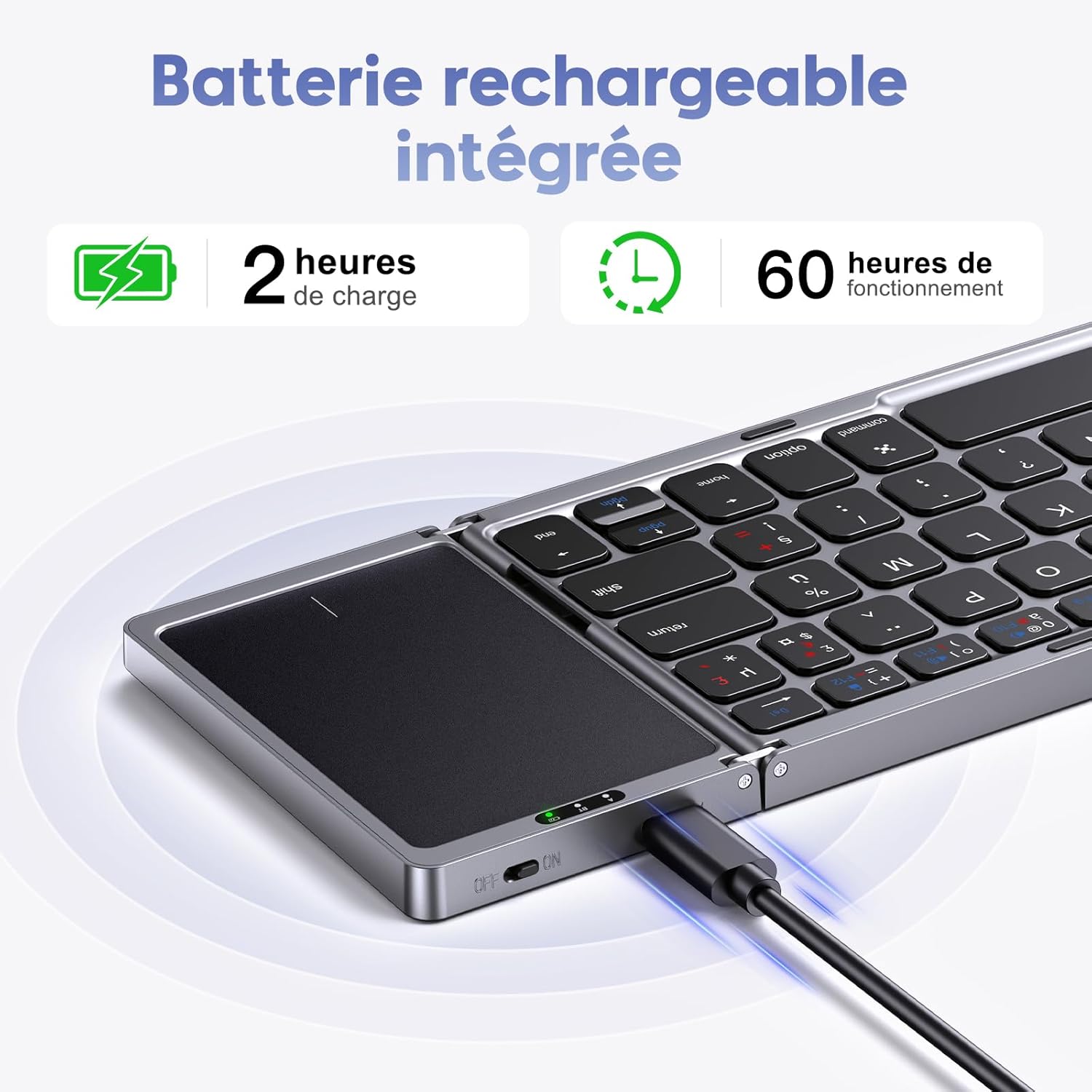
Image: The OMOTON KB568 keyboard being charged via its USB-C port, with icons indicating 2 hours of charge time for 60 hours of operation.
4.2. Powering On/Off
- To Power On: Unfold the keyboard. The keyboard will automatically power on. Alternatively, use the physical ON/OFF switch located on the side.
- To Power Off: Fold the keyboard. It will automatically power off. Alternatively, use the physical ON/OFF switch.
4.3. Bluetooth Pairing
The OMOTON KB568 keyboard supports connecting to two Bluetooth devices simultaneously within a 10-meter range.
Compatibility:
- iPad (iPad OS 13 and above)
- iPhone (iOS 13 and above)
- PC (Windows 7/8/10 and above)
- Android/Tablet/Mobile Phone (Android 4.3 and above)
- Not compatible with Linux.
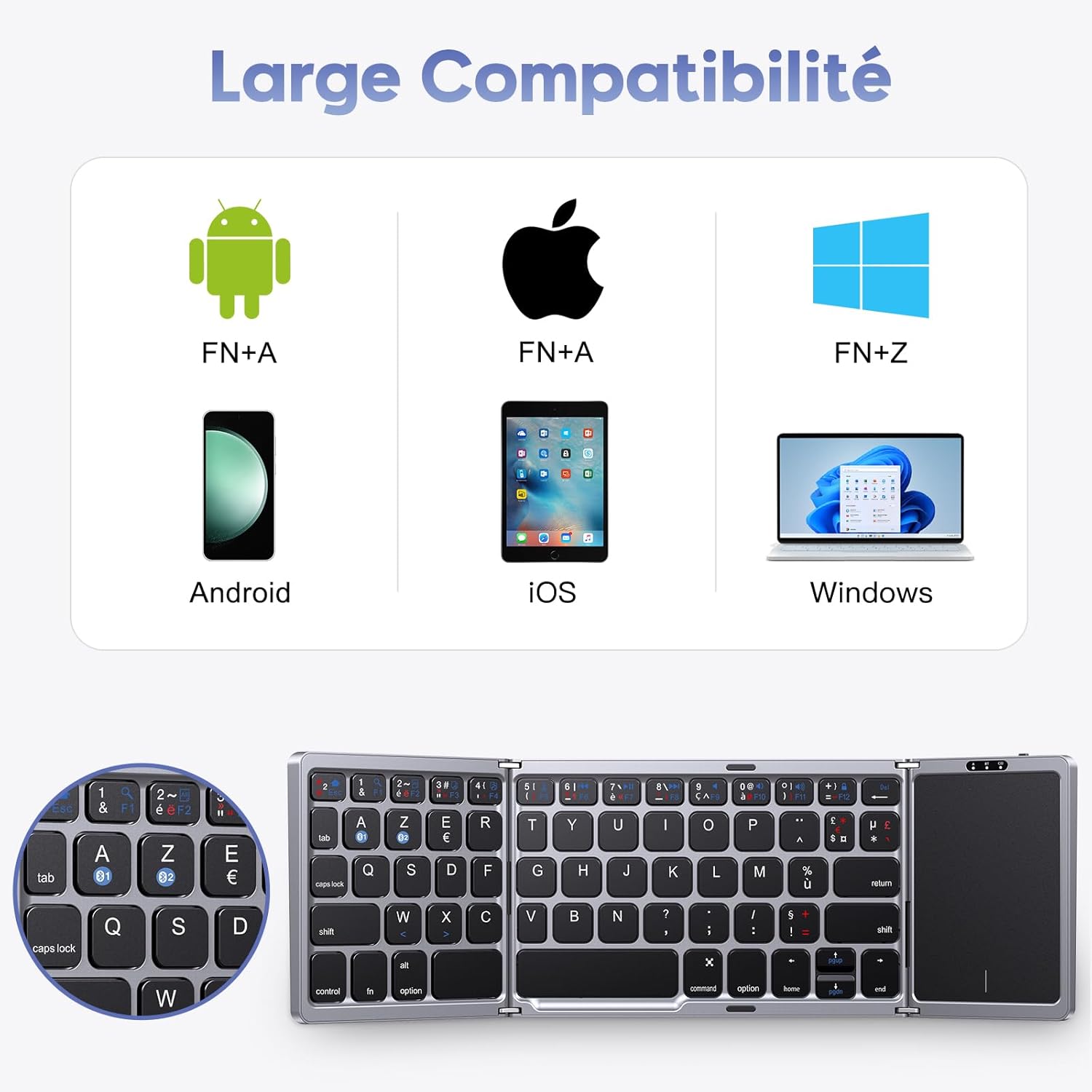
Image: A visual representation of the keyboard's broad compatibility with Android (FN+A), iOS (FN+A), and Windows (FN+Z) operating systems, showing corresponding device types.
Pairing Steps:
- Ensure the keyboard is charged and powered on.
- On your device (iPad, PC, Android, etc.), enable Bluetooth.
- Press the Fn + A keys simultaneously to select the first Bluetooth channel (BT1) for Android/iOS devices, or Fn + Z for Windows devices. The Bluetooth indicator will flash, indicating pairing mode.
- On your device, search for Bluetooth devices. You should see "OMOTON Keyboard" or a similar name. Select it to connect.
- Once connected, the Bluetooth indicator on the keyboard will stop flashing and remain solid for a few seconds, then turn off.
- To pair a second device, repeat steps 3-5, but select the other Bluetooth channel (e.g., if you used BT1, now use BT2).
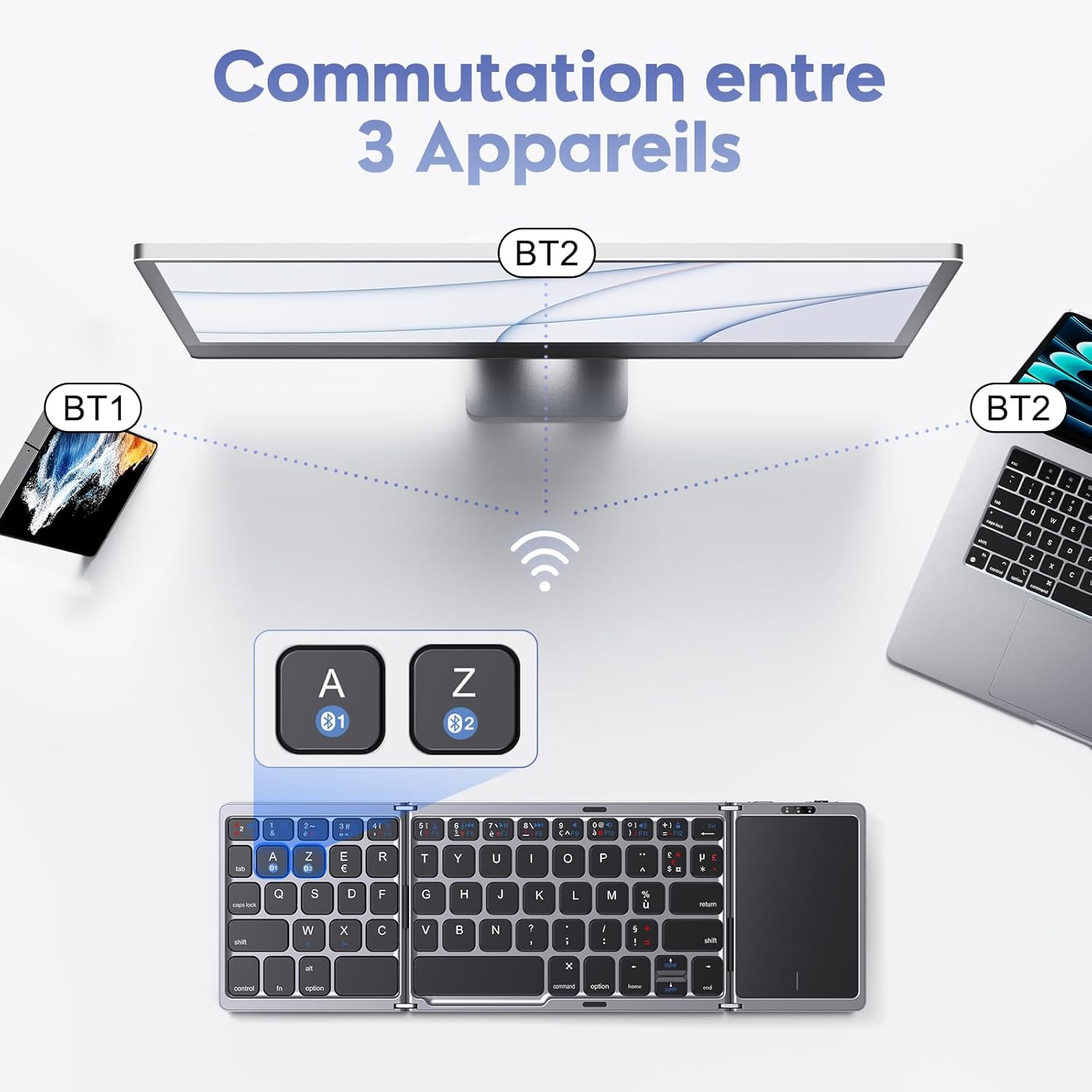
Image: An illustration showing the OMOTON KB568 keyboard connected to a smartphone (BT1) and a laptop (BT2), with the ability to switch between them using the A and Z keys (likely Fn+A and Fn+Z).
5. Operating Instructions
5.1. Touchpad Usage
The integrated touchpad functions as a wireless mouse, offering enhanced navigation and control. It features separate left and right click buttons for convenience.
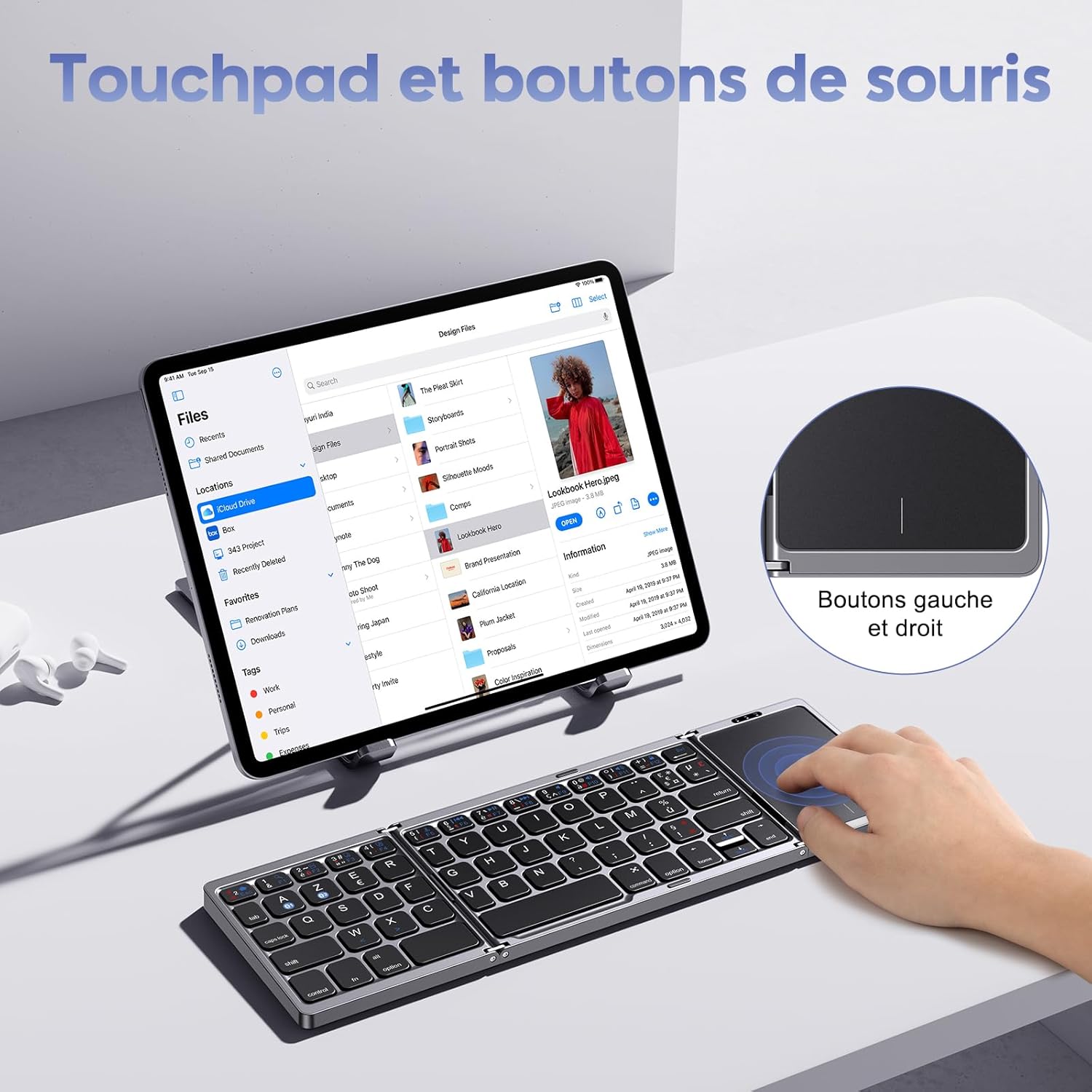
Image: A user interacting with the touchpad of the OMOTON KB568 keyboard, highlighting the dedicated left and right mouse buttons.
- Single Finger Tap: Left click.
- Two Finger Tap: Right click (or use the dedicated right-click button).
- Two Finger Scroll: Scroll up or down.
- Dedicated Left/Right Buttons: For precise clicking actions.
5.2. Keyboard Layout and Special Keys
The keyboard features an AZERTY layout (FR-Layout) and includes function keys that can be accessed using the Fn key.
- Fn + A: Switch to Android/iOS operating system mode.
- Fn + Z: Switch to Windows operating system mode.
- Fn + [Function Key]: Access multimedia controls or system functions (e.g., volume, playback, screen lock). Refer to the keycap legends for specific functions.
5.3. Sleep Mode
To conserve battery, the keyboard will automatically enter sleep mode after 10 minutes of inactivity. To wake it up, simply press any key.
6. Maintenance
6.1. Cleaning
- Use a soft, dry, lint-free cloth to clean the keyboard surface.
- For stubborn dirt, slightly dampen the cloth with water or a mild, non-abrasive cleaner.
- Avoid using harsh chemicals, solvents, or abrasive materials, as these can damage the keyboard.
- Ensure no liquid enters the keyboard's internal components.
6.2. Storage
- When not in use, fold the keyboard to protect the keys and touchpad.
- Store the keyboard in a cool, dry place, away from direct sunlight and extreme temperatures.
- If storing for an extended period, ensure the keyboard is fully charged to maintain battery health.
7. Troubleshooting
7.1. Keyboard Not Pairing or Connecting
- Check Power: Ensure the keyboard is powered on and has sufficient battery charge.
- Enable Bluetooth: Verify that Bluetooth is enabled on your device.
- Distance: Make sure the keyboard is within the 10-meter Bluetooth operating range of your device.
- Re-pair: Delete the keyboard from your device's Bluetooth list and attempt to pair it again following the steps in Section 4.3.
- Operating System Mode: Ensure you have selected the correct operating system mode (Fn+A for Android/iOS, Fn+Z for Windows).
7.2. Touchpad Not Responding
- Keyboard Power: Confirm the keyboard is powered on and not in sleep mode.
- Clean Touchpad: Ensure the touchpad surface is clean and free from obstructions.
- Reconnection: Try disconnecting and reconnecting the Bluetooth connection.
7.3. Keys Not Responding
- Battery Level: Check if the keyboard battery is low and recharge it.
- Bluetooth Connection: Verify the Bluetooth connection is stable.
- Restart: Power off and then power on the keyboard and your device.
8. Specifications
| Brand | OMOTON |
| Model | KB568 |
| Connectivity Technology | Bluetooth |
| Special Features | Foldable, Integrated Touchpad |
| Compatible Devices | Windows, iOS, Android, Tablet, PC, Smartphone, Laptop |
| Keyboard Layout | AZERTY (FR-Layout) |
| Color | Black |
| Battery Life | Up to 60 hours (40 hours mentioned in text) |
| Charging Time | Approx. 2 hours |
| Operating Range | Up to 10 meters (33 feet) |
| Folded Dimensions | 15.18 x 9.8 x 2 cm (5.9 x 3.8 x 0.7 inches) |
| Included Components | USB-C Cable |
9. Warranty and Support
For warranty information or technical support, please refer to the contact details provided with your purchase or visit the official OMOTON website. Keep your proof of purchase for any warranty claims.


