
Introduction
Thank you for purchasing the B-Qtech Remote Control Car with Camera. This high-performance RC car features a 2.4GHz remote control system, mobile app control, and an integrated HD camera for real-time video transmission and photo capture. Designed for durability and versatile terrain use, this manual provides essential information for setup, operation, maintenance, and troubleshooting to ensure optimal performance and enjoyment.

Image: The B-Qtech Remote Control Car, showcasing its sleek design, integrated camera, and the accompanying remote control with a smartphone holder.
Safety Information
Please read all safety warnings and instructions before operating the product to prevent injury or damage. This product is not suitable for children under 6 years of age. Adult supervision is recommended during operation.
- Do not operate the RC car near people, pets, or obstacles.
- Avoid operating in wet conditions or near water to prevent electrical damage.
- Ensure batteries are inserted with correct polarity.
- Do not mix old and new batteries, or different types of batteries.
- Do not attempt to modify or disassemble the product.
- Keep small parts away from young children to prevent choking hazards.
- Always turn off the car and remote control when not in use.
- Dispose of batteries responsibly according to local regulations.
Package Contents
Verify that all items listed below are included in your package:
- 1 x B-Qtech Remote Control Car with Camera
- 1 x 2.4GHz Remote Control
- 1 x Car Lithium Battery
- 1 x USB Charging Cable
- 1 x Phone Holder for Remote Control
- 1 x User Manual (this document)

Image: A visual representation of the items included in the product package, such as the RC car, remote control, battery, USB charging cable, and phone holder.
Setup
1. Battery Installation
Car Battery:
- Locate the battery compartment on the underside of the RC car.
- Open the battery compartment cover.
- Connect the car's lithium battery to the car's power connector, ensuring correct polarity.
- Place the battery inside the compartment and close the cover securely.
Remote Control Batteries:
- Locate the battery compartment on the back of the remote control.
- Open the battery compartment cover.
- Insert 2 x AA batteries (not included) into the compartment, observing the correct polarity (+/-).
- Close the battery compartment cover securely.
2. Charging the Car Battery
- Connect the USB charging cable to the car's lithium battery.
- Plug the other end of the USB charging cable into a USB power adapter (e.g., computer USB port, wall charger, power bank).
- The indicator light on the USB cable will show charging status (refer to cable instructions for specific light behavior).
- Once fully charged, disconnect the battery from the charging cable. Charging typically takes 2-3 hours.
3. App Installation and Connection
- Scan the QR code provided in the quick start guide (or search for the "B-Qtech RC" app) on your smartphone's app store (iOS or Android).
- Download and install the application.
- Turn on the RC car.
- On your smartphone, go to Wi-Fi settings and connect to the Wi-Fi network broadcast by the RC car (usually named "RC_WIFI_XXXX").
- Open the installed app. The app should automatically connect to the car and display the camera's live feed.
- Attach your smartphone to the phone holder on the remote control for convenient viewing during operation.
Operating Instructions
1. Remote Control Operation
The 2.4GHz remote control allows for precise and interference-free operation.
- Power Switch: Turn on the remote control. The indicator light will blink and then become solid once paired with the car.
- Forward/Backward Control: Use the left joystick to move the car forward or backward.
- Turn Left/Right Control: Use the right joystick to steer the car left or right.
- Speed Mode: Press the speed button (if available) to switch between fast and slow modes.
- Photos/Video Button: Use dedicated buttons to capture photos or start/stop video recording via the camera.

Image: A diagram illustrating the various controls on the remote control and the corresponding functions within the mobile application interface.
2. Mobile App Control
Once connected via Wi-Fi, the app provides an intuitive interface for controlling the car and accessing camera features.
- Live FPV Feed: View real-time video from the car's camera directly on your smartphone screen.
- Virtual Joysticks: Control forward/backward movement and steering using virtual joysticks on the screen.
- Gravity Sensor Control: Tilt your phone to steer the car (if enabled in the app).
- Photo/Video Capture: Tap the camera icons to take photos or record videos.
- Album: Access captured photos and videos directly from the app's album.
- Speed Regulation: Adjust the car's speed settings within the app.

Image: A smartphone screen showing the First-Person View (FPV) live video feed transmitted from the RC car's camera, demonstrating real-time image and video transmission.
3. Camera Functions
The integrated HD camera allows you to capture your adventures.
- Photo Capture: Press the photo button on the remote or tap the camera icon in the app to take still images.
- Video Recording: Press the video button on the remote or tap the video icon in the app to start and stop recording.
- Storage: Photos and videos are saved directly to your smartphone's gallery via the app.
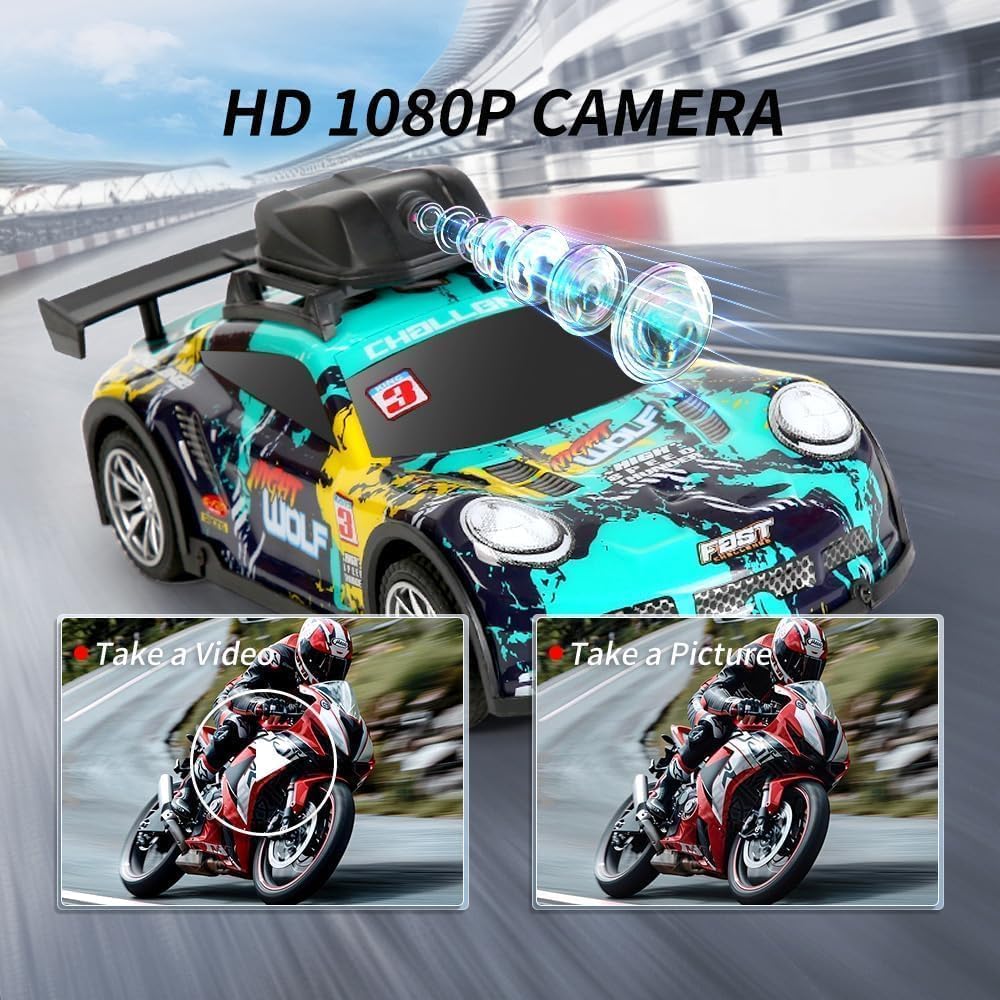
Image: Close-up of the RC car's HD camera, illustrating its capability to capture high-definition photos and videos during operation.
4. Driving on Various Terrains
The B-Qtech RC car is designed with advanced anti-skid tires and shock absorbers for versatile performance.
- Suitable Surfaces: The car can be driven on various surfaces including grassland, highway, stone roads, and dirt roads.
- Obstacle Crossing: Its powerful motor and robust design allow it to easily cross small obstacles.
- Avoid Extreme Conditions: Do not operate in deep water, thick mud, or extremely rough terrain that could damage the vehicle.

Image: The RC car depicted on various terrains, including grassland, a paved highway, a stone road, and a dirt road, highlighting its adaptability to different environments.
Maintenance
Proper maintenance will extend the lifespan of your RC car.
- Cleaning: After each use, gently wipe the car with a dry or slightly damp cloth to remove dirt and dust. Do not use harsh chemicals or immerse the car in water.
- Battery Care:
- Always fully charge the battery before storage if not used for a long period.
- Do not overcharge or over-discharge the battery.
- Remove batteries from the car and remote control when not in use for extended periods to prevent leakage.
- Store batteries in a cool, dry place.
- Storage: Store the RC car and remote control in a cool, dry place away from direct sunlight and extreme temperatures.
- Inspection: Periodically check for loose screws, damaged parts, or worn tires. Replace any damaged components as necessary.
Troubleshooting
If you encounter issues, refer to the table below for common problems and solutions.
| Problem | Possible Cause | Solution |
|---|---|---|
| Car does not respond to remote control. |
|
|
| Camera feed is not showing in app. |
|
|
| Car runs slowly or stops suddenly. |
|
|
| Car drifts or doesn't drive straight. |
|
|
Specifications
| Feature | Detail |
|---|---|
| Model Number | LH-CO75 |
| Control Frequency | 2.4 GHz |
| Camera Resolution | HD 1080P |
| Control Method | 2.4G Radio Control, Mobile App Control |
| Material | Plastic |
| Product Dimensions | 26 x 14 x 11 cm |
| Product Weight | 490 Grams |
| Recommended Age | 6 - 13 years |
| Batteries Required | Yes (Car: Lithium-ion, Remote: 2 x AA) |
| Date First Available | 10 September 2024 |
Warranty and Support
B-Qtech products are manufactured to high quality standards. For any product-related inquiries, technical support, or warranty claims, please contact the seller or manufacturer directly through the platform where the product was purchased. Please retain your proof of purchase for warranty purposes.
For customer service, please refer to the contact information provided by your retailer or visit the official B-Qtech website (if available).